Themes & Branding
How to use your account's theme library to brand respondent-facing forms, edit a theme, and choose which theme a workflow uses.
The Theme Library in FormAssembly lets you define the visual look of your data collection workflows once and reuse it everywhere. A theme controls colors, fonts, spacing, corner rounding, your logo, and the page background for every respondent-facing surface in a workflow. Themes matter because branding is applied at the account level rather than form by form: update a theme, publish it, and every workflow using that theme picks up the new look.
What a theme controls
A theme in FormAssembly applies to every respondent-facing step in a workflow — form (Collect) steps, confirmation pages, e-signature pages, and any other step that shows something to the respondent. There is no per-step theme override: one theme applies uniformly across the workflow. On a FormAssembly-hosted page, the theme also styles the intake agent pane beside the form, so the conversational and form surfaces match.
Each workflow references exactly one theme, and exactly one theme in your account is always designated as the default theme. New workflows are created with the account default theme already applied.
Themes affect only respondent-facing pages. They never change the look of the FormAssembly builder or the rest of the app.
Where do I find the Theme Library?
Open the navigation menu and choose Themes. The Theme Library page is titled Themes and lists every theme available to your account — both the starter themes shipped by FormAssembly and any themes created by people in your account.
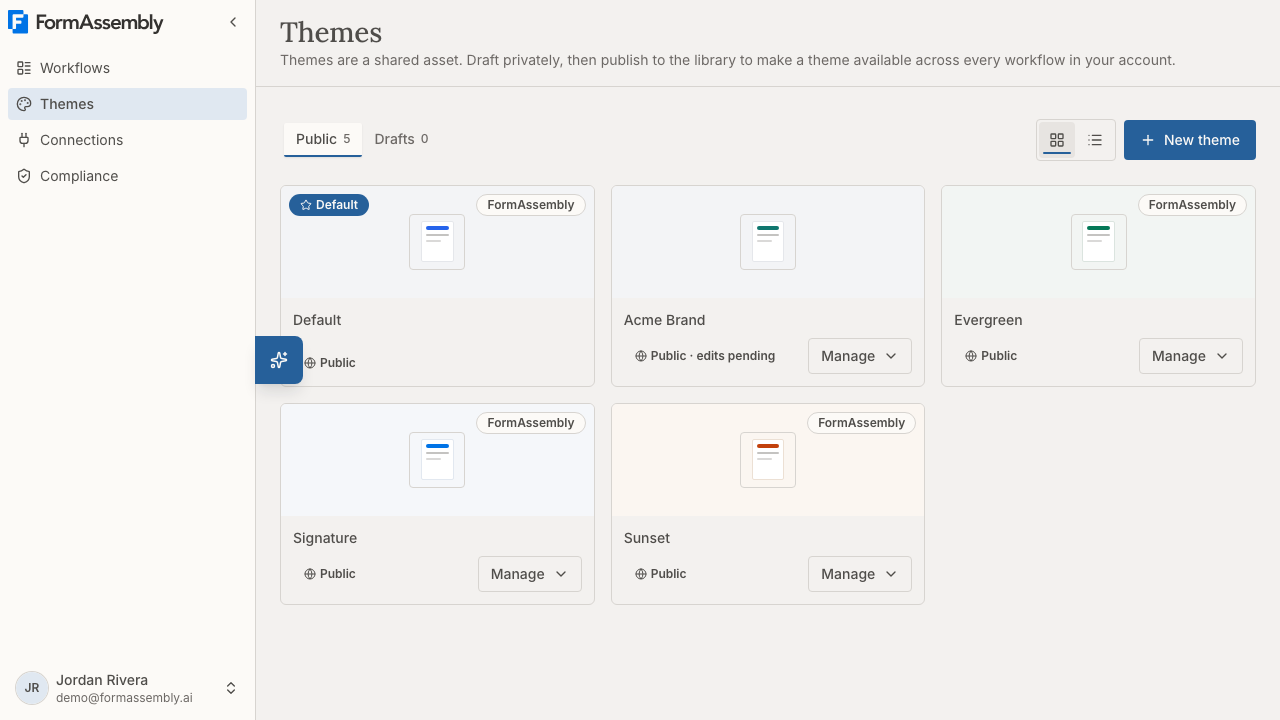
The Theme Library is the management home for your account's branding. It is separate from choosing a theme for one specific workflow, which happens in the workflow builder.
Public and Drafts tabs
Themes are split into two tabs at the top of the page:
- Public — themes that have been published at least once. Published themes are visible to everyone in your account and can be applied to workflows.
- Drafts — themes that have never been published. A draft theme is visible only to its owner and to account admins, and cannot yet be applied to a workflow or set as the default.
Each tab shows a count, so you can see at a glance how many published themes and how many in-progress drafts exist.
Within a tab, the default theme sorts first and the remaining themes sort newest-first. Use the Grid view and List view buttons to switch between a card grid and a compact list.
Every theme appears as a card with a preview swatch generated from the theme's own colors, the theme name, a Default marker when applicable, and a status pill:
- Public — published, with no unpublished edits.
- Public · edits pending — published, but the working draft has changes that are not live yet.
- Draft — never published.
Each card has a management control (for example, Manage Evergreen) that opens the actions available for that theme: Set as default, Edit, Enable, Disable and Delete, as they apply to that theme.
If a theme cannot be loaded, the Theme Library says so explicitly rather than silently leaving it out of the count. A message that some themes could not be loaded means those themes still exist — it never means your account has no themes.
How do I create a new theme?
- Open the navigation menu and choose Themes.
- Click New theme.
- The theme editor opens with an empty draft. Give the theme a name — a theme saved with a blank name is called Untitled theme, and names do not have to be unique. If two themes share a name, FormAssembly disambiguates them by appending the author name and creation date.
- Adjust the theme's settings in the right-hand controls and watch the preview update.
- When you are happy with the result, publish the theme so the rest of your account can use it.
You can also start from an existing theme instead of a blank one. Click New theme, then in the editor's Quick start choose Use an existing theme and pick the theme you want under "Start from an existing theme". The copy is a brand-new draft that you own, leaving the original untouched. This is how you build on a FormAssembly starter theme, because starter themes cannot be edited directly.
A copy is fully independent. Later changes to the original do not flow into the copy, and vice versa.
To reopen a theme already in your account, use its card's management control and choose Edit. Edit shows on every theme authored in your account, but opening the editor additionally requires that you own the theme or are an account admin.
You can also ask Fai, FormAssembly's built-in AI assistant, to create a theme or copy an existing one. Themes Fai creates are saved as drafts: Fai opens the new theme in the theme editor so you can review it and publish it yourself.
Working in the theme editor
The theme editor is a dedicated, full-height, two-pane surface. It is not part of the workflow builder.
- Left — preview canvas. The preview shows a built-in sample workflow rendered through the same form renderer that serves live forms, styled with your in-progress draft. The sample deliberately includes a wide range of elements — text fields, choice groups, file upload, a progress bar, and action buttons — so you can judge the theme against realistic content. The preview also shows the Powered by FormAssembly badge where respondents would see it, as does the builder canvas, so the preview matches the live form. The sample workflow cannot be published, submitted, or saved; it exists only as a rendering surface.
- Right — controls. The Basics tab exposes the handful of high-impact settings most people need: brand color, page and card background, body and heading fonts, and base text size. The brand color does more than one thing: it sets the button color and its hover state, the readable text color on buttons, link colors, the focus outline and the progress bar. A brand color you give Fai as a hex code when it creates a theme sets the same values. The Advanced tab groups every remaining setting, covering text and label colors, link and error colors, input borders and backgrounds, dropdown chevron color and size, an option to use the visitor's native browser dropdown styling instead of the theme-styled dropdown, button colors, card and input corner radius, spacing and gaps, title alignment and letter spacing, progress bar appearance, matrix table colors, focus ring, form width, hover transition speed, and page transition animation. Quick start offers two starting points: Start from a preset, and Use an existing theme (shown only when your account has at least one published theme). To have Fai design a theme instead, ask Fai in the chat.
The editor is intentionally compact: it exposes a curated set of high-value controls rather than every possible option, and leans on Fai for fine-grained brand matching.
Edits autosave. There is no manual save button in the theme editor. Every change is saved automatically to the theme's draft.
Some settings show an empty box when they are switched off. The logo image, logo link, and form width settings are off by default, and their fields appear empty with the off state shown as placeholder text. Clearing one of these fields switches the setting back off; you never have to delete a placeholder value before typing.
Accessibility checks in the theme editor
The theme editor checks your theme against WCAG 2.2 AA after every autosave and reports the result on an Accessibility card above the Basics and Advanced tabs. Accessibility checks matter because a color combination that looks good can still be unreadable for respondents with low vision.
The check never blocks saving. It does govern publishing: FormAssembly refuses to publish a theme whose current check reports failures traced to one of the theme's own settings. Warnings never block publishing, and a failure the check cannot trace to a theme setting never blocks publishing either. See "How do I publish a theme?" below.
- Click the card header to expand it. The expanded card shows a score ring, a one-line summary of the result, and the individual findings — including the checks that passed.
- Findings are counted as failed, warnings, and passed, shown as three pills. Click a pill to filter the list to that severity, and click the active pill again to clear the filter. A pill stays clickable at a count of zero and simply shows that there is nothing of that kind.
- Each finding leads with the theme setting at fault, names the WCAG success criterion, and shows the measured contrast ratio against the required ratio.
- Beneath each finding sits a row of setting pills, each with a swatch of the color it drives. A contrast finding names both sides — the setting behind the foreground color and the setting behind the background — because either side may be the one worth changing. Click any pill to jump straight to that control: the editor switches to the right tab, opens the group, and scrolls the setting into view.
- Each finding also offers a Fix with Fai action, which sends Fai a ready-composed description of the problem and the settings involved. Fai writes to the draft, so the preview repaints and the check re-runs without a reload.
While a check is in progress, the editor shows Checking accessibility… in place of the result. A check that is still running finishes on its own. Occasionally a check cannot run at all and reports that it could not complete. That state does not clear by waiting, but it is recoverable: click Publish and FormAssembly starts a fresh check, showing Checking accessibility… while the new run works. If Publish keeps refusing with The accessibility check couldn't run — try again before publishing, reload the theme editor, which clears the condition a repeated click cannot.
Alongside the standard contrast checks, FormAssembly measures five theme-owned surfaces that general-purpose tools do not cover: the input boundary (a field must be locatable against its surroundings), the focus indicator, the progress bar fill against its track, the dropdown chevron, and the outline of an unselected rating star. FormAssembly also measures the color of the required-field asterisk, which general-purpose contrast checks skip because the marker is punctuation only.
Findings that cannot be traced back to a theme setting — for example issues that come from the form's own content, or a gradient or background image whose contrast cannot be measured — are not shown and are left out of the counts, because there is no theme control to change for them.
Two limitations apply today: the check runs against your light-mode values only, and multi-select list boxes are excluded from the text contrast check because no automated tool can measure their text contrast reliably.
How do I publish a theme?
Click Publish in the theme editor. Publishing promotes the current draft so it becomes the live version of the theme.
Publishing is the reason editing is always safe. Every theme carries two copies of its settings: a draft working copy and a published copy. All edits write only to the draft, so a published theme already in use by live workflows is completely unaffected until you explicitly publish again. Publishing is repeatable — each publish promotes the latest draft.
Publishing is blocked or refused for several distinct reasons, and it is worth checking each of them:
- A theme setting holds a value FormAssembly cannot accept. This blocks publishing ahead of any accessibility check. Publish keeps its normal label and stays clickable, but refuses with Fix invalid settings before publishing. While a value is invalid the editor holds autosave, so no accessibility check can run on the settings you are editing, and a check still finishing for your last save does not count toward publishing — waiting does not help. The editor re-checks as you type; correct the field and the normal save-and-check cycle resumes.
- The accessibility check reports failures traced to one of the theme's own settings. Fix each traced failure and the check re-runs automatically. Publish becomes available once a check completes without blocking failures.
- The accessibility check has not finished for the settings you are publishing. A check that is still running finishes by itself, and Publish becomes available only once that check completes without blocking failures — a finished check can still report blocking failures. Renaming a theme does not invalidate a completed check.
- The accessibility check could not run at all. Click Publish to start a fresh check; Publish reads Checking accessibility… while that run works. If Publish keeps refusing with The accessibility check couldn't run — try again before publishing, reload the theme editor.
- You are not the theme's owner and not an account admin. Only the theme's owner or an account admin may publish a theme.
Practical consequences worth knowing:
- A theme appears in the account theme library and becomes selectable for workflows only after it has been published at least once.
- A never-published theme cannot be set as the account default.
- While a published theme has unpublished edits, its card shows Public · edits pending. Respondents keep seeing the published version.
- FormAssembly starter themes ship already published and cannot be published, edited, or deleted.
Where you see the draft versus the published version:
| Surface | What it renders |
|---|---|
| Live respondent pages | The published version of the theme |
| The theme editor preview | Your in-progress draft |
| The workflow builder canvas | The published version of the theme |
Because the workflow builder always shows published themes, in-progress theme edits are not visible on the builder canvas.
Adding your logo
A theme can display a logo above the form title. Set the theme's logo image to an image URL, then set the logo height — the width scales proportionally. You can also control the space between the logo and the form title.
Two rules apply to logo images:
- The logo URL must be secure (
https://). Insecurehttp://URLs are rejected, because they would trigger mixed-content warnings for respondents. - On embedded forms the logo header is hidden by default, because the host page usually already provides your branding. There is a theme setting that makes the logo visible in embedded forms too.
You can also make the logo clickable by setting a logo link URL — typically your homepage. The link must be a full http:// or https:// web address; other kinds of links are rejected. Respondents with JavaScript disabled see the logo as a plain image rather than a link.
Light and dark mode
A theme can optionally define a separate set of values for dark mode, applied when the respondent's device prefers a dark color scheme. Dark mode support is optional: a theme that defines only one set of values renders identically in both light and dark modes.
Dark-mode values work as overrides layered on top of the theme's light values. If a theme sets something in light mode but not in dark mode, the light value carries over into dark mode. FormAssembly starter themes are designed to work in both modes, and Fai can author both light and dark sets when you ask for them.
Fonts
FormAssembly starter themes use a system font stack, so they load no external fonts and render fast everywhere. Each font setting in the theme editor — Body font and Heading font on the Basics tab, and Section heading font under Advanced — is a dropdown listing the stock system stacks, any fonts already imported for this theme, and an Import a font button.
Click Import a font to expand a small panel inside the same dropdown, with two ways to add a font:
- Google — type the font name. FormAssembly looks the font up and confirms the real family name before adding it, so a typo is reported rather than silently falling back to a generic font.
- URL — paste a direct link to a font file you already host, plus a display name. The link must be secure (
https://) and end in a recognized font file extension (.woff2,.woff,.ttf, or.otf).
An imported font is added to the theme's font list, shared across all three font dropdowns, and immediately assigned to the dropdown you opened it from. Imported fonts follow the same draft rules as everything else: they go live when you publish the theme.
There is no facility for uploading your own font files for FormAssembly to host. If your brand font is not available from Google Fonts and you cannot host the file yourself at a secure URL, choose the closest available alternative.
How do I apply a theme to a workflow?
Workflow-level theme selection lives under the Properties button in the builder header, in the Themes section of Workflow Properties. Open that section and pick any published theme for the workflow. The section also shows an Edit this theme link for themes authored in your account, which opens that theme's editor in a new tab; starter themes have no such link, because they cannot be edited.
The Edit this theme link is not a guarantee that you can edit the theme. The link appears for any theme authored in your account, but opening the editor additionally requires that you own the theme or are an account admin. If a teammate owns the theme and you are not an admin, following the link returns you to the Theme Library with a notice instead of opening the editor. Ask the theme's owner or an account admin to make the change, or start your own editable copy with New theme → Quick start → Use an existing theme.
You can also ask Fai — FormAssembly's built-in AI assistant, opened with the Open Fai button — to apply a theme to your workflow. Fai can apply any theme that is published and enabled for your account; it refuses unpublished drafts and themes that are not enabled, because only published, enabled themes are assignable. That includes a theme Fai has just created for you: publish it in the theme editor first.
Two behaviors are worth understanding:
- When a theme is selected with the builder's own picker, the selection is staged on the workflow draft and becomes live when the workflow is published — like every other builder edit. The builder canvas and Test mode preview the staged theme immediately.
- When a theme is applied by Fai, the change takes effect on the live form immediately, without waiting for a workflow publish. The builder also updates to show the theme Fai just applied, so the Themes section and the canvas stay in step with your request.
Every workflow always references an enabled, non-deleted theme. If no theme has been explicitly chosen, the workflow renders with the account default.
Setting the account default theme
The default theme is the theme applied to newly created workflows, and the theme that workflows fall back to if their theme is disabled or deleted.
To change it, open the management control on the theme card you want (for example, Manage Signature) and choose Set as default. FormAssembly clears the previous default and sets the new one in a single operation, so your account always has exactly one default.
Only published themes can be set as the default. The current default theme cannot be disabled or deleted — designate a different default first.
Enabling and disabling themes
Disabling a theme hides it from the workflow theme picker without deleting anything. Use the management control on a theme card and choose the Disable action; choose Enable to bring it back. Disabling is reversible.
Disabling is how you curate which FormAssembly starter themes are offered in your account. Starter themes cannot be deleted, only disabled. Anyone whose role can manage themes — which includes the Builder role as well as Admin — can enable and disable themes and set the account default.
Two guardrails apply:
- At least one theme must remain enabled in your account at all times. Disabling the last enabled theme is rejected.
- The current default theme cannot be disabled.
Before the change is applied, FormAssembly shows a confirmation dialog with the number of workflows currently using the theme. On confirmation, those workflows are immediately reassigned to the account default theme, so no workflow is ever left pointing at a disabled theme.
Deleting a theme
Use the management control on the theme card and choose Delete. Only the theme's owner or an account admin may delete a user-authored theme. FormAssembly starter themes cannot be deleted.
Deletion asks for confirmation and shows how many workflows reference the theme. On confirmation, those workflows are reassigned to the account default theme. Deleted themes disappear from the Theme Library everywhere in the app.
The current default theme cannot be deleted — set a different theme as the default first.
Who can manage themes?
- Creating, editing, copying, and deleting themes, and changing the account default theme, require the Manage themes capability, available to Admin and Builder roles on the Collect plan and above. Viewers do not have it.
- Selecting an existing theme for a workflow only requires permission to edit workflows — no theme-specific permission is needed.
- Enabling and disabling FormAssembly starter themes requires the same Manage themes capability, so Builders can do it as well as Admins.
- Only the owner of a theme, or an account admin, may edit, publish, or delete that theme — the Manage themes capability alone is not enough to write a teammate's theme. Anyone in the account can apply any enabled, published theme to a workflow.
- If your permission to edit a theme is removed while you have the editor open, autosave stops and reports that you no longer have permission to edit that theme.
When a member is removed from an account, their themes follow the same handling as their workflows: they transfer to the reassignment target you choose, or are deleted if no target is chosen.
Limitations
- Themes configure design values only. Custom stylesheet rules, structural CSS overrides, and stylesheet imports are not supported by any authoring method, including Fai.
- There are no per-step theme overrides. One theme applies to all respondent-facing steps in a workflow.
- There is no theme version history. Only the current published version and the current draft are stored, so publishing overwrites the previously published version.
- The theme editor preview themes the form surface. Themed previews of the confirmation email and thank-you page are a planned follow-up, and the same limitation applies to the builder canvas today.
- Custom font file uploads are not supported. Fonts must come from Google Fonts or a font file you already host at a secure URL.
- The accessibility check covers light-mode values only, and blocks publishing only on failures it can trace to one of the theme's own settings.
- Themes do not affect the builder interface.
- The page background setting applies to FormAssembly-hosted pages only. It is not applied when a form is embedded in another site, because the host page controls the surrounding page.
Tips & Troubleshooting
- My theme isn't in the workflow theme picker. The theme is probably still a draft. Open Themes, check the Drafts tab, open the theme, and publish it. Also confirm the theme has not been disabled.
- I changed a theme but the live form looks the same. Edits save to the draft only. Check whether the theme card shows Public · edits pending, then open the theme and click Publish.
- The Publish button is unavailable or refuses. Check each possible cause. A theme setting may hold a value FormAssembly cannot accept — Publish stays clickable and refuses with Fix invalid settings before publishing; correct the flagged field, which also resumes autosave and the accessibility check. The accessibility check may report failures traced to a theme setting — expand the Accessibility card, filter to the failed findings, and fix each one. The check may not have finished for your latest edit — it finishes on its own, and Publish becomes available only once a check completes without blocking failures. The check may have been unable to run at all — click Publish to start a fresh check, and if Publish keeps refusing with The accessibility check couldn't run — try again before publishing, reload the theme editor. Finally, you may be neither the theme's owner nor an account admin, in which case someone with that access has to publish for you.
- Publish says "Fix invalid settings before publishing". One of the theme's settings holds a value FormAssembly cannot accept, which blocks publishing ahead of any accessibility check and also pauses autosave, so no new check can run on the settings you are editing — waiting for a check that is still finishing will not help. Correct the flagged field; saving and the accessibility check resume as soon as the value is valid.
- The builder canvas doesn't show my latest edits. The builder always renders the published version of a theme. Use the theme editor preview to see in-progress draft changes.
- I clicked "Edit this theme" and was sent back to the Theme Library. The link appears for every theme authored in your account, but editing also requires that you own the theme or are an account admin. Ask the owner or an admin to make the change, or click New theme and use Quick start → Use an existing theme to start your own copy.
- My logo isn't showing. Confirm the image URL starts with
https://— insecure URLs are rejected. If the form is embedded in another site, the logo header is hidden by default; enable the setting that shows the header in embedded forms. - My imported font isn't applying. Re-open the font dropdown and confirm the font is selected for that setting, and that the theme has been published since the import. For a font file URL, check the link is secure (
https://) and ends in.woff2,.woff,.ttf, or.otf. - I can't find the setting behind an accessibility failure. Expand the Accessibility card and click one of the setting pills under the finding — the editor takes you straight to the control responsible. Or click Fix with Fai and let Fai propose the change on your draft.
- Fai won't apply the theme I asked for. Fai applies only themes that are published and enabled for your account. Publish the theme in the theme editor, and confirm it has not been disabled in the Theme Library.
- I can't disable or delete a theme. The current default theme cannot be disabled or deleted, and at least one theme must stay enabled. Set another theme as the default first.
- I can't edit a FormAssembly starter theme. Starter themes are read-only. Click New theme, then in Quick start choose Use an existing theme and pick the starter theme to get your own editable draft copy.
- Dark mode looks wrong. Dark-mode values are overrides on top of your light values. Anything you set in light mode but not dark mode carries over unchanged, so set explicit dark values for colors that need to differ.
- My theme is called "Untitled theme". A theme saved with a blank name is stored as Untitled theme. Type a name in the theme editor's name field and it saves automatically.
- Two themes have the same name. Names are not required to be unique. FormAssembly appends the author name and creation date to tell them apart — rename one for clarity.
- Ask Fai for help matching a brand. Click Open Fai and describe your brand colors and fonts. Themes Fai creates are drafts, and when Fai edits an existing theme it writes to the draft and asks you to publish, so you always get the final say before changes go live.
Was this article helpful?