# Getting Started
## Exploring Before You Sign Up
FormAssembly lets you start building a data collection workflow before creating an account. This explore-first approach means you can try the product and work with Fai — the FormAssembly AI agent — without signing up.
1. Go to the FormAssembly homepage.
2. Click **Start for free**.
3. Follow the short wizard to select your industry, describe the workflow you want to build, and choose where you want the collected data to go.
4. You'll land in the builder, where Fai begins creating your workflow based on your description.
You can also go straight to the guest builder by visiting `/explore`, which opens the same builder without the wizard. If you're already signed in to FormAssembly, you'll be taken to your own builder instead.
In this guest mode, you can:
- Continue collaborating with Fai to refine your workflow.
- Edit the workflow canvas manually.
- Choose a visual theme for your workflow from the FormAssembly-supplied presets in the properties panel. The theme you pick carries over with the workflow when you create an account.
Guest workflows are stored temporarily and expire after 4 hours of inactivity. You cannot publish, test, or save your work permanently without creating an account. Publishing, testing, and opening analytics all prompt you to create an account first. When you sign up, any workflow you built as a guest is automatically carried over to your new account, along with your Fai conversation.
If you reload the page while exploring, the builder may appear empty for a moment and then restore your guest workflow from your session.
---
## Creating Your Account
FormAssembly supports three ways to sign up: with your Google account, your Apple account, or an email address and password.
### Sign up with email or a social account
You can create a FormAssembly account at any time. A sign-up dialog opens automatically when you try an action in the guest builder that requires an account (such as publishing, testing, or viewing analytics). You can also open the sign-up dialog from the homepage by clicking **Log in** and switching to the sign-up tab.
1. Choose your preferred method — Google, Apple, or email and password.
2. If you sign up with email, you'll need to verify your email address before you can continue.
The password field has a show/hide toggle on the sign-up form, the login form, and the reset-password form (where both new-password fields have one), so you can reveal what you've typed before submitting.
If you sign up with an email address and password, your password must be at least 12 characters long (and no more than 128), and include at least one number and one special character. Your password cannot contain your first name, your last name, or the part of your email address before the @ sign. You also cannot reuse your last 4 passwords.
What happens next depends on your email domain:
- **Personal email** (Gmail, Outlook, Yahoo, iCloud, etc.) — A personal account is created for you automatically. You'll proceed straight to onboarding.
- **Work email, first from your domain** — An organization account is created for you, and you become its admin. You'll proceed to onboarding.
- **Work email, but your organization is already on FormAssembly** — A join request is sent to your organization's admin. You'll see a message that your request is awaiting approval. Once an admin approves, you can log in.
Subdomains of the same organization are grouped together, so signing up from `mail.example.com` joins the same FormAssembly account as `example.com`.
> **Note:** Personal accounts are single-user, so they cannot invite team members. If you signed up with a personal email address and later need a team, change your email address to your work domain — once the new domain is verified, your account becomes an organization account and team features such as invitations and member management become available.
### Log in to an existing account instead
If you already have a FormAssembly account, you don't have to sign up to keep the workflow you built as a guest. Switch to the login tab in the same dialog and sign in — the workflow you built as a guest, along with your Fai conversation, is carried into your existing account, and the action you were trying to take (such as publishing or testing) resumes once the workflow loads.
> **Note:** Guest work is carried over on all three login paths — email and password, Google, and Apple. If you sign in with Google or Apple, the claim finishes just after you land in FormAssembly, so you may briefly see your workflows list before you are taken to the claimed workflow.
### Accept an invitation
If someone on your team has already invited you, use the link in your invitation email. You can accept the invitation using Google, Apple, or by setting a password — as long as your email address matches the one the invitation was sent to.
Invited users skip onboarding entirely since your organization's account is already set up.
---
## Completing Onboarding
After signing up, you'll walk through a short two-step onboarding flow before you can access the rest of the product. A progress indicator at the top of the screen shows which step you're on. The indicator is informational only — you cannot click it to go back to a completed step.
If you built a workflow in the guest builder before signing up, it is automatically carried over to your new account during this process, together with your Fai conversation history.
### Step 1: Review and accept legal agreements
On the first screen, you'll see links to the **Master Subscription Agreement**, **Privacy Policy**, and (for account admins) the **Data Processing Agreement**. Each link opens in a new tab so you don't lose your place.
- Check each box to confirm you've read and agree to the documents.
- Once all required boxes are checked, the button to continue becomes active. Click it to proceed.
> **Note:** If you're the founding admin of your organization, you'll accept the Data Processing Agreement on behalf of your entire team. Team members who join later are covered by your acceptance. If your organization has already accepted the current Data Processing Agreement, you won't see that checkbox at all.
If FormAssembly publishes a new version of the Master Subscription Agreement or Data Processing Agreement, admins of accounts that are already set up see this first screen again the next time they sign in. In that case you only accept the outstanding documents — the account setup step is skipped, and you're taken straight back into the product.
### Step 2: Name your account
On the second screen, you'll set two things:
- **Account name** — The display name for your account (for example, your company name).
- **Account URL** — A short, permanent identifier used in your account's web addresses. This must be 3–30 characters long, using only lowercase letters, numbers, and hyphens. It cannot start or end with a hyphen.
As you type the account URL, any unsupported characters are automatically converted to hyphens and consecutive hyphens are collapsed. The button to continue stays inactive until you have entered an account name and at least three characters of account URL. If the account URL you choose is already taken, you'll be asked to pick another one.
Once you confirm, a short "Taking you to your workflows…" panel appears while FormAssembly finishes setting up, and then you're taken to the **Workflows** page. If you built a workflow as a guest before signing up, FormAssembly opens that claimed workflow instead, so you can carry on where you left off.
> **Important:** Your account URL cannot be changed after onboarding, so choose carefully.
---
## Exploring the Builder
The builder is where you create and manage your data collection workflows. From the **Workflows** page, open an existing workflow to edit it in the builder, or start a new one.
### Start a conversation with the AI agent
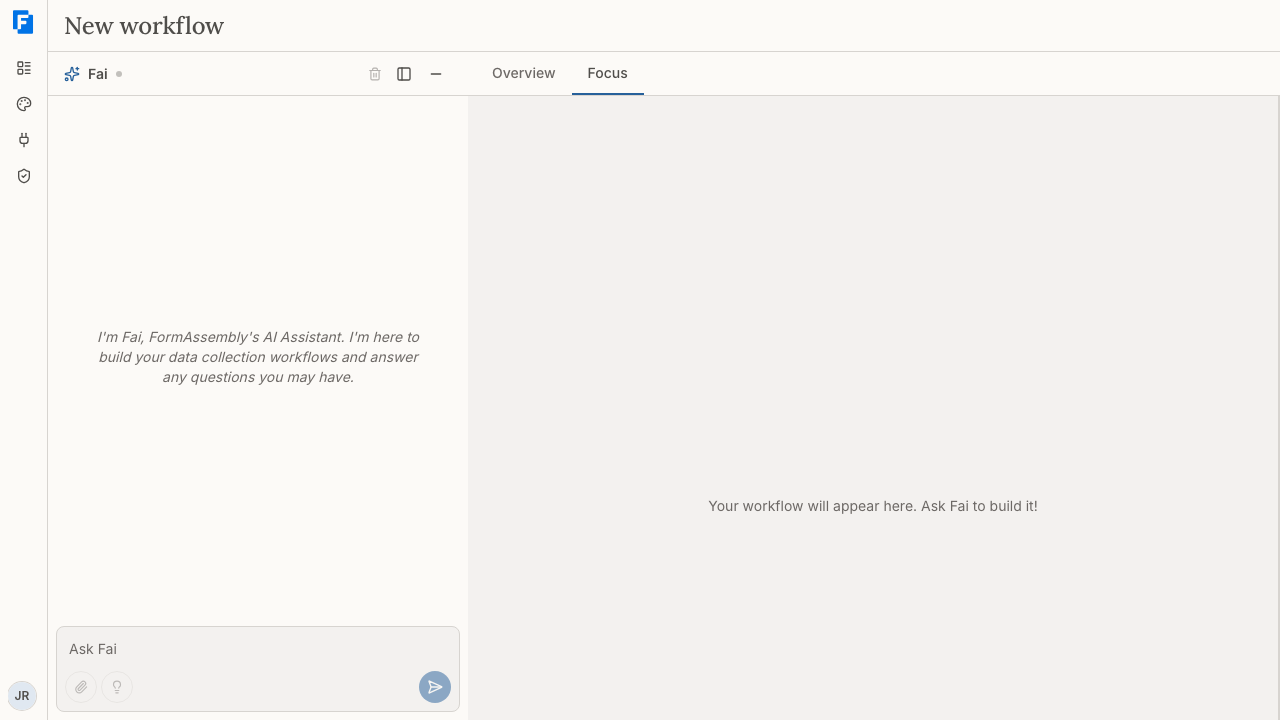
Fai is the FormAssembly AI agent that helps you design your data collection workflow step by step. The Fai panel appears alongside the builder canvas. To begin:
1. Type a description of what you need into the chat input area.
2. To include a reference file (such as a PDF of an existing form), click **Attach file**.
3. Click **Send** to submit your message.
If you're not sure what to ask, click the suggestions button in the chat input area for prompt ideas. To start over with Fai, use the control to clear the conversation history at the top of the Fai panel.
### Navigate the builder panels
The builder canvas has two view modes, accessible from the top of the builder:
- **Overview** — A read-only map of your whole workflow. Overview draws every step and the connections between them; hovering over a step highlights its path, and clicking a step card switches you to Focus view. Nothing on the Overview canvas adds, edits, moves, or removes a step.
- **Focus** — Where you work on a specific part of your workflow in detail, and where all structural controls live. Adding, duplicating, moving, and deleting a step are Focus-view actions, so the **Add step** menu is available in Focus view, not in Overview.
You can also ask Fai to add a step from either view — only the **Add step** button itself is limited to Focus view.
In the add-step menu, the data collection step is labelled **Collect**; the same step appears as **Form** on the canvas badge and in the detail panel.
The Fai panel can be minimized, repositioned, or resized using the controls at the top of the panel. The properties panel opens alongside the canvas when you select part of your workflow, and is where you set options such as your workflow's theme.
To access the main navigation at any time, click the button to open the navigation menu (located near the FormAssembly logo at the top of the page). **Workflows**, **Themes**, and **Connections** are there for everyone. **Compliance** appears only for people who can view compliance. The menu also holds your personal pages (**Profile**, **Security**, **Invitations**), the account pages your role allows (such as **Settings**, **Team**, **API clients**, **Identity providers**, and **Billing**), **Documentation**, and **Get help**.
---
## Onboarding Checklist
After you finish onboarding, a floating checklist widget appears in the bottom-right corner of the screen. It highlights the key actions to help you get the most out of FormAssembly. The checklist is purely informational — it never blocks you from using any feature.
### What's on the checklist
The items you see depend on your role. The checklist lists these items in order:
1. **Create a workflow** — Create your first workflow in the builder.
2. **Connect a third-party service** — Link an external service in your connection settings.
3. **Test a submission** — Run a test submission on any workflow.
4. **Publish a workflow** — Set a workflow to active so it can receive real submissions.
Account admins see three further items after those four:
5. **Complete your account address** — Add your organization's address in account settings.
6. **Invite a team member** — Send an invitation from your team settings.
7. **Set up your privacy policy** — Add your account's privacy policy text in account settings.
Team members see only the first four items. Sending an invitation is enough to complete the invite item — the person you invited does not have to accept it first. A draft workflow is enough to complete the create-a-workflow item.
### How it works
- The checklist shows your progress (for example, "2 of 7 complete" for an admin, or "2 of 4" for a team member).
- Click any incomplete item to jump directly to the relevant page.
- Completed items display a checkmark and cannot be clicked.
- Most items are shared across your team — if anyone on your account creates a workflow or saves your privacy policy, that item is checked off for everyone. The exception is **Connect a third-party service**, which tracks your own connections.
- The checklist updates on its own as you complete actions, including actions you complete in another browser tab.
- The checklist always reflects your own account. While you are working in another organization's account as a guest, the checklist widget is not shown.
### Collapsing and dismissing the checklist
- Click the collapse button to shrink the checklist into a small progress pill. Click the pill to expand it again.
- You can drag the widget or use the move button in the header to reposition it so it doesn't cover other parts of the interface. The move button cycles the widget through the four corners of the screen, which is useful if you prefer the keyboard.
- If every item is already complete the first time the checklist loads, the widget starts collapsed as a "You're all set!" pill. If you complete the last item while the checklist is open, the widget stays open and its title changes to "You're all set!" instead of collapsing on you.
- To permanently hide the checklist, click the dismiss (×) button. A confirmation dialog will remind you that you can re-enable the checklist from your profile page.
---
## Signing In After Setup
Once your account is set up, return to the homepage and click **Log in**. Sign in with the same method you used to create your account (Google, Apple, or your email and password).
You'll be taken to your list of workflows, where you can open an existing workflow or start a new one in the builder.
Your session stays active as long as you use FormAssembly at least once every 30 days. After 30 days of inactivity, you'll need to sign in again.
---
## Tips & Troubleshooting
- **Guest workflow expired?** Guest workflows are stored temporarily and expire after 4 hours of inactivity. If your guest workflow has expired, start a new conversation with Fai after creating your account.
- **"Awaiting admin approval" after signing up?** If your organization already has a FormAssembly account, your sign-up creates a join request rather than a new account. Ask your organization's admin to approve your request. Join requests expire after 30 days — if yours expires, signing in again or submitting the sign-up form again resubmits your request and notifies your admins. If your request was declined, contact your organization's admin for help.
- **Forgot your password?** Click **Log in**, switch to the login tab, and use the forgot-password link. FormAssembly emails you a one-time link for setting a new password. Setting a new password signs you out of all your other sessions, so sign in again with the new password.
- **Reset link not working?** If the link in your password reset email is expired or incomplete, FormAssembly shows a notice that the link is invalid and lets you request a new reset email on the spot.
- **Sign-up rejected your email address?** FormAssembly does not accept disposable or throwaway email addresses. Use a work email or a standard personal email provider instead.
- **Dialog won't close when you click outside it?** That is intentional. The login and sign-up dialog closes only with the Escape key or its close button, so a stray click (for example, when a password manager moves your pointer) can't discard what you've typed. Closing the dialog does discard anything you've typed into the form.
- **Guest work didn't carry over?** If your browser blocks cookies or site storage (for example, Safari's "Block all cookies" setting, or an embedded browser window), your wizard prompt and guest workflow may not carry into the builder or your new account. Sign-up itself still works; enable site storage and rebuild the workflow with Fai.
- **Can't publish a workflow?** Phone verification is required before you can publish. If you haven't verified your phone number yet, you'll be prompted to do so. You can add and verify your phone number at any time from your profile page.
- **Can't find the Add step button?** Structural controls are only available in Focus view. Switch from **Overview** to **Focus** at the top of the builder, or ask Fai to add the step for you from either view.
- **Account URL looks wrong?** During onboarding, special characters and spaces are automatically converted to hyphens. Review the URL carefully before confirming — it cannot be changed later.
- **Checklist disappeared?** If you dismissed the checklist, you can re-enable it from your profile page.
- **Checklist still showing after you dismissed it?** Dismissal is only applied once it is saved. If saving fails you'll see an error message and the checklist stays visible — dismiss it again.
- **Signed up with the wrong method?** If you signed up with email and later sign in with Google (or vice versa) using the same email address, your accounts are linked automatically — as long as your email address is already verified. If your password account is still unverified, verify your email address first, then sign in with Google or Apple.
- **Need to leave your organization's account?** You can remove yourself from the account in your account settings. Be aware that your workflows will be removed when you leave, and the connections you authorized are deleted rather than transferred. If you're the only admin, you'll need to promote another team member to admin before you can leave — or cancel the account entirely.
---
# Building Workflows
Workflows are the core of FormAssembly. A workflow defines an entire data collection process — from the form your respondents fill out, to email notifications, data delivery to external systems, and a final confirmation page. Fai, FormAssembly's built-in AI assistant, helps you build and refine workflows through natural conversation. This article covers how to create, edit, test, publish, and manage workflows.
---
## The Workflows Page
The **Workflows** page is your home base. It lists every workflow in your account along with key details.
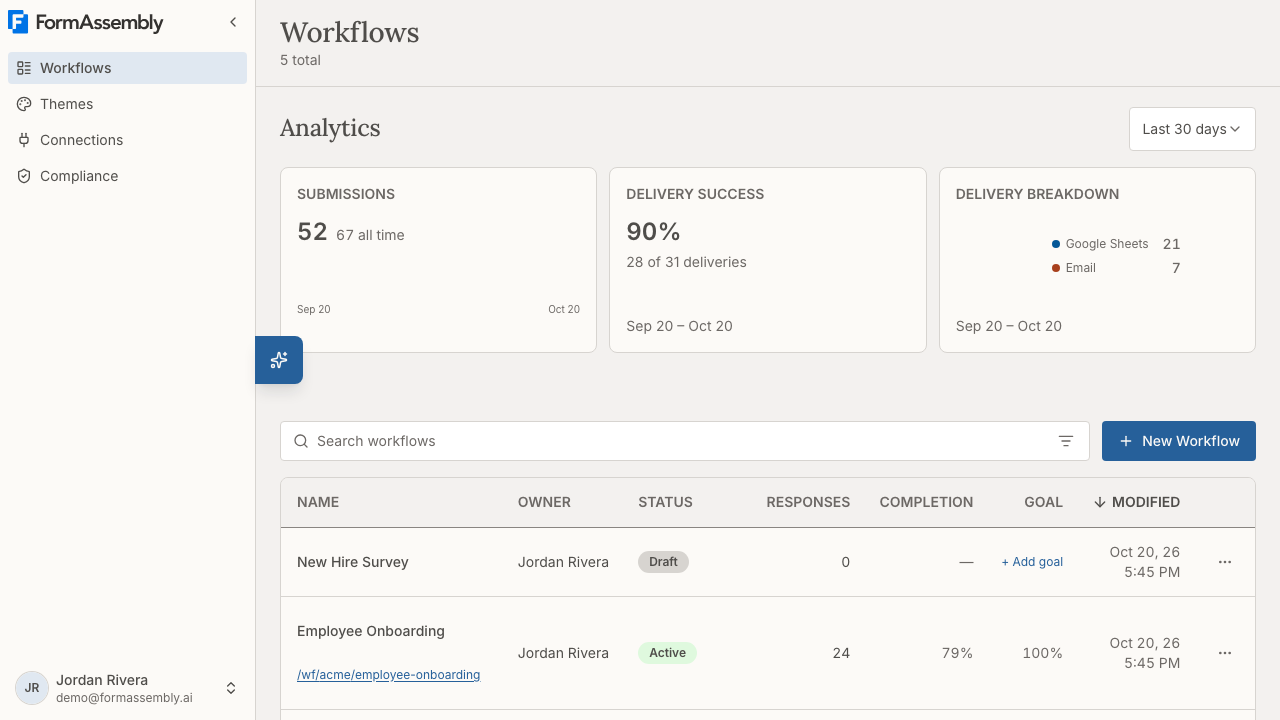
The workflow table includes these columns:
- **Name** — The name of your workflow (click to open it in the builder). Published workflows also show their public URL (for example, `/wf/acme/patient-intake`) beneath the name; click it to open the live workflow.
- **Owner** — The person who owns the workflow. This column appears whenever your list includes a workflow you do not own — for example if you are an account admin, or if a colleague shared a workflow with you. On narrow screens the owner's name appears under the workflow name instead of in its own column.
- **Status** — The current state: Draft, Active, or Archived.
- **Responses** — The number of responses the workflow has collected.
- **Completion** — The completion rate for the workflow.
- **Goal** — The submission goal for the workflow. Click **+ Add goal** to set a target.
- **Modified** — When the workflow was last edited.
- **Published** — When the workflow was last published.
### Finding workflows
Use these tools to locate a specific workflow:
- **Search** — Type in the **Search workflows...** field to filter by name.
- **Filters** — Click **Filters** to narrow the list by column. You can filter on Name, Owner, Status, Access (how you reach the workflow — as its owner, or through a share), Responses, Modified, and Published. Two quick filters are offered: **My workflows** and **Status is Active**. Your filters are remembered until you clear them, and **Clear filters** clears the search and filters while keeping your sort order.
- **Sort** — Click a column header (**Name**, **Owner**, **Status**, **Responses**, **Modified**, or **Published**) to sort the list by that column, and click the active header again to reverse the direction. The list sorts from its headers; there is no separate sort control in the toolbar. Completion and Goal do not sort.
### Analytics
The **Analytics** section at the top of the page shows submission trends and delivery breakdowns for your workflows.
- **Submission trend for selected period** — A table showing submissions by date. Use the **Time range** control to adjust the period.
- **Delivery breakdown by destination** — Shows how submissions were delivered to each connected destination.
Additional analytics — including **Completion time** and **Abandonment rate** — are advanced analytics. On a plan that does not include advanced analytics they appear as locked cards; click one to open the upgrade prompt.
---
## Creating a New Workflow
To create a new workflow, click **New Workflow** on the **Workflows** page (or **Create a workflow** in the onboarding checklist). A **What data are you collecting?** dialog asks how you want to start. The fastest way is to describe what you need to Fai, FormAssembly's AI assistant.
1. Click **New Workflow**.
2. In **Describe your workflow to Fai**, describe the data collection process you want to create. For example: *"Create a patient intake form that collects name, date of birth, insurance info, and sends a notification email to our front desk."*
3. Click **Build it with Fai**. The builder opens with the Fai panel expanded and your description already sent.
4. Fai builds your workflow — adding form fields, steps, and connections automatically.
To build it yourself instead, click **Start from scratch** in the same dialog. The builder opens with a **Form** step and a **Thank You** step already in place, and Fai is not involved. **Upload a file** and **Import existing form** are shown as coming soon.
Once you're in the builder, you can also attach files for context by clicking **Attach File** before sending a message to Fai, or click **Suggestions** for prompt ideas.
Your workflow is saved automatically as a draft. About two seconds after your last change, the builder saves your progress — you never need to save manually. The first autosave creates the workflow record, so the workflow appears in your **Workflows** list as soon as your first change is saved.
---
## The Workflow Builder
The builder is where you design and refine your workflow. It combines the Fai AI assistant with a visual canvas that shows your workflow as a series of connected steps.
### Builder layout
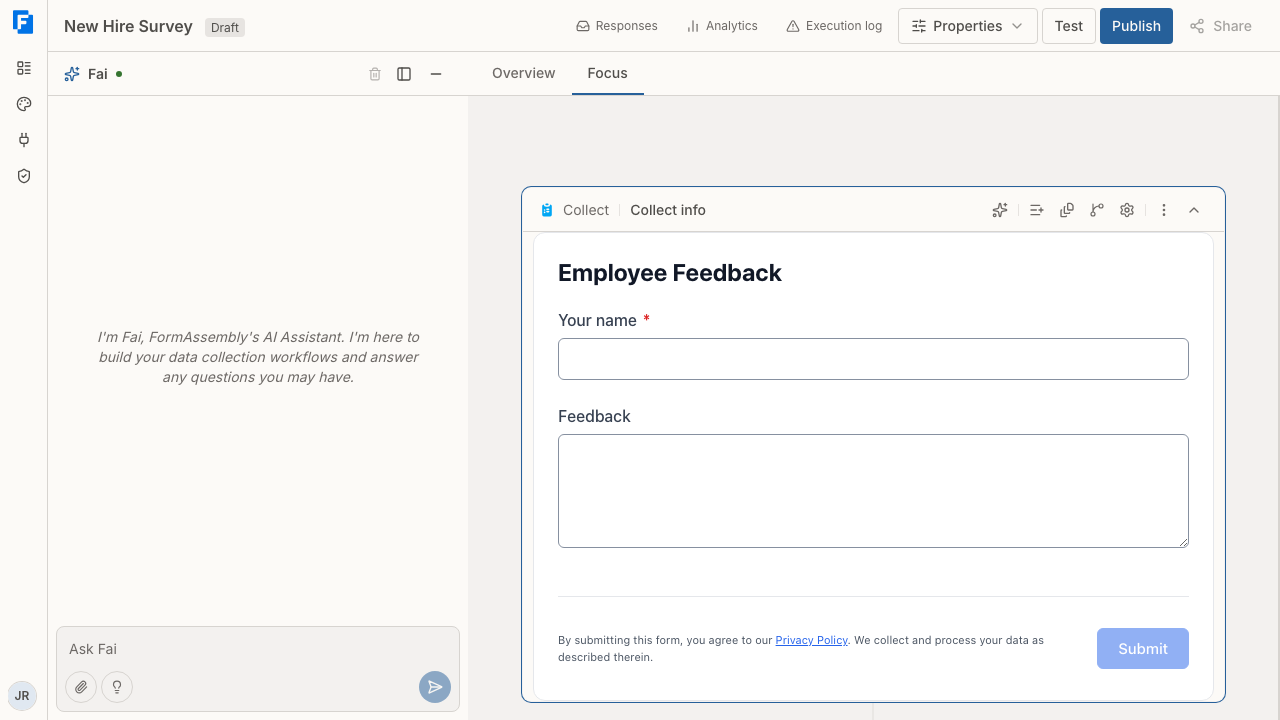
The builder has two main areas:
- **Fai panel** (left side) — Your conversation with Fai, the AI assistant. Use the **Chat input** to ask for changes, and click **Send** to submit. Click **Suggestions** for prompt ideas. You can resize this panel using the **Chat panel width** control, reposition it with **Change panel position**, or collapse it with **Minimize Fai panel**. Click **Clear conversation history** to start a fresh conversation with Fai.
- **Canvas** (right side) — A visual representation of your workflow, showing each step from top to bottom.
At the top of the builder, the navigation bar includes **Responses** (links to the workflow's responses), **Analytics** (links to the workflow's analytics view), **Execution log** (links to the workflow's execution log), **Properties**, **Test**, **Publish**, and the **Share** button. The builder header also displays your workflow name — click it to rename the workflow — and its current status: **Draft** if the workflow has never been published, **Published** if the live version is up to date, or **Update pending** if you have saved changes that haven't been published yet. Click the **Update pending** badge to open the summary of changes. Renaming a workflow does not change its public URL.
### The two workflow names
A FormAssembly workflow has two names, stored and edited separately:
- The **internal name** is what you and your team see — in the **Workflows** list, in the builder header, and in exports and emails sent to you. Click the workflow name in the builder header to change it. The change saves immediately and does not need to be published.
- The **public name** is what respondents see — on the workflow's page, in the intake agent, and as the default subject of assignment and resume emails. Set it under **Properties → Access → Public Name**, in the **Name** field. The public name travels with your draft, so it reaches respondents when you publish.
Changing one name never changes the other, and neither one changes the workflow's URL. If you ask Fai to "rename this workflow" without saying which name you mean, Fai asks you first.
### Builder panels
At the top of the canvas area, the **Builder view** buttons let you switch between views:
- **Overview** — Shows a compact overview of all steps in your workflow as a map of the whole flow, with each connection between steps labeled (for example, **Success** or **Failure**). You can zoom and pan the map, and hovering a step card highlights the whole path that step belongs to. Clicking any step card switches to **Focus** view and scrolls to that step, and updates the browser address so you can bookmark or revisit a link that opens the builder directly on that step. Step cards in Overview are read-only: nothing on the Overview canvas adds, edits, moves, or removes a step.
- **Focus** (default) — Shows steps expanded with their full content, so you can review and edit details directly on the canvas. Focus view is also where the structural controls live — adding, duplicating, moving, and deleting steps are all Focus-view actions.
In **Focus** view, an **Add step** button at the bottom of the active path lets you add a new step at the end of the workflow. You can also ask Fai to add a step from either view — only the **Add step** button itself is limited to Focus view.
Clicking **Step settings** on any step opens the **Properties panel** on the right side of the canvas, showing the settings for that step in collapsible groups — such as **Step Name** and **Step Description**, plus a **Variables** group where you can click **Add variable** to declare a value the workflow can reuse. Collect steps add an **Appearance** group (**Show form title** and the label position choices **Above**, **Below**, **Left**, **Right**, **Inside**, **Hidden**) and a **Submission** group (**Submit button label**, **Review before submit**, and **Allow save & resume**).
### Workflow Properties
Clicking **Properties** in the navigation bar opens the workflow's own settings — not the settings of a step — in the same right-side panel. Choose a section from the **Workflow Properties** list:
- **Themes** — Pick an already-published theme for the workflow. An **Edit this theme** link opens that theme's editor in a new tab for themes your account authored. See also: the Themes article.
- **Agent** — Configure the intake agent that can collect answers conversationally instead of as a plain form.
- **Access** — Holds **Public Name** (the name respondents see), **Custom URL** (the ending of the workflow's public URL), **URL Parameters** (a read-only list of the variables your workflow accepts in its URL), and **Authentication** (whether respondents must sign in).
- **Languages** — Sets the workflow's **Default Language** and lists the workflow's **Translations**. A workflow can offer more than one language: each response runs in one language, chosen from the respondent's browser when the response starts, and the respondent can switch language on the form. This section does not add or edit translations — ask Fai to create or change them. An assignment's sub-workflow carries its own translations, and a person assigned a task sees it in their own browser's language. See also: the Form Design article, which owns the translation details.
- **Availability** — Set a start and end date and time for the workflow, and the message respondents see outside that window. The time zone is always named next to the dates.
- **Data & Privacy** — Lists **Purge Settings**, **View Purge Log**, and **Respondent IP Anonymization**.
- **Notifications** — Contains the **Email the owner when a step fails** switch, which is off by default. Turn it on to have FormAssembly email the workflow's owner when a step fails during a run. See also: What Happens After Submit, which covers what those emails contain and how they are batched.
- **Collaboration** — Lists the workflow's **Collaborators** and its **Ownership**. See [Collaborators and ownership](#collaborators-and-ownership) below.
### Changing the workflow's URL
A workflow's public URL ends in a slug that FormAssembly generates from the workflow's name when the workflow is created. Renaming the workflow never changes it, but you can change it yourself under **Properties → Access → Custom URL** (or by asking Fai).
1. Open **Properties → Access**.
2. In **URL ending**, type the new ending. It must be 3–100 characters, using lowercase letters, digits, and hyphens, and cannot start or end with a hyphen. The full public URL is shown below the field as you type.
3. Click **Save**. If the workflow is live, FormAssembly asks you to confirm first.
**Changing the URL breaks the old one immediately.** There is no redirect: links you have already shared, embed snippets already on other sites, and resume or invitation links already emailed stop working, and a respondent part-way through the workflow in an open tab cannot submit. A new URL ending must also be unused by any other workflow in your account.
### Understanding the canvas
The canvas displays your workflow as a vertical sequence of steps. Each step shows:
- The step name (editable via the **Step name** field)
- The step content, which varies by step type (form fields, email configuration, confirmation message, etc.)
Each step has a **Step tools** sidebar with relevant options:
- **Collapse step** — Minimizes the step on the canvas.
- **Add field** — Adds a new field (available on form steps).
- **Pages** — Manages the pages of the form (available on form steps).
- **Routing** — Opens the **Branching** section of the **Properties panel** for that step, where you manage where each outgoing path goes (available on steps that have at least one outgoing connection).
- **Step settings** — Opens the **Properties panel** for the step.
- **Ask Fai about this step** — Starts a conversation with Fai focused on the selected step.
In **Focus** view, each step also includes a **Step actions** button for additional options such as duplicating, moving, or deleting the step. A step cannot always be deleted, and each case shows its own message. A step can only be deleted when it leads to at most one other step, so branching steps must be simplified first. FormAssembly also refuses to delete a step when it is the only step in the workflow, when it allows save & resume, when a save & resume path leads to it, when it is the only step in the **Default** branch while custom branches exist, or when a connector's conditional error route goes to it. When a step has unpublished changes, a change indicator appears on the step card — **Added** for new steps, or **Modified** for steps that changed. Click the indicator to see what changed.
To add a new step before the first step or between existing steps, click any of the **Add step** buttons that appear between steps in **Focus** view. The **Add step** menu includes a **Search steps** field so you can find a step type by name.
### Branching paths
When a step leads to more than one possible next step — for example, a connector that continues one way on success and another way on failure — your workflow has multiple paths. **Focus** view shows one path at a time:
- Below each step card, a row of labeled pills shows every outgoing connection from that step (for example, **Success**, **Failure**, **Otherwise**, or a condition summary such as *If Priority is "yes"*).
- Click a pill that points to another path to switch the canvas to that path. Your scroll position is preserved.
- Click a pill that points to a step on the same path to scroll straight to that step.
- You can also swipe horizontally on a trackpad to move between paths.
Steps that come before a branch (and steps where paths rejoin) appear on every path, so you always see the shared parts of your workflow.
### Routing and conditional branching
Routing is a configuration on a step, not a step of its own — it decides which of a step's outgoing paths a submission follows. Click **Routing** in a step's **Step tools** sidebar to open the **Branching** section of the **Properties panel** for that step. Every step with at least one outgoing connection offers **Routing**; a terminal step (the last step on a path) does not, because it has nothing to route to.
A step's branches come in two kinds:
- **Built-in outcome branches** are the fixed outcomes of the step type — for example a connector's **Success** and **Failure**, or an approval's **Approved** and **Denied**. Their logic and names are fixed and cannot be edited, added, removed, or reordered; you choose only where each outcome goes by building out its path on the canvas. Each built-in row in the panel explains this, so a read-only row does not read as broken.
- **Custom branches** are the conditional paths you add yourself. Each custom branch has an optional name you can set (so the branch reads as what it means in your workflow, such as "New students"), at least one condition row, and an evaluation mode of **all**, **any**, or **custom**. In **custom** mode you write an expression referencing the condition letters (A, B, C…), for example `A or (B and C)`, and the builder validates it as you type.
Condition rows are lettered A, B, C… in every evaluation mode. The letters describe each row's current position rather than a permanent name, so adding, removing, or reordering a condition re-letters the list. The evaluation selector appears only once a branch has more than one condition.
Branch rules are written with the same rule builder as form conditions, so they offer the same operators. That includes **is one of** and **is not one of**, which take several values and match when any one of them matches, and **is between**, which takes a From and a To value. On a choice field, **is one of** lets you pick from the field's own options. There is no pattern-matching operator. See also: the Designing Forms article, which lists every operator in full.
Adding your first custom branch to a step also creates a **Default** branch — the catch-all that handles anything matching no other rule. Its summary reads "Handles every other response", it takes no conditions and no custom name, and it is always evaluated last. If the step already had a linear path after it, that path becomes the Default branch's path rather than being duplicated or orphaned. Removing the last custom branch also removes the Default branch.
Every new custom branch also gets its own blank **Respond** step, so the branch ends somewhere instead of continuing into the Default branch's path. Because that Respond step starts with no message, publishing is blocked until you write what that path should tell the respondent — the error names the step. A branch's only step cannot be deleted: FormAssembly shows "Cannot remove the only step in a branch. Remove the branch instead." Delete the branch itself if you no longer need the path.
Custom branches are evaluated in order, top to bottom, and the first branch whose conditions match is the one taken — so the order you put them in sets their precedence. Drag a branch's handle (or use its keyboard move controls) to reorder. A custom branch must have at least one condition, and removing a branch also removes the steps in its path immediately — the builder has no undo yet, so remove a branch only when you are sure.
**Unfinished rules are kept, not discarded.** A condition row with no field chosen, or with no value for an operator that needs one, is saved along with the rest of your draft and reloads exactly as you left it. **Publish** and **Test** refuse to run while any branch has an unfinished rule, and the message names the step and the branch. After a blocked attempt, each incomplete row is marked "Missing field" or "Missing value" until you fill it in.
On the canvas, custom branches appear as connected branch cards showing each branch's name and a one-line summary of its rule, with the active branch visually distinguished. Above them, a branch-count indicator ("N Branches") is the fork's interactive control: click it to open the step's **Branching** section. Built-in outcome branches keep the labeled pill row described in **Branching paths** above.
### Supported step types
Your workflow can include these step types, available from the **Add step** menu in **Focus** view:
| Step type | What it does |
|---|---|
| **Collect** (shown as **Form** on the canvas badge and in the Properties panel) | Displays a form to collect responses from your respondent. |
| **Email** | Sends an email notification (e.g., to your team) with the submitted data. |
| **Respond** | Shows a confirmation message at the end of the workflow. |
| **Redirect** | Sends respondents to a URL. |
| **Salesforce** | Sends data to Salesforce as CRM records. |
| **Approval** | Requires sign-off from a reviewer before the workflow continues. |
| **Document generation** | Merges submitted answers into a Word or PowerPoint template and produces a PDF. |
**Approval** steps run and publish normally, but the builder has no editor for them yet: a step inserted from the menu shows an "Under construction" placeholder, and its Approved, Denied, and Comment outcomes are read-only in the **Branching** section. Ask Fai to configure an approval step (for example, *"Add an approval step and send it to our compliance manager."*), otherwise it cannot be completed or published.
### Document generation steps
Document generation turns a response into a finished PDF — a signed-off form, a registration confirmation, an offer letter — using a template you supply. Document generation is available on every plan.
1. In **Focus** view, open the **Add step** menu and choose **Document generation**.
2. Ask Fai to set the step up. The builder has no settings panel for document generation, so selecting the step on the canvas shows "Under construction." — Fai is the way to configure it.
3. Fai asks you to upload a Word (`.docx`) or PowerPoint (`.pptx`) template in the chat, then maps your form data to the template's merge fields, including repeating sections. A template must be a `.docx` or `.pptx` file of at most 10 MB.
The step produces a PDF named after the template, which appears on the response. Generated — and signed — documents are files the workflow can pass on: a later Salesforce step can upload the PDF, and an assignment step can hand it to the assignee. Tags in your template that start with `signature` or `signer` are reserved for e-signature and are not mapped. A failure path for the step is optional.
A document generation step with no template blocks publishing. If **Publish** reports that, ask Fai to attach the template.
### E-signature steps
An e-signature (sign) step asks one person to sign a document produced by a document generation step, in their browser. E-signature is available on the plans that include it, and e-signature steps are set up by Fai rather than from the builder.
- On a plan that includes e-signature, the **Add step** menu does not list **E-Signature**. Ask Fai to add a signing step instead (for example, *"After the offer letter is generated, send it to the candidate to sign."*).
- On a plan without e-signature, the **Add step** menu shows **E-Signature** locked. Choosing it opens the upgrade prompt and adds no step to your workflow.
- A sign step on the canvas is read-only: its settings show, and no builder control changes them. Ask Fai to change the step.
- Fai builds signing from a document generation template tagged for each signer. Several signers are several assignment steps — one after another for serial signing, or in parallel — and every signer adds to the same signed document.
- A sign step ends **Signed** or **Declined**, and your workflow can route each outcome to its own path.
- Signing works only on FormAssembly's hosted page. An embedded form shows the step and can decline, but cannot sign.
### Assignment steps and sub-workflows
An assignment step hands part of a workflow to another person — the workflow pauses, that person receives an invitation, and their own set of steps runs as a sub-workflow. Assignment steps run and publish normally in FormAssembly, but they are created by asking Fai rather than from the **Add step** menu, so ask Fai if you need one (for example, *"After the form, assign a review to our compliance manager."*).
Once an assignment step exists, the builder shows it in both views:
- **Overview** draws the assigned person's steps inside a labeled container, captioned with the assignee's name, connected to the assignment step by a dashed line.
- **Focus** shows a summary card with an **Open assignment flow** button. Click it to work through the sub-workflow as its own flow, with branch pills and step cards behaving as they do in the main workflow. A breadcrumb above the canvas takes you back out.
Steps inside a sub-workflow are edited like any other step, including their **Step settings**. Only the assignment step itself has no settings panel — ask Fai to change the assignment.
### Choosing a connector
Only Salesforce connector steps can be added from the builder. The **Add step** menu's **Connect** group has one item, **Salesforce** ("CRM records"); choosing it creates the step with that connector already selected and named after it, ready to configure. Every other connector's step — Dynamics 365, Google Sheets, Google Drive, Excel, OneDrive, Box, Dropbox, Webhook / HTTP, Stripe, and PayPal — is added by asking Fai (for example, *"Send each response to a Google Sheet."*).
Some connectors are sold as account add-ons. Salesforce, Webhook / HTTP, Dynamics 365, Dropbox, Box, and the payment connectors (Stripe and PayPal together, as one add-on) are account add-ons: your account can use one only when its plan includes it or the account bought it. Google Sheets, Excel Online, Google Drive, and OneDrive are included in every plan. Accounts that had already used Dynamics 365, Dropbox, or Box in a workflow when those became add-ons were granted them automatically. A connector your account has not purchased still shows its tile, marked **Add-on**; choosing it opens a dialog explaining that the connector is available as an add-on, with **Not now** and **Talk to sales** options, and no step is added.
The connector type cannot be changed after the step is created. To use a different system, delete the step and add a new connector step.
If Fai or an import created a connector step that has no connector configured yet, the step shows a message explaining that the connector hasn't been set up — ask Fai to configure it, or replace the step.
---
## Editing Your Workflow
There are two ways to make changes: through Fai, or by editing step details directly.
### Using the AI assistant
For structural changes — adding steps, removing steps, reordering the flow, or building out form fields — describe what you want in the **Chat input** and click **Send**. Fai handles the heavy lifting, and you can ask Fai for these changes from either **Overview** or **Focus** view. You can also click **Ask Fai about this step** in any step's **Step tools** sidebar to start a conversation focused on that specific step.
**Examples of what you can ask:**
- *"Add a phone number field to the form."*
- *"Send a confirmation email to the respondent after they submit."*
- *"Remove the redirect step and replace it with a thank-you message."*
- *"Reorder the steps so the email notification comes before the connector."*
### Editing step details directly
For quick edits, switch to the **Focus** builder view, where each step is expanded with its full content. Depending on the step type, you can edit:
- **Form steps** — Update field labels, hint text, and placeholders directly in the form preview. Use **Add field** in the **Step tools** sidebar to add new fields. You can also drag fields to reorder them within the form.
- **Email steps** — Change the **To**, **BCC**, **From name**, **Reply-to**, **Reply-to name**, **Subject**, or **Message** fields. The message editor includes formatting options for bold, italic, underline, bullet lists, ordered lists, and links. The **Attachments** field attaches a file the workflow already holds: click **Add a file** and choose a file upload, a file variable, or a generated or signed PDF, and use the remove button to take one off. A file that no longer exists in the workflow shows "No longer in this workflow" and blocks publishing until you remove it. See also: What Happens After Submit, which covers the attachment size limit.
- **Done steps** — Update the redirect URL or edit the **Confirmation message** using the rich text editor, which includes **Heading 2**, **Bold**, **Italic**, **Underline**, **Bullet list**, and **Ordered list** options. Click **Insert field value** to include an answer the respondent submitted in your confirmation message; the value it adds is a Field Reference, written `{{ step_1.fieldId }}`. If the step is new, you can pick a starting point from the template choices — **Confirmation**, **Next Steps**, **Registered**, **Under Review**, or **Describe other** — or click **Dismiss template picker** to write your own.
- **Connector steps** — Only Salesforce connector steps open an editable action card. Every other connector's step — Dynamics 365, Google Sheets, Google Drive, Excel, OneDrive, Box, Dropbox, Webhook / HTTP, Stripe, and PayPal — shows a read-only summary ending "Connector configuration is managed by the AI agent." Ask Fai to configure those steps.
Document generation steps have no settings panel in the builder; ask Fai to change the template or the mapping. Sign steps are read-only on the canvas; ask Fai to change them.
Use the **Step settings** button in any step's **Step tools** sidebar to open the **Properties panel** for additional configuration options.
All changes — whether from Fai or your direct edits — are kept in sync. When you switch from direct editing back to Fai, it already knows about your latest changes. If Fai and you change the same thing at nearly the same moment, the most recent change wins.
### Autosave
The builder autosaves your work approximately two seconds after your last change. You'll never lose progress. All edits are saved to a draft — your published (live) workflow is never affected until you explicitly publish.
---
## Testing Your Workflow
Before publishing, you can run through your entire workflow just as a respondent would experience it. Test mode produces real results — emails are actually sent, and data is delivered to connected systems — so you get an accurate preview.
Test mode is available to the workflow's owner and to admins of the account — the same people who can edit and publish the workflow. The test link is tied to your own signed-in session, expires after about an hour, and cannot be shared with colleagues.
### How to test
1. In the builder, click **Test** in the top navigation bar.
2. A new browser tab opens with your workflow loaded in test mode.
3. Fill out the form and complete the workflow from start to finish.
Test mode loads your latest saved draft if one exists, or the published version of the workflow if no draft is pending. Clicking **Test** first saves any change that hasn't been saved yet, so the test always runs against what you see on screen. If that save fails, the test does not start and the builder shows a message explaining that your changes couldn't be saved — wait a moment and click **Test** again.
### What happens during a test
- **Forms** display and function exactly as they will for respondents, with a visible test mode banner at the top of each page.
- **Email steps** send the email to *your* email address (not the configured recipient), with the subject prefixed by `[TEST]` and a banner noting it's a test. BCC recipients are also suppressed during test mode.
- **Connector steps** execute against real external systems. Any records created in Salesforce, Google Sheets, or other connected services are real — keep this in mind and clean up test records if needed. If a connector step has a test (sandbox) connection configured, that step runs against the sandbox environment instead, and records are created there. Because the choice is made per step, a single test run can mix sandbox-backed and live-backed steps.
- **Assignment steps** send their invitation to you rather than to the assignee, so you can follow the link and complete the assigned part of the workflow yourself.
- **Document generation steps** produce a real PDF, which appears on the test response.
- **Test submissions** are recorded separately from real submissions, so they won't skew your analytics.
### Test mode banner
Every page you see during a test displays an amber banner:
> **Test mode** — this is a preview of your draft workflow. It will not appear to real respondents.
> Real records will be created in connected systems (e.g. Salesforce, Google Sheets).
This banner is never visible to real respondents.
### Filling the form with test data
The test mode banner includes a **Fill Test Data** button that populates the form with valid sample data in one click, so you can run a workflow end to end without typing every answer by hand.
- **Fill Test Data** answers visible fields one at a time in order and moves between pages using the form's own navigation, so conditions, calculations, and dependent lists behave exactly as they do for a respondent.
- Email fields are filled with your own account email address, so email steps you trigger during the test are deliverable to you.
- Free-text answers are filled with lorem ipsum text, which makes test data easy to recognize wherever it lands — including in the real records a test run creates in connected systems.
- Choices, dates, numbers, and ratings are filled with values that satisfy the field's own validation rules. Generated web addresses use a reserved domain that cannot resolve, so a test run never reaches a real site.
- Dynamic lookup fields are answered by choosing a real row from the connected dataset, exactly as a respondent would — so any fields the lookup fills in from that row are populated by the lookup itself and are not filled separately. If no matching row is found, the field is left empty.
- Fields that are hidden by a condition, read-only, or already have a value (such as a default or prefilled answer) are left as they are.
- A repeatable section is repeated once, so the test exercises the repeat behavior. A section that already has more than one instance is left as it is.
- File upload fields and fields with a custom validation pattern are left empty. If such a field is required, normal form validation will prompt you for it when you try to continue.
- **Fill Test Data** is not offered when the form itself is not visible — for example while a preview is in conversation mode. Switch back to the form view and the button returns.
**Fill Test Data** does not produce a report of what it filled — the form's own validation tells you if anything still needs an answer.
### When Test is unavailable
The **Test** button is temporarily unavailable while a save is in progress. It is also unavailable if your workflow contains step types your plan does not include — in that case, clicking **Test** shows the upgrade prompt. FormAssembly also validates your workflow before starting a test, using the same checks as publishing. If any steps are incomplete (for example, a connector without a configuration or an email without a recipient), the builder displays an error message explaining what needs to be fixed. The **Test** button does not require a draft — after publishing, you can continue to test the published version of your workflow.
Because a test runs your workflow **for real** (real emails, real connector calls), your workflow must be fully ready to publish before it can be tested — draft-valid is not enough. Test runs the **same readiness checks as Publish**, so a test is blocked whenever publishing would be, including:
- A **connector step has no connection selected** (for example, a "Save to Salesforce" step whose account has not been authorized).
- A step is missing required configuration (an email step with no recipient, unwired failure routing, and similar).
- A connector mapping, return-data or record-lookup row points at a field or variable that no longer exists — the message names the step and the action.
- A form step has answer paths that might not cover every submission, so a default path is needed.
- A branch has a condition that is only half filled in — the message names both the step and the branch.
- A new branch's Respond step has no message yet — the message names the step.
- A document generation step has no template attached — the message names the step, and Fai is how you attach one.
- A calculation on a form field is broken — the message names both the step and the field the calculation is on.
When this happens, clicking **Test** shows a **"Can't test yet"** banner listing the specific step(s) to fix, with an option to ask Fai for help. Resolve the listed issues and the **Test** button works again. (This is the same gate that guards **Publish** — see the Publishing section below.)
Blocked test attempts do not count against your testing limit. FormAssembly allows up to 40 test sessions per hour, a cap set high enough that normal authoring never reaches it.
---
## Publishing Your Workflow
Publishing makes your workflow live and accessible to respondents at a public URL. Until you publish, your workflow exists only as a draft.
### How to publish
1. In the builder, click **Publish** in the top navigation bar.
2. The system validates your workflow and promotes your draft to the live version.
3. On success, a popup appears showing your live URL and embed options (see [Sharing](#sharing-your-workflow) below).
Clicking **Publish** first saves any change that hasn't been saved yet, so the version that goes live is the one on screen. If that save fails, publishing stops and the builder shows a message explaining that your changes couldn't be saved — try again in a moment.
If your account requires compliance review, clicking **Publish** submits the workflow for review instead of publishing it: **Publish** is then disabled and the header shows **Submitted for review**. See also: the Compliance & Policies article.
If there are issues — such as incomplete steps, a document generation step with no template, unfinished branch conditions, a step your plan does not include, or references that no longer resolve — the builder displays an error message explaining what's blocking publication. The error message includes an option to ask Fai for help fixing the issue, or you can resolve it manually and try again. Each problem is listed by step name, so you can see exactly which step needs attention. You can dismiss the message, but dismissing it does not resolve the problem: the same checks run the next time you click **Publish** or **Test**.
### Workflow statuses
| Status | Meaning |
|---|---|
| **Draft** | The workflow has never been published. Only you can see it. |
| **Active** | The workflow is published and accessible at its public URL. |
| **Archived** | The workflow has been taken offline. Its public URL no longer works, but the workflow is not deleted. |
After publishing, if you make further edits, those changes are saved as a new draft. Your live workflow remains unchanged until you click **Publish** again. The builder shows an **Update pending** indicator when there are unpublished changes.
### What happens when you publish
- Your workflow becomes reachable at its public URL (for example, `/wf/acme/patient-intake`). The URL was generated when the workflow was created; publishing and renaming never change it, and you can change it yourself under **Properties → Access → Custom URL**.
- A version snapshot is saved automatically, capturing the state of your workflow at the time of publication.
- Your draft is cleared, and the workflow status becomes **Active**.
### Viewing changes before publishing
When your workflow has unpublished changes, the builder highlights what's different from the live version:
- **Added steps** appear with an **Added** indicator on their canvas card.
- **Modified steps** appear with a **Modified** indicator on their canvas card.
Click the indicator on any step to see a summary of what changed. To review all changes across your workflow at once — including removed steps — click **Update pending** in the builder header.
- **Added steps** show the step name and type.
- **Removed steps** (no longer in the draft) show the name and type they had when last published, marked **Removed**. Removed steps appear only in the full change summary, not on the canvas.
- **Modified steps** list each changed field with its before and after values.
Changes to rich text content, form contents, and connector configuration are listed as "Modified" rather than showing a word-by-word comparison. Form changes are summarized in plain language instead — for example *Renamed "Phone" to "Mobile"*, *Made "Email" optional*, *Added section "Payment"*, or *Reordered fields* — with at most two changes spelled out before the rest collapse into "and N more changes". Reordering steps appears as a change to the flow, showing the step names before and after. Clearing a field and re-entering the same value is not reported as a change.
---
## Sharing Your Workflow
Once published, you can share your workflow with respondents in two ways.
### Getting the share link
1. In the builder, click the **Share** button in the top navigation bar (available whenever the workflow is published).
2. A popup appears with:
- **Live URL** — The direct link respondents can visit to fill out your workflow. Click the copy button to copy it to your clipboard, or click the external link to open it in a new tab.
- **Embed snippet** — An HTML code block you can paste into any website to embed the workflow on a page. Click the copy button to copy the snippet.
The **Share** button is available at any time after your workflow has been published — you don't need to re-publish to access it. If you change the workflow's URL ending, the popup and the embed snippet update to the new URL right away.
### Viewing workflow analytics
To view analytics for a published workflow, click the **Analytics** link in the builder's top navigation bar. This opens the analytics view for the selected workflow, showing submission trends and delivery data.
### Viewing responses
To see the submissions your workflow has collected, click the **Responses** link in the builder's top navigation bar. FormAssembly stores submitted answers as each run progresses, which is what makes multi-step workflows resumable and lets you review responses after the fact. Any PDFs produced by document generation steps appear on the response as well.
### Checking the execution log
To see what happened while your workflow ran — including a connector step that failed to deliver — click **Execution log** in the builder's top navigation bar.
---
## Managing Workflows
### Workflow actions
On the **Workflows** page, each workflow row has a **Workflow actions** button (in the **Actions** column). Click it to access options such as archiving or deleting the workflow.
### Shared workflows and available actions
Your **Workflows** list includes the workflows you own, the workflows a colleague shared with you, and — if you are an account admin — every workflow in the account. A workflow you reach only through a share carries a **Shared · Viewer** or **Shared · Editor** badge, and the actions in its row follow that level:
- As the owner or an account admin, you can edit, view responses and the execution log, clone, view analytics, test, archive or unarchive, delete, and manage collaborators.
- As an editor collaborator, you can edit the workflow, view responses and the execution log, clone it, and archive or unarchive it. Analytics and Test are not available to collaborators.
- As a viewer collaborator, you can view responses, view the execution log, and clone the workflow. There is no read-only builder, so clicking the workflow's name opens its responses instead.
### Collaborators and ownership
Collaborators are the people and user groups you give access to one workflow. Open **Properties → Collaboration** in the builder, or choose **Collaborators** from the workflow's row actions on the **Workflows** page.
- **Collaborators** lists everyone the workflow is shared with and their access level. Add a person (by name or email) or a user group (by name) at **Viewer** or **Editor**, change a level in place, or remove a collaborator after confirming. A **Viewer** can read the workflow and its responses; an **Editor** can also change, publish, and unpublish it. Neither level can delete the workflow, edit or delete responses, change the owner, or add further collaborators.
- Only the workflow's owner or an account admin can manage collaborators. Everyone else sees the section with a note explaining who can change it.
- **Ownership** names the current owner. The owner or an account admin can click **Change owner** and pick someone else in the account. Confirm the change carefully: the previous owner loses access immediately unless they are an account admin or a collaborator, and there is no option to keep them on as one.
### Archiving a workflow
Archiving takes a workflow offline. The public URL stops working, but the workflow and its data are preserved. You can find archived workflows by filtering the **Workflows** page on **Status is Archived**. Archiving a live workflow also unpublishes it.
### Deleting a workflow
When you delete a workflow, it's removed from your workflow list but can be recovered by an account admin. Permanent deletion (which cannot be undone) is available only to account admins and requires explicit confirmation.
### Accessing Fai from the Workflows page
You can open Fai from the **Workflows** page by clicking the **Open Fai** button. This lets you ask Fai questions or start building a new workflow without opening the builder first.
---
## Tips & Troubleshooting
- **"Publish" is grayed out?** Your workflow may contain a step type your plan does not include, there may be no draft changes to publish, or the workflow may be awaiting compliance review (the header then shows **Submitted for review**). Check for any steps marked with a lock icon on the canvas, and click the step to see the upgrade prompt.
- **Can't find the Add step button?** Structural controls live in **Focus** view. **Overview** is a read-only map of the whole workflow, so switch to **Focus** to add, duplicate, move, or delete a step — or ask Fai, which works from either view.
- **Looking for workflow-wide settings?** **Step settings** on a step card opens that step's settings; **Properties** in the top navigation bar opens the workflow's own settings (Themes, Agent, Access, Languages, Availability, Data & Privacy, Notifications, Collaboration).
- **Respondents see the wrong name?** Respondents see the public name, set under **Properties → Access → Public Name**. Renaming the workflow in the builder header changes only the internal name your team sees.
- **Need the workflow in another language?** **Properties → Languages** sets the default language and lists the workflow's translations, but translations themselves are created by Fai — ask Fai to add one. Respondents start in their browser's language when one is available and can switch language on the form.
- **Changed the URL and links broke?** Changing the URL ending takes effect immediately and keeps no redirect. Re-share the new link, update any embeds, and expect previously emailed resume or invitation links to stop working.
- **Need a Google Sheets, Dropbox, Stripe or other non-Salesforce connector step?** Only **Salesforce** appears in the **Add step** menu's **Connect** group. Ask Fai to add any other connector's step, and ask Fai to configure it afterwards.
- **Need an assignment step?** Assignment steps are not offered in the **Add step** menu yet. Ask Fai to add one, then use **Open assignment flow** in **Focus** view to review and edit the assigned person's steps.
- **Need a signature step?** Ask Fai to add one. On a plan that includes e-signature the **Add step** menu does not list **E-Signature**; on a plan without it, the menu shows the step locked and choosing it opens the upgrade prompt. A sign step already on the canvas is read-only — ask Fai to change it.
- **Added an Approval step and it shows "Under construction"?** Approval steps cannot be configured on the canvas yet. Ask Fai to set up the approval — including who approves it — or the workflow will not publish.
- **Added a Document generation step and it shows "Under construction"?** Document generation has no settings panel in the builder. Ask Fai to set it up: Fai asks you to upload a Word (.docx) or PowerPoint (.pptx) template of at most 10 MB in the chat and maps your form data to the template's merge fields. A step with no template blocks publishing.
- **An email attachment says "No longer in this workflow"?** The file the attachment pointed at has been removed from the workflow. Remove the attachment, or attach a file the workflow still holds — publishing is blocked until you do.
- **Can't edit a Success or Failure branch?** Built-in outcome branches have fixed logic and names. You choose only where each outcome goes by building out its path; use **Routing** to add your own conditional branches instead.
- **Publish blocked by a half-filled condition?** An unfinished rule is kept in your draft rather than discarded, and the error names the step and the branch. Fill in the missing field or value and try again.
- **Want to know when a step fails?** Turn on **Email the owner when a step fails** under **Properties → Notifications**. It is off by default.
- **Test mode creates real records.** Emails are sent and external system records (e.g., Salesforce) are created during testing. Plan to clean up test data in your connected systems after testing.
- **Test emails go to you, not the configured recipient.** During a test, all email steps deliver to the email address of whoever started the test, with a `[TEST]` prefix in the subject line. BCC recipients are also suppressed. This prevents accidental emails to real recipients.
- **Test links can't be shared.** The test session belongs to the person who started it and expires after about an hour. To let a colleague see the workflow, publish it and share the live URL instead.
- **A field stayed empty after Fill Test Data?** File uploads, fields with a custom validation pattern, read-only fields, and fields that already had a value are skipped by design. Fill anything required by hand and continue.
- **Your live workflow is safe while you edit.** All edits go to a draft — your published workflow is untouched until you click **Publish**. Respondents always see the last published version.
- **Can't find a workflow?** Check your filters. If it was archived, filter on **Status is Archived** to find it. If it was deleted, ask an account admin to recover it.
- **Can't delete a step?** FormAssembly refuses when the step leads to more than one other step, when it is the only step in the workflow or in a branch, when it allows save & resume or a save & resume path leads to it, or when a connector's conditional error route goes to it. The message tells you which case applies — ask Fai to simplify the branching first, or remove the whole branch.
- **Picked the wrong connector?** The connector type is fixed once the step is created. Delete the connector step and add a new one with the right system.
- **Removed a branch by mistake?** Removing a branch also removes the steps in its path immediately, and the builder has no undo yet. Re-add the branch and rebuild its path, or ask Fai to rebuild it for you.
- **Autosave isn't working?** The builder saves about two seconds after your last change. If you see the **Test** button temporarily unavailable, a save is in progress. Wait a moment and try again.
- **Saves failing after a connector was added?** If your workflow contains an add-on connector your account is not entitled to use, saving is rejected until that step is removed — including saves of unrelated edits. The error message names the connector, and the same message appears when you click **Publish** or **Test**.
- **Submission data is both stored and delivered.** FormAssembly retains submission data as your workflow runs and delivers it to your configured destinations (email, Salesforce, etc.). Data is stored in the platform and sent to connected systems.
- **Need help with a specific step?** Click **Ask Fai about this step** in any step's **Step tools** sidebar to get targeted help from Fai without leaving the canvas.
---
# Designing Forms
## Accessing the Form Designer
Forms in FormAssembly live in a workflow's **Collect** steps. A workflow can have no Collect step, one, or several, so open the workflow and select the Collect step you want to edit. Selecting a step card in **Overview** switches the builder to **Focus** view, which is where you edit a step and where all structural controls live. Focus view displays a live preview of your form, so you can see changes in real time.
The header of the Collect step carries icon-only buttons (named here by their tooltips). They appear only while the step card is expanded in Focus view:
- **Add field** opens the **Fields** tab of the Properties panel, which lists the field types you can add from the builder.
- **Pages** opens the **Pages** tab, where you add and organize the pages of a multi-page form.
- **Step settings** opens the settings for the Collect step itself.
- **Ask Fai about this step** points Fai at the step and puts your cursor in the chat box. It sends nothing on its own.
- **Routing** appears on any step that leads on to another step.
The **Elements** tab sits beside **Fields** in the same Properties panel.
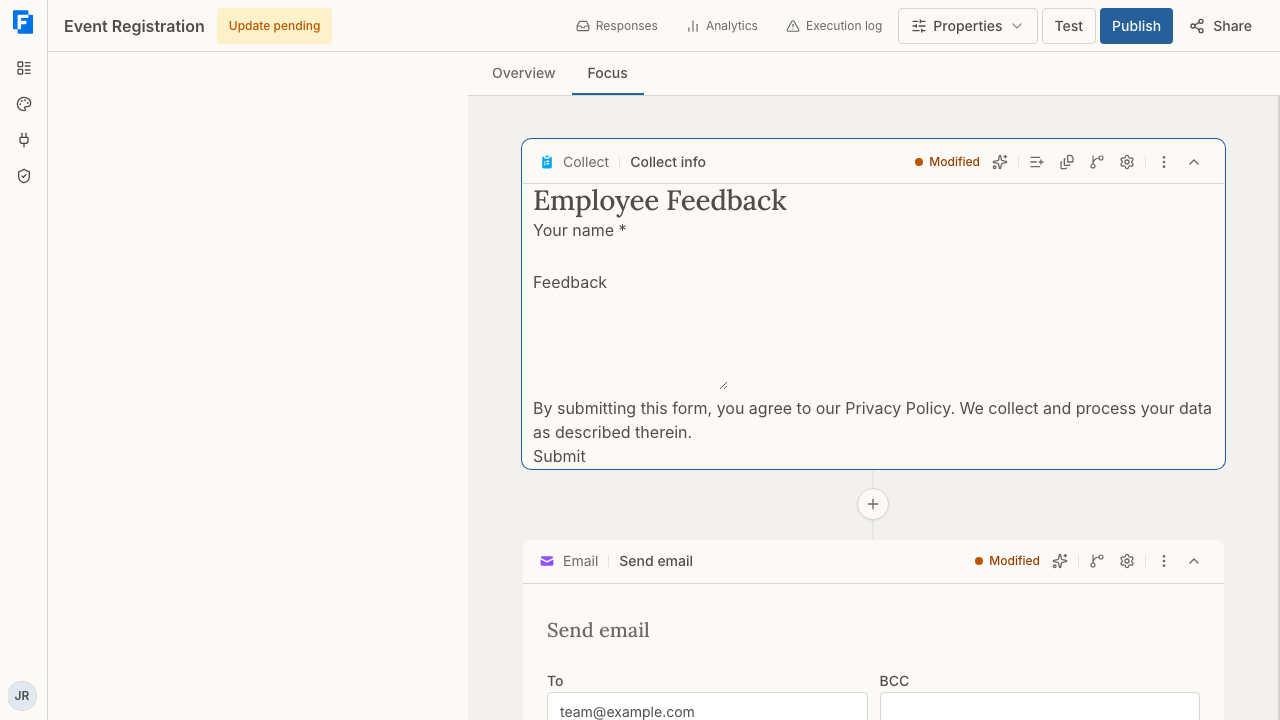
You can design your form in three ways:
- **Add fields and elements from the Properties panel** — Select **Add field** in the Collect step header to open the **Fields** tab, then click a field type to add it to your form, or drag it onto the form.
- **Edit directly in the preview** — Click on any label, hint text, or other editable content in the form preview to edit it inline, and select a field to open its toolbar.
- **Use Fai, the AI agent** — Type instructions in the chat input area and select **Send** to have Fai add fields, rearrange your form, apply validation, and more. Fai is FormAssembly's built-in AI assistant for form design.
All three approaches update the same form, so you can freely switch between them.
> **Note:** There is no undo in the form designer. Deleting a field or a section happens immediately, with no confirmation. Deleting a page asks you to confirm first, but it cannot be undone either.
---
## Using the AI Agent to Design Your Form
Fai, the AI agent, appears in the conversation panel — docked on the left side of the screen by default, though you can dock it right or let it float. Most form settings now have a builder control, so use the panels first and Fai as a shortcut. Fai is the only way to set a few things: the workflow's translations, the overall form width, a hint placed beside the input or a form-wide hint position, custom **Next** and **Previous** button labels, a custom input mask, and a default value carried over from an earlier step.
**Examples of what you can ask:**
- "Add an email field called Work Email and make it required."
- "Show the 'Please specify' field only when Other is selected."
- "Limit the résumé upload to PDF and Word documents, maximum 5 MB."
- "Set the Order Total field to Quantity times Unit Price."
- "Translate this workflow into French."
To include reference materials or examples when chatting with Fai, select **Attach File** (the paperclip) to upload a file alongside your message. **Send** is the paper plane button.
After Fai makes changes, review the form in the canvas to confirm everything looks correct.
---
## Adding Fields and Elements
Select **Add field** in the Collect step header to open the **Fields** tab. Field types are grouped as Basic, Choice and Advanced, and the tab lists every field type you can add. Click a field type to add it at the bottom of the page you are editing, or drag it onto the form to drop it exactly where you want it.
The **Elements** tab, beside **Fields**, holds layout building blocks under the heading Layout:
- **Title** sets the form title rather than adding a block.
- **Text** adds a block of static text.
- **Section** creates a section that groups related fields.
- **Divider** adds a horizontal rule.
Dropping one field beside another also creates a section automatically, placing the two fields side by side in a plain column section.
To reorder fields, drag them, or focus a field's drag handle and press the Up or Down arrow keys to move it within its page or section.
---
## Editing Content Inline
You can click directly on editable text in the form preview to make quick changes. Inline editing covers:
- The form title, when it is shown
- Page titles
- Field labels and existing hints
- Existing section headings
- Choice labels on radio, checkbox and ranked-choice fields (dropdown and multi-select list options are edited in the **Options** group of field settings)
- Text blocks
- The **Submit** button text, except when Review before submit is turned on, which fixes the button to "Review"
**Next** and **Previous** buttons, input values and dividers are not inline-editable. Ask Fai to change Next/Previous labels; default values are set in the field's settings.
---
## Field Types
FormAssembly supports a variety of field types to capture different kinds of data. The following field types are available in the **Fields** tab of the Properties panel, which you open with **Add field** in the Collect step header:
| Field type | Best for |
|---|---|
| Short text | A single line of text, such as names, titles, or IDs |
| Long text | Multiple lines of text, such as comments or descriptions |
| Email | A validated email address |
| Phone | A phone number |
| Number | A numeric value |
| Date | A calendar date |
| Date & time | A calendar date and a time together |
| Time | A time of day |
| Single select (radio) | Picking one option when all choices should be visible |
| Multi-select (checkboxes) | Picking one or more options from a list |
| Multi-select list | A scrollable list where respondents can select multiple values |
| Dropdown | Selecting one option from a compact list |
| Ranked choices | Ordering options by preference |
| Rating | A star rating scale |
| File upload | Attaching documents, images, or other files |
A short text field can also look up its options from a connected spreadsheet, from Salesforce or from your own API as the respondent types. A dynamic lookup like this is set up by asking Fai — see also: Connect to Spreadsheets & Files and Connect to Developer Tools.
Hidden is not a field type. Any field can be hidden from respondents, so that it stores a value they never see, with the **Hidden from respondents** switch in the field's **Visibility** group. A hidden field still shows on the builder canvas, marked as hidden, so you can find and edit it. (The "Hidden" label position is a different thing — it hides only the label.) File upload is the one field type that cannot be hidden, because a hidden upload control could never receive a file.
There is no matrix, grid or Likert question type. To ask respondents to rate several items on the same scale, add one radio field per item using the same set of options.
### File upload limits
A file upload field accepts one file of up to 50 MB, of any file type, by default. To restrict the allowed types, use **Allowed types** (Images, Documents, Archives, Audio) and **Other extensions** in the field's **Validation** group, and set a lower limit with **Max size (MB)**.
> **Note:** File upload is the one field type that requires JavaScript in the respondent's browser. If JavaScript is disabled, the upload control is replaced with the message "File upload requires JavaScript", and a form with a required file upload cannot be submitted.
---
## The Field Toolbar
Selecting a field in the form preview shows its toolbar. Field settings open from **Edit field settings** on that toolbar. The toolbar offers:
- **Mark required** / **Mark optional** — the same setting as **Required** in the field's Validation group. It is not shown on a hidden field.
- **Edit field settings** — opens the settings panel for the field. On a section, this button reads **Edit section settings**.
- **Duplicate** — adds a copy of the field.
- **Move to page** — available on multi-page forms, for fields that are not inside a section. The field lands at the end of the page you choose.
- **Edit choices** — opens the **Options** group, on dropdown, multi-select list, radio, checkbox and ranked-choice fields.
- **Delete** — removes the field immediately, with no confirmation and no undo.
### Options group
In the **Options** group of field settings you can add, rename and reorder options (drag them, or move them with the arrow keys), paste several options at once with **Add multiple (one per line)**, and select options to delete in bulk. Deleting more than five options asks for confirmation, and at least one option must remain.
---
## Field Settings
Open **Edit field settings** on a field's toolbar to open that field's settings panel. The settings a respondent reads stay open at the top of the panel:
- **Label**, **Hint**, and **Placeholder** (placeholder is offered on short text, long text, email and phone fields).
- The field's value setting — **Default value**, or a **Respondent input** / **Calculated** choice on fields that can hold a calculation.
- **Scale** on rating fields, from 2 to 10 stars.
Everything else sits in collapsible groups. A closed group shows a one-line summary of its current settings, so you can check a field without opening anything:
- **Options** — the option list and its bulk tools, on fields with options (described above).
- **Validation** — **Required**, **Read-only**, the rules for that field type, and one **Error message**. See Validation below.
- **Visibility** — **Hidden from respondents** and **Only show when…**, the conditional display rule. See Conditional Logic below.
- **Appearance** — **Style**, **Label position**, **Width**, **Hint position**, **Choice layout**, and a nested **Spacing** group holding **Height**, **Padding** and **Margin**. **Height** is set in lines of text.
- **Data & privacy** — **Sensitive data** and **Keep as privacy evidence** (not offered on file upload fields). See also: Compliance & Policies.
A field that is hidden from respondents shows a shorter panel: Hint, Placeholder, Scale and the whole Validation and Appearance groups are withheld, because none of them change anything a respondent sees. Label, the field's value, Visibility and Data & privacy stay editable, and the withheld settings return as soon as you show the field again.
**Style** offers Plain, Emphasized, Muted or Borderless. Style is not offered on radio, checkbox, ranked choice, rating or file upload fields.
**Read-only** shows the respondent the field's value but does not let them change it. It is not offered on file upload or ranked-choice fields, on a date field that defaults to the current date or a relative offset, or on a calculated field (which is read-only already).
---
## Layout and Appearance
Layout settings described in this section control how your form's fields, labels, and groups are arranged. Colors, fonts, and other visual styling come from the theme selected for the workflow, not from an individual form or field — see also: Themes & Branding.
### Label Placement
Labels can be positioned in several ways relative to their fields:
- **Above** (default) — Labels appear directly above the input, stacked vertically.
- **Below** — Labels appear underneath the input.
- **Left** — Labels appear to the left of the input, aligned to the left edge of a label column. Step settings calls this **Left-aligned**.
- **Right** — Labels appear to the left of the input, aligned to the right edge of a label column, closest to the input. Step settings calls this **Right-aligned**.
- **Hidden** — Labels are visually hidden but still occupy space in the layout. Use this to keep fields aligned while hiding certain labels.
- **Inside** — The label starts inside the input and floats above it when the field is focused or has a value. Inside applies only to short text, long text, and number fields; it is not offered on other field types, which show their label above the field instead.
Set the form-wide default in **Step settings** → **Default label position**, and override it on an individual field in that field's **Appearance** group.
Choosing **Inside** on a field clears its placeholder, and while a label is inside, no placeholder is shown — including one added later.
Only use hidden labels when the field's purpose is obvious from context, for example a single search input or a field with a meaningful placeholder.
> **Note:** On small screens (phones and narrow windows), side-by-side labels automatically switch to appearing above the field for readability.
### Hint Placement
Hints are short descriptions that help respondents understand what a field expects. In the **Appearance** group, **Hint position** offers two choices:
- **Below** (default) — Hint text appears below the input.
- **Tooltip** — An info icon appears next to the label. Respondents click or hover over it to see the hint in a popup. Clicking the icon keeps the hint open until the respondent clicks it again or presses Escape, which is what makes the hint readable on a touch screen. The tooltip is keyboard accessible and can be dismissed with the Escape key.
Placing a hint beside the input, or setting a hint position for the whole form, is done by asking Fai.
### Form and Field Width
**Width** in a field's **Appearance** group sets how wide the input is within its row: Full, Half or Third. A half-width field leaves the rest of its row empty rather than pulling the next field up beside it — to place fields side by side, use a section with columns, or drop one field to the left or right of another.
Builder widths are percentages, so fields shrink with the form and never overflow on small screens. A fixed width set through Fai can overflow. The overall form width is set by asking Fai.
### Fieldset Layouts
When you group related fields into a section, select the section and use **Edit section settings** to control its appearance and arrangement:
- **Style** — **Boxed** (the default) draws a border, background, and padding around the fields. **Plain** applies the layout only, with no surrounding container. A section that has a label always shows that label as a heading for the group, whichever style you choose.
- **Columns** — **Stacked** (the default) puts one field below another. **2**, **3** or **4** arranges the fields in a grid. The column count is a maximum: columns collapse as the form narrows.
- **Repeat** — see Repeatable Sections below.
- **Visibility** — **Only show when…**, the section's conditional display rule.
You can also ask Fai — for example, "Make the address section plain with no border."
### Choice Layouts
For radio button and checkbox fields, **Choice layout** in the **Appearance** group controls how the options are arranged. Choose **Columns** or **Rows** and a count. By default, options are listed one per line (Columns: 1). To have options flow left to right and wrap, use Rows: 1.
All choice layouts automatically adjust on smaller screens, reducing column counts as needed.
Form layouts respond to the space actually available to the form, not just to the size of the device. A form embedded in a narrow sidebar or a modal window reflows in the same way it would on a phone.
---
## Multi-Page Forms
For longer forms, you can split your content across multiple pages. Respondents navigate between pages using **Previous** and **Next** buttons, and a **Submit** button appears on the final page.
### Adding pages
Pages are added in the Pages panel, not on the form preview itself. To add a page:
1. Select the **Collect** step in **Focus** view so the step header is visible.
2. Select **Pages** in the Collect step header. This opens the **Pages** tab of the Properties panel.
3. Select **Add page** and give the page a title.
4. Move the fields that belong on the new page onto it, and repeat for any further pages.
Once your form has more than one page, a page tab strip also appears above the form on the canvas, with its own **Add page** shortcut for adding further pages quickly.
### Pages panel settings
A single-page form shows just **Add page** in the Pages panel (the **Pages** button in the Collect step header). Once the form has more than one page, the Pages panel also shows the page list and these controls:
- **Show page titles** (on by default)
- **Show page numbers**
- **Show navigation tabs**
- **Show progress bar** (off by default) — the progress bar shows how far through the pages the respondent is, and its appearance depends on the theme selected for the workflow
- **Add display condition** (or **Edit display condition** once a page has one), on the page's own row
- **Copy page**
- **Delete page** and **Disable multi-page**, which merges every page into one
Reorder pages by dragging them or using the arrow keys. **Delete page** and **Disable multi-page** both ask for confirmation and cannot be undone.
Key behaviors:
- **Page-level validation** — When a respondent selects **Next**, the current page's fields are validated before advancing. If any required fields are empty or values are invalid, errors appear inline and the respondent stays on the current page.
- **Navigation tabs** — With tabs shown, selecting a tab jumps straight to that page without validating the current page, and the **Previous** and **Next** buttons remain available alongside the tabs.
- **Conditional pages** — A page hidden by a condition is skipped by **Previous** and **Next**, and its tab is removed.
- **All data is submitted at once** — Moving between pages does not send answers to the server. The form is submitted only when the respondent selects **Submit** on the final page.
Custom **Next** and **Previous** labels are set by asking Fai.
### Review before submitting
**Review before submit** is a switch in **Step settings**, under **Submission**, and works on any form, single-page or multi-page. When it is on, the form shows a review button instead of submitting directly. Selecting it displays a summary of the entered answers with a button to go back and edit, plus a final submit button.
Step settings is organized as collapsible groups: **Appearance** (**Show form title**, **Default label position**), **Submission** (**Submit button label**, **Review before submit**, **Allow save & resume**) and **Variables**, which holds the variables the step declares for later steps. Save & resume lets respondents return to a part-finished form — see also: Collecting Responses.
---
## Repeatable Sections
Repeatable sections let respondents add multiple entries of the same group of fields. For example, a job application form might include a repeatable "Employment History" section where the respondent can add as many previous jobs as needed.
To make a section repeatable, select it, choose **Edit section settings**, and use the **Repeat** settings: a **Repeatable** switch, **Max instances** (from 2 to 1,000, or blank for no limit), and an **Add button label**. You can also ask Fai — for example: "Make the employment history section repeatable, with a maximum of 5 entries."
Each repeatable section includes:
- An **Add another** button (or the custom label you specify) to add a new entry
- A **Remove** button on each additional entry — the first entry cannot be removed
The **Add another** button disappears once the section's maximum is reached, and a submission claiming more entries than the maximum is cut back to the maximum.
Each entry is recorded separately, including entries where the respondent left every field blank, so a section that was shown three times is stored as three entries. If a repeatable section is hidden by conditional logic — either by its own condition or by a condition on the page or section that contains it — it is recorded as having no entries at all.
One submission can contain at most 1,000 entries in total, counted across every repeatable section and every level of nesting. Respondents cannot add entries beyond that limit — the **Add another** buttons stop offering new entries once it is reached. Keep the maximums you set on individual sections modest so that a form with several repeatable sections stays comfortably inside the overall limit.
When a respondent removes an entry, the entries below it move up one position and keep the answers already given, including any uploaded files.
> **Note:** In the builder preview, the **Add another** button is shown but does not add entries.
---
## Conditional Logic
Conditional logic lets you show or hide fields, sections and pages based on a respondent's answers. For example:
- Show a "Please specify" text field only when "Other" is selected from a dropdown.
- Display an additional section only when a respondent answers "Yes" to a question.
- Hide irrelevant questions based on earlier responses.
To set a condition on a field or a section, open its settings and turn on **Only show when…** in the **Visibility** group, then build the rule. To set one on a page, use **Add display condition** (or **Edit display condition**) on that page's row in the Pages panel (the **Pages** button in the Collect step header). Rules are lettered A, B, C and combine with **All**, **Any** or **Custom** logic, where Custom lets you write an expression from those letters, such as `(A AND B) OR C`. Fai can also set conditions for you. An item that carries a condition shows a **Conditional** pill in the builder.
Where no field precedes the item — the form's first field, or a section at the top of the first page — you cannot add a condition, and the settings say why, because there is nothing for the rule to read. A condition already stored there still shows, so you can see it and remove it. A field hidden from respondents offers no conditional display setting either, since respondents never see the field; a condition already stored on a hidden field stays visible so you can remove it. Turning **Only show when…** off on an item that already has a condition asks you to confirm, and the condition cannot be brought back.
A condition can only use fields on the same form that come before the item it controls. Publishing is blocked if a condition points at a field that comes after it — move the field above, or change the condition. Publishing is also refused when a condition names a field on another step: a show/hide condition reads only its own form. To act on an answer collected in an earlier step, branch the workflow instead (see also: Building Workflows).
The rule builder offers these operators: **is** and **is not**; **>**, **≥**, **<** and **≤** (dates compare as dates); **contains**, **starts with** and **ends with**, each with a "does not" form; **is one of** and **is not one of**, which match when any one of several values matches; **is between**, which takes a From and a To value and includes both; and **is empty** and **is not empty**. A single-choice field (dropdown or radio) offers **is**, **is not**, **is one of**, **is not one of**, **is empty** and **is not empty**, and picks its values from the field's own options. A checkbox or multi-select field adds **contains** and **does not contain**. The comparison operators (**>**, **≥**, **<**, **≤**), **starts with**, **ends with** and **is between** are never offered on a choice field.
Conditions are re-evaluated as soon as an answer changes — for text fields, when the respondent leaves the field.
**Important details:**
- **Hidden fields are not validated** — If a required field is hidden by a condition, it will not block form submission.
- **Inside repeatable sections, conditions are scoped per entry** — A condition inside one entry looks only at the answers in that same entry, so each entry can show and hide fields independently. It can also use fields outside the section, just not sibling entries.
- **Hiding a section hides everything inside it** — If a section or page is hidden by a condition, all of its fields and any nested repeatable sections are treated as hidden and their data is discarded on submission.
> **Note:** Conditional logic is not applied in the builder preview — all fields are shown there so you can see and edit the whole form. Test conditions using **Test** or on the published form.
---
## Validation
Validation rules ensure respondents provide data in the expected format before submitting. Set them in the **Validation** group of a field's settings, which holds **Required**, **Read-only**, the rules that apply to that field type, and one **Error message**. Fai can set the same rules for you.
### Available validation types
| Rule | What it checks |
|---|---|
| Required | Field must not be left empty |
| Email | Must be a valid email address |
| Phone number | Must be a valid phone number format |
| URL | Must be a valid web address |
| Integer | Must be a whole number, with optional minimum and maximum |
| Decimal number | Must be a number (with decimals allowed), with optional minimum and maximum |
| Date | Must be a valid date, with an optional range between fixed dates |
| Time | Must be a valid time (a time range is not enforced) |
| Minimum and maximum length | Limits the number of characters or words |
| Minimum and maximum selections | Limits how many options can be chosen on checkbox, multi-select and ranked-choice fields |
| Rating | Must fall within the field's scale |
| File type and size | Restricts uploads to specific types and to a size limit |
| Custom pattern | Validates against a custom pattern you define (short text fields only) |
On a short text field, **Format** offers None, Email, Phone, URL, SSN, ZIP code, Currency and Custom pattern; choosing Custom pattern reveals a **Pattern** box. Short text and long text fields also offer **Min length** and **Max length**, counted in characters or words; number fields offer **Min value** and **Max value**; checkbox, multi-select and ranked-choice fields offer **Min selections** and **Max selections**; file fields offer **Allowed types**, **Other extensions** and **Max size (MB)**.
### How validation works
- **As respondents fill out the form** — A field is checked when the respondent leaves it, and errors appear inline below the field. Radio buttons and checkboxes are checked on **Next** or **Submit** instead.
- **On page navigation** — In multi-page forms, the current page's fields are validated when the respondent selects **Next**. Minimum length, and minimum and maximum selections on checkbox and multi-select fields, are checked only at final submit.
- **On the server** — Most validation rules are re-checked on the server when the form is submitted, regardless of what happened in the browser. This prevents anyone from bypassing validation. File type is checked again when the file is uploaded, and no upload can exceed 50 MB, but a field's own lower size limit is checked only in the browser.
Each field can have one custom error message, which replaces the default message for that field's validation rules. "Please enter a valid value." is the server's message for a value that is not a number; in the browser, a number field with a format or a range shows the field's own error message instead.
Fields hidden from respondents are still validated. An error on such a field appears as a message at the top of the form, since the field itself has nowhere to show one. This is separate from fields hidden by conditions, which are skipped.
In repeatable sections, each entry is validated independently — a required field that is hidden in one entry is skipped, while the same field in another entry is still validated.
### Input Formatting
Some text fields format the respondent's input automatically as they type. FormAssembly applies automatic formatting to fixed-length formats — Social Security numbers (###-##-####) and US ZIP codes, which keep a ZIP+4 extension — or to any input mask you ask Fai to define. An SSN is masked but not validated; a ZIP code is masked and validated. Phone numbers, email addresses and URLs are validated but not masked, because a fixed mask would corrupt valid international values. A text field formatted as currency only gets a numeric keyboard; a number field formatted as currency or percentage is validated as a decimal. A custom pattern cannot be combined with a format. Automatic formatting requires JavaScript.
---
## Default Values
Text, long text, number, time, rating and date fields have a **Default value** setting at the top of field settings. On a date field the options are None, Current date, or Custom.
Fai can also set a default, including a value carried over from an earlier step, and choice fields can have options selected by default. If a referenced value cannot be resolved, the field is left blank. File upload fields cannot have a default, and a calculated field has no default.
### Field References in text blocks
A text block on a form can show a value collected in an **earlier** step: a field's answer or a variable the step declares. Write it as a **Field Reference** — a `{{ … }}` value placed in text — for example `{{ step_1.firstName }}`. When the form opens, the respondent sees the value in place of the reference.
Typical uses are greeting the respondent by a name captured earlier or passed in the link, showing a reference number a connected system returned, and showing an approver's comment when a response comes back for correction.
Type the Field Reference into the text block yourself, or ask Fai to add it. Text blocks have no picker for inserting one.
Points to keep in mind:
- The builder shows the Field Reference as you typed it, not the value. Use **Test** to see the value.
- The value is filled in once, when the form opens. A text block cannot echo an answer from the same form as the respondent types.
- A value that contains HTML is shown as plain text, never as formatting.
- A Field Reference that resolves to nothing shows as blank. Publishing is refused when a Field Reference names a field or variable that does not exist.
- A text block's show/hide condition cannot depend on a variable from an earlier step; conditions read only fields on the current form.
---
## Calculations
Calculation fields automatically compute a value from other fields in the form — for example, totaling line items in an order form or adding up rating scores. To set one up, open the field's settings, switch its value from **Respondent input** to **Calculated**, then write the formula in the formula editor, a plain text box opened with the **fx** button. Fai can write the formula instead. Calculation results update in real time as the respondent fills out the form, and calculated fields are read-only.
**What calculations support today:**
- A calculated result can go in a text, paragraph text, number, date or time field, and must suit that field's data type: a number field takes a number, a date field a date, a time field a time, and a text field anything.
- A formula refers to other fields by their calculation names, and can also name a field by its id (for example `tfa_3`). When a calculation name and an id are the same, the calculation name wins. The builder does not show field ids, so in practice use calculation names, or ask Fai to write the formula. Each field is read as its own data type, never guessed from what was typed: a text field holding `42` is text. A choice field reads as the chosen option's label, so choice answers cannot be scored numerically — scoring star ratings works. Checkbox and multi-select answers, date & time fields and file uploads cannot be read by a formula.
- A formula can also read a field collected on an earlier step, named as `step_N.` followed by that field's id — for example `step_1.tfa_3`. The value of an earlier-step field is fixed when the page loads, while a field on the current form stays live. Only fields on earlier Collect steps can be named this way, never a variable or an option. A field inside a repeatable section on an earlier step can be read only if it is a number, and the formula gets the sum of its rows; publishing refuses a formula that reads any other kind of repeated earlier-step field. A step counts as earlier when some path through the workflow reaches this step after it; a step reached only through a loop reads empty until the loop has run. An assignment's workflow and the workflow around it cannot read each other's steps.
- Operators are `+`, `-`, `*`, `/` and `^` (to the power of) on numbers; `&` joins values into text (a date shows as YYYY-MM-DD, a time as HH:MM:SS, a yes/no as TRUE or FALSE); and `=`, `<>`, `<`, `<=`, `>`, `>=` compare two values of the same kind and give TRUE or FALSE. Text goes in double quotes, for example `first & " " & last`. There are no functions yet, and no date arithmetic.
- A rating field can be referenced but cannot hold a result.
**How calculations behave:**
- A hidden or unanswered field is empty, not 0: arithmetic involving an empty value gives an empty result, and `&` joins it as nothing.
- In **repeatable sections**, calculations are scoped appropriately — a total field inside a repeating section uses only the values from that same entry, while a total field outside the section sums values across all entries.
- All calculations are **re-evaluated on the server** when the form is submitted. The server-computed result always takes precedence, preventing tampering.
- **Field order does not matter** — a total field can appear above the fields it adds up. Calculations are evaluated in dependency order, not in the order fields appear on the form.
- A calculation that depends on itself, directly or through other calculations, blocks publishing, and so does one whose types do not fit (for example a number multiplied by a text field). Fix the formula to publish.
- A calculation shows "error", with the message "This value can't be calculated.", when it divides by zero, when a number it reads is not a plain decimal (for example `1e3`), or when the result is too large or too precise to compute exactly.
- Results are exact and are not rounded, use a period decimal separator with no thousands separators, and are never shown in scientific notation.
> **Note:** Calculations are not evaluated in the builder preview. Use **Test** to see calculated values update.
---
## Form Language
A workflow has a default language and can offer translations. The default language is the language the workflow's content is written in; each translation holds the workflow's text in one more language. The workflow offers its default language plus every translated language, and each response runs in exactly one of them.
### Setting the default language
To set the default language in FormAssembly, select **Properties** in the workflow header and choose **Languages**. The **Default Language** setting is there. The same panel lists the workflow's translations with how much text each one leaves out — "Nothing omitted", or "N omitted". The Languages panel does not add, remove or edit translations; ask Fai for that.
Asking Fai "Set this workflow's language to French." rewrites the workflow's content in French. To offer French alongside the original language, ask Fai to translate the workflow into French instead.
### What a translation covers
A translation holds the respondent-facing text the workflow owns:
- The public workflow name.
- Form titles, and page, section and field labels.
- Hints, choice labels and the submit button label.
- HTML blocks.
- Emails, confirmation and response messages, and approval text.
- The availability message.
- The intake agent's nickname and welcome message.
A translation may leave text out. Any text a translation omits is shown in the default language, which is often what you want — an email that goes to your own staff can stay in the default language while the form itself is translated.
### How a respondent's language is chosen
When a respondent starts a response, FormAssembly picks the first offered language that matches the respondent's browser preferences (French for Canada matches French). If nothing matches, the response runs in the default language. That language then applies to every step of that response, including its emails. Resuming a response, replaying it, or opening a later step from a link keeps the same language. A person assigned a task gets their own browser's language.
### Switching language
When a workflow offers more than one language, the form shows a language switcher, with each language named in its own language. Choosing a language reloads the current page in that language and keeps whatever the respondent has already entered.
### Stored answers do not depend on language
Choice values, conditions, calculations and connector mappings all use the default-language values, so a translation never changes what is saved or sent on.
### Supported languages
FormAssembly's own text on the form — button labels, page counters, validation messages and similar — follows the response's language, using built-in translations in 15 languages:
- English (US) and English (UK)
- French
- Spanish
- German
- Portuguese (Brazil) and Portuguese
- Italian
- Dutch
- Japanese
- Chinese (Simplified) and Chinese (Traditional)
- Korean
- Arabic
- Hebrew
A language without its own built-in translation falls back to its base language — Canadian French uses French, for example — and then to English (US). Chinese variants other than Simplified and Traditional fall back to English (US).
### Right-to-left layout
Forms in Arabic, Hebrew, Persian or Urdu automatically render with right-to-left layout. Persian and Urdu have no built-in translation, so they get right-to-left layout with English FormAssembly text.
### Entering numbers
Respondents must type numbers in plain form, using a period as the decimal separator and no thousands separators — for example, `1234.56`. Calculation results are shown the same way, regardless of the form's language. A value typed as `1.234,56` cannot be read as a number, so a live calculation that uses it shows "error" while the respondent types; when the form is submitted, the value is refused with "Please enter a valid value." If your form collects numbers from respondents who are used to comma decimals, add a hint telling them to enter the number in plain form.
---
## Forms and JavaScript
FormAssembly forms rely on JavaScript in the respondent's browser. A simple single-page form can still be submitted without it, but with JavaScript disabled:
- A multi-page form shows only its first page and cannot be submitted.
- Conditional fields and sections stay hidden, even when their condition is met.
- Calculations and input masks do not run.
- File upload shows "File upload requires JavaScript", so a form with a required upload cannot be submitted.
---
## Tips & Troubleshooting
- **You can't find the Fields, Elements, or Pages tab.** Those tabs live in the Properties panel and are opened from the Collect step header in **Focus** view: **Add field** opens the **Fields** tab (with **Elements** beside it), and **Pages** opens the **Pages** tab. In **Overview**, click the Collect step card to switch to Focus view first.
- **You can't find a setting in field settings.** Most settings sit in collapsible groups — Options, Validation, Visibility, Appearance (with Spacing inside it) and Data & privacy. A closed group shows a summary of what it holds, so open the group whose summary mentions the setting.
- **A hidden field's settings are missing.** A field hidden from respondents withholds Hint, Placeholder, Scale and the Validation and Appearance groups, because they would change nothing. Show the field again and the settings return.
- **You deleted something by mistake.** There is no undo. Deleting a field or section is immediate; deleting a page asks for confirmation but cannot be reversed either. Re-add the item, or ask Fai to rebuild it.
- **The preview doesn't behave like the live form.** The builder preview shows all fields regardless of conditions, does not run validation, does not evaluate calculations, and does not add repeatable entries. Use **Test** to check conditional logic, validation, and calculated values before publishing.
- **A floating label isn't floating.** The **Inside** label position applies only to short text, long text, and number fields. Other field types show their label above the field.
- **A placeholder disappeared.** Choosing **Inside** as the label position clears the placeholder, and no placeholder is shown while the label is inside — including one you add afterwards.
- **Side-by-side labels look misaligned.** Use the **Hidden** label position rather than deleting the label text — hidden labels keep the label column in place so inputs stay aligned.
- **Two fields won't sit side by side.** Setting a field's **Width** to Half leaves the rest of the row empty. Put the fields in a section with **Columns** set to 2, or drag one field to the left or right of the other.
- **An operator you expect is missing on a choice field.** A single-choice field offers only **is**, **is not**, **is one of**, **is not one of**, **is empty** and **is not empty**; a checkbox or multi-select field adds **contains** and **does not contain**. The comparison operators, **starts with**, **ends with** and **is between** are never offered on a choice field.
- **Publishing is blocked by a condition.** A condition can only use fields on the same form that come before the item it controls. Move the referenced field above the item, change the condition, or — if the condition needs an answer from an earlier step — branch the workflow instead.
- **A calculation shows "error".** The formula divided by zero, read a value that is not a plain decimal (such as `1e3`), or produced a result too large or too precise to compute exactly. Check the values being referenced.
- **A calculation can't be set up.** A result must go in a text, paragraph text, number, date or time field and suit that field's data type, and a formula cannot read checkbox, multi-select, date & time or file upload answers. Choice answers read as the option's label, so they cannot be scored numerically.
- **A total is blank.** A hidden or unanswered field is empty rather than 0, and arithmetic involving an empty value gives an empty result.
- **A total is wrong while the respondent types.** Numbers must be entered in plain form with a period decimal separator and no thousands separators. A value like `1.234,56` makes the live total show "error" and is refused at submit with "Please enter a valid value."
- **A Field Reference shows as text instead of a value.** The builder preview always shows a Field Reference as typed. Use **Test** to see the value, and check that the reference names a field or variable from an earlier step.
- **A required field didn't block submission.** Conditionally hidden fields are not validated. If the field must always be answered, remove the condition that hides it.
- **A respondent can't submit a form with a file upload.** File upload requires JavaScript in the respondent's browser. If JavaScript is disabled, the control is replaced with the message "File upload requires JavaScript" and a required upload blocks submission.
- **Some text on a translated form is still in the original language.** A translation may omit text, and anything it omits is shown in the default language. Ask Fai to translate the missing text; the Languages panel in **Properties** shows how much each translation leaves out.
- **A respondent saw the wrong language.** FormAssembly matches the respondent's browser preferences against the languages the workflow offers, and uses the default language when nothing matches. The respondent can switch language on the form, and that choice applies to the rest of the response.
- **Multi-column layouts look like a single column.** Column layouts collapse based on the space available to the form, so a narrow window, sidebar, or embed will show fewer columns.
- **A repeatable section recorded blank entries.** Every entry the respondent was shown is recorded, even if all of its fields were left empty. Lower **Max instances**, or hide the section with a condition when it does not apply.
- **A respondent can't add another entry.** Either the section's **Max instances** has been reached, or the submission has reached the overall limit of 1,000 entries across all repeatable sections. Lower the maximums on your repeatable sections so the total stays within that limit.
- **The form's colors or fonts aren't what you expected.** Colors and typography come from the theme selected for the workflow, not from the form itself. See also: Themes & Branding.
See also: Building Workflows.
---
# Collecting Responses
Once your workflow is published, respondents can open your form at its public link and submit responses. This article explains how to test, publish, schedule, and share your FormAssembly workflow, what your respondents will see when they fill out a form, and how to embed a form on your own website.
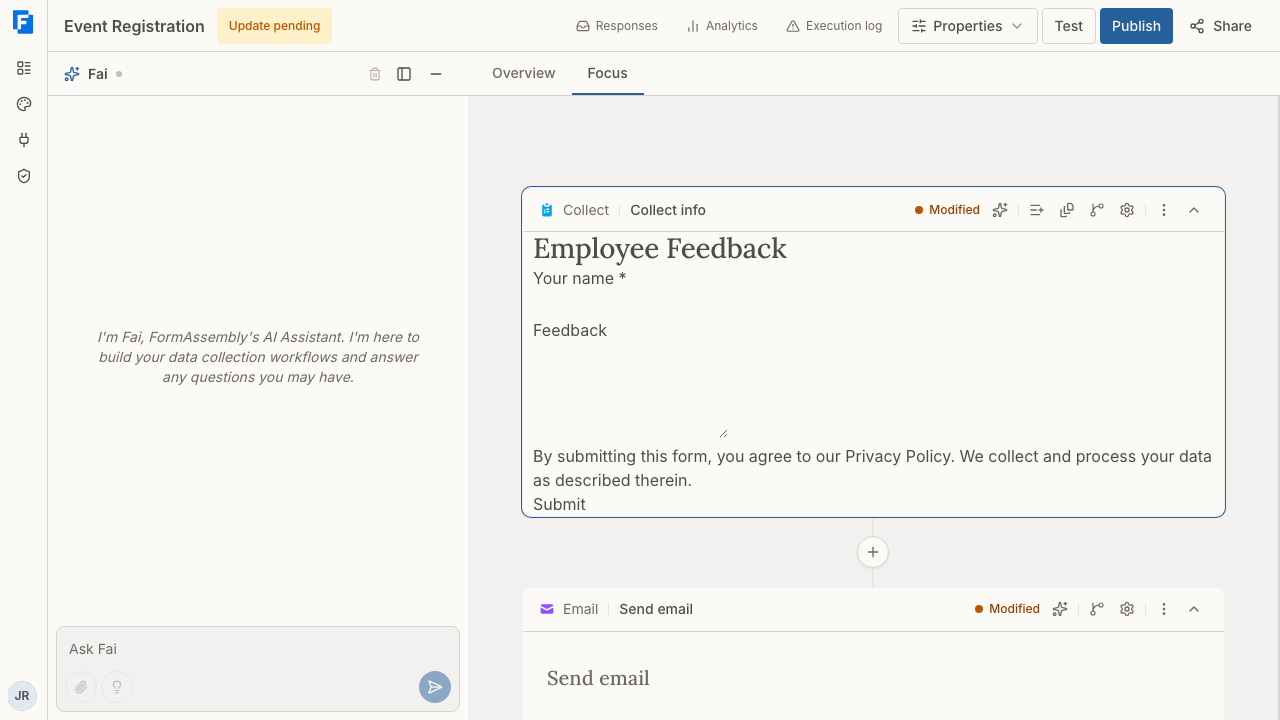
## Testing your workflow before publishing
Before sharing a workflow with real respondents, you can run through it yourself to make sure everything works as expected.
1. Open your workflow in the builder.
2. Click **Test** in the top navigation.
3. A new browser tab opens, showing your form as a respondent would see it — with one addition: a yellow **test mode banner** at the top of the page.
4. Fill out the form and submit it to walk through every step of the workflow.
FormAssembly runs the same validation checks when you click **Test** as when you publish. If your workflow has incomplete or misconfigured steps — for example, an email step with an invalid recipient address, or a connector step that hasn't been set up — a banner appears in the builder, usually titled **Can't test yet** (other titles include "This workflow isn't valid yet"), listing the problem step by step. The banner sometimes offers an **Ask Fai for help** button, which hands the issue over to Fai, the AI assistant built into the FormAssembly builder. The test does not open until all issues are resolved, and fixing one set of problems can reveal more.
The workflow's owner and any admin of the account can start a test run — the same people who can edit and publish it. A member who is neither the owner nor an account admin cannot test the workflow. A collaborator the workflow has been shared with can open it at their access level, but still cannot test it unless they are the owner or an account admin. Test emails always go to the person running the test, so an admin testing a teammate's workflow receives the test mail themselves. Ownership can be transferred: the owner or an account admin clicks **Properties**, chooses **Collaboration**, and uses **Change owner**.
### What happens during a test run
- **You see what respondents see, with a few deliberate differences.** The form, validation, and all workflow steps run as they would for a real respondent, except for the points below.
- **Email notifications are sent to you.** Any email step in your workflow sends the message to your own account email address (not the address configured in the step), and BCC recipients are not sent. The subject line is prefixed with **[TEST]**, and the email body includes a note showing who the message would normally be sent to. Invitation and resume emails also come to you.
- **Connected systems receive real data.** If your workflow sends data to an external system (for example, Salesforce or Google Sheets), test submissions create real records in that system. The test mode banner warns you about this. If a step has a test (sandbox) connection configured, that step runs against the sandbox environment instead, so records are created only there. A connector step that has only a sandbox connection can still be tested.
- **The availability window is ignored.** A test run opens the form even outside the scheduled window, and the banner tells you whether the window is currently open.
- **Test runs are recorded as real workflow runs.** Test submissions are stored alongside live ones but are marked as test runs so you can tell them apart. Test runs are not counted toward your usage or your analytics. You can start up to 40 test sessions per hour, counted per person across all of your workflows.
Clicking **Test** saves any pending edits first, then runs the latest draft — or the published version if there is no draft. A test that is already open keeps the version it started with; click **Test** again to pick up later edits.
> **Note:** The test link is private to you and must be opened within one hour. It cannot be shared with other people. Once the test is open, the run continues. If you open the link while signed out, you are sent to sign in first.
### Filling a test form automatically with Fill Test Data
The test mode banner includes a **Fill Test Data** button that populates the form with valid sample data in one click, so you can walk a workflow end to end without typing every field by hand.
Click **Fill Test Data** and FormAssembly answers the form the way a respondent would: one visible field at a time, in order, moving between pages using the form's own navigation buttons. Because each value is entered as a real interaction, conditions, calculations, and dependent lists all behave exactly as they do for a respondent.
Fill Test Data fills only the current step's form, and it never submits the form for you. If your workflow has more than one form step, click **Fill Test Data** again on each one. If a page cannot be completed — for example, it contains a field Fill Test Data cannot fill — it stops on that page.
What gets filled:
- Email fields are filled with your own account email address, so email steps in the workflow remain testable.
- Free-text fields are filled with lorem ipsum, so test data is easy to recognize wherever it lands — including in records created in your connected systems.
- Numbers, dates, times, and formatted fields (phone, URL, postal code, and similar) receive values that satisfy the field's own validation rules. A time field with a minimum or maximum may still need adjusting by hand.
- Choice fields receive their first option, or as many first options as the field's minimum number of selections requires. Ratings receive the middle of the scale, and ranked choices receive every option in the order listed.
- A dynamic lookup field is answered by choosing a real row from its connected dataset, which also populates any fields that the lookup maps its columns to. If the lookup returns no rows or times out, the lookup field and the fields it would have filled are left empty.
- Each repeatable section gets one additional entry, so the section ends up filled twice, within any repeat limit you have set.
What is left empty:
- Fields hidden by a condition, and pages a condition skips, are never reached.
- Read-only fields, including calculated fields, are skipped because a respondent cannot type into them.
- Fields that already have a value — a default value or a value prefilled from a link — are left as they are, so your test scenario is not overwritten.
- File uploads and fields with a custom validation pattern cannot be generated automatically.
**Fill Test Data does not produce a report of what it filled.** If a required field is left empty, the form's normal validation flags it when you submit, and you can answer it yourself.
Fill Test Data is hidden when the workflow's intake agent is running in conversation mode, because there is no visible form for it to fill.
## Publishing your workflow
Publishing makes your workflow available to respondents at its public URL.
1. Open your workflow in the builder.
2. Click **Publish** in the top navigation.
Once published, the workflow is live and respondents can submit responses. If you make changes after publishing, those changes remain in draft until you publish again — your live respondents continue to see the previously published version.
E-signature is available on the plans that include it, and a workflow with a sign step publishes and tests normally on those plans. On a plan without e-signature, the sign step is locked: choosing **E-Signature** in the Add step menu in Focus view opens the upgrade prompt, and so does clicking **Publish** or **Test** on a workflow that already contains a sign step. Document generation steps do not block publishing — but a document generation step with no template uploaded does, so finish setting the step up with Fai before you publish.
If your workflow is unpublished or archived, visitors to the URL see the message "This form is currently unavailable."
### When Publish doesn't put the form live
If your account requires compliance review, clicking **Publish** submits the workflow for review instead of publishing it immediately. The **Publish** button is disabled and **Submitted for review** appears beside it. The workflow goes live once a reviewer approves it. See also: Compliance & Policies.
If your account is at its workflow limit, you cannot publish a workflow that is not already live until you archive another workflow or upgrade your plan. Republishing a workflow that is already live still works.
### Why Publish or Share is greyed out
- **Publish** is disabled when there are no unpublished changes, while a publish is in progress, and while a publish is waiting for compliance review.
- **Share** is disabled until the workflow has been published, and when the workflow is archived.
### Republishing and responses already in progress
Each response stays on the version of the workflow it started with, including responses that were saved and later resumed. Republishing never changes the form under a respondent who is partway through.
### Taking a form offline
There is no Unpublish button in the builder. To take a published form offline, archive the workflow from the row menu in the workflows list, or ask Fai to unpublish it. Both are abrupt: they cut off respondents who are partway through, and saved resume links stop working — even though the archive dialog mentions only that new submissions stop. If you simply want to stop accepting new responses, set a **Closes** date instead.
## Scheduling when the form accepts responses
You can schedule when your FormAssembly form accepts responses, so it opens and closes on its own rather than needing you to publish or archive it at the right moment.
1. Click **Properties** in the builder's top navigation.
2. Choose **Availability** to open the **Workflow Availability** panel.
3. Set an **Opens** date and time, a **Closes** date and time, or both.
4. Optionally enter an **Unavailable Message** that respondents see outside the window.
Times are shown in the workflow's timezone, or in your own timezone if the workflow has none; there is no timezone picker in the panel. Outside the window, respondents see "Workflow is not yet available" or "Workflow is no longer available", or your custom message if you have set one. A respondent who is already partway through is never cut off. Test runs ignore the availability window, and an embedded form does not currently enforce it.
## Requiring sign-in
By default, anyone with the link can open and submit your form without an account. To require respondents to identify themselves, click **Properties**, choose **Access**, then **Authentication**, and set **Requires sign-in** to one of the identity providers an admin has added in Settings, rather than "No sign-in required". See also: Single Sign-On, which covers adding providers.
## Sharing your workflow
After a publish that goes live, the share popup opens on its own. Once the workflow is published you can reopen it at any time with **Share**.
- Click **Share** in the top navigation to open the sharing options. Below desktop widths, the **Share** button shows only its icon.
- The public link is under **Live URL**. Copy it with the copy icon beside it, or use the open-in-new-tab icon next to it to view the live form.
- The embed code is under **Embed on your website**. Copy it with **Copy** (see [Embedding a form on your website](#embedding-a-form-on-your-website) below).
The public link follows the pattern:
```
https://app.formassembly.ai/wf/your-account/your-workflow
```
The workflow part of the URL is set when the workflow is created and does not change if you rename the workflow. You can change it deliberately: click **Properties**, choose **Access**, and edit the **URL ending** under **Custom URL**. The change takes effect immediately and the old URL stops working, so links you have already shared, embed snippets on other sites, and resume or invitation links already emailed all break. On a live workflow, FormAssembly asks you to confirm before saving the change.
Unless you have set an availability window or required sign-in, anyone with the link can open the form and submit a response without an account.
## What respondents experience
When a respondent opens your form, they see a clean, accessible page with your form fields and any instructions you've added. Here's what to expect at each stage.
### Filling out the form
- **Field types** — Respondents may see text fields, dropdowns, checkboxes, radio buttons, file uploads, and more, depending on how you've built your form.
- **Required fields** — Fields you've marked as required must be completed before the form can be submitted.
- **Conditional fields** — Fields with visibility conditions appear or disappear as soon as the answer they depend on changes. For a text field, that is when the respondent leaves the field rather than as they type.
- **Repeatable sections** — If your form includes repeatable sections, respondents can add or remove entries up to any limit you set. The first entry cannot be removed.
- **Prefilled values** — If a field has a prefilled value, FormAssembly fills it in before the page reaches the respondent, so the value is already present when the form first appears.
- **File uploads** — Respondents can upload files up to 50 MB each, or a lower limit set on the field. The upload control always shows the size limit, and shows the allowed file types only when the field restricts them.
### Choosing a language
A FormAssembly workflow can offer more than one language. When a workflow carries translations, each response runs in a single language: the form starts in the language that best matches the respondent's browser, and a language switcher on the form lets the respondent change it. See also: Form Design, which covers the workflow's default language and how translations are added.
### Multi-page forms
If your form has multiple pages, respondents navigate between them using **Previous** and **Next** buttons. Page titles are shown by default (**Show page titles**). You can also turn on **Show page numbers**, **Show navigation tabs** and **Show progress bar**, which are off by default. Navigation tabs let respondents jump between pages without the page being validated on the way.
The Next and Previous labels can be changed per page only by asking Fai — there is no builder control for them.
### Validation
Validation runs as the respondent fills the form and again when they move on. Each field other than radio buttons and checkboxes is checked when the respondent leaves it, and every field on the page is checked when they click **Next** or **Submit**:
- Required fields that are left blank are flagged.
- Format checks run on fields like email addresses, dates, and numbers.
- Length and range limits are enforced where configured.
Validation errors appear directly below the relevant field with a clear description of the problem. When **Next** or **Submit** finds an error, focus moves to the first field with an error so the respondent can correct it immediately. When the server rejects a submission on a multi-page form, the form reopens on the first page that contains an error rather than on page one.
If a respondent has already uploaded a file and the form is re-displayed after a validation error, the uploaded file is kept — the respondent does not have to upload it again.
FormAssembly re-checks every submission on the server, including which fields were genuinely visible to the respondent, so validation rules cannot be bypassed in the browser.
### Review before submit
If you turn on **Review Before Submit** in the **Properties** panel for a Collect step, the button on the last page reads **Review**, and respondents see a summary of their answers before the form is submitted. The summary page offers **Back** and the final submit button, giving respondents a chance to go back and correct anything. Other options in the same panel — **Show form title**, **Submit button label**, and **Default label position** — also change what respondents see on the form.
### Saving and resuming a form
Turn on save and resume with the **Allow save & resume** switch in the Collect step's **Step settings**, under the **Submission** group. Turning it on asks "What happens after a respondent saves?" so you can pick the step a save leads to — usually an email step that sends the respondent their resume link. Save and resume is offered only when the workflow has somewhere for a save to go; if no save route is configured, no save control appears.
With save and resume on, respondents see a **Save and finish later** control in the form's action bar on every page (shortened to **Save** on narrow screens), so someone partway through a long form can stop and come back later.
When a respondent clicks **Save and finish later**:
1. A dialog opens explaining that a link will be emailed, and shows the address the link will be sent to. The address is prefilled when FormAssembly already knows it, and may be editable.
2. If the workflow does not already know the respondent's address — for example, the respondent is still on page one and has not reached the email field — the respondent enters an address in the dialog.
3. Clicking **Save and email my link** saves the answers entered so far. **Cancel**, Escape, or clicking outside the dialog returns to the form unchanged.
**The resume link is sent only if the email step on the save route includes its own resume link in its message.** Add the `{{ step_N._resumeUrl }}` reference to that email step's message, using that step's own ID in place of `step_N`. Without it, the answers are saved but the respondent receives no way back in.
Saving does not require the form to be complete — required fields and minimum lengths are not enforced — but anything the respondent has already entered must still be valid, such as a correctly formatted email address. When a respondent returns on a resume link, the address in the save dialog is usually shown read-only.
**Resume links stay valid for a year** and can be reused until the response is finished. Saving again replaces the earlier link, so the link in an older email stops working.
### How long a respondent has to submit
A respondent has four hours from the moment the form loads to submit it, and all of that form's pages count toward the time. After four hours, submitting or saving shows "This form session has expired. Please refresh the page." and unsaved answers are lost — the respondent needs to reopen the original link and start again. For long forms, turn on save and resume, and tell respondents to save within the four hours.
### Completing the workflow
While a submission is sending, the submit button reads "Please wait..." in the workflow's language, so respondents know not to click again.
If FormAssembly cannot accept a submission, the form stays on the page with every typed answer kept, a banner at the top explains why, and **Submit** works again. The three messages are "This form is still being processed. Please try again in a moment.", "Too many submissions. Please try again later." and "Your submission could not be sent. Check your connection and try again."
After the last form is submitted, any email and connector steps run. The respondent may briefly see "Your submission is being processed. This page will refresh automatically." before your confirmation message appears or the redirect you configured takes them away. Steps that need someone else, such as approvals, wait for that person before the workflow continues.
### What a signer sees
If your workflow includes an e-signature (sign) step, the person assigned to sign opens a signing page on FormAssembly's hosted page, where the generated document appears in a document viewer. Only that signer's own fields are active, so one signer can never fill in another's.
- A bar at the bottom of the page steps through the signer's fields in order, with **Previous field** and **Next field**. Once the current field is done, the main button reads **Continue**. A signature or set of initials can be drawn, typed, or uploaded. The date field is filled in with today's date.
- A bar at the top shows progress (for example, "2 of 4 fields done"), a **Download** control for the copy on screen, and **Decline to sign**. When every field is complete, the progress bar reads "All fields done". On a narrow screen these move into an **Options** menu.
- When every field is done, the consent checkbox ("I agree to sign this document electronically.") and **Sign** appear in the bottom bar. Signing requires the checkbox.
- Declining asks for confirmation and takes an optional reason of up to 500 characters.
- If the sign step is the workflow's last step, the signer sees a confirmation that the signature or the decline was recorded.
Signing works only on the FormAssembly-hosted page. An embedded form shows the sign step with the message "This document can't be signed inside this page." and still lets the signer decline; without JavaScript, a signer can decline but not sign. Sign steps are set up by Fai — ask Fai to add a signing step, and Fai builds it from a document generation template tagged for each signer. Several signers are several assignments, one after another or in parallel.
### Accessibility
Forms are designed to support WCAG 2.2 AA:
- All fields have associated labels.
- Error messages are linked to their fields for screen readers.
- Full keyboard navigation is supported.
- Moving between pages within a form moves focus to the start of the new page, so screen readers announce new content.
- The content area announces changes politely for assistive technologies that do not follow focus.
For full details, see the accessibility report at [/legal/accessibility](/legal/accessibility).
### "Powered by FormAssembly" badge
Forms on the Collect plan show a "Powered by FormAssembly" badge. Upgrading to the Automate plan or the Enterprise plan removes it. No theme or setting hides the badge on the Collect plan.
## Embedding a form on your website
You can embed your published workflow directly into any web page so respondents can fill out the form on your site.
### Adding the embed code
1. Click **Share** in the builder's top navigation and find **Embed on your website**.
2. Click **Copy** and paste the snippet into the HTML of your web page where you want the form to appear.
The embed snippet looks like this:
```html
```
- **`data-workflow`** — Identifies which published workflow to load. It holds the account and workflow slugs exactly as they appear in the live URL, not the display names. This is filled in automatically when you copy the snippet.
- **`data-container`** — The `id` of the HTML element where the form will appear. If you leave this out, the script creates a container automatically.
An embedded workflow must start with a form (Collect) step.
### How the embedded form works
- The form renders directly inside your page. Multiple pages, validation, file uploads, save and resume, and provider sign-in all work in the embed.
- Not available on an embedded form: the intake agent and URL prefill parameters.
- Some steps leave your site. A Redirect ending navigates the respondent's whole browser window to that URL; provider sign-in navigates to the identity provider and returns to your page; payment or external checkout steps finish on the FormAssembly-hosted page. Links sent by email, such as resume links and invitations, always open the hosted page.
- Signing is not available in the embed. An embedded form shows a sign step and lets the signer decline, but the document can only be signed on the FormAssembly-hosted page.
- If your workflow requires sign-in, only provider sign-in works in the embed. An email-restricted workflow shows a message asking the respondent to follow the link sent to them.
- Form styles are scoped to the form, so most of your site's CSS won't affect the form's appearance.
- The form's logo header is hidden in embedded forms by default. Turn on the theme's **Show logo in embedded forms** setting to show it.
- An embedded form does not currently enforce the availability window.
**Use absolute URLs on pages that embed a form.** The embed script adds a `` element to your page's `` pointing at FormAssembly, which changes how your page's own relative links, images and scripts resolve. Write your page's own links and asset paths as full absolute URLs.
You can embed multiple workflows on the same page. Each workflow's snippet has a fixed container id, so to show the same workflow twice on one page, give each copy a different `data-container` id (and a matching container element).
## Where response data goes
FormAssembly stores submitted responses in the platform as each workflow run progresses. This stored data powers features like multi-step resume, run history, and audit reconstruction. In addition to storing responses, FormAssembly delivers data to the destinations you've configured in your workflow, such as an email notification or a connected external system like Salesforce or Google Sheets.
Storage and delivery are complementary — your response data is kept in FormAssembly **and** sent to the systems you've connected.
Uploaded files are stored too: a respondent's upload goes into FormAssembly's own secure file storage, linked to the response, and can be downloaded from the response. If the workflow also sends the file to a connected storage service such as Google Drive, it is delivered there as well. Uploaded files are removed when their response is deleted.
To review stored responses, click **Responses** in the builder's top navigation; the Responses view covers responses active in the last 90 days. Click **Analytics** to see submission trends for the same workflow. See also: Viewing Responses, which covers browsing submissions, filtering out test runs, and checking delivery results.
## Tips & troubleshooting
- **Form shows an "unavailable" message.** A fresh visit to an archived or unpublished workflow shows "This form is currently unavailable.", and so does an invalid or expired prefilled link, or an inactive account. Make sure your workflow is published. If you have set an availability window, respondents see its own messages instead — "Workflow is not yet available", "Workflow is no longer available", or your custom **Unavailable Message**.
- **Links stopped working after you changed the URL ending.** Changing the slug under **Properties** → **Access** → **Custom URL** breaks the old URL immediately, with no redirect. Re-share the new **Live URL** and update any embed snippets on your site.
- **Error banner appears when clicking Test.** FormAssembly validates your workflow before starting a test run, using the same checks as publishing. Review the listed problems, fix them, and click **Test** again. Fixing one set of problems can reveal more. Blocked attempts don't count toward your hourly limit.
- **Test button doesn't work for a teammate.** A member who is neither the workflow's owner nor an admin of the account cannot start a test run. Ask the owner or an account admin to run the test, or transfer ownership with **Change owner** under **Properties** → **Collaboration**.
- **Test opened an older version of your workflow.** Clicking **Test** saves pending edits first, so a fresh click always runs your latest draft. A test tab that is already open keeps the version it started with; click **Test** again for a new one.
- **Test emails aren't arriving.** Test mode sends all emails to the account email address of the person running the test, and BCC recipients are not sent. Check your spam or junk folder, and look for the **[TEST]** prefix in the subject line.
- **Fill Test Data left some fields empty.** File uploads, fields with a custom validation pattern, read-only or calculated fields, fields that already had a value, and dynamic lookups that returned no rows are skipped by design. Fill those fields yourself before submitting.
- **Fill Test Data only filled one form.** It fills the current step's form and never submits. Click it again on each form step.
- **Test data appeared in my connected system.** This is expected. Test mode runs real integrations so you can verify the full workflow. You may need to manually delete test records from your external system, or configure a test (sandbox) connection on the step.
- **Test link stopped working.** The test link must be opened within one hour. Click **Test** again to generate a fresh link.
- **Publish or Test opens an upgrade prompt.** Your plan does not include e-signature and the workflow contains a sign step. Upgrade to a plan that includes e-signature, or ask Fai to remove the signing step.
- **A signer can't sign in an embedded form.** Signing works only on the FormAssembly-hosted page. Send the signer the hosted link; from the embed they can only decline.
- **Respondents don't see a save button.** Save and resume appears only when **Allow save & resume** is on and the Collect step routes a save somewhere. Turn on the switch and pick the step the save leads to.
- **Respondents saved but never got a link.** The email step on the save route must include its own resume link placeholder in its message. Add it and publish again.
- **Respondent saw "This form session has expired."** The four-hour form session ran out. Ask the respondent to reopen the original link, and consider turning on save and resume for long forms.
- **A respondent's submission was refused with a banner.** Their answers are kept on the page and **Submit** works again, so ask them to try once more; "Too many submissions. Please try again later." clears after a short wait.
- **Embedded form shows "This form is currently unavailable."** Check that the workflow is published, that the slugs in `data-workflow` match the live URL, and that the workflow starts with a Collect step.
- **Nothing appears where the embed should be.** Check that the script tag and its `data-workflow` value are intact, and that your site's Content Security Policy allows FormAssembly. If `data-container` names an id that does not exist on the page, the form appears immediately after the script tag.
- **Your own page's links or images broke after embedding.** The embed script adds a `` element to your page. Change your page's own links and asset paths to absolute URLs.
- **Respondent sees validation errors they don't understand.** Review your form's required fields and validation rules. Use clear, specific error messages to guide respondents.
---
# Connecting Services
FormAssembly can send your form submission data to external services like Google Sheets, Google Drive, Salesforce, and Stripe. Before your workflows can interact with these services, you need to authorize a connection so that FormAssembly has permission to read or write data on your behalf.
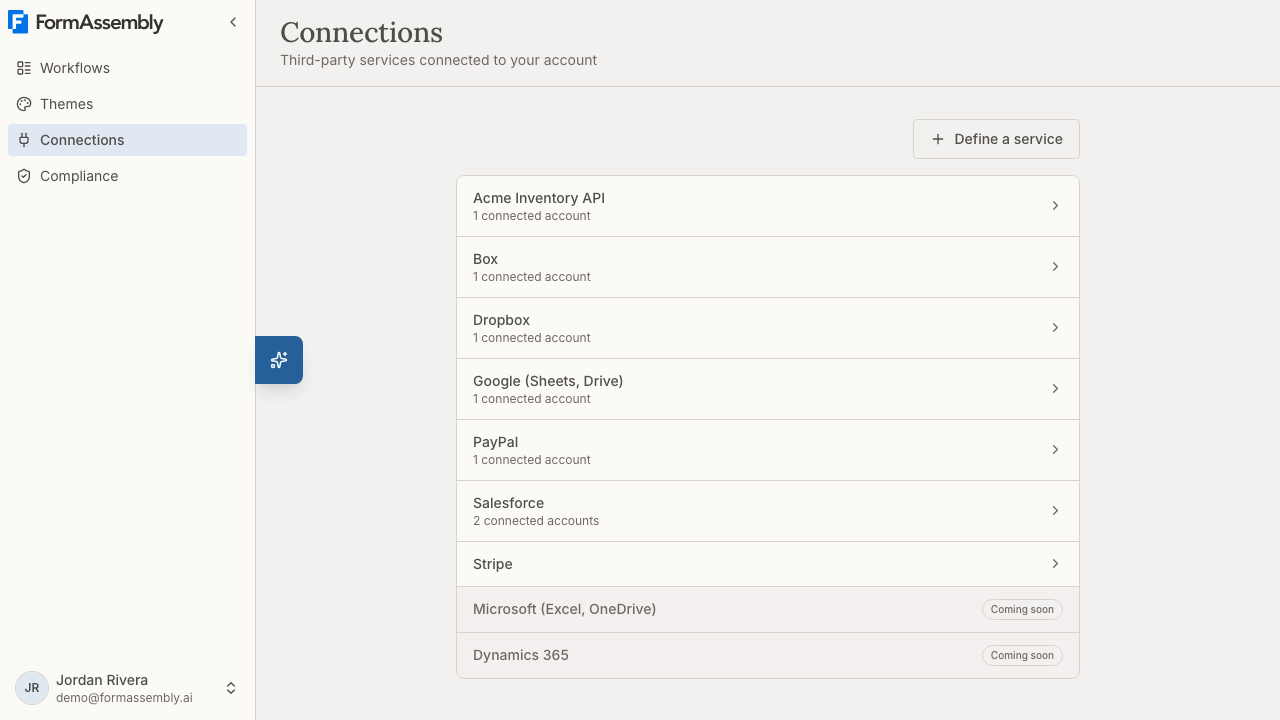
## Available Services
FormAssembly can connect to the following services. Most are opened from the **Connections** page; two are connected by asking Fai, the built-in AI assistant in FormAssembly.
- **Salesforce** — send data to, or read data from, your Salesforce org. See "Connect to Your CRM".
- **Google (Sheets, Drive)** — one Google connection covers both Google Sheets and Google Drive. See "Connect to Spreadsheets & Files".
- **Microsoft (Excel, OneDrive)** — one Microsoft connection covers both Excel Online and OneDrive. The row on the **Connections** page shows **Coming soon** and cannot be opened; ask Fai to connect your Microsoft account. See "Connect to Spreadsheets & Files".
- **Box** — upload submitted files to Box. See "Connect to Spreadsheets & Files".
- **Dropbox** — upload submitted files to Dropbox. See "Connect to Spreadsheets & Files".
- **Dynamics 365** — send data to Microsoft Dynamics 365. The row shows **Coming soon** and cannot be opened; ask Fai to connect Dynamics 365. See "Connect to Your CRM".
- **Stripe** — collect payments as part of a workflow. See "Taking Payments".
- **PayPal** — collect payments as part of a workflow. See "Taking Payments".
There is no **Webhook / HTTP** row on the **Connections** page. To send submission data to your own endpoint or another API, click **Define a service** and describe the API yourself — see "Defining Your Own Service" below, and "Connect to Developer Tools".
Some connectors are account add-ons: Salesforce, Webhook / HTTP, Dynamics 365, Dropbox, Box, and the payment connectors (Stripe and PayPal together, as one add-on) are available only when your account's plan includes them or your account has purchased them. Google Sheets, Google Drive, Excel Online, and OneDrive are included in every plan. Accounts that were already using Dynamics 365, Dropbox, or Box in a workflow when those connectors became add-ons were granted them automatically.
What each service can actually do with your data — the records it can create, how fields are mapped into it, and its own limits — is covered by the dedicated connector articles. See also: "Connect to Your CRM" (Salesforce and Dynamics 365), "Connect to Spreadsheets & Files" (Google Sheets, Google Drive, Excel Online, OneDrive, Box, and Dropbox), "Connect to Developer Tools", and "Taking Payments" (Stripe and PayPal). This article covers the mechanics that are the same for every service: authorizing a connection, reconnecting when access lapses, sandbox connections and testing, who can see and use a connection, and disconnecting.
## Navigating to Connections
1. Open the navigation menu using the button in the top-left corner of the screen.
2. Navigate to the **Connections** page.
3. You'll see a list of available services. Select the one you'd like to connect — for example, **Google (Sheets, Drive) connection settings**, **Salesforce connection settings**, or **Stripe connection settings**.
Each row shows how many accounts you have connected for that service. Services with at least one connection are listed first, then the rest alphabetically. A service that has a connection needing attention shows **Reconnect required** on its row.
## Connecting a Service
When you open a service's connection settings for the first time, you'll see a brief description of what the service is used for and what permissions FormAssembly will request.
1. From the **Connections** page, select the service you want to connect.
2. Initiate the connection from the service detail page. You'll be redirected to the service's sign-in page (e.g., Google or Salesforce).
3. Sign in to your account on the external service and grant the requested permissions.
4. After you approve, you'll be redirected back to FormAssembly with your connection confirmed.
5. The new connection is named after the account you signed in with. To give it a more descriptive name (e.g., "Production," "Marketing Team," or "Sandbox"), rename it afterwards with the edit (pencil) control on the service's page.
Once connected, **Fai** — the built-in AI assistant in FormAssembly — can configure your workflows to send data to that service.
Connecting a service and disconnecting one are both recorded in your account's audit records.
### Connecting a Salesforce org that uses a custom login domain
Some Salesforce orgs turn on a My Domain login policy that blocks the standard Salesforce login pages. If yours does, signing in through the standard page fails with a generic "check your username and password" message even though your credentials are correct.
Before FormAssembly sends you to Salesforce, the Salesforce connect page asks how you sign in: at the standard Salesforce login page for that environment, or on a custom domain. The standard answer is preselected, so the common case is a single click. Choose the custom-domain answer and enter your My Domain host (for example, `acme.my.salesforce.com`) to sign in there instead. FormAssembly checks the domain you enter before contacting it, and rejects anything that is not a valid Salesforce My Domain host. The same question is asked whether you are connecting a live org or a sandbox org.
### Connecting a webhook or your own API
There is no **Webhook / HTTP** row on the **Connections** page, and no sign-in screen to redirect to. To reach your own endpoint or another API, define the service yourself on the **Connections** page with **Define a service**, then add a connection to it — the full procedure is in "Defining Your Own Service" below.
### Connecting through Fai
You can also start a connection directly from a conversation with Fai. This is useful when Fai needs a connection to complete a workflow you're building together, and it is how you connect **Microsoft (Excel, OneDrive)** and **Dynamics 365**.
1. Ask Fai to connect a service — for example, "Connect my Google account."
2. Fai displays a connect card in the chat with a button to begin the authorization flow.
3. Click the button to sign in to the external service and grant permissions, just as you would from the Connections page.
4. After you approve, you're returned to FormAssembly and the conversation with Fai resumes automatically.
5. Fai detects the new connection and can immediately use it in your workflow.
The connect card in the chat is temporary — if you reload the page before clicking, ask Fai to show it again.
If you deny consent, or the connect card expires before you use it, Fai lets you know the authorization did not complete and offers to try again.
Fai can only start connections for services that have a sign-in and consent screen, including sandbox connections for the services that offer one. A connection to a service you defined yourself is always created on its own connection settings page — Fai will point you there rather than asking you for the credential in chat.
## Defining Your Own Service
When FormAssembly ships no entry for the system you want to reach, you can define that service yourself and then hold one or more connections to it. Defining the service once means the details that are the same for every connection — the address of the API and how it expects to be authenticated — are entered a single time, so each further connection you add afterwards only needs its own credential.
A service you define appears on the **Connections** page as a row alongside the built-in services, with its own connection count and its own connection settings page.
### Defining a service
1. Open the **Connections** page.
2. Click **Define a service**.
3. Fill in the form: a **Name** for the service, the **Base URL** of the API, and (optionally) an **OpenAPI document URL**. The OpenAPI document is used only while you configure a workflow — it is never called when a workflow runs.
4. Choose the **Authentication** method — **None — public endpoint**, **API key**, **Bearer token**, **Basic auth**, or **OAuth 2.0 (client credentials)** — and enter the configuration that belongs to the service rather than to a person, for example the name and placement of the API key header, or the token URL, client ID, client secret, and scopes for an OAuth 2.0 client-credentials service.
5. Submit the form to save the service. It then appears in the Connections list, where you open it to add a connection with your own credential.
Notes and limits:
- **The service name must be unique.** If you already have a service with that name, FormAssembly rejects the new one so two indistinguishable rows can't appear in your list.
- **The URLs you enter are checked when you save them.** If an address is not allowed, the form stays open and states the reason so you can correct that field.
- **Sign-in-based OAuth is not available for a service you define.** The authentication choices are **None — public endpoint**, **API key**, **Bearer token**, **Basic auth**, and **OAuth 2.0 (client credentials)**, which needs no sign-in page.
- **The client secret is write-only.** After you save it, FormAssembly shows only that a secret is configured, never the value. Leave the field blank when editing to keep the stored secret.
- **The authentication method belongs to the service, not to each connection.** A service authenticates one way for every connection beneath it.
- **Credentials you enter are never displayed back to you afterwards.**
### Connecting to a service you defined
Open the service's connection settings page from the **Connections** page and fill in the short connect form: a label for the connection, plus your own credential (an API key, a bearer token, or a username and password). You are not asked for the base URL or the authentication method again — those already belong to the service.
Some authentication methods carry no per-user credential at all. In that case the service holds exactly one connection, and no further connect form is offered once it exists.
A connection to a service you defined has no **Reconnect** option, because there is no external consent screen to return to — rotate its credential by editing the connection instead (see "Editing a connection").
### Editing or deleting a service
A service you defined has **Edit service** and **Delete service** controls in the header of its detail page. Built-in services have neither — their configuration ships with FormAssembly.
- **Editing a service changes it for every connection beneath it.** You can update the name, base URL, OpenAPI document URL, and the scheme's shared configuration.
- **The authentication method cannot be changed.** Every connection under the service holds a credential shaped by that method, so switching it would strand them. Define a new service instead.
- **A service can only be deleted once no connections reference it.** If connections remain, FormAssembly refuses the deletion and tells you how many are still there. Disconnect them first, then delete the service.
## Managing Your Connections
### Viewing connected accounts
After connecting a service, its detail page displays each connected account along with:
- The **label** for the connection — the account it was created with, or the name you gave it when you renamed it
- The **identity** associated with it (e.g., your email address or username on the external service)
- The **date** the connection was established
### Connecting multiple accounts
You can connect more than one account for the same service. For example, you might connect both a Salesforce production org and a sandbox environment. Each connection has its own label so you can tell them apart.
To add another account, open the service's connection settings and start a new connection flow.
### Reconnecting a connection
If your connection stops working — for example, because you changed your password on the external service — click **Reconnect** on that connection. Reconnecting takes you through the sign-in flow again and updates your existing connection rather than creating a duplicate. A connection that needs this shows **Reconnect required**.
A connection to a service you defined yourself has no **Reconnect** option. When its credential is rejected, its page reads "Credential rejected — edit this connection to supply a new one" — edit the connection and enter a new credential to clear the warning.
### Editing a connection
You can edit an existing connection in place from the service's detail page. Editing keeps the same connection, so every workflow step already pointing at it continues to work — this is why editing exists rather than deleting and re-adding.
- **Every connection's label can be renamed**, using the edit (pencil) control. Renaming affects only how the connection is identified in FormAssembly.
- **Connections whose credential you entered yourself — connections to a service you defined — can have that credential replaced.** Credential fields start empty and mean "replace with this" — leave them blank to keep the stored credential. For basic authentication, enter both the username and the password to replace it.
- **Only the label and the credential are editable on a connection.** Endpoint configuration — the base URL, the OpenAPI document URL, the API key's name and placement, and any OAuth client details — belongs to the service and is edited there (see "Editing or deleting a service"). Built-in services cannot be edited.
- **The authentication method is fixed once a connection is created.** To use a different authentication method, disconnect the connection and connect to a service that uses the method you need.
- **Replacing a credential clears an invalid-connection warning; renaming does not.** A connection whose credential was rejected keeps warning until the credential itself is replaced or the connection is reconnected.
- **Connections to services with a sign-in screen (such as Salesforce, Google, Microsoft, Dynamics 365, Stripe, and PayPal) only have their label edited here.** Their credentials are refreshed with **Reconnect**, not by editing.
### Disconnecting a service
You can remove a connection at any time from the service's detail page. Disconnecting is immediate and permanent — it cannot be undone. Before you confirm, FormAssembly lists every workflow you own, draft or published, that uses the connection as its live connection. A connection used only as a test connection gives no warning.
After disconnecting, any workflow that relied on that connection will fail until you either reconnect the service or reconfigure the workflow through Fai.
## Sandbox Connections
Some services — currently Salesforce, Stripe, and PayPal — offer a non-production environment (such as a Salesforce sandbox org, Stripe test mode, or a PayPal sandbox account) that you can connect separately. Sandbox connections let you test your workflows without affecting real data or processing real payments.
### Connecting a sandbox account
On the connection settings page for a service that supports sandboxes, you'll see a **Connect sandbox account** option alongside the standard connect option. Connecting a sandbox account follows the same authorization flow as a regular connection — sign in to the service's sandbox environment and grant the requested permissions. All three sandbox-capable services (Salesforce, Stripe, and PayPal) are connected this way.
- Sandbox connections are optional. You can build and test workflows without one.
- You can connect a sandbox account before connecting a live account — no live connection is required first.
- Sandbox connections appear in your connection list with a **Sandbox** badge so you can distinguish them from live connections.
- Sandbox connections are started from the service's connection settings page, or by asking Fai to connect a sandbox account for a service that offers one.
- A sandbox connection and a live connection are kept separate, even when you sign in with the same account. Reconnecting one never overwrites the other.
### How sandbox connections are used during testing
When you test a workflow using the **Test** button in the workflow builder, any connector step that has a sandbox connection configured runs against the sandbox environment instead of the live service. This lets you verify that your workflow sends data correctly without creating real records or processing real payments.
- If a connector step has no sandbox connection, testing runs against the live connection, just like a published workflow.
- Published workflows always use the live connection. Sandbox connections are never used for published workflows.
- Records and settings referenced by your workflow must also exist in the sandbox environment. If a step points at something that only exists in your live account, the test run fails with the service's own error message.
### Publishing requires a live connection
You can build a workflow, configure its connector steps and field mappings, and test it using only a sandbox connection — a live connection is required only to publish. A workflow with a connector step that requires a live connection but does not have one cannot be published.
## How Connections Are Used in Workflows
You don't need to manually wire connections into your workflows. When you describe what you want — for example, "send responses to my Google Sheet" — Fai configures the workflow to use the appropriate connection.
Only Salesforce connector steps can be added from the builder: in Focus view, the **Add step** menu's **Connect** group has one item, **Salesforce**. Every other connector's step — Dynamics 365, Google Sheets, Google Drive, Excel, OneDrive, Box, Dropbox, Webhook / HTTP, Stripe, and PayPal — is added by asking Fai.
The connector step in your workflow shows how your data flows between FormAssembly and the connected service. You can view this in the workflow builder by opening the details for a connector step in **Focus** view. From there you'll see:
- **Which account** is connected (including the label and identity)
- **The sandbox account**, if one is set for that step, shown as **Sandbox account (test mode)**
Only Salesforce connector steps open an editable action card where you can adjust the configuration yourself. Every other connector's step — Dynamics 365, Google Sheets, Google Drive, Excel Online, OneDrive, Box, Dropbox, Webhook / HTTP, Stripe, and PayPal — shows a read-only summary of what the step does, ending "Connector configuration is managed by the AI agent." To change one of those steps, ask Fai. Their **Connected account** and **Sandbox account (test mode)** are shown read-only.
A Salesforce step is the one step that names its connections through pickers: the live connection a published workflow runs against, and an optional test connection used by test runs. The live picker lists only your live connections for Salesforce, and the test picker lists only your sandbox connections, so a connection can never end up in the wrong slot. Each account in a picker shows its own status indicator: a green mark means the connection is usable, and a red mark with **Reconnect required** means that account's credential has expired or was rejected and needs to be reconnected before a workflow can use it.
Choosing to connect a new account from either picker opens the Salesforce connection settings in a new tab, so your workflow edits are not interrupted. Once the authorization finishes, the connections page confirms it and offers to send you back to the builder; taking that option selects the new account into the slot you started from. You can also stay on the connections page instead, which leaves the slot unchanged.
Switching a step to a different account may affect existing field mappings if the new account's data differs.
## Connection Ownership
Connections are personal to your user account. Other members of your team cannot see or use your connections, and you cannot see theirs. Each person who needs to send data to an external service must set up their own connection.
A service you define yourself is personal in the same way: it appears on your **Connections** page only, and other members of your team cannot see it or connect to it.
## Automatic Token Refresh
FormAssembly automatically keeps your connections active by refreshing authentication tokens before they expire. In most cases, once you connect a service, it stays connected without any action on your part.
If a token can't be refreshed — for example, because you revoked access from the external service's settings — your connection will be marked as invalid and you'll need to reconnect it.
FormAssembly does not refresh API keys, bearer tokens, or basic credentials. They remain stored until you replace them, but the endpoint may expire or reject them; replace the credential when that happens.
## Tips & Troubleshooting
- **"Connection not found" warning in a workflow step** — This means the connection that was originally used has been removed. Open the **Connections** page, reconnect the service, and then ask Fai to update the workflow.
- **Workflow fails after changing your password on an external service** — For a connection you made by signing in (Salesforce, Google, Stripe, PayPal, Box, Dropbox), click **Reconnect** on the affected connection from its detail page. This refreshes your credentials without needing to reconfigure your workflows. A connection to a service you defined has no **Reconnect**: edit the connection and enter the new credential instead.
- **A connection is marked "Reconnect required"** — The stored credential has expired or was rejected, and FormAssembly cannot tell which cause applies. Click **Reconnect** on that connection and the warning clears. A connection to a service you defined shows "Credential rejected — edit this connection to supply a new one" instead; edit the connection and enter a new credential.
- **Not sure which connection a workflow uses?** — Open the connector step details in the workflow builder. The connected account section shows the label and identity of the linked account.
- **Want to switch a workflow to a different account?** — Ask Fai to update the connection used by the workflow. For example: "Use my Sandbox Salesforce connection instead of Production."
- **Each connection needs a label** — When connecting multiple accounts for the same service, rename each connection with a clear, descriptive label (e.g., "Sales Team Google Sheet" or "HR Drive Folder") so you and Fai can easily identify the right one.
- **Disconnecting doesn't roll back data** — Removing a connection stops future data transfers but does not delete any data that was already sent to the external service.
- **Want to test a workflow without affecting real data?** — If the service supports it (currently Salesforce, Stripe, and PayPal), connect a sandbox account from the service's connection settings page, or ask Fai to connect one. When you test the workflow, connector steps with a sandbox connection run against the sandbox instead of the live service.
- **Test run fails only in the sandbox** — Check that the record, object, or product the step refers to also exists in your sandbox environment. A step that points at something present only in your live account fails in the sandbox until you create an equivalent item there.
- **A Salesforce sandbox connection shows a production org** — Salesforce does not tell FormAssembly which environment you signed in to, so the environment you chose is recorded as you declared it. Check the org address shown on the connection row; if it is your production org, disconnect and connect again, choosing the environment you meant.
- **Salesforce sign-in keeps failing with "check your username and password"** — Your org may require a custom My Domain login page. Start the connection again and choose the custom-domain option, then enter your My Domain host.
- **The connection wasn't saved after you approved access** — FormAssembly only stores a connection when it can identify which account you authorized. If the external service didn't return that identity, you'll be returned with an error and nothing is saved. Start the connection again; if it keeps failing, check that your account on the external service has permission to share its profile or email address.
- **The new tab for connecting an account never opened** — Your browser blocked it. Open the **Connections** page yourself, connect the account there, then return to the builder tab; the picker picks up the new connection when the tab regains focus.
- **Renaming a connection didn't fix it** — A rename only changes the label. If a connection is marked invalid, click **Reconnect** (or replace its credential, for a connection to a service you defined) to clear the warning.
- **"Delete service" is refused** — A service you defined can only be deleted once nothing connects to it. FormAssembly names how many connections remain; disconnect those first, then delete the service.
- **Can't change a service's authentication method** — The authentication method is fixed for the life of the service, because every connection beneath it holds a credential in that shape. Define a new service with the method you need and connect to that instead.
- **A connection picker in the builder says it couldn't load** — Use the retry action in the picker. If you are exploring FormAssembly without signing in, the pickers state that you need to sign up first: connections belong to a user account, and your work in progress is kept when you create one.
---
# Connecting AI Assistants (MCP)
## What is MCP?
MCP (Model Context Protocol) is an open standard that lets AI assistants connect to external services. FormAssembly runs an MCP server so that any MCP-compatible AI assistant can connect to your FormAssembly account. AI assistants that support MCP, such as Claude, ChatGPT, or Cursor, can use this connection to help you manage workflows, explore your connections, search documentation, and more — all within the assistant's own interface.
You provide a single endpoint URL, and the assistant handles the rest automatically. The assistant never sees your FormAssembly password, and you always approve exactly what it can access before the connection is active.
## How to connect an AI assistant
The connection process starts in your AI assistant, not in FormAssembly. The exact steps vary by assistant, but the overall flow is the same:
1. **Add the FormAssembly MCP server in your assistant.** Open your AI assistant's settings or configuration area and look for an option to add an MCP server, connector, or integration. Paste the FormAssembly MCP endpoint URL:
```
https://app.formassembly.ai/mcp
```
That single URL is all you need to provide — the assistant discovers everything else automatically.
2. **Sign in to FormAssembly.** The assistant opens a FormAssembly sign-in page in your browser. Sign in with your FormAssembly credentials. You are always signing in on FormAssembly's own screen — your password is never shared with the assistant.
3. **Review and approve permissions.** After signing in, FormAssembly displays a consent screen listing the specific permissions the assistant is requesting. The consent screen also says who stands behind the app: an app registered by a FormAssembly account names that account, and an app that registered itself is identified as such, because FormAssembly cannot confirm who runs it. Review what the assistant is asking to do, then allow or deny the request. The consent screen is all-or-nothing: you can approve every permission the assistant asked for, or deny the request entirely. You cannot approve some and decline others.
4. **Start using the assistant.** Once you allow access, the assistant is connected to your FormAssembly account and can act on your behalf within the permissions you granted.
Because each AI assistant has its own interface for adding MCP servers, consult your assistant's documentation if you need help finding the right setting. FormAssembly does not control the assistant's setup screens.
The assistant must connect from its own app or server. An MCP client that runs inside a web page in your browser cannot connect to the FormAssembly MCP endpoint.
## What can a connected assistant do?
A connected assistant can only perform actions within the permissions you approved on the consent screen. FormAssembly groups permissions by capability:
- **View your name and profile information** — The assistant can see your name and role in your FormAssembly account. It can also hand you a link for signing in to FormAssembly when you need one.
- **View your email address** — The assistant can see the email address on your FormAssembly account.
- **View your workflows** — The assistant can list and view the workflows in your account. It can also list the identity providers your account has enabled, which is what a workflow uses when access to it is restricted to signed-in respondents. Creating a prefilled link for a workflow also needs only this permission.
- **Create, edit and delete your workflows** — The assistant can build new workflows, modify existing ones, and delete them on your behalf. With this permission the assistant can also change a workflow's custom URL or its internal name.
- **Publish your workflows or take them offline** — Where the assistant asked for this separate permission, it can publish a draft to make it live, or take a live workflow back offline. Publishing is its own permission because it puts a form in front of respondents, and taking a workflow offline stops it collecting data.
- **View your connected accounts** — The assistant can see which third-party services (such as Salesforce or Google Sheets) you have connected to FormAssembly.
- **Start connecting new accounts (Salesforce, Google, etc.)** — The assistant can start the process of connecting a new third-party service. You still authorize the service yourself in your browser — the assistant cannot approve third-party connections for you.
- **Search FormAssembly documentation** — The assistant can search FormAssembly's documentation to answer your questions.
- **Send feedback and bug reports to FormAssembly on your behalf** — Where the assistant asked for this permission, it can send feedback, bug reports, or feature requests on your behalf.
- **View your account's audit log** — The consent screen can list this permission, but no connected assistant can use it today: no assistant action reads the audit log.
An assistant only gets the permissions you approved on the consent screen, and nothing more. If the assistant needs additional permissions later, it must ask you to reconnect and approve them.
## What happens when an assistant creates or changes a workflow?
Workflows an AI assistant creates or changes in FormAssembly are saved as unpublished drafts, so the form content does not go live until the workflow is published. A connected assistant can publish or unpublish a workflow only if you granted the **Publish your workflows or take them offline** permission on the consent screen; without it, publishing stays a deliberate action you take in FormAssembly.
Two changes are the exception to the draft rule. With **Create, edit and delete your workflows**, an assistant can rename a workflow or change its custom URL, and both take effect at once, outside the draft. Changing the custom URL breaks the old public link — previously shared links, embeds and resume links stop working, and there is no redirect from the old address.
A few things to expect:
- **Building a form takes a little time.** When an assistant creates a workflow, FormAssembly creates the workflow right away and then continues building the form contents in the background, which typically takes one to three minutes. The assistant may report success before the form is finished.
- **You get a preview link first.** The assistant returns a preview link that works immediately. Open the preview link to watch the form fill in as the build completes. If you open it early, you may see a "We're building your form…" placeholder.
- **The public link only works after you publish.** The assistant may also show the workflow's eventual live address, but that address is not reachable until the workflow is published.
- **The workflow takes the name the assistant gives it.** The name comes from the title supplied when the workflow is created, so ask the assistant for a specific title if the name matters to you. You can rename the workflow later in FormAssembly.
- **Changes are saved to the draft.** When an assistant modifies an existing workflow's contents, the change is saved to the unpublished draft. Publish the workflow again to make the change live.
- **Respondents cannot fill out the form inside the assistant.** The assistant hands you links; form filling always happens in a browser on FormAssembly.
If a background build fails partway through, the assistant cannot report it — open the preview link, and if the form looks incomplete, ask the assistant to modify the workflow or finish it in the FormAssembly builder.
## Reviewing and revoking access
Every AI assistant you have connected to your FormAssembly account appears on the **Authorized apps** page. To reach the Authorized apps page, navigate to `/settings/authorized-apps` in your browser. This page does not currently have a menu or navigation entry — you need to go to the URL directly.
On the **Authorized apps** page, each connected assistant shows:
- The app's name.
- When you authorized it.
- The permissions you granted, listed as short permission codes (such as `workflows:read`) rather than the wording used on the consent screen. An assistant you connected before mid-October 2026 may show no permissions at all until you connect it again.
- A button to revoke access.
### Revoking an assistant's access
Revoking an assistant immediately and fully cuts off its access to your FormAssembly account. The assistant can no longer read or change anything on your behalf. FormAssembly asks you to confirm before completing the revocation. To reconnect the assistant after revoking, you go through the full connect-and-consent flow again.
## Tips & Troubleshooting
- **You only need one URL.** The FormAssembly MCP endpoint URL (`https://app.formassembly.ai/mcp`) is the only thing you need to provide when setting up the connection. Do not look for additional URLs, API keys, or secrets.
- **Any MCP-compatible assistant works, as long as it connects from its own app or server.** FormAssembly is not limited to a specific AI assistant. AI assistants that support MCP, such as Claude, ChatGPT, or Cursor, can all connect using the same endpoint URL. An MCP client running inside a web page in your browser cannot connect.
- **Your password stays with FormAssembly.** When connecting, you always sign in on FormAssembly's own sign-in page. The AI assistant never receives or stores your FormAssembly password.
- **Permissions are decided by the assistant, and approved as a set.** The consent screen lists the permissions the assistant asked for, and you can only allow all of them or deny the request. If you connect the same assistant again (for example, after revoking), you see the same consent screen again.
- **Revoke access if something seems wrong.** If you no longer use an assistant or want to cut off its access, visit the **Authorized apps** page at `/settings/authorized-apps` and revoke it. The disconnection takes effect immediately.
- **Assistant setup screens vary.** Each AI assistant has its own interface for adding MCP servers. If you cannot find where to add the FormAssembly endpoint, check your assistant's own documentation for instructions on connecting MCP servers or integrations.
- **If an assistant stops working, reconnect it.** Access that you revoked, or that has expired, no longer works. The assistant should prompt you to sign in to FormAssembly again; if it does not, remove the FormAssembly connection in your assistant and add the endpoint URL again.
- **If the assistant says a form is "ready" but it looks empty, wait a moment.** FormAssembly is still building the form in the background. Reload the preview link after a minute or two.
- **If the assistant times out while changing a workflow, check FormAssembly before retrying.** Modifying an existing workflow can take one to three minutes, and some assistants give up on a long-running request before it finishes. Open the workflow in FormAssembly to see whether the change was saved to the draft, and only ask again if it was not.
- **If you want publishing to stay in your hands, choose the assistant accordingly.** You cannot approve an assistant's other permissions while declining **Publish your workflows or take them offline**. Either use an assistant that does not ask for that permission, or deny the request and publish in FormAssembly yourself.
- **Be careful when asking an assistant to change a workflow's custom URL.** The change applies immediately, even to a published workflow, and the old address stops working with no redirect.
---
# Team & Account Settings
## Account Settings
The **Account settings** page contains organization-wide settings that apply to all team members and workflows. Every member can open the page, but only members who hold the account-settings permission — normally admins — can change what is on it; for everyone else the fields are read-only.
To open the page, click **Settings** in the FormAssembly primary navigation sidebar. The same sidebar also links to your personal pages — **Profile**, **Security**, and **Invitations** — and to the account pages **Team**, **Identity providers**, **API clients**, **Compliance**, and **Billing**.
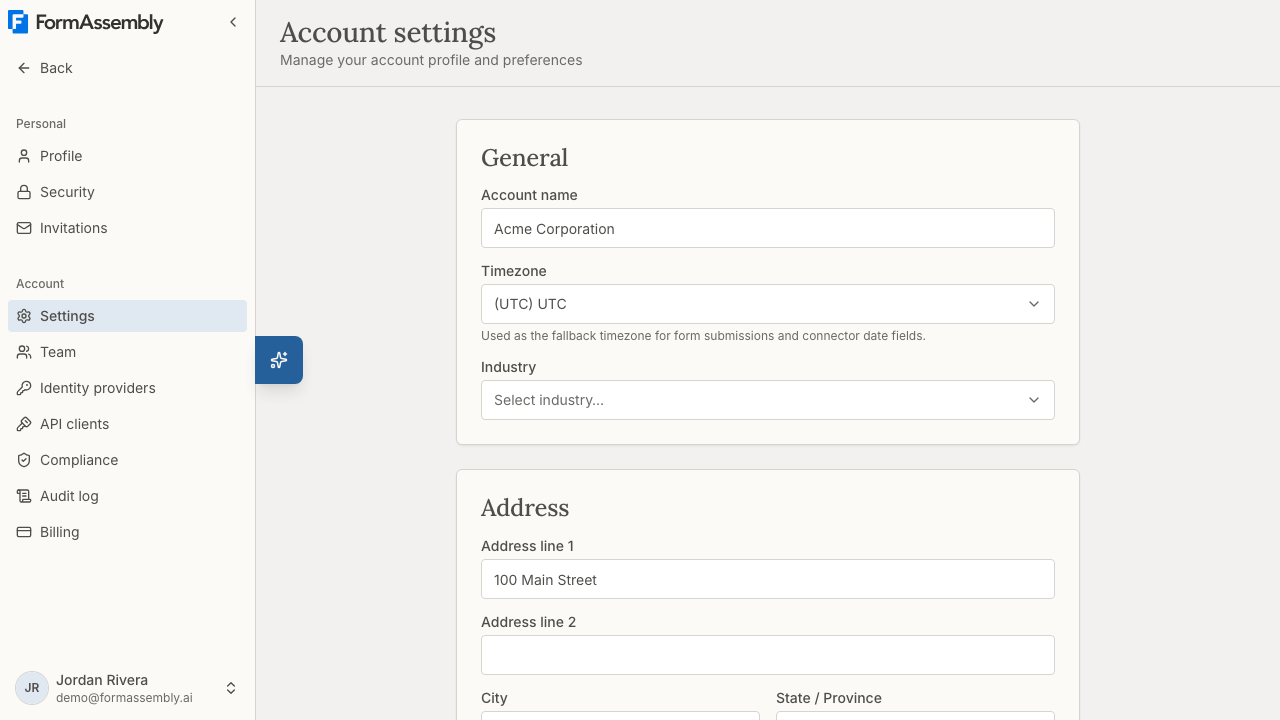
---
### General
The **General** section includes the following fields:
- **Account name** — The display name for your account. You can change this at any time.
- **Timezone** — The timezone used across your account for displaying dates and times, as the fallback timezone for form submissions, and as the authoritative timezone for date-time values sent to connected systems (such as Salesforce). Start typing a city or region name in the **Account timezone** field to filter the list, then select the matching timezone. Timezones are displayed in the format `(UTC±N) Region/City`.
- **Industry** — An optional field describing your organization's industry. Start typing in the **Industry** field to filter the available options.
Click **Save changes** to apply your updates.
> **How timezone works:** Your account timezone is initially set during signup based on your browser's detected timezone. If that detection fails, it defaults to UTC. You can update it here at any time. The timezone is used as the default for dates and times throughout the app, as a fallback when a form respondent's timezone cannot be detected, and as the authoritative timezone for date-time values delivered to connected systems regardless of the respondent's timezone. Individual team members can override the display timezone in their own user settings.
> **Your account slug cannot be changed.** The account slug is set once when your account is created and is not editable afterwards, because changing it would break every published workflow URL. You will need to type your account slug if you ever cancel the account.
---
### Address
The **Address** section holds your organization's mailing address. All fields are optional, and the address does not affect how your forms or workflows behave.
- **Address line 1**
- **Address line 2**
- **City**
- **State / Province**
- **Country** — Start typing in the **Country** field to search and select from the list.
- **Postal code**
Click **Save changes** to apply your updates.
---
### Your Privacy Policy
The **Your Privacy Policy** section lets you write a privacy policy that is shown to respondents at the bottom of every form in your account's workflows.
Use the rich text editor to compose or paste your policy. The editor toolbar includes:
- **Bold**, **Italic**, and **Underline** for text formatting
- **Bullet list** and **Ordered list** for structured content
- **Link** to add hyperlinks (for example, a link to your organization's full external privacy policy)
Click **Save policy** to publish your changes.
Each time you save, a new version of your policy is created. Respondents always see the latest version, and previous versions are preserved for compliance records. If a respondent submitted a form under an earlier version, that version is linked to their submission record.
You can also click the **Privacy Policy** link to preview the current published policy.
**Important details:**
- Leave the policy blank if you do not want to display anything to respondents.
- You are responsible for ensuring your policy text meets all applicable legal requirements (such as GDPR or CCPA). FormAssembly does not validate legal correctness.
- Individual workflows can override this account-level policy with their own version. Workflow-level overrides are not yet editable in the current version.
**Asking Fai about your privacy policy:** Fai is the AI assistant built into FormAssembly, available from the button labeled **Open Fai**. Fai can tell you which privacy policy text applies to a workflow (a workflow-level override if one exists, otherwise your account-level policy), or tell you that no policy is configured. Fai cannot edit your privacy policy — to change it, edit the **Your Privacy Policy** section on the **Account settings** page and click **Save policy**.
---
### FormAssembly Legal Agreements
The **FormAssembly Legal Agreements** section provides access to FormAssembly's own legal documents. Each agreement shows the version you accepted and the date of acceptance. Click **View** next to any agreement to read the version you accepted. These documents include:
- **Master Subscription Agreement (MSA)** — Accepted by an account admin, whose acceptance binds the account. Acceptance is recorded per user, with the version and date. If a new version is published, the next admin to sign in is prompted to accept it before continuing to use the app. Older versions that you accepted under an earlier name are shown under the name they were published with.
- **Data Processing Agreement (DPA)** — The account admin must accept this on behalf of the account. It governs how FormAssembly processes data on your behalf.
- **Privacy Policy** — FormAssembly's own privacy practices, covering how account data, analytics, and session information are handled. The Privacy Policy is informational and does not require acceptance.
The full text of each document is also published on a public page that anyone can read without signing in, and each is linked from the site footer. When you open a historical version rather than the current one, a banner at the top of the page links to the current version.
If a newer version of the Master Subscription Agreement or DPA has been published since you accepted, a notice is displayed: "A new version is available. You will be prompted to accept it on next login."
> **Re-acceptance:** When FormAssembly publishes a new version of the Master Subscription Agreement or DPA, affected users are prompted to accept the updated terms at their next login. Until you re-accept, you cannot access the app — but your workflows continue to collect and process submissions without interruption.
**Sensitive data categories:** FormAssembly does not permit collecting GDPR special-category data (such as health, biometric, religious, or political data) or HIPAA protected health information unless your plan includes the required compliance certifications. FormAssembly checks your forms for these categories, warns you in the builder, and blocks publication if any are found. See also the compliance documentation for the full list of categories and the upgrade path.
---
### Danger Zone
The **Danger zone** section contains the option to permanently cancel your account.
**Export your responses first.** Cancellation cannot be undone, so download everything you still need before you begin: open a workflow's **Responses** page and click **Export** to build a zip of CSV files. Export runs one workflow at a time, so repeat it for each workflow whose responses you want to keep.
Click **Cancel account** to begin the cancellation process. A confirmation dialog will explain the consequences and ask you to type your account slug to confirm.
**What happens when you cancel:**
- All team members lose access immediately, and any active sessions end on the next request.
- All workflows are unpublished — respondents visiting your form URLs will see an unavailable message.
- Your subscription is cancelled and no further charges are made. Any deferred billing is forgiven.
- All data (workflows, team members, submission records) is retained in a soft-deleted state for audit and compliance purposes, but is no longer accessible.
Any admin on the account can start cancellation.
A personal account has no **Danger zone** on the **Account settings** page: its owner deletes it from **Profile** with **Delete account**, typing the account's URL name (its slug) to confirm.
> **This action cannot be undone.** Cancellation is permanent and cannot be reversed from within the app. Your data is retained in a soft-deleted state for audit and compliance purposes, but no one on the account can open, view, or retrieve it afterwards — so only cancel once you are certain you no longer need access to anything in the account.
---
## API Clients
The **API clients** page lets admins register an application so it can call FormAssembly's REST API on your account's behalf. Register a client when you want your own system — rather than a person — to read or create data in FormAssembly.
To open the page, click **API clients** in the FormAssembly primary navigation sidebar. For each client you register, you give it a name, list the redirect addresses FormAssembly is allowed to return users to after they authorize it, and choose the permissions the client is granted. FormAssembly issues a client secret when the client is created; store it somewhere safe, because the secret is shown once and you must replace it if it is lost or exposed. Replacing a secret immediately stops the old one from working, so update your application at the same time.
See also: the FormAssembly API reference for how to authenticate and which endpoints are available.
---
## Billing
The **Billing** page shows your current plan and your usage against it. Click **Billing** in the FormAssembly primary navigation sidebar to open it. The page does not show invoices or a payment method, and plan changes are arranged with the FormAssembly sales team rather than made in the app. See also: Plans & Billing for how billing and upgrades work.
---
## Team Management
The **Team Management** page lets admins invite new members, assign roles, promote or demote members, and remove members from the account.
To open the page, click **Team** in the FormAssembly primary navigation sidebar.
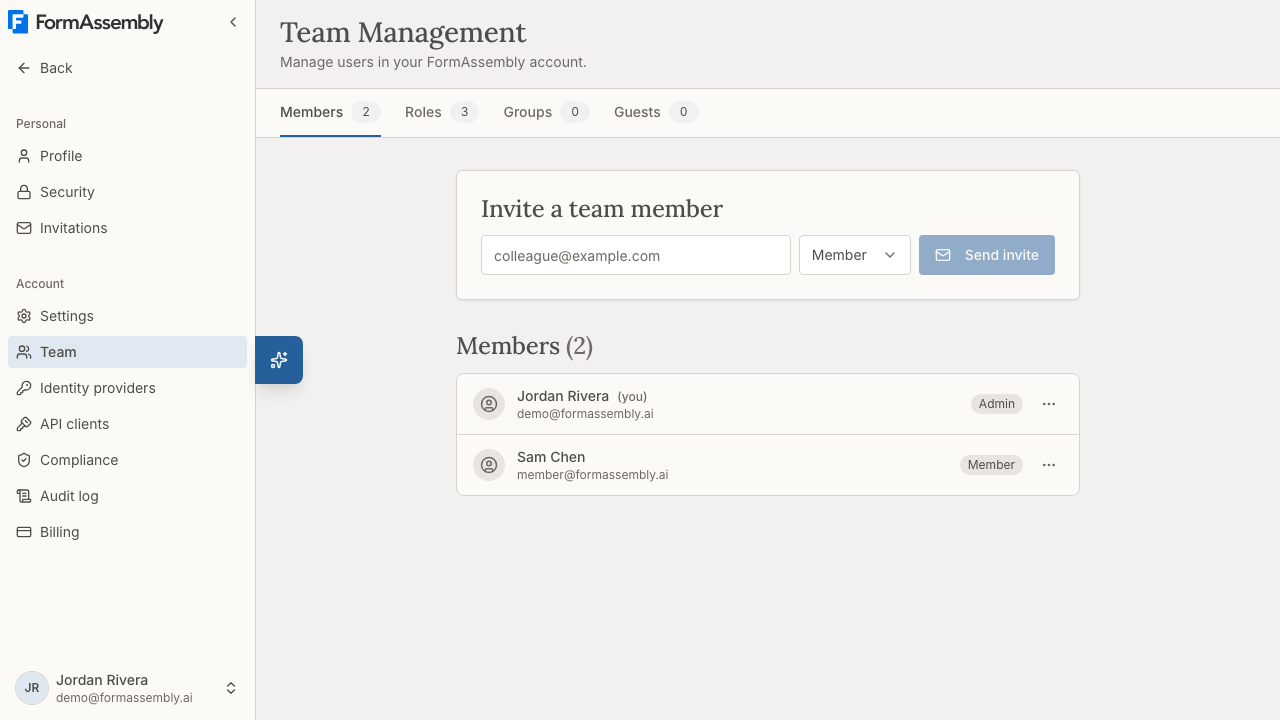
The page includes tabs for **Members**, **Roles**, **Groups**, and **Guests**. Each tab shows a count next to its name. The **Members** tab is where you manage individual team members. The **Roles** tab lists your account's roles and includes **New role** for creating a custom role — see Roles & Permissions for how to build one. The **Groups** tab lets you organize members into groups you can grant access with, and the **Guests** tab lists people from outside your account who have been given access to work in it. The **Guests** tab appears only on organization accounts, and only to members who can invite people. See also: Guest Access & User Groups for how to use both.
---
### Inviting a Team Member
1. In the **Invite a team member** section, enter the person's email address in the **Email address** field.
2. Click the **Role** dropdown and select a role:
- **Member** — Assigns the **Builder** role. Can create and manage their own workflows.
- **Admin** — Assigns the **Admin** role. Can manage all workflows, team members, and account settings.
3. Click **Send invite**.
The invitee will receive an email with instructions to join your account.
Your account has three roles — **Admin**, **Builder**, and **Viewer** — which you can see on the **Roles** tab of the **Team Management** page. The invite dropdown offers only the two most common choices, so an invited **Member** appears under the **Builder** role. See also: Roles & Permissions for what each role can do.
---
### Viewing Your Team
The **Members** section displays all current members along with a count (for example, **Members (2)**). Each member has an actions button that lets admins manage that member's role or remove them from the account.
The **Members** tab also includes:
- **Pending invites** — Lists each invitation you have sent with the role it assigns and its expiry date, plus a button to revoke the invitation.
- **Access requests** — Lists people asking to join the account, where an admin approves or rejects each request.
- **Locked** — A badge shown on a member who is locked out of the account. Open that member's row actions and choose **Unlock account** to restore their access.
---
### Promoting a Member to Admin
To give a team member admin privileges, click the actions button next to their name (for example, the button labeled **Actions for Sam Chen**) and select the option to promote them to admin. The member will immediately gain access to account settings, team management, and all workflows.
As on the invite dropdown, **Admin** and **Member** here mean the **Admin** role and the **Builder** role respectively.
**Constraint on role changes:** The last remaining admin cannot be demoted, whether an admin is demoting themselves or someone else. To remove the last admin's privileges, promote another member to admin first. An admin who is not the last admin may change their own role, including demoting themselves to member.
---
### Demoting an Admin to Member
To remove admin privileges from a team member, click the actions button next to their name (for example, the button labeled **Actions for Sam Chen**) and select the option to demote them to member. The member will immediately lose access to account settings, team management, and other members' workflows.
---
### Removing a Team Member
To remove a member from the account, click the actions button next to their name (for example, the button labeled **Actions for Sam Chen**) and select the option to remove them.
A confirmation dialog will appear showing the member's name and how many workflows they own. If the member owns any workflows, you will have the option to reassign those workflows to another active team member:
1. In the dialog, select a team member from the list to receive the removed member's workflows.
2. If you do not select anyone, the removed member's workflows will be deleted.
3. Confirm the removal.
**Important details:**
- Only non-admin members can be removed directly. To remove an admin, demote them to **Member** first, then remove them.
- The last admin on the account cannot be removed. To leave as the last admin, you must either promote someone else to admin first or cancel the account entirely.
- Removed members cannot log in or access any account resources. Their data is retained for audit purposes.
- Workflows can only be reassigned to one recipient. All of the removed member's workflows go to the same person.
- Themes owned by the removed member follow their workflows — they go to the same recipient, or are removed if you do not choose one.
- The removed member's connections are deleted rather than transferred, because a credential belongs to the person who authorized it. A connect step that used one of those connections shows a missing connection until another member reconnects it. Connection services the member set up remain available to admins.
- Removing a member also ends any guest access that person holds in other accounts.
---
### Leaving an Account
Any team member can leave a FormAssembly account themselves from **Profile**: in the **Danger zone** section under **Account Membership**, click **Leave account**. A confirmation dialog explains that their workflows will be permanently removed, and the member must confirm to proceed. The **Account settings** page has no leave control.
**Important details:**
- Leaving an account does not offer workflow reassignment, because members cannot see other members' identities. All workflows owned by the departing member are removed.
- The last admin on the account cannot leave. Promote another member to admin first, then leave — or cancel the account instead.
- To hand the account to someone else, promote that person to admin first, and then leave the account.
- If you are currently working in another account as a guest, switch back to your home account first — you can only leave your home account from within it.
---
## Tips & Troubleshooting
- **Timezone seems wrong?** Your timezone is detected from your browser during signup. If it was incorrect (for example, you signed up while traveling), update it in the **General** section of **Account settings** and click **Save changes**.
- **Can't find your country or timezone?** Start typing in the field — the list filters as you type. For timezone, try the name of a major city in your region.
- **Can't demote or remove yourself?** If you are the only admin, you must promote another team member to admin before you can change your own role or leave the account.
- **Invited someone as a Member but can't find "Member" on the Roles tab?** The invite dropdown's **Member** option assigns the **Builder** role, so the person appears under **Builder**.
- **Privacy policy not showing on forms?** Make sure you have entered text in the **Your Privacy Policy** editor and clicked **Save policy**. If the editor is blank, nothing will be displayed to respondents.
- **Team member didn't receive their invite?** Ask them to check their spam or junk folder. You can also re-send the invite by entering their email address again and clicking **Send invite**.
- **Need to reassign workflows before someone leaves?** Ask the admin to remove the member from the **Team Management** page and choose a recipient in the removal dialog. If the member leaves on their own, their workflows are removed instead of reassigned.
- **A workflow stopped delivering after someone left?** Their connections were deleted with their membership. Open the affected connect step and reconnect it with a current member's credentials.
- **Can't change anything on Settings or Team?** **Settings** opens for every member, and **Team** appears for anyone who may view the member list, which includes Builders, so they can pick people to share a workflow with. Changing account settings, members, and roles is admin-only — ask an existing admin on your account to promote you.
- **A respondent asked you to erase their data?** Erasure requests are handled by account admins, not by respondents directly. Privacy declaration records are anonymized rather than deleted, so the proof that the question was asked and answered is preserved.
- **Accidentally cancelled your account?** Account cancellation cannot be undone through the app. Contact FormAssembly support as soon as possible for assistance — see Getting Help for how to reach support and grant support access.
---
# Plans & Billing
## Where do I find my plan and usage?
FormAssembly shows your account's plan and usage on the **Billing** page. Open it from **Billing** in the account navigation, alongside **Profile**, **Security**, **Team** and the other account pages.
The Billing page is available to account administrators — the people in your account who hold the billing permission. Everyone else in the account sees the same plan and the same entitlements in practice, because plans apply to the whole account rather than to individual users, but only administrators can open the Billing page itself.
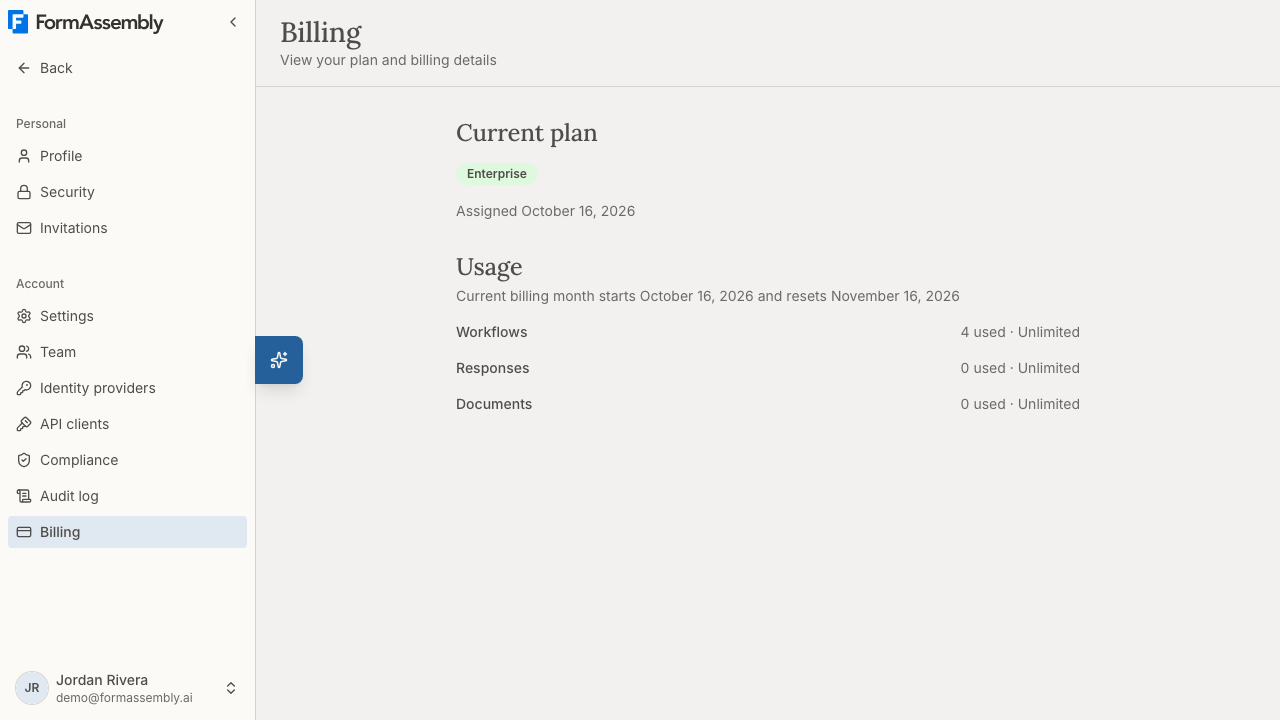
## Current plan
The **Current plan** section names the plan your account is on. FormAssembly has three plans, from lowest to highest: the Collect plan, the Automate plan, and the Enterprise plan. Your plan is shown as a tier badge, so a quick glance at the Billing page tells you which plan the account is running on.
Beneath the badge, FormAssembly shows **Assigned** followed by a date — the date your account was put on that plan.
Plans apply to the entire account. Every user in the account shares the same plan, the same features and the same usage allowance — there is no way to give one user a different plan from their colleagues.
New sign-ups start on the Collect plan.
## Usage
The **Usage** section shows how much your account has consumed across the dimensions FormAssembly tracks, such as workflows, form responses and generated documents. Each dimension appears as a read-only meter.
The section opens with a line reading "Current billing month starts" and "resets", followed by the two dates. Form responses and generated documents are counted per billing month and reset to zero on the reset date, so those meters report the current month only rather than the lifetime total. Workflows are a count of what exists right now, not a monthly total, so the workflow meter does not reset.
The generated documents meter appears only when your account can use document generation, so not every account sees it.
**All plans are currently unlimited.** The Collect plan, the Automate plan and the Enterprise plan all run with no ceiling on workflows, responses or generated documents, so a usage meter shows consumption without a limit next to it. Use the Usage section to understand how much your team is collecting, not to check how close you are to running out.
Whatever your usage, live data collection is never blocked. Published forms keep accepting and recording responses regardless of what the usage meters say. FormAssembly treats live data collection as something that must never be interrupted.
## What the Billing page can and cannot do
The Billing page is read-only. It is a view of your plan and your usage, not a place to transact.
You **can**:
- See which plan the account is on.
- See current usage against each tracked dimension.
You **cannot**, from inside FormAssembly:
- Change or upgrade your plan.
- Add or remove an add-on.
- Enter or update payment details.
- View or download invoices or billing history.
All of those go through the FormAssembly sales team. Invoice history and self-service plan changes are planned for a future release and are not available in the product today.
## Why is a feature locked?
FormAssembly never hides a feature because of your plan. Every feature stays visible in the interface no matter which plan you are on. When you try to use a feature that your plan does not include, FormAssembly opens an upgrade prompt that names the plan you need — for example, a prompt telling you to upgrade to the Automate plan to use that feature.
This is deliberate: seeing the feature and a clear prompt is more useful than an empty space or an unexplained error, because it tells you exactly what to ask for.
Upgrade prompts list every plan the feature is available on, so you can see whether the next plan up is enough or whether the feature belongs to the Enterprise plan.
Workflow step types follow the same rule. Document generation is available on every plan. E-signature is a plan feature like any other: on a plan that does not include it, choosing **E-Signature** in the Add step menu in Focus view opens the upgrade prompt.
## Connector add-ons
Some connectors are **add-ons**, bought separately from your plan. The add-on connectors are:
- **Salesforce**
- **Webhook / HTTP**
- **Dynamics 365**
- **Dropbox**
- **Box**
- **The payment connectors** — Stripe and PayPal, sold together as a single add-on.
Accounts that were already using Dynamics 365, Dropbox or Box in a workflow when those connectors became add-ons were granted them automatically, so those workflows keep working.
An add-on is not part of the plan ladder. Moving to a higher plan does not automatically grant an add-on, and a lower plan can hold an add-on that a higher plan does not include. Because of that, trying to use an add-on connector your account has not purchased opens a dialog that explains the connector is available as an add-on rather than part of your plan, with **Not now** and **Talk to sales** actions. The dialog does not mention plans or upgrades, because no plan change is guaranteed to unlock it.
If you ask Fai, the FormAssembly AI assistant, to build a step using a connector your account has not purchased, Fai tells you it is an add-on your account team can enable instead of attempting the configuration.
## How do I upgrade or buy an add-on?
Plan changes and add-on purchases go through FormAssembly's sales team.
1. Open the upgrade prompt or add-on dialog that appeared when you tried to use the feature, and choose **Talk to sales**. You can reach the same page directly when you are not in the middle of a task.
2. On the **Talk to sales** page, read the **What you get** section, which summarises what unlocking the full platform includes.
3. Email the sales contact listed on the page — [sales@formassembly.com](mailto:sales@formassembly.com) — describing the plan or add-on you need. Mentioning the feature that was blocked and the plan the prompt named helps the sales team quote the right thing the first time.
FormAssembly applies the change to your account once it is agreed. There is no self-service checkout and no in-app purchase flow.
## When do plan changes take effect?
- **Upgrades take effect immediately.** As soon as your account is moved to a higher plan, the newly included features are usable — no sign-out, no waiting period.
- **Downgrades and cancellations take effect at the end of the current billing cycle**, monthly or annual, never immediately. Your account keeps its current plan and full access until that cycle ends, at which point the new plan (or the cancellation) activates.
Losing access to a feature never deletes your data. A downgrade restricts what you can use; it does not remove workflows, responses, themes, connections or any other content you have created. If you later upgrade again, the restricted features become usable once more.
## Tips & Troubleshooting
- **I can't find the Billing page.** The Billing page requires the billing permission. If **Billing** does not appear in your account navigation, ask another administrator in your account to open it, or to grant you the permission from **Team**.
- **A teammate sees a feature locked and I don't.** That is not a plan difference — plans are account-wide. The difference is role permissions. Check the member's role under **Team**.
- **My usage meter has no limit next to it.** That is expected. Every plan is currently unlimited on workflows, responses and generated documents, so the meter reports consumption only.
- **My response count went back to zero.** Responses and generated documents are counted per billing month. Check the reset date shown at the top of the **Usage** section — the count restarts on that date each month.
- **I don't see a generated documents meter.** The documents meter appears only when your account can use document generation.
- **An e-signature step is locked.** E-signature is included on some plans and not others. On a plan without it, choosing **E-Signature** from the Add step menu opens the upgrade prompt naming the plans that include it. Document generation is different: it is available on every plan today.
- **An upgrade prompt names a plan I'm already on.** Confirm the plan badge in **Current plan** on the Billing page. If the badge and the prompt genuinely disagree, email [sales@formassembly.com](mailto:sales@formassembly.com) with a screenshot of both so the account record can be corrected.
- **I need an invoice or a receipt.** Invoices are not available in the product. Request them from the sales contact on the **Talk to sales** page.
- **I bought an add-on but the connector is still blocked.** Add-on grants are applied to your account by FormAssembly. Reload the page first; if the connector still shows the add-on dialog, reply on your existing sales thread so the grant can be checked.
---
# Intake Agents
An Intake Agent is an AI-powered assistant in FormAssembly that appears alongside your form when respondents fill it out. It guides people through the process in a conversational, chat-like experience — answering questions, clarifying fields, and even filling in responses on their behalf. Each workflow can have its own Intake Agent with a unique name, personality, and behavior.
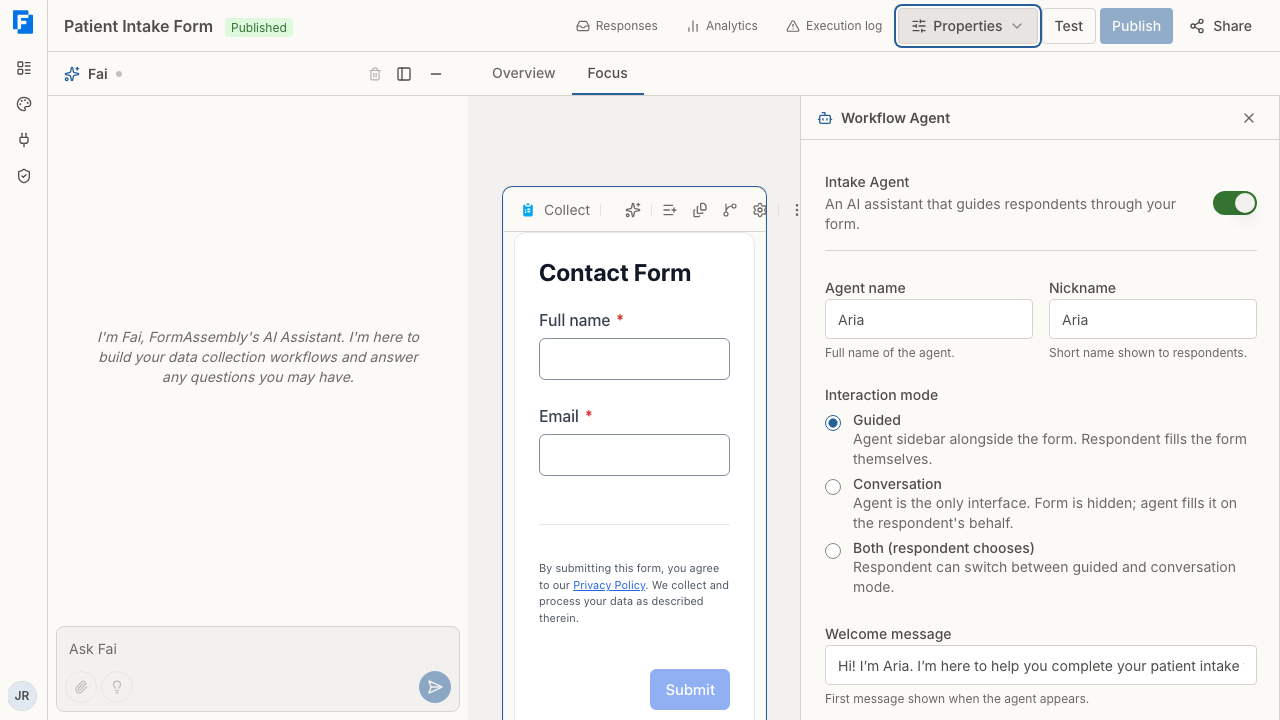
---
## How Intake Agents Work
When you enable an Intake Agent on a workflow, respondents see a chat interface when they open your form. The agent greets them and helps them complete the form. You control how much of the experience the agent handles by choosing an interaction mode.
The Intake Agent can see the current step of your workflow and the fields it contains, so it knows what information still needs to be collected before the form can be submitted. Each time the respondent sends a message — in every mode, not only guided — the agent receives the current value of every field on the page, so it knows what is already filled in and what is still missing.
The Intake Agent appears only on the workflow's hosted form link. If you embed the form on another website, respondents see the form by itself with no agent.
The agent also appears only on form steps and on the final confirmation. Approval steps, please-wait steps, redirects, and closed or unavailable pages show no agent.
### Interaction Modes
You choose one of three modes when configuring your agent. Each mode changes what the respondent sees and how they interact with your form.
- **Guided** — The form stays visible on the page, and the agent appears alongside it as a chat sidebar. Respondents fill in the form directly, but the agent is there to explain fields, answer questions, and offer encouragement. In guided mode the agent waits to be asked: it greets the respondent, says what it can help with, and then lets them work.
- **Conversation** — The form is hidden entirely. The agent conducts a natural back-and-forth conversation with the respondent and fills in the form fields behind the scenes. The respondent never sees the raw form — they just chat.
- **Both (respondent chooses)** — The agent starts in guided mode and gives respondents a toggle to switch between guided and conversation at any time. This is useful when you want to let respondents choose their preferred experience.
A newly enabled agent has no interaction mode selected. Until you choose one, the agent runs in **Guided** mode.
The mode you choose shapes the respondent experience, so pick the one that best fits your audience. For example, conversation mode works well for complex or intimidating forms, while guided mode is better when respondents need to see all the fields at once.
---
## Setting Up an Intake Agent
### Open the Agent Configuration
1. Open your workflow in the builder.
2. Click **Properties** in the builder navigation to open the properties menu.
3. Choose **Agent** to open the **Workflow Agent** panel.
This is where you enable and customize your Intake Agent, without leaving the workflow.
### Enable the Agent
Turn on the **Intake Agent** switch to enable the agent. By default, new workflows do not have an agent enabled.
Once enabled, you'll see configuration options for your agent's identity, behavior, and voice.
Agent changes save automatically as part of your workflow draft, the same as any other builder edit — there is no separate save button for the agent.
### Configure Agent Identity
Fill in the following details to give your agent a persona:
- **Agent name** (optional) — The agent's full name, such as "Aria" or "Alex." The name can be up to 255 characters. If you leave the name blank, FormAssembly uses "Intake Agent" wherever a display name is needed.
- **Nickname** (optional) — A shorter display name shown to respondents, up to 255 characters. If left blank, the full name is used.
- **Welcome message** (optional) — Text you write yourself, shown when the agent appears. For example: *"Hi! I'm Aria, I'll help you through this today."* The welcome message is not written by the agent, and the agent also writes its own greeting.
In conversation mode, the welcome message is shown on a start screen — the message with a **Start** button below it — the first time a conversation-mode form opens in a browser tab. The start screen does not appear on later steps, and it never appears in a **Both** workflow when the respondent switches to conversation. With no welcome message set, the start screen shows only the Start button, so it is worth setting one for conversation mode.
An agent that is enabled but unnamed is still a complete, valid configuration — respondents will simply see the default display name.
### Write Persona Instructions
Use the **Persona instructions** field to shape your agent's tone and behavior. Write in plain language — think of it as coaching the agent on how to act. For example:
- *"Be warm and reassuring. Use plain language."*
- *"Act as a knowledgeable healthcare intake specialist. Be patient and thorough."*
- *"Keep responses short and friendly. Use emoji sparingly."*
These instructions guide the agent's personality across every interaction.
### Choose an AI Model
Select which AI model powers your agent in the **AI model** dropdown:
| Model | Best For |
|---|---|
| Claude Sonnet 5.5 | General use (default) — balanced quality and speed |
| Claude Sonnet 5 | An earlier Sonnet model, if you prefer its behavior |
| Claude Haiku 4.5 | Faster responses at lower cost |
Enabling an agent leaves the model unset, and an unset or unrecognized model runs as Claude Sonnet 5.5 both in the dropdown and on the live form.
### Choose an Interaction Mode
Select the interaction mode that fits your use case:
- **Guided** — Agent assists alongside a visible form
- **Conversation** — Agent handles everything through chat
- **Both (respondent chooses)** — Respondent can switch between guided and conversation
### Configure Voice (Optional)
If you want your agent to speak to respondents, turn on the voice option. Turning voice on selects the **Angela** voice automatically. When voice is turned on, configure the following:
- **Voice** — Choose from the available voices (Angela or Adam).
- **Speed (0.5 – 2.0)** — Set a speed between 0.5 (slow) and 2.0 (fast). The default is 1.0.
- **Speech context** — A place to list domain vocabulary, one phrase per line (up to 100,000 characters), saved with the agent. Speech context does not currently change speech recognition.
With voice enabled, respondents get a microphone button and a mute button in the chat composer. Speech is transcribed as they talk, and each time they pause, what they just said is sent as a message. The microphone stays open while the respondent is quiet; it closes only if no audio reaches the server for about a minute, and the respondent sees a note that listening stopped. Speaking while the agent is talking stops playback — and if the agent is still writing its reply, it answers the new speech together with the previous message; once the reply is written, the new speech is sent as its own message.
If you later turn voice off, the voice, speed, and speech context settings are ignored at runtime even though they remain saved.
---
## Using the AI Assistant to Configure Your Agent
You can also configure your Intake Agent through Fai, the built-in AI assistant in the builder. Fai is the chat-based helper available in every workflow builder session. Type a request in the **Ask Fai** message box and click the arrow button to send it. For example:
- *"Add an intake agent called Aria who sounds like a healthcare professional"*
- *"Enable voice with the Adam voice and set the speed to 0.9"*
- *"Change the welcome message to: Welcome! Let me help you get started."*
- *"Remove the agent from this workflow"*
Fai updates the agent configuration as part of the workflow — you'll see the changes reflected in the Workflow Agent panel. On a workflow that is already published, unpublished changes show as **Update pending**; a workflow that has never been published shows **Draft**.
> **Fai caveat — always name a voice.** The builder's voice list has no empty choice, so the builder itself cannot leave voice on with no voice selected. Configuring the agent another way, such as through Fai, can. If voice is enabled with **no** voice, the agent settings cannot be saved and the workflow cannot be tested or published, and the Workflow Agent panel shows an inline error on the Voice dropdown. If the voice is set to something that is **not** one of the listed voices, the settings save without an inline error but Test and Publish are still blocked. Naming a voice in your request avoids both cases.
---
## Testing Your Agent
Before publishing, test how your agent behaves from the respondent's perspective:
1. Click **Test** in the builder navigation.
2. The draft workflow opens in a new tab with a test-mode banner, including the Intake Agent if enabled.
3. Interact with the agent to verify the welcome message, tone, and behavior match your expectations.
Test mode uses your draft configuration, so you can make changes and re-test without affecting your live form. **Test** only opens if the draft would pass Publish.
A test run really runs: emails are sent and records are created in connected systems. Use test data you are comfortable sending.
The **Fill Test Data** button is hidden in conversation mode, and in a **Both** workflow once the respondent switches to conversation.
---
## Publishing Your Workflow with an Agent
When you're satisfied with your agent configuration:
1. Click **Publish** in the builder navigation.
2. Your workflow — including the Intake Agent — goes live.
The agent configuration is published as part of the workflow. There's no separate step to publish the agent. Any respondent who opens your form after publishing will see the agent.
If your account requires compliance review, **Publish** submits the workflow for review instead of taking it live, and the workflow goes live once it is approved.
Agent settings can block publishing in one case: a missing or unlisted voice while voice is enabled (see the Fai caveat above). Fix the voice selection in the Workflow Agent panel before you publish.
To share your published workflow, use the **Share** button in the builder navigation to get the link. **Share** is available once the workflow is published, and below desktop widths it shows only its icon.
---
## What Respondents See
When a respondent opens your published workflow, the experience depends on the interaction mode you chose:
- **Guided mode:** The form appears on the page with the agent chat alongside it. Respondents fill in fields directly (like the **Full name** and **Email** fields on a contact form) and can ask the agent for help at any time. On small screens the agent panel sits below the form rather than beside it.
- **Conversation mode:** The respondent only sees the chat interface. The agent asks for the information it needs, grouping related questions (such as first and last name) where it can, and fills in the form automatically. The agent's current turn sits front and center at a larger size, with the agent's name and the time above it, and everything earlier is tucked behind an "earlier messages" toggle that opens the ordinary chat log. When the conversation is complete, the agent submits the form.
- **Both (respondent chooses):** Respondents start in guided mode and can switch to conversation whenever they like. When a respondent switches to conversation, the form is hidden and the agent chat expands to fill the page; switching back restores the side-by-side view. The chosen mode is remembered per workflow within the same browser tab, including on a later run of the same form in that tab, which then starts in the saved mode rather than guided.
On the Collect plan, the agent pane shows the "Powered by FormAssembly" badge, as the form does.
If your workflow does not have an agent enabled, respondents see the form by itself — the standard experience with no chat sidebar.
### Chat controls respondents have
- A square icon button stops a reply that is still being written.
- Thumbs-up and thumbs-down rating buttons appear when the respondent hovers over or tabs to an agent reply.
- A trash icon clears the conversation. Clearing empties the chat and the agent starts again from the current step — the welcome message is not shown again, and answers already in the form are kept.
Conversations belong to one browser tab. The conversation continues across steps in the same tab, but a new tab or window starts a fresh conversation, and an idle conversation expires after about four hours. Answers already entered in the form are not affected.
Nothing from the chat is kept for you. Chat transcripts and message ratings are not saved with the response and are not visible to workflow owners — only the form answers are.
### Language
A workflow can offer more than one language, and the agent's nickname and welcome message can be translated: when the workflow's translation includes them, they show in the respondent's language. Translations are added by asking Fai. See also: Form Design.
The agent pane follows the form's language: the chat composer placeholder, the send button, the voice and upload controls, the stop control and the "response was stopped" notice, the connection status once the agent is ready, the label on each agent message, and the notice shown when the session expires. For a right-to-left language the whole agent pane lays out right to left, like the form. Other text in the agent pane — the mode toggle, the **Start** button, and the rating and clear-history buttons — is English only.
---
## File Uploads in Chat
A file field cannot be filled from chat, so the Intake Agent shows the respondent an upload control inside the conversation. The control enforces the field's accepted file types and size limit, and the respondent can choose a file or decline. In guided mode the agent offers the upload control only when the respondent asks for help with that field.
---
## Address Checks
Once the Intake Agent has a complete address, it checks it using Google's address validation service, so that what lands in the form is a clean, standardized address.
- A confirmed address is written back in its standardized form.
- An adjusted address is read back to the respondent, and the version they confirm is the one used.
- An address that cannot be confirmed prompts the respondent to double-check the parts named. If they insist the address is correct, it is accepted as given.
- If the check cannot run — for example, the service is unavailable — the address is used exactly as typed.
---
## Save and Resume
If your collect step offers save-and-resume, respondents can ask the Intake Agent to save their progress. The agent opens the form's save dialog, where the respondent confirms or enters the email address the resume link is sent to. Nothing is saved until the respondent completes that dialog, and the agent says the save is awaiting their confirmation rather than that it is done. If the respondent dismisses the dialog, the agent treats that as a decision and does not retry.
If the step does not offer save-and-resume, the agent tells the respondent the form cannot be saved.
---
## When a Submit Is Blocked
There are two cases, and they behave differently:
- **The agent's submit is blocked.** The agent learns right away and tells the respondent what needs fixing — a field error, a file that is still uploading, or a request that failed.
- **The respondent's own Submit is blocked.** The field errors appear on the page as usual, and the agent picks them up with the respondent's next message.
In conversation mode, the Intake Agent is instructed to ask for every required field, and the form's own validation still blocks a submit that is missing one.
---
## Reusing an Agent Across Workflows
In FormAssembly, an Intake Agent belongs to a single workflow. There is no standalone agent library, so the same persona cannot yet be assigned to several workflows at once. To use one persona in multiple places, configure it separately on each workflow, or use **Clone** on a workflow that already has the agent you want. The clone is an unpublished draft named "Copy of …", it includes the source workflow's unpublished changes, and it must be published before respondents see it.
---
## Tips & Troubleshooting
- **Agent not appearing in test mode?** Make sure the **Intake Agent** switch is on in the Workflow Agent panel. The agent only appears when explicitly enabled.
- **Agent not appearing on your live form?** You need to click **Publish** after enabling or changing the agent. Draft changes aren't visible to respondents until published.
- **Agent missing on an embedded form?** The Intake Agent appears only on the workflow's hosted form link. Share that link instead of embedding the form if you need the agent.
- **Keep persona instructions focused.** Short, clear instructions produce more consistent agent behavior than long, detailed ones. Start simple and refine based on testing.
- **No name set?** The agent still works and introduces itself as "Intake Agent." Add a name and nickname if you want a more personal experience.
- **Set a welcome message for conversation mode.** Without one, the start screen shows only the **Start** button.
- **Each workflow has its own agent.** In FormAssembly, agents are configured per workflow. If you want the same persona on multiple workflows, configure it on each one separately.
- **Cloning a workflow copies the agent.** When you clone a workflow, the agent configuration comes along with it — a quick way to reuse a persona as a starting point.
- **Changing the agent name won't break anything.** You can rename your agent at any time without affecting your workflow's URL or existing responses.
- **Testing has real effects.** A test run sends emails and creates records in connected systems, so use test data.
---
# Using Fai, Your AI Assistant
Fai is the AI assistant built into FormAssembly. Instead of manually assembling forms and workflows piece by piece, you describe what you need in plain language, and Fai builds it for you — creating forms, adding workflow steps, and wiring everything together.
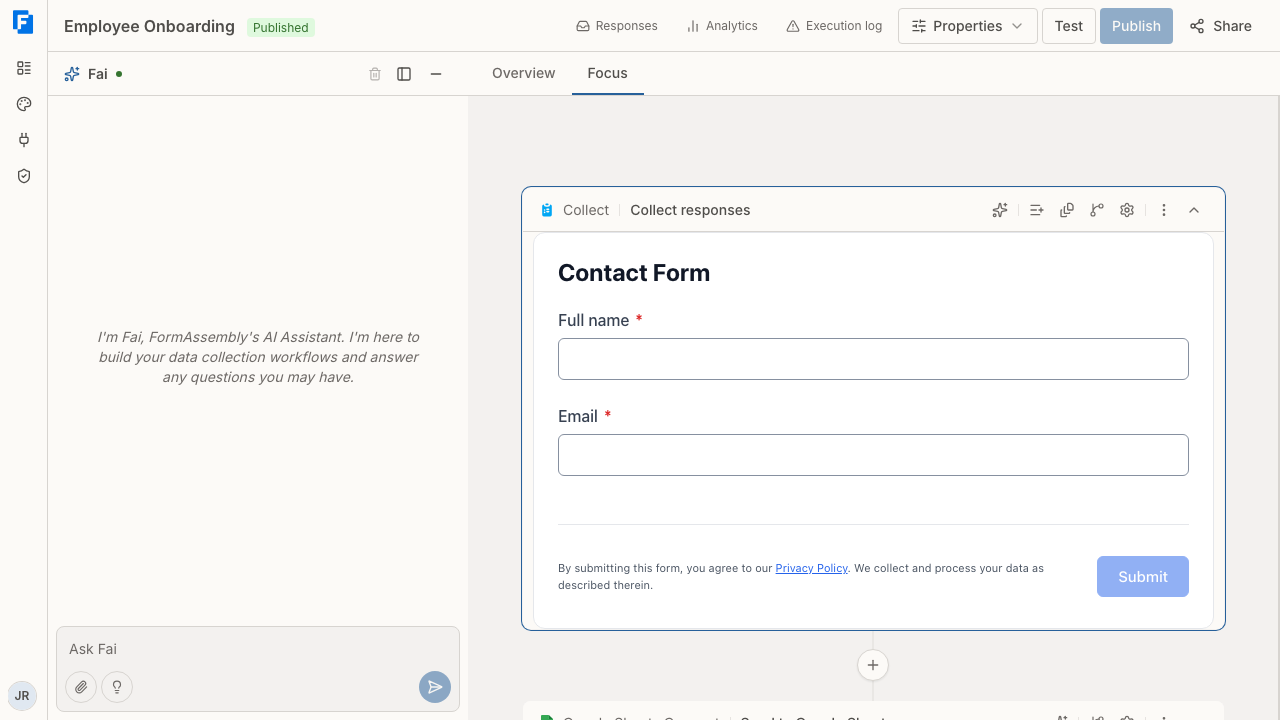
## What Fai Can Do
Fai handles the structural work of building and modifying your workflows. You can ask Fai to:
- **Create a new workflow from scratch** — describe the data you want to collect and the steps that should happen afterward.
- **Add, remove, or rearrange steps** — such as forms, email notifications, redirects, and connectors.
- **Build and edit forms** — add fields, change field types, update questions, and reorganize form content.
- **Make changes to existing workflows** — modify what you've already built by describing what you want to change.
- **Set up a document generation step** — ask Fai to add a document step or configure an existing one, and Fai walks you through uploading the template and mapping your data into it.
- **Set up an e-signature step** — on a plan that includes e-signature, ask Fai to add a signing step, because the builder does not offer one and shows a sign step read-only.
- **Translate a workflow into another language** — ask Fai to add a translation, edit a translated string, or remove a language.
- **Publish or unpublish a workflow** — ask Fai to take a workflow live, or to take it offline again.
- **Connect a service account** — ask Fai to connect a service, including the ones the Connections page does not open yet, such as Microsoft (Excel, OneDrive) and Dynamics 365.
- **Find or create something in a connected service** — for example, ask Fai to find an existing spreadsheet or folder, or to create a new one for your workflow to write to.
Fai can also take care of work around the workflow, not just inside it. You can ask Fai to:
- **Change a workflow's custom URL or its internal name** — tell Fai the address or name you want, and Fai updates it for you. Both changes take effect immediately, outside the draft, and changing the custom URL breaks the old public link.
- **Export your responses** — ask Fai to start a response export for a workflow, and Fai tells you when the export is ready.
- **Replay a response onto a corrected workflow** — when a response was affected by a mistake in the workflow, Fai can re-run it against the corrected version once you confirm, and can send the respondent's resume link to a corrected email address.
- **Create, edit, copy, and activate themes** — a theme Fai creates is saved as a draft and opens in the theme editor so you can review and publish it. Give Fai a brand color as a hex code and the new theme uses it for buttons, links, focus outlines, and progress, the same way the theme editor's brand color does.
- **Create a prefilled link to a workflow** — describe the values you want filled in, and Fai builds the link.
- **Contact FormAssembly for you** — ask Fai to file a support request or send product feedback on your behalf.
Fai works alongside you. You can talk to Fai for big structural changes and still make quick edits directly on the canvas when that's faster (see [Combining Fai with Direct Editing](#combining-fai-with-direct-editing) below).
Asking Fai to add or remove a step works from either builder view — you do not need to switch views first. Only the builder's own structural buttons, such as **Add step**, are limited to Focus view.
## The Chat Panel
The chat panel is where you communicate with Fai. It sits alongside the workflow canvas in the builder.
### Sending a Message
1. Click the **Chat input** area on the left side of the builder.
2. Type your request in plain language — for example, *"Create a contact form that asks for name, email, and message, then sends me a notification."*
3. Click **Send** (or press Enter).
Fai processes your request and updates the workflow canvas in real time. You'll see steps appear, form fields get created, and connections form between steps as Fai works.
While Fai is working, the **Send** button becomes **Stop**; click **Stop** to cancel the reply in progress.
You can also click **Suggestions** next to the chat input to see contextual prompt ideas you can send with one click.
### Reviewing the Conversation
The conversation history shows the full back-and-forth between you and Fai. Scroll up to review earlier messages, see what changes were made, and understand the context of your current workflow.
Each reply from Fai carries **Thumbs up** and **Thumbs down** buttons. Click one to rate the reply.
To start fresh, click **Clear conversation history** at the top of the chat panel. This removes all messages but does not undo any changes Fai has already made to your workflow.
### Attaching Files
If you have a document that describes what you need — such as a PDF of an existing paper form or a list of requirements — you can share it with Fai:
1. Click **Attach File** below the chat input.
2. Select the file from your device.
3. Add any additional instructions in the chat input if needed.
4. Click **Send**.
Fai reads the file and uses it as context when building or updating your workflow. **Attach File** accepts PDF, plain text, CSV, HTML, JSON, and image files (JPEG, PNG, GIF, WEBP). Word documents are not accepted as attachments — save one as a PDF first.
**Attach File** is for files you want Fai to read. A Word or PowerPoint template for a document generation step is uploaded a different way: Fai shows an upload box in the chat and you pick the template there (see [Setting Up a Document Generation Step with Fai](#setting-up-a-document-generation-step-with-fai)).
### Resizing the Chat Panel
You can adjust the width of the chat panel to give yourself more room for the conversation or more room for the workflow canvas. Drag the edge of the chat panel to resize it.
### Managing the Chat Panel
The chat panel includes controls at the top for managing your workspace:
- **Minimize Fai panel** — collapses the chat panel to give you full canvas space. Click the same button to restore the panel.
- **Change panel position** — moves the chat panel to the other side of the builder.
## Building a Workflow with Fai
### Starting from Scratch
When you open the builder without an existing workflow, you start with a blank canvas. Simply describe what you want in the chat panel:
> *"I need an event registration form that collects attendee name, email, and dietary preferences, then sends a confirmation email to the attendee and notifies our events team."*
Fai creates the full workflow — including the form, email steps, and a final completion step — and displays it on the canvas.
### Modifying an Existing Workflow
Open any workflow in the builder and use the chat panel to request changes:
- *"Add a phone number field to the form."*
- *"Change the notification email to go to hr@example.com instead."*
- *"Add a redirect to our thank-you page at the end."*
- *"Remove the email notification step."*
Fai updates the workflow and you'll see the changes reflected on the canvas.
### Setting Up a Document Generation Step with Fai
Document generation is available on every FormAssembly plan, and Fai is how you configure it — the builder has no settings panel for a document generation step. A document generation step merges the data your form collects into a template you supply and produces a PDF.
1. Add the **Document generation** step from the **Add step** menu in Focus view, or simply ask Fai to add one.
2. Ask Fai to set the step up. Fai shows an upload box in the chat asking for a Word (.docx) or PowerPoint (.pptx) template.
3. Pick your template in that upload box and send it. Fai reads the template's merge fields and maps your form data to them, including repeating sections.
4. Review the mapping Fai proposes and ask for corrections in plain language — for example, *"Put the email address in the contact block instead."*
A document generation step with no template blocks publishing. If **Publish** reports that a document step has no template, ask Fai to attach one.
### Setting Up an E-Signature Step with Fai
E-signature is available on the plans that include it, and Fai is how you set it up. On a plan that includes e-signature, the **Add step** menu does not list a signing step — ask Fai in the chat panel, for example *"Add a signing step so the manager signs the offer letter."* A sign step on the canvas is read-only: its settings are shown, and no builder control changes them, so every change goes through Fai as well.
A few things to know about how Fai builds signing:
- Fai builds signing from a document generation template tagged for each signer, so set up the document generation step first.
- Fai can set up one signer or several. Several signers are several assignments, which Fai arranges one after another or in parallel, depending on what you ask for.
- A sign step ends **Signed** or **Declined**, and you can ask Fai what should happen in each case.
- Signing works only on FormAssembly's hosted page. An embedded form shows the step and lets a signer decline, but the signer cannot sign in an embed.
On a plan that does not include e-signature, the **Add step** menu shows **E-Signature** locked, and choosing it opens the upgrade prompt.
### Translating a Workflow with Fai
A FormAssembly workflow has one default language and can carry translations in other languages. Each response runs in a single language, chosen from the respondent's browser when the response starts, and the respondent can switch language on the form.
Ask Fai in plain language:
- *"Translate this workflow into Spanish"* adds a Spanish translation and leaves your original content unchanged. Respondents can then choose Spanish.
- *"Change this workflow's language to Spanish"* rewrites the original content in Spanish instead.
- When a request could mean either, Fai asks you which one you mean before making the change.
A few things to know about how Fai handles translations:
- Asking Fai to translate into a language you have already translated replaces that language's translation.
- When you change text in the default language through Fai, Fai updates that text's translations in the same edit.
- Fai flags translated rich text and HTML blocks so you can review them.
- You can also ask Fai to edit a single translated string, or to remove a language entirely.
### Reviewing Changes Fai Makes
When Fai updates your workflow, step cards on the canvas indicate what changed. Modified steps show a **Modified — view changes** indicator, and newly added steps show an **Added — view changes** indicator. Click either indicator to see exactly what Fai updated.
## The Workflow Canvas
The canvas shows your workflow as a series of connected steps, flowing from top to bottom. Each step is a card displaying its name and key details — for example, a form step shows the form name, and an email step shows the recipient.
In Focus view, click on any step to expand it and see its contents. For example:
- Click a form step (like **Collect**) to see and edit the form fields.
- Click an email step to see and edit the notification settings.
- Click the final step (like **Done**) to see and edit the confirmation message.
In Focus view, each step card includes controls for common actions:
- **Ask Fai about this step** — sends a message to Fai with context about that specific step, so you can request targeted changes without describing which step you mean.
- **Step settings** — opens that step's own configuration, including **Step Name**, **Step Description**, and step-specific settings such as **Submit button label** or **Show form title**.
- **Step actions** — shows available actions for the step, such as duplicating or deleting it.
- **Collapse step** — toggles the step's expanded view.
In Focus view you can also click **Add step** between any two steps to manually insert a new step, or click **Add field** within a form step to add a new field directly. Adding, duplicating, moving, and deleting steps are all Focus-view actions.
### Builder Views and Properties
The builder includes two canvas views, accessible via the buttons above the canvas:
- **Overview** — a read-only map of the whole workflow. Overview draws every step and the connections between them, hovering a step highlights its path, and clicking a step card switches to Focus view. Nothing on the Overview canvas adds, edits, moves, or removes a step.
- **Focus** — zooms in on the currently selected step for detailed editing, and is where all structural controls live, including **Add step**.
Click **Properties** in the builder header to open **Workflow Properties**, a menu of settings that apply to the whole workflow: **Themes**, **Agent**, **Access**, **Languages**, **Availability**, **Data & Privacy**, **Notifications**, and **Collaboration**. A single step's name, description, and settings are not in Workflow Properties — open them from the **Step settings** button on that step's card.
### Configuring the Fai Intake Agent
The Fai intake agent is the conversational assistant that respondents see when they open your published workflow, and it can guide them through completing the form. To configure the intake agent in FormAssembly, click **Properties** in the builder header and open the **Agent** section, titled **Workflow Agent**.
You can control the following:
- **Whether the agent is enabled** — turn the agent on to show it to respondents, or off to hide it. When the agent is turned off, respondents see no agent on the published page.
- **Agent name** — the agent's full name, such as "Aria".
- **Nickname** — the short name respondents see in the conversation.
- **Persona instructions** — free-text guidance that shapes the agent's tone and behaviour with respondents, for example *"Be warm and reassuring. Use plain language."*
- **The welcome message** — the opening message respondents see when the agent conversation starts.
- **AI model** — the model the agent runs on: Claude Sonnet 5.5 (the default), Claude Sonnet 5, or Claude Haiku 4.5.
- **The interaction mode** — choose **Guided**, **Conversation**, or **Both (respondent chooses)** to change how the agent interacts with respondents alongside the form.
- **Whether voice is enabled** — turn on voice to give respondents speech input and spoken replies. When voice is turned off, the agent stays text-only.
- **The voice** — the voice used for text-to-speech, where voice mode is available.
- **The voice speed** — the playback speed of the agent's voice, from 0.5 to 2.0, where 1.0 is normal speed.
- **Speech context** — optional domain vocabulary, one phrase per line, up to 100,000 characters. Speech context is saved with the agent, but it does not currently change speech recognition.
Changes to the intake agent settings are applied immediately as you edit them; there is no separate save step in the panel.
Note that the intake agent is configured for the workflow as a whole. You cannot write per-step instructions or scripts for the intake agent — the persona instructions, welcome message, and mode apply across the entire workflow.
## Combining Fai with Direct Editing
Fai and manual editing work together seamlessly. You can:
1. **Ask Fai** to create a form with several fields.
2. **Click into the form** in Focus view and directly edit field labels, hints, or placeholder text.
3. **Go back to Fai** and ask for further changes — Fai sees your manual edits and builds on them rather than overwriting them.
This two-way sync means you never have to choose between AI assistance and hands-on control. Use whichever approach is faster for the task at hand.
## Prompt Suggestions
In certain situations, FormAssembly shows pre-written prompt suggestions labeled **Ask Fai**. These are shortcuts that send a specific request to Fai on your behalf — no typing required.
You'll encounter prompt suggestions when:
- **Publishing is blocked** — If your workflow contains a step your plan does not include, a dialog appears with a prompt suggestion to ask Fai to restructure the workflow without that step so you can publish. You can also upgrade to a plan that includes the step instead.
- **A publish attempt fails** — If publishing is rejected for any reason, a banner appears with an **Ask Fai for help** button. Clicking the button opens the Fai panel if it is minimized and sends the specific error details to Fai so Fai can help you resolve the issue.
- **An accessibility finding appears in the theme editor** — Each finding that traces back to a theme setting carries a **Fix with Fai** button, which sends the details of the finding to Fai so Fai can adjust the theme for you.
To use a prompt suggestion, simply click the button. The prompt is sent to Fai immediately, and any open dialog closes automatically.
Prompt suggestions are starting points — Fai may ask follow-up questions or propose alternatives based on your specific workflow.
## Testing and Publishing
Once Fai has built your workflow, you can test and publish it directly from the builder:
- Click **Test** to preview how your workflow behaves for respondents.
- Click **Publish** to make your workflow live. After publishing, you'll see the live URL and an embed snippet you can copy.
- After your workflow is published, use the **Share workflow** button to access the live URL and embed snippet at any time.
If your workflow has unpublished changes, you'll see **Update pending** in the builder header, reminding you to publish the latest version.
Your work is saved automatically as you go — whether changes come from Fai or from your own direct edits.
## Tips & Troubleshooting
- **Be specific in your requests.** Instead of *"Make a form,"* try *"Create a job application form with fields for full name, email, resume upload, and a text area for cover letter."* The more detail you provide, the closer Fai gets on the first try.
- **Make changes incrementally.** If you need a complex workflow, start with the basics and layer on changes one request at a time. This makes it easier to review what Fai builds at each step.
- **You can always undo Fai's changes by asking.** If Fai makes a change you don't like, tell it — for example, *"Undo that last change"* or *"Remove the field you just added."*
- **Can't find Add step? Switch to Focus view.** The **Add step** button, along with duplicating, moving, and deleting steps, is only available in Focus view. Overview is a read-only map of the workflow. Alternatively, ask Fai to add the step — requests to Fai work from either view.
- **Looking for a step's name or settings? Use Step settings, not Properties.** **Properties** opens **Workflow Properties**, which covers the whole workflow; a single step's name, description, and settings open from the **Step settings** button on that step's card.
- **Fai stays in sync with your edits.** If you edit a form field label directly in Focus view and then ask Fai to make additional changes, Fai sees your edit and won't overwrite it.
- **Ask Fai for signing steps.** E-signature is available on the plans that include it, and a signing step is added and changed only through Fai. On a plan without e-signature, the **Add step** menu shows **E-Signature** locked and choosing it opens the upgrade prompt. Conditional logic, approval steps, assignment steps, and document generation steps do not block publishing.
- **A document generation step needs a template before you can publish.** If **Publish** reports that a document step is incomplete, ask Fai to set the step up and upload a Word (.docx) or PowerPoint (.pptx) template through the upload box Fai shows in the chat.
- **Say whether you want a translation or a language change.** *"Translate this workflow into Spanish"* adds Spanish alongside your original content; *"Change this workflow's language to Spanish"* rewrites the original. If Fai can't tell which you mean, it will ask.
- **Attach files for complex requirements.** If you have a multi-page paper form or a detailed specification document, attach it to your message rather than trying to describe every field. Fai can interpret the document and build the form for you. If your source file is a Word document, save it as a PDF first — **Attach File** does not accept Word files.
- **Respondents don't see an agent if it isn't enabled.** If you expect the Fai intake agent to appear on your published workflow and it doesn't, open **Properties** → **Agent** and confirm the agent is enabled and has a name.
- **Use the persona instructions to set tone, not per-step behaviour.** If the intake agent sounds too formal or too casual, adjust the persona instructions and welcome message in **Properties** → **Agent**. These settings apply to the whole workflow, so write them to suit every step.
- **A theme Fai creates starts as a draft.** After asking Fai to create or edit a theme, review the draft in the theme editor and publish it when you're happy with it.
- **Changing the custom URL breaks the old link.** A rename or custom URL change you ask Fai for takes effect immediately, outside the draft, so anyone using the previous address will need the new one.
- **Changes save automatically.** The builder autosaves your work shortly after each change. You don't need to manually save, but you do need to click **Publish** to make changes live.
---
# Compliance & Policies
## Overview of the Compliance Dashboard
The **Compliance** area is your organization's control center for governing data collection across your FormAssembly account. From here you can:
- Monitor the compliance status of every active workflow.
- Define and manage policies — both standard (provided by FormAssembly) and custom rules you write yourself.
- Require reviewer approval before any workflow goes live.
- Access a permanent, tamper-proof audit trail of every compliance action taken in your account.
The Compliance dashboard is available to account administrators and to anyone whose role carries the compliance review permission. Compliance features are part of the Enterprise plan.
## Navigating the Compliance Dashboard
Compliance in FormAssembly is split across two surfaces, because authoring the rules and applying them are different jobs.
**The Compliance dashboard** — where review work happens. Open it from **Compliance** in the main navigation. It has two sections:
- **Workflow Status** — The primary view for monitoring and reviewing workflows.
- **Audit Trail** — Browse and export a permanent log of all compliance events.
**Compliance administration** — where you decide what the policies are and whether review is required. Open your account settings and click **Compliance**. It has two sections:
- **Review Gate** — Configure whether compliance review is required before publishing, and set up approval stages.
- **Policy Library** — Manage the rules your workflows are evaluated against.
Click any of these section links to switch between views. Account administrators can reach both surfaces. The Policy Library and Review Gate open only for people whose role includes the permission to configure compliance — administrators have it by default, and a custom role can include it. A reviewer whose role does not include that permission can open the dashboard but not the administration sections.
---
## Workflow Status
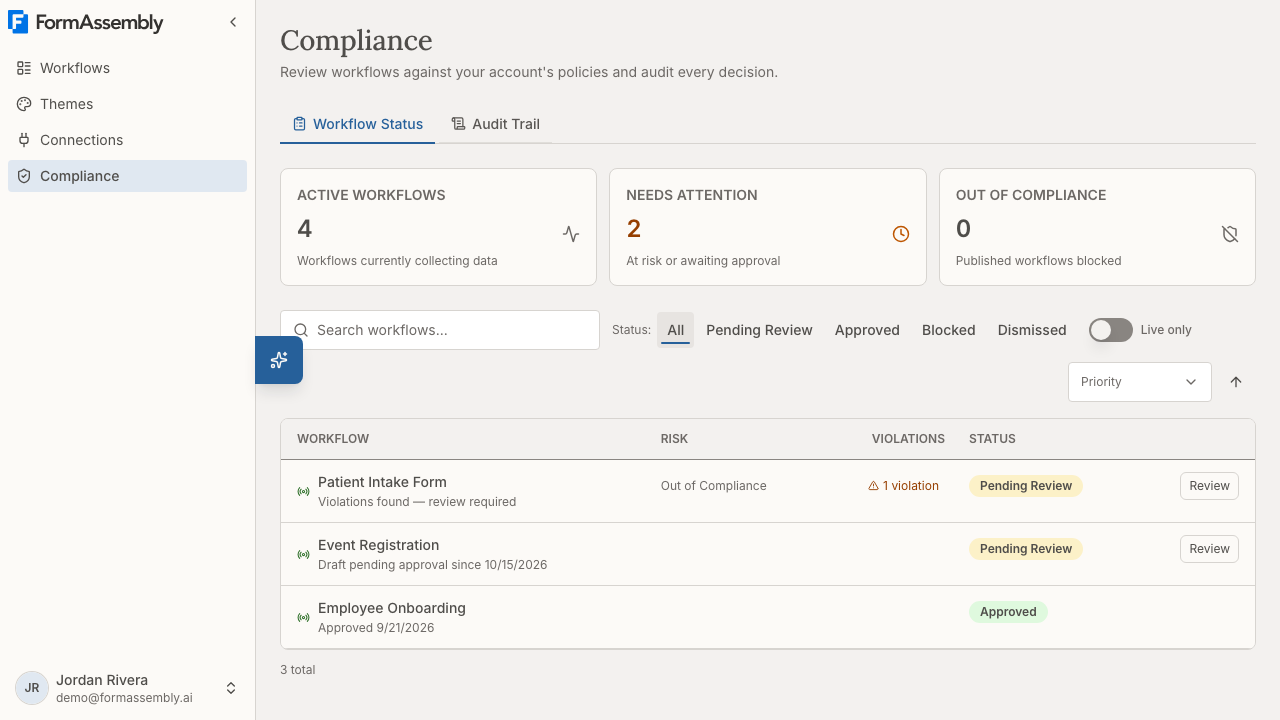
**Workflow Status** is where you see every workflow that has a compliance record. It shows which workflows are actively collecting data, which ones need attention, and which have been blocked.
Workflow Status covers the whole account for administrators and reviewers alike, regardless of who created each workflow, because a reviewer's authority is account-wide. A reviewer who is not an account administrator therefore sees other members' workflows, but only in read-only form — reviewing a workflow never grants the ability to edit it.
### Summary Metrics
At the top of the page, summary cards give you an at-a-glance view:
| Metric | What It Means |
|--------|---------------|
| **Active Workflows** | Total number of workflows currently live and collecting data. |
| **Needs Attention** | Workflows flagged with compliance risk or with a draft awaiting review. |
| **Out of Compliance** | Workflows that have been blocked by a reviewer. |
### The Workflow Table
Each row in the table represents a workflow with a compliance record. Columns include:
- **Workflow** — The workflow name, a live indicator (green dot) when the workflow is actively collecting data, and a subtitle describing its current compliance situation.
- **Risk** — A computed risk label. Workflows actively collecting data with unresolved issues show **Out of Compliance** or **Compliance Risk**. Blocked workflows show **Blocked**. Workflows with no live risk leave this column empty.
- **Violations** — The number of policy violations found. Expand to see details.
- **Status** — The current compliance state: **Pending Review**, **Approved**, **Blocked**, or **Review Dismissed**.
- **Actions** — Reviewers see a button to open the workflow in a read-only review mode, where they can inspect AI findings, approve, or block.
Only workflows that have a compliance record appear in the Workflow Status list. A compliance record is created when someone publishes a workflow while compliance review is enabled. Archived workflows are excluded from the dashboard.
### Searching and Filtering
Use the search field (labeled **Search workflows...**) to find workflows by name.
Filter by compliance status using the buttons below the search field:
- **All** — Show every workflow with a compliance record.
- **Pending Review** — Show only workflows awaiting a reviewer decision.
- **Approved** — Show only workflows that have been approved.
- **Blocked** — Show only workflows that have been explicitly blocked.
- **Dismissed** — Show only workflows whose review was dismissed because the policy that flagged them was disabled or deleted.
Toggle **Live only** to narrow the list to workflows that are currently active and collecting data.
### Sorting
By default, workflows are sorted by priority — the highest-risk workflows appear first, then alphabetically by name. Blocked workflows sort after the others. Use the sort controls to change the sort field (priority, name, or requested date) and toggle between ascending and descending order.
### Understanding Risk Levels
Risk is calculated based on the **published** (live) version of a workflow:
| Risk Label | What It Means |
|------------|---------------|
| **Out of Compliance** | The workflow is live and has unresolved violations from a policy evaluation. This is the highest risk. |
| **Compliance Risk** | The workflow is live and is pending review, but no specific violations were found. |
| **Blocked** | A reviewer has explicitly blocked the workflow. If the live version is blocked, the workflow is automatically taken offline. |
| *(empty)* | No live risk. The published version is approved, or only a draft is pending review. |
A draft awaiting review does **not** affect the risk level of the live workflow. If a workflow has both a live risk and a pending draft, the live risk takes precedence.
### What Happens When a Workflow Is Blocked
- **Blocked draft**: The draft cannot be published. The currently live version (if any) is unaffected.
- **Blocked published version**: The live workflow is taken offline. The workflow owner can fix the draft and resubmit it for a new compliance review.
---
## Policy Library
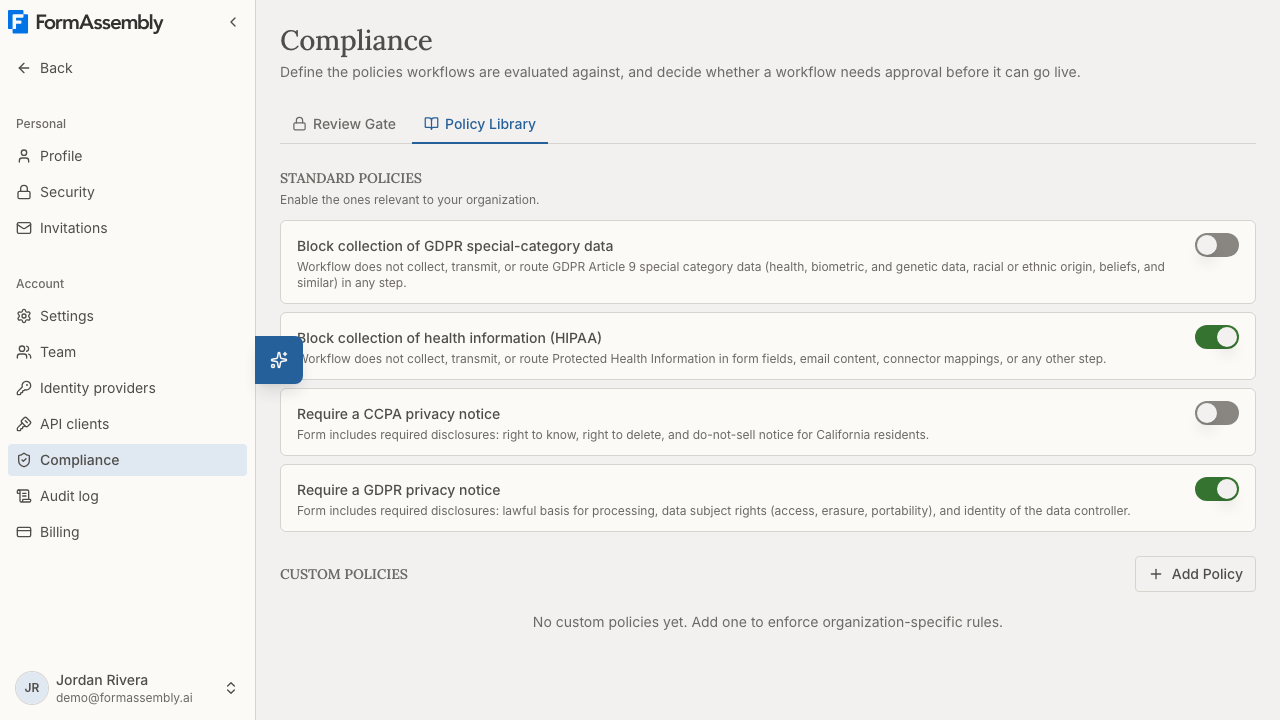
The **Policy Library** contains all the rules your workflows are evaluated against. Open it from your account settings under **Compliance**. Policies are organized into two groups:
- **STANDARD POLICIES** — Provided by FormAssembly. You can enable or disable these for your account, but you cannot edit or view their rule text.
- **CUSTOM POLICIES** — Rules you define in your own words to match your organization's specific requirements.
Only people who can configure compliance — account administrators by default — can see the Policy Library or create, edit, enable, disable, or delete policies.
### Standard Policies
FormAssembly provides the following standard policies, each named for what it checks:
| Policy | Checks |
|--------|--------|
| **Require a GDPR privacy notice** | Before or at collection, the form discloses the lawful basis for processing, the data subject's rights (access, rectification, erasure, portability), and the data controller's identity and contact details. |
| **Require a CCPA privacy notice** | Before or at collection, the form gives California residents notice of the categories and purposes of personal information collected, the right to deletion, and — if data is sold or shared — a do-not-sell-or-share opt-out. |
| **Block collection of health information (HIPAA)** | No step collects, displays, transmits, or routes Protected Health Information, whether in form fields, email content, or connector mappings. |
| **Block collection of GDPR special-category data** | No step collects, transmits, or routes GDPR Article 9 special category data (health, biometric, genetic, racial or ethnic origin, political or religious beliefs, union membership, sex life or orientation). |
Disabling a standard policy is the only way to override it — there are no per-account exceptions to an enabled policy.
Accessibility is deliberately not a standard policy. Accessibility is enforced where it is decided: the form renderer handles semantic markup, labels, and keyboard behavior, and the theme editor audits your chosen colors and focus indicators against WCAG 2.2 AA and refuses to publish a theme with accessibility errors.
### Enabling or Disabling a Standard Policy
Each standard policy has a toggle. Turn it on to include it in compliance evaluations; turn it off to exclude it.
Enabling a policy returns every **Approved** compliance record in the account to **Pending Review**, so the change is applied to work that was already signed off. The confirmation dialog says so: "any that were previously approved will require re-review." Live workflows stay live and keep collecting data — the reset affects their compliance status, not their availability. FormAssembly does not re-run policy evaluation against published workflows, so a reset record has no new violations attached until the workflow is submitted again.
Disabling a policy never resets approvals — removing a constraint is never a compliance regression. Disabling or deleting a policy does resolve that policy's open violations across your account, so those violations stop flagging the workflows they were raised on. If a workflow was held in **Pending Review** only by those violations, and nothing else flags it, its record moves to **Review Dismissed**: no review is pending and the author can publish again. A record that another policy still flags, or that a person asked to have reviewed with no violations attached, stays in **Pending Review**, and a blocked record stays blocked.
### Creating a Custom Policy
1. Click **Add Policy**.
2. Enter a **Name** — a short identifier for the policy.
3. Optionally add a **Description** explaining the policy's purpose and scope.
4. Write the **Rule text** in plain, natural language. This is the instruction that will be evaluated against your workflow definitions. For example: *"Every form must include a privacy notice checkbox before the submit button."*
5. Save the policy.
Saving a new enabled policy returns every **Approved** compliance record in the account to **Pending Review**, just as enabling a standard policy does.
### Editing a Custom Policy
You can update a custom policy's name, description, or rule text at any time. Saving always edits the policy in place — the Policy Library has no option to publish a change as a new version. Saving an enabled custom policy returns every **Approved** compliance record in the account to **Pending Review**, even when the only change is to the name, so make edits deliberately.
Compliance evaluations always use the active (most recent) version of each enabled policy. When a violation is recorded, FormAssembly stores the exact policy version that detected it, so you always know which rule text applied at the time.
Standard policies work differently: only FormAssembly can change their rule text, and FormAssembly always publishes such a change as a new version. When FormAssembly withdraws a standard policy, the policy stops being evaluated and its open violations are resolved, but past violations and audit records remain intact.
### Deleting a Custom Policy
Anyone who can configure compliance can delete any custom policy in the account, not only the ones they created. Deleting a policy resolves its open violations, as disabling it does. The deletion is recorded in the audit trail.
### How AI Policy Evaluation Works
When AI-assisted review is enabled, each enabled policy is evaluated against the full workflow definition — form content, connector configurations, email templates, and field mappings. The AI returns:
- A **pass or fail** result for each policy.
- For failures, a list of **violations** with explanations and, where possible, references to the specific fields involved.
Violations are advisory — they inform the reviewer's decision. Only a human reviewer can ultimately approve or block a workflow based on the findings.
> **Note:** Custom policy rule text is evaluated as-is. FormAssembly does not validate the legal correctness or enforceability of your custom policies. Work with your legal team to ensure your policies are appropriate.
### Policies and the AI Assistant
All enabled policies are automatically shared with the AI assistant (Fai) as context when building workflows. This means Fai proactively tries to create workflows that conform to your active policies. Fai receives the name and description of every enabled policy, plus the rule text of your custom policies; the rule text of standard policies is withheld from Fai exactly as it is from every other client.
---
## Review Gate
The **Review Gate** section opens for anyone whose role includes the permission to configure compliance — account administrators by default. Find it in your account settings under **Compliance**. This is where you configure whether workflows must pass a compliance review before they can be published.
### Enabling Compliance Review
Use the toggle labeled **Require compliance review before publishing** to turn the review gate on or off.
- **Off (default)**: Workflows publish immediately with no compliance check.
- **On**: When a user tries to publish a workflow, it is evaluated against all enabled policies. If it doesn't pass automatically, it is held for reviewer approval.
If the review gate is on but no policies are enabled, no compliance check runs and workflows publish immediately. In that situation, a draft that was previously held in **Pending Review** or **Review Dismissed** is superseded — the earlier check no longer applies, so the record is marked approved and its violations are resolved. A draft that a reviewer **blocked** is not released this way: disabling policies never works around a block, so the draft returns to **Pending Review** for a reviewer to decide.
When compliance review is enabled and AI is also enabled on your account, an AI-assisted review option becomes available. Within that, you can enable **auto-approve**, which automatically approves workflows that pass evaluation with zero violations — no human reviewer needed. Both AI-assisted review and auto-approve are off by default. Auto-approve never applies to the resubmission of a blocked draft, which always goes to **Pending Review**.
Each of these setting changes is permanently recorded in the audit trail.
> **Important:** Before enabling compliance review, make sure at least one person in your account holds a role that can review workflows. FormAssembly refuses to enable the review gate when nobody can review, and the Review Gate section warns you when the account is in that state. A later role change can still leave an enabled gate with no reviewer, so check reviewer coverage whenever you change roles.
### Approval Stages
Under **APPROVAL STAGES**, you can define a sequence of approval steps that draft workflows must pass through before publication. This is useful for organizations that require sign-off from multiple people or teams.
1. Click **Add stage** to create a new approval stage.
2. Assign one or more people to the stage. The picker lists the people in your account who can review. A stage is satisfied when any one of its assigned people approves.
3. Add additional stages as needed. Stages are evaluated in order — the first stage must be satisfied before the second activates, and so on.
4. Click **Save stages** to apply your changes.
**If no stages are configured**, any reviewer can approve a draft in a single step.
Approval stages apply only to **draft** workflows awaiting publication. Published workflows that are flagged require only a single reviewer decision, regardless of approval stage configuration.
---
## Reviewer Role
A **reviewer** is any user whose role in the account carries the compliance review permission. There is no separate Reviewer role to assign. Reviewers can:
- Approve or block any workflow's compliance record in the account.
- Receive the compliance email notifications described under **Notifications**.
Reviewers do **not** automatically have account admin privileges, and a reviewer whose role does not also include the permission to configure compliance cannot open the Review Gate or Policy Library. This separation of duties is intentional — the person who builds and publishes a workflow should not be the same person who approves it.
### Assigning Reviewers
Who reviews follows from the roles your users hold; there is no separate Reviewer switch on the Team page. The Admin role carries the compliance review permission, so **account administrators can review workflows out of the box**. To let someone review without making them an administrator, an administrator creates a custom role that includes the review-compliance permission: open your account settings, click **Team**, open the roles list, and click **New role**. Creating a custom role requires the Automate plan or higher. A guest who holds a role carrying the permission reviews in that account exactly as a member with the same role would.
Compliance review — including the permission to review — is an Enterprise plan capability. On a lower plan, nobody is a reviewer regardless of the role they hold. Changing who reviews is a role change, and is recorded in the audit trail as one.
---
## The Review Process
### What Happens When a Workflow Is Submitted for Publication
When compliance review is required and at least one policy is enabled:
1. The user attempts to publish their workflow.
2. All enabled policies are evaluated against the draft workflow definition.
3. If AI-assisted review and auto-approve are both enabled, and zero violations are found, the workflow is **auto-approved** and publishes immediately.
4. If violations are found, or if AI-assisted review is not enabled, or if auto-approve is not enabled, the workflow moves to **Pending Review** and publication is held.
5. The draft appears in **Workflow Status** for the reviewers assigned to the current approval stage, or for all reviewers if no stages are configured. FormAssembly does not send an email when a draft first enters **Pending Review**, so reviewers should check the Compliance dashboard.
6. A reviewer opens the workflow in read-only mode, reviews the AI findings and the workflow itself, and either **approves** or **blocks** it. The reviewer can record notes alongside the decision, and those notes are kept with the compliance record.
7. On approval, FormAssembly validates the exact draft that was reviewed, then publishes it as the new live version.
8. On block, the draft cannot publish. The workflow owner can revise and resubmit.
Each new evaluation resolves the record's earlier violations first, so a resubmitted draft never carries the previous draft's findings.
When a reviewer opens a workflow for review, FormAssembly shows the definition that matches the record being decided: reviewing a draft shows the pending draft, and reviewing a published record shows the live definition data is currently collected under. Blocking a published record takes the live workflow offline, so that decision is always made against the live definition. If a published record is reviewed for a workflow that has never been published, FormAssembly shows the draft rather than an empty canvas.
### What Happens When Policies Change
Enabling a policy, creating a custom policy, or saving an enabled custom policy returns every **Approved** compliance record in the account to **Pending Review**. There is no prompt or option to choose otherwise, and FormAssembly does not re-run policy evaluation against published workflows.
- Live workflows stay live and keep collecting data while their records sit in **Pending Review**.
- Reset records carry no new violations — a reviewer decides on the workflow as it stands, and a fresh evaluation runs the next time the workflow is submitted for publication.
- No email is sent when approvals are reset, so tell your reviewers when you make a policy change.
Disabling or deleting a policy leaves approvals untouched and resolves that policy's open violations, as described under **Enabling or Disabling a Standard Policy**.
### No-AI Mode
If AI is disabled on your account, automated policy evaluation is skipped entirely. When compliance review is on and at least one policy is enabled, workflows submitted for publication go directly to **Pending Review** for human review without AI-generated annotations. With no policy enabled, no compliance check runs and the workflow publishes. All other compliance features — the review gate, approval stages, and the audit trail — continue to work normally.
---
## Notifications
FormAssembly sends compliance email in two cases only:
- **A draft approval stage is satisfied and the next stage activates.** The reviewers assigned to the newly activated stage are emailed that it is their turn.
- **A reviewer blocks a live workflow, taking it offline.** Every other reviewer in the account is emailed.
No email is sent when a draft first enters **Pending Review**, when a draft is blocked, when a policy change returns approved records to **Pending Review**, or when a workflow is auto-approved. Workflow owners are not emailed at all.
Notification emails include the workflow name, the account name, a description of the event, and a direct link to the Compliance page. They do not include a summary of violations — open the workflow in **Workflow Status** to see the findings. If you are the person who triggered the event, FormAssembly does not send you a duplicate notification.
---
## Audit Trail
The **Audit Trail** provides a permanent, tamper-proof record of every compliance-related action in your account. Records cannot be edited or deleted.
### What Is Logged
**Workflow compliance events:**
- AI evaluations completed
- Workflows auto-approved by AI
- Workflows submitted for publication
- Reviewer approvals and blocks
- Approved records returned to Pending Review by a policy change
- Draft records promoted to published status
- Published records replaced by a promoted draft, and draft checks superseded because no policy is enabled
- Reviews dismissed because the policy that flagged a workflow was disabled or deleted
**Policy events:**
- Custom policies created, updated, or deleted
- New policy versions published
- Policies enabled or disabled
- Review gate settings changed (with before/after values)
Every event records who performed the action (or "system" for automated actions), the timestamp, and relevant details such as the specific policy involved and any state changes.
### Browsing and Exporting
The Audit Trail is a paginated list that you can search, sort, and filter. To export records:
1. Apply any search terms, filters, or sort order you need.
2. Download as CSV. The export includes **all** matching records (not just the current page), with your search, sort, and filter criteria applied.
This export is useful for satisfying audit and assessment evidence requirements (SOC 2, internal audits, regulatory inquiries) without manual documentation.
---
## Privacy Declarations
FormAssembly can record **privacy declarations** — immutable proof of what privacy-related question was shown to a respondent and how they answered. These records support GDPR consent documentation, CCPA opt-out evidence, acknowledgment of privacy notices, and any other privacy-related act your organization needs to evidence.
### How Privacy Declarations Work
Any field in a form can be designated as a privacy declaration field by turning on **Keep as privacy evidence** in the field's settings, with one exception: file upload fields cannot be declaration fields, because the answer to a file question is the file's content, which the record cannot snapshot. Marking a field as required or sensitive does not make it a declaration field — only **Keep as privacy evidence** does.
When a respondent submits the form, FormAssembly records one declaration entry per declaration field, capturing:
- The **text of the question** as it appeared at the time of submission.
- The **respondent's answer** (or an explicit record that no answer was given).
- The **version of the legal text** (account-level or workflow-level policy) shown to the respondent.
- The **version of the workflow** that was live at the time of submission.
- The **timestamp** and **IP address** of the submission.
- A **workflow run identifier** generated by FormAssembly, which identifies the run that produced the declaration record. The workflow run identifier is not the same value as your destination system's record ID: for connector steps, the record ID returned by the destination system (for example, a Salesforce record ID) is stored separately as the delivery's external ID, and that external ID is what you join against to find the matching workflow run and its declaration records.
A declaration field that conditional logic hides from the respondent records nothing — no declaration entry is written for a question that was never shown.
FormAssembly does not interpret the meaning of a response — whether an answer represents opt-in, opt-out, consent, acknowledgment, or withdrawal is determined by your field and choice labels. FormAssembly records the question and the response factually.
In a workflow with multiple form steps, FormAssembly captures declaration records immediately after each step that contains declaration fields — not after the entire workflow is complete. This ensures declaration records are preserved even if the respondent does not finish the entire workflow.
Test submissions produce no declaration records. A test submission has no respondent, and declaration records are protected from deletion, so a test record would persist as fabricated evidence in your compliance data.
FormAssembly does not store respondent identity. All other submission data is passed through to your connected systems. The declaration record's value is as immutable proof of the declaration act — what was shown and what was answered — tied to a workflow run that you can trace back to an individual using your own systems.
### Linking Declarations Back to a Person
Tracing a declaration record back to an individual relies on the delivery step in your workflow:
- For connector steps, FormAssembly stores the record ID returned by the destination system (for example, a Salesforce record ID) as the delivery's external ID. Use that external ID to find the matching workflow run and its declaration records.
- For email steps, the workflow run identifier generated by FormAssembly travels in the email's message headers (as `X-FA-Run-ID`), not in the message body, so the recipient has a reference alongside the submitted data.
- Workflows with no delivery step (no connector and no email) produce declaration records that cannot be traced back to an individual using FormAssembly data alone.
### What Counts as a Response
- For text, number, date, time, and rating fields, the entered value is recorded.
- For checkboxes, the labels of all checked options are recorded; a null value is recorded if nothing is checked.
- For radio buttons and dropdowns, the label of the selected choice is recorded; null if nothing is selected.
- For multi-select fields, the labels of all selected choices are recorded; null if none are selected.
- For ranked-choice fields, the labels of all choices are recorded in the order the respondent ranked them; null if nothing was ranked.
A null response is **not** omitted — FormAssembly explicitly records that the question was presented even when the respondent did not respond.
### Withdrawal and Opt-Out
Withdrawal of consent and opt-out requests are handled the same way as any other privacy declaration. Create a form with a declaration field for the withdrawal or opt-out question, and the respondent's submission produces a new declaration record documenting the act. Linking a withdrawal record to a prior consent record is your organization's responsibility.
### What Deleting Data Does to Declaration Records
Removing a respondent's data and removing the proof that a question was asked are distinct operations, and no deletion silently takes declaration records with it:
- **Deleting a workflow run** (through retention or a response purge) does not delete its declaration records. You lose the ability to trace that run back to an individual, but the record keeps its own snapshot of the question, the answer, the timestamp, the legal text version, and the workflow version.
- **Deleting a workflow version** that a declaration record depends on is refused, so the record always stays connected to proof of what the respondent saw.
- **Deleting the account** removes its declaration records. Your organization is the data controller, and once the account is gone there is no one left for FormAssembly to hold the evidence for.
### Erasure Requests
Declaration records are retained as proof of the declaration act. Deleting a declaration record would destroy the proof that the declaration was obtained — which is itself a compliance requirement — so declaration records are protected from deletion, and the current version of FormAssembly provides no tool for erasing or editing one. The IP address of the submission is the only directly identifying value FormAssembly stores in a declaration record; the rest of the record is question text, response, timestamps, and version references. FormAssembly does not provide a self-service erasure path for respondents. If you need to handle an erasure request that touches declaration records, contact FormAssembly.
---
## Account and Workflow Legal Text
Each FormAssembly account can define a default legal policy — such as a privacy notice or terms of use — that is shown to respondents on workflows.
**Which text applies:** If a workflow has a workflow-level override set, that override applies to that workflow. If no override is set, the account-level policy applies. This is why the AI assistant (Fai) reports the workflow-level override when one exists, and the account-level policy otherwise.
**What you can change:** Legal text is edited in Account Settings. There is no way to create or change a workflow-level override in the current version of FormAssembly.
Both account-level and workflow-level legal text is versioned. When the text is updated, FormAssembly preserves a snapshot of the previous version. Privacy declaration records reference the specific version of the legal text that was shown to the respondent at the time of submission, so you always have proof of exactly what language was in effect.
The AI assistant (Fai) can read the effective legal text for a workflow and answer questions about it, but Fai cannot edit legal text. Change your legal text in Account Settings.
FormAssembly does not validate the legal correctness of account-provided legal text. Work with your legal team to ensure your legal language is appropriate for your jurisdiction and compliance requirements.
---
## Legal Agreements
FormAssembly publishes three legal documents that are relevant to your account:
- **Master Subscription Agreement (MSA)** — Accepted by an account administrator, whose acceptance binds the account. Acceptance is recorded per user with the version accepted and the date. Older versions keep the name they were published under, so a historical version may appear as "Terms of Service" or "Early Preview Agreement".
- **Data Processing Agreement (DPA)** — Must be accepted by the account administrator. This governs how FormAssembly processes data on your behalf. The DPA includes an annex listing the categories of personal data that may be processed through FormAssembly — such as contact information, employment data, financial information, demographic data, survey responses, and file uploads.
- **Privacy Policy** — Informational; describes how FormAssembly itself collects and processes personal data. No acceptance is required.
All three documents are publicly accessible and linked from the site footer. Each document has its own page, and older versions remain viewable — when you open a historical version, a banner appears at the top with a link to the current version.
### Acceptance and Re-Acceptance
- The **Master Subscription Agreement** is accepted during onboarding. When FormAssembly publishes a new version, the next administrator to sign in to an account that has not yet accepted it is prompted to accept on that login. Until that acceptance, that administrator cannot access the platform, but other members are unaffected and submission processing continues uninterrupted.
- The **DPA** is accepted by the account administrator during onboarding. When a new version is published, the admin is prompted to re-accept on their next login. Submission processing continues uninterrupted during this period — your live workflows are not affected.
In your account settings, you can view which version of each document was accepted and when. The link to view an accepted document opens that exact version, so you always see what you agreed to. If a newer version is available, a notice appears indicating that re-acceptance will be prompted at next login.
### Sensitive Data Restrictions
FormAssembly restricts the collection of sensitive data categories, including:
- **GDPR Article 9 special categories**: health data, racial or ethnic origin, political opinions, religious beliefs, biometric data, and others.
- **HIPAA Protected Health Information (PHI)**: medical records, diagnoses, health insurance information, and related data.
Collection of these data types requires specific compliance agreements and reports (such as a HIPAA Business Associate Agreement or a SOC 2 Type II report).
In the product, these restrictions are checked through the standard policies **Block collection of health information (HIPAA)** and **Block collection of GDPR special-category data**. Enable them in the Policy Library and turn on compliance review so that workflows are evaluated against them before publication. As with every policy, the resulting violations are advisory — they inform the reviewer's decision, and a human reviewer approves or blocks the workflow.
---
## Tips & Troubleshooting
- **No one can approve workflows.** Reviewing follows from roles: the Admin role can review, and there is no separate Reviewer switch on the Team page. If compliance review is enabled and nobody in the account holds a role that can review, workflows stay stuck in **Pending Review**. Keep at least one administrator available to review, or create a custom role that includes the review-compliance permission and assign it.
- **Reviewers didn't get an email.** FormAssembly emails reviewers in only two cases: when an approval stage is satisfied and the next stage activates, and when a reviewer blocks a live workflow. Nothing is emailed when a draft first enters **Pending Review**, so ask reviewers to watch **Workflow Status**.
- **A workflow shows "Out of Compliance" but the draft is fine.** Risk is based on the **published** (live) version, not the draft. Submit the draft for review to resolve the issue.
- **Approved workflows went back to Pending Review after a policy change.** This is expected. Enabling a policy, creating one, or saving an enabled custom policy — even for a name change — returns every approved compliance record in the account to **Pending Review**. The workflows stay live; a reviewer needs to approve them again.
- **A workflow shows "Review Dismissed".** A dismissed record means the only violations holding the workflow in review came from a policy that has since been disabled or deleted. No review is pending — the author can publish the workflow again.
- **Compliance review is on but workflows still publish immediately.** A compliance check only runs when at least one policy is enabled. If every policy in the Policy Library is turned off, publishing proceeds with no evaluation.
- **AI auto-approve isn't working.** Auto-approve requires three settings to be active: compliance review must be enabled, AI-assisted review must be enabled, and auto-approve must be enabled. If any one of these is off, workflows go to **Pending Review** for human decision. Also, a single violation from any enabled policy prevents auto-approve, and auto-approve never applies to a draft that was previously blocked.
- **A blocked published workflow went offline.** This is expected behavior. When a reviewer blocks the published version of a live workflow, FormAssembly automatically takes the workflow offline to protect your organization. The workflow owner can fix the draft and resubmit it for a new compliance review.
- **You can't find the Policy Library on the Compliance dashboard.** Policy administration lives in account settings: open your account settings and click **Compliance** to reach **Review Gate** and **Policy Library**. Only people whose role includes the permission to configure compliance can open those sections.
- **Can't find a workflow on the Compliance dashboard.** Only workflows that have been published while compliance review was enabled have a compliance record. Archived workflows are also excluded. If a workflow has never gone through a compliance check, it will not appear on the dashboard.
- **A declaration record can't be matched to a person.** Tracing a declaration record back to an individual depends on a delivery step. If a workflow has no connector step and no email step, FormAssembly has no external record ID to join against — add a delivery step so future runs are traceable.
- **You can't find where to change legal text for a single workflow.** Legal text is edited in Account Settings, and the current version of FormAssembly provides no way to create or change a workflow-level override. If a workflow already has an override set, that override still takes precedence for that workflow at runtime; workflows without an override use the account-level text.
---
# Viewing Responses
The Responses page in FormAssembly shows every response a single workflow has collected, and lets you open any one of them to read all the answers it contains. Aggregate numbers — submission counts, completion rates — live on the Analytics section of the workflows page; the Responses page is where you go to see the individual records behind those numbers.
You can browse, search, filter and read responses, export a workflow's full response history, and delete an individual response. Response field values cannot be edited in this release.
## How do I find the responses for a workflow?
1. Open **Workflows** from the navigation menu.
2. Find the workflow whose responses you want to read. You can use the search box, open the **Filters** panel to narrow by status, or click a column header such as **NAME** or **MODIFIED** to sort the list.
3. Open the workflow, then go to its **Responses** page. You can also open the **Workflow actions** (⋯) menu on the workflow's row and choose Responses from there.
The breadcrumb at the top of the page confirms where you are: **Workflows / {workflow name} / Responses**. Each workflow has its own Responses page — there is no combined list of responses across all workflows.
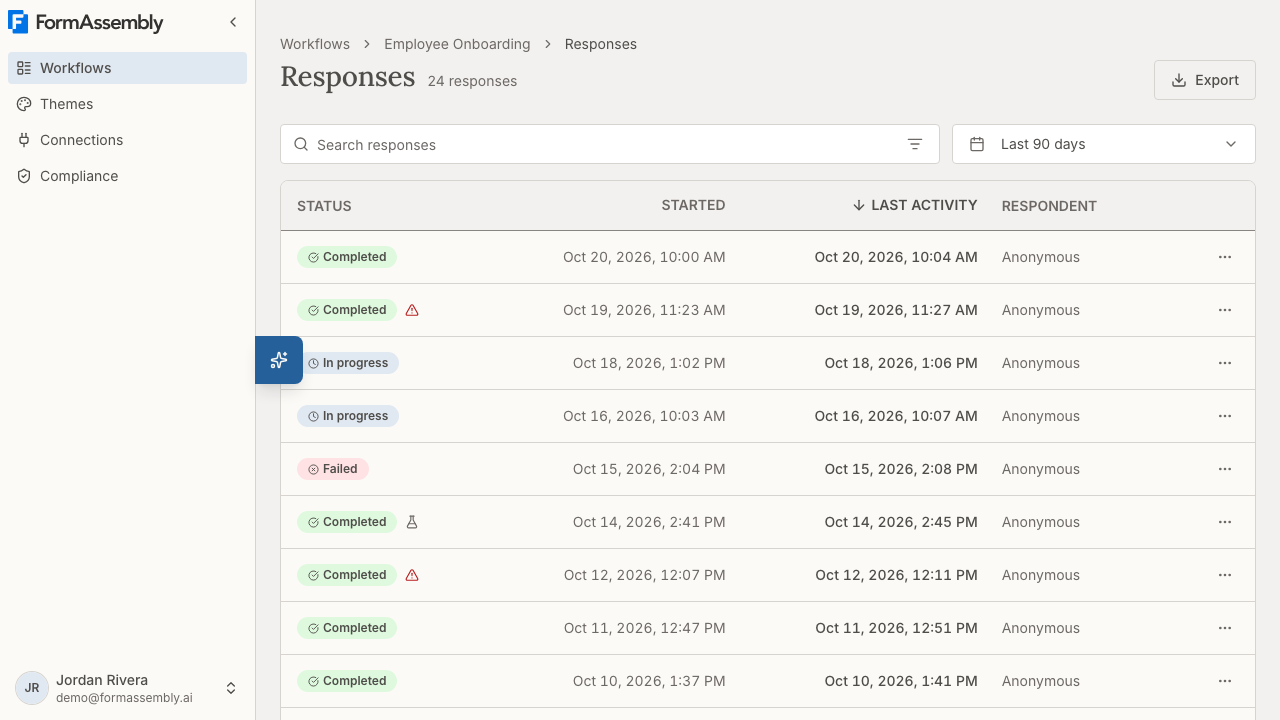
If the workflow has not collected anything yet, the page shows an empty state instead of a table. This article assumes responses already exist; publishing a workflow, sharing its link, embedding it, and test-running it are covered in **Collecting Responses**.
## What does the response list show?
Each row in the list is one response. The list is paginated at 25 responses per page, and it is sorted by **LAST ACTIVITY**, newest first, by default.
The columns are:
- **STATUS** — the current state of the response, shown as a badge with a leading icon. See "What do the response statuses mean?" below. If the response came from a test run, a flask icon appears in this cell immediately after the badge, labelled "Test response" for screen readers. If any delivery for the response failed, a red warning triangle also appears beside the badge, labelled "A delivery for this response failed".
- **STARTED** — when the response record was first created. FormAssembly creates the record on the first submit *or* save from a **Collect** step, whichever happens first — so if a respondent saved before submitting, Started reflects the save, not the later submit.
- **LAST ACTIVITY** — the most recent activity on the response. For a finished response, this is effectively when it completed.
- **RESPONDENT** — who submitted the response, or "Anonymous" when no identity is attached to it.
- **Actions** — an overflow (⋯) button that opens a menu of row actions.
Both finished and unfinished responses appear in the list. A respondent who started a Collect step and abandoned it partway through still shows up, marked as in progress, so you can see where people are dropping off. Visitors who only loaded the form and never submitted or saved anything do not create a response at all.
### The failed-delivery warning
A failed delivery does **not** change the response's own status: FormAssembly records Completed at the end of the workflow whether or not a connected application or email accepted the data. So that a completed-but-undelivered response is not indistinguishable from a clean one, the row shows a red warning triangle beside the status badge. The warning is a single yes/no signal — it does not say how many deliveries failed or which ones — so open the response and read **Delivery results** for the detail.
The warning is shown whatever the response's own status says, including on a response whose status is Failed: a run that stopped and a delivery that never arrived are two different faults, and a response can have both. When the failure happened on a handed-off run rather than on the response itself, the message names which.
### Responses that were handed off to someone else
When a workflow hands a response off to another person (an assign step), that handoff starts a run of its own — but the parent response and everything it handed off are **one business event, and one entry in the list**. A handed-off run appears indented directly beneath the response that started it, with one level of indentation per level of nesting.
An indented row identifies itself with three things the parent row does not carry: the **assignee** it was handed off to, the **step that started it**, and its **own status**, which is derived independently of the parent's. A handed-off run can read Cancelled while its parent is still In progress. When FormAssembly cancels a handed-off run — because the parent response moved past the step that handed it off, or a replay moved the response away from that step — any runs nested inside it are cancelled with it.
A file uploaded in the parent workflow can be passed into a handed-off run, and a file uploaded in a handed-off run can be passed back to the parent response, so an assignee can work with what the respondent sent and return a document of their own.
Paging counts parent responses only — 25 parent responses to a page — and a parent always brings its handed-off runs onto the same page, so the number of rows drawn varies from page to page.
### About the Respondent column
The **RESPONDENT** column shows the resolved respondent when FormAssembly has an identity for the response, and reads "Anonymous" when it does not. A respondent with no name recorded reads as the email address they were invited at. Anonymous is the normal reading for a public form that does not identify its respondents. A run that was handed off to someone always names that assignee. If you need to identify respondents on an anonymous form, collect a name or email as a form field — that value appears in the collected data on the response detail page.
### Date and time display
Dates and times are shown in your timezone and locale. The date column headers read plainly — **STARTED** and **LAST ACTIVITY** — and carry no timezone abbreviation. Times appear as date plus hour and minute (for example, "Mar 24, 2026, 2:30 PM"). A missing date renders as an em dash (—).
## What do the response statuses mean?
FormAssembly derives the status of each response at the moment you view it, from where the response ended up. Status is not something you set, and it cannot be edited.
| Status | What it means |
| --- | --- |
| **Completed** | The response reached the end of the workflow. This is the default outcome recorded at an ending. |
| **Failed** | The run was stopped because the workflow looped excessively, or because a step failed in a way the workflow could not route around — for example, a redirect whose URL resolves to an unsafe or invalid address. |
| **Cancelled** | A handed-off run was ended because the parent response moved past the step that handed it off. |
| **Approved** | An approval step's approver approved. |
| **Denied** | An approval step's approver declined. |
| **Comment** | An approval step's approver returned the response for correction without deciding. |
| **Signed** | A signer signed the document. |
| **Declined** | A signer declined to sign the document. |
| **Replaced** | The response was replayed onto a corrected version. A replaced response links to its replacement and is not listed on the Responses page. |
| **In progress** | The response has not reached an ending yet. The respondent is partway through, or stopped partway through. |
One important point about statuses:
- **There is no manual triage status.** You cannot mark a response as new, reviewed, actioned, or archived. Editable statuses are planned for a later release.
If a workflow author names a custom outcome on an ending, that outcome is what the status reads.
## How far back can I see responses?
Responses stay viewable for 90 days after their most recent activity. The Responses page and the individual response page are both bounded by that rolling window, which is why the **Timeframe** control at the top of the list defaults to and stops at the last 90 days.
Two things to know about the window:
- **The window hides responses; it does not delete them.** A response that has had no activity for more than 90 days still exists — it is simply not reachable from the list or from a direct link. An export is the route to it: an export covers a workflow's full history and is never bounded by the 90-day window.
- **Analytics is not bounded by the window.** The aggregate figures on the workflows page cover everything, which is another reason the two surfaces can disagree.
To narrow the timeframe, click **Timeframe** and choose a shorter span, or pick a custom range. Dates outside the window are disabled in the calendar rather than rejected after you select them, and the popover states the 90-day boundary in words. The dates you choose are written into the page address as real dates, so a link you share shows its recipient the same set you saw.
If you open a link whose dates can no longer be used — a start date more than 90 days back, an end date in the future, or a range that runs backwards — FormAssembly shows a dismissible notice above the toolbar naming what was dropped, and shows the list without that narrowing. The notice is informational: nothing has failed, and the list beneath it is complete.
### Opening a link to a response that has aged out
A direct link to a response outside the window opens an explicit out-of-window state rather than a "not found" page. The state confirms the response still exists and states the 90-day window. To read that response's data, export the workflow's responses — an export reaches responses of any age.
## How do I search responses?
Type in the search box above the table — labelled **Search responses by respondent or status** — to narrow the list to matching responses.
- **Search covers the text columns you can see.** Of the built-in columns, **RESPONDENT** matches as free text and **STATUS** matches on the label you read on screen, so typing `progress` finds an in-progress response.
- **Search does not cover dates.** Use the **Timeframe** control or a date filter to narrow by **STARTED** or **LAST ACTIVITY** instead.
- **Test responses and delivery failures are not searchable as text.** Both are icons on the row rather than columns, so use the quick filters for them.
- **Search ignores capitalisation**, and it runs over the whole result set rather than the page on screen — a match on page four is found from page one.
- **Search reaches handed-off runs**, so a term matching an assignee returns the response that handoff belongs to.
Search composes with your filters rather than replacing them, and the term travels in the page address, so a searched and filtered view is shareable and survives the back button.
## How do I filter the response list?
Click **Filters** in the search bar to open the filter panel. The button carries the number of criteria currently applied.
The panel holds two things:
- **Quick filters** are one-click toggles for the states that need no operator: **Hide test responses** and **Delivery failures only**. Pressing one writes an ordinary criterion, so it appears as a condition row, counts towards the Filters badge, and can be edited or removed like any other.
- **Condition rows** are built from a column, an operator, and a value. Click **Add filter** to add a row and **Clear all** to empty them.
Criteria are combined with AND: each row narrows what the rows above it already selected. Filtering ignores capitalisation, exactly as search does.
### Which columns can I filter by?
You can filter by the columns you can see — **STATUS**, **STARTED**, **LAST ACTIVITY** and **RESPONDENT** — plus two attributes that appear on the row as icons rather than as columns: **Test response** and **Delivery failed**. Each column offers the operators that suit it: Status behaves like a single choice, Respondent like text, and the two timestamps like dates (**is**, **is before**, **is after**, **is between**).
The Status filter offers fewer statuses than the status table above: Completed, Approved, Denied, Comment, Failed, In progress and Cancelled. Signed, Declined and Replaced cannot be filtered on.
Timestamp filters take a **calendar day**, resolved in your timezone. **is** matches anything on that day; **is before** and **is after** exclude the named day; **is between** includes both named days.
Status and Respondent filter on what the cell shows, not on what is stored underneath — "Anonymous" is a value you can filter for.
### How filters treat handed-off runs
Filtering on **STATUS** or **RESPONDENT** looks at the handed-off runs beneath a response as well as at the response's own row, so a response is returned when any row in it matches. Two criteria on that data must be satisfied by the **same** handed-off run — filtering for Approved and for a particular assignee returns only responses where one run is both.
One consequence is worth knowing: a negative filter such as *Status is not Completed* can return a response whose own badge reads Completed, because a run beneath it is in another state. The remaining criteria behave differently by design — **LAST ACTIVITY** and **Delivery failed** are already answered for the whole response, while **STARTED** and **Test response** always describe the response's own row.
### Applied filters are visible without opening the panel
Every applied criterion shows as a dismissible pill above the table, reading as the sentence its row does — *Delivery failed is Yes*, *Started is 4 Sep 2026*. Dismissing a pill removes that criterion and leaves the rest. Values render the way their column renders them: a status as its badge label, a date in your own locale.
Filter state lives in the page address, so a filtered view can be bookmarked or shared, and the browser's Back button steps through the filters you applied. You can apply up to 25 criteria at once; at the limit the panel says "Limit of 25 filters reached" beside **Add filter**. A criterion in a shared link that can no longer be honoured is dropped, the rest of the link is applied, and the notice above the toolbar tells you how many were dropped.
### Why is the list empty?
An empty list names its own cause, so you know what to do next:
- **No responses yet** — the workflow has not collected anything. Wait for a response.
- **No matching responses** — responses exist, but your search term, filters, or timeframe exclude them. The second sentence points at whichever narrowing is actually in force; if you searched, remember that search covers the columns you can see and not dates.
- **No responses active in the last 90 days** — responses exist but all fall outside the window. There is nothing to adjust on this page; the window is what is binding. Export the workflow's responses to reach them.
## How do I sort the response list?
Click the **STATUS**, **STARTED**, **LAST ACTIVITY** or **RESPONDENT** column header to sort by that column. Clicking a header that is already active reverses the direction; clicking a new header opens at that column's own default — a date opens newest-first, text opens A–Z. The active column shows a direction arrow.
Sorting applies to the whole set of responses, not just the page you are looking at, and it returns you to page 1. Your timeframe, filters and search term are carried forward when you sort, because re-ordering a list is not a request to widen it. The delivery-failure warning is not a column and is not sortable — use the **Delivery failures only** quick filter for that question.
Two columns sort by something other than their raw value. **STATUS** sorts in a defined order — in progress, comment, completed, approved, signed, denied, declined, failed, cancelled, replaced — so open responses group ahead of closed ones. **RESPONDENT** sorts by the name you see, with anonymous responses sorting under "A" rather than clumping at one end.
Sorting orders the parent responses. A parent and its handed-off runs always stay together, and handed-off runs keep the order they were created in, whichever sort is active.
Because sorting and paging are recorded in the page address, you can bookmark or share a link to a particular sorted view of a workflow's responses.
## How are responses counted and paged?
The total above the list is exact below 10,000 responses. At 10,000 or more it reads **10,000+**, so a figure of exactly 10,000 is never shown as an exact count — read it as a bound rather than a total.
Paging follows the same threshold. Below 10,000 you get numbered pages alongside Previous and Next; at or above it the numbered pages drop away and you move through the list with Previous and Next only. The count honours whatever timeframe, filters and search term are applied, so narrowing the list can bring it back under the cap and the numbers reappear.
Above the cap a shared link can carry a position in the list that has since aged out of the 90-day window. FormAssembly returns you to the first page in that case, and the notice above the toolbar tells you why rather than presenting the first page as the position you asked for.
Test responses are counted like any other response, so hiding them changes the total.
## How do I tell real submissions apart from test runs?
Test responses are included in the list by default and are marked with a flask icon in the **STATUS** cell, next to the status badge.
To hide them, press the **Hide test responses** quick filter in the **Filters** panel. It behaves like any other criterion: it shows as a pill above the table, counts towards the Filters badge, and is removed by dismissing the pill or pressing the chip again.
This is deliberately different from the Analytics figures on the workflows page, which always exclude test runs. The Responses page includes test runs by default because you are often actively testing a workflow and need to confirm your own test submissions arrived.
## How do I export responses?
Click **Export** on a workflow's Responses page to open the **Export responses** dialog. An export is how you take a workflow's collected data out of FormAssembly — for a spreadsheet, a backup, or a data request.
- **An export holds the workflow's responses, with every field, as a zip of CSV files** — all of them except test runs, which are left out unless you ask for them. It is not limited to the 90-day window, so an export is the way to reach responses that have aged out of the list, and it is not narrowed by the search term, filters or timeframe currently applied to the list.
- **Set an optional date range** in the **From** and **To** fields to limit the export to responses that started inside that range. Leave both empty to export everything.
- **Tick Include test responses** to add test runs to the export. They are left out unless you ask for them, and every test row says it is one.
- **Tick Include uploaded files** to put the uploaded files themselves in the archive alongside the CSV files.
- **Click Start export.** FormAssembly builds the export in the background and emails the person who started it when it is ready, so you can leave the page. A very large export that includes files is split into several archives, each emailed when it is ready.
The responses file carries a **Language** column recording the language each response ran in, and each handed-off run's file carries one too. The column is empty only for a response collected before FormAssembly began recording the language, and for a handed-off run whose assignee has not opened it yet.
The dialog also lists your **Recent exports** for that workflow, each with its status — Queued, In progress, Ready, Failed or Expired — and a download link while an export is Ready.
You can also ask **Fai**, the FormAssembly AI assistant, to start an export for a workflow and to report how it is getting on. Fai requests the export under your own access and links you back to this dialog to download it.
## How do I delete a response?
If your role allows deleting responses, and you own the workflow or are an account admin, open the **Response actions** (⋯) menu on a response's row and choose **Delete**, or click **Delete** on the response page. A confirmation — "Delete response?" — comes first.
Deleting removes the whole response at once, including any runs it was handed off to, and including a replacement chain: deleting a response that was replaced, or that replaced another, deletes the original and its replacement together. A response is never deleted one step at a time, and a handed-off run cannot be deleted on its own. A deleted response no longer appears anywhere in the product, and a direct link to it shows a "not found" page.
Deleting a response lowers the response count on the Responses page. The Analytics figures on the workflows page are built from recorded events rather than from responses, so they do not drop when a response is deleted or replaced.
Users who cannot delete a given workflow's responses do not see **Delete** at all, rather than a disabled item.
## How do I open a single response?
Click anywhere on the row to open the response. The whole row is one link, so keyboard users reach it with a single tab stop. Alternatively, open the **Response actions** (⋯) menu at the end of the row and choose **View response**.
The response page is a timeline of the run: each step the response entered is an entry, and the answers a step collected sit inside that step's entry. Above the timeline, a summary card gives you the response at a glance.
### Summary
The summary gives you the response at a glance: its status, whether it was a test response, when it started, when it was last active, the respondent, the workflow version the response ran on, and the response ID. A test response is marked here with a **Test run** pill. The response ID and version ID are long identifiers, so both are shortened on screen — hover to see the full value. Quote the response ID when you contact support about a specific record.
A workflow can offer more than one language, and each response runs in one of them. The summary shows a **Language** field naming the language the response ran in, including when that language is the workflow's default. Only two kinds of response show no Language field: a response collected before FormAssembly began recording the language, and a handed-off run whose assignee has not opened it yet.
The workflow version matters when you have edited a workflow over time: it tells you which version of the form and steps this particular respondent actually saw, which explains why an older response may not contain a field you added later.
If any delivery for the response failed, a warning appears directly under the status row. Click it to jump straight to the delivery section.
### Collected data
Collected data lists the field values the respondent entered, grouped by **Collect** step, as question → answer pairs, shown inside that Collect step's entry in the timeline. Field labels come from the workflow version the response ran on, so labels match what the respondent actually saw.
- **Choice answers show the option the respondent chose**, using the option's own wording. An option that was deleted from the form after the response was submitted may display as a stored value instead.
- **Ranked-choice answers appear in the order the respondent ranked them.**
- **File-upload fields appear as a link to the stored file.** Click the file name to open or download the upload. A file that is still being processed reads "Not ready", and a file flagged by the malware scan reads "Blocked" — neither is offered as a download.
#### Repeatable sections
If a Collect step contains a repeatable section, its answers appear as one group per instance, under a header naming the section and how many instances there are. Each instance is labelled with the section's own name plus its number — "Dependents 1", "Dependents 2" — and the number is shown even when there is only one instance, so you can tell a repeating section from a plain field. A section with no name reads "Unnamed repeated section".
A repeatable section nested inside another one is indented and states which parent instance it belongs to, for example "Medications within Dependents 2". If a response contains an unusually large number of instances, the page renders as many as it can and tells you where it stopped.
### Generated documents
When the workflow contains a document generation step, the PDF that step produced for this response appears on that step's entry in the timeline, under **Generated document** — or **Generated documents, newest first** when the step ran more than once. Click the document to download it, exactly as you would an uploaded file; a document that is not ready to download shows its state instead of a link.
Once a document has been signed, the entry under **Generated document** is the signed PDF, and clicking it downloads the current signed version. A ⋯ menu beside the document holds **Download original (unsigned)** and, after several signers, **Download version N** for each earlier version, so you can read the document as it stood at any point in the signing. The signed PDF ends with a certificate of completion page.
### Signers
A **Signers** table appears on the timeline entry for the assignment step that sent the document out for signature — not on the document generation step's entry. It has one row per assignee, with the columns **Role**, **Signer**, **Status** and **When**. Each signer's address links to that signer's own run, so you can open it and read what they did.
- A signer who has not decided yet shows their run's status, such as **In progress**.
- A signer who declined shows **Declined**, and the reason they gave appears on its own row.
- An assignment whose assignee only reviews the document, such as an approver, keeps the plain list of assignees rather than a Signers table.
Signing also records a delivery entry labelled **E-signature** in **Delivery results**. Signers' IP addresses appear only in the certificate of completion page at the end of the signed PDF, never on the response page.
### Related runs
When a response was handed off to another person, the two halves of the event are linked from the timeline entry for the handoff itself, rather than from the summary:
- **On the parent response**, the assign step's entry lists the runs it handed off to, naming each assignee and that run's own status. Only direct handoffs are listed — if one of those runs handed off again, open it to see its own.
- **On a handed-off run**, the step that started it leads the timeline, ahead of the run's own first step, so you can see where the run came from.
### Delivery results
Delivery results is where you confirm whether a response reached the systems you connected it to. There is one entry per delivery attempt — a connected application record, an email, and so on — and each entry shows:
- **The target** — which system or destination the delivery was for. A document generation step is listed as **Document generation**, and an e-signature step as **E-signature**.
- **The status** — *pending* (the delivery has not finished yet), *success* (the delivery completed), or *failed* (the delivery did not complete).
- **The record it created, or the reason it failed** — where the connected system returns a link, the record's identifier is itself the link, so you can click straight through to it. Most connectors return an identifier without a link, in which case it is shown as plain text. For a document generation step, the record is the generated PDF itself, shown the same way it is on the step's own entry; for an e-signature step, the record is the signed document, shown the same way. A delivery that failed shows a short reason instead, with a **See error details** link beside it when the full error text is still available in the execution log below. A delivery that succeeded only partly can carry a reason too, and it is shown the same way.
- **The recipients, on an email delivery** — an email delivery can list the addresses the email was sent to after "Sent to:", and any blind-copied addresses after "Bcc:". Each line appears only when it has addresses. When FormAssembly sent the email to nobody, the entry reads "No recipient received this email."
#### How addresses are shown
The page shows each address as it was stored, and replaces a listed set of characters with a visible code (such as `\u{200B}`). The set is: format and default-ignorable characters; line and paragraph separators; spaces other than the ordinary space; the Braille blank; the two characters that look like `@`; and any `@` that appears before the address's real `@`. Each of those can reorder, hide or disguise part of an address. The codes are not a complete way to read an address: a letter from another script that resembles a Latin letter is shown as written, with no code.
#### Entries that show no recipients lines
The following show no recipients lines: an email delivered before FormAssembly began recording recipients; a delivery that failed; and an entry that is not an email — a connector, a document generation, an e-signature and an export.
#### Addresses on a domain FormAssembly does not send to
When every **To** address is on a domain FormAssembly does not send to, FormAssembly sends the email to nobody — not even to a Bcc address on another domain — and the entry reads "No recipient received this email." When at least one **To** address is on an allowed domain, an address on a blocked domain is left off the "Sent to:" and "Bcc:" lines, and the email is sent to the remaining addresses.
#### When the workflow owner's address appears
On a live response, FormAssembly sends the email to the workflow owner when the email step's **To** field as a whole resolves to no address — for example, when the only recipient came from a field the respondent left blank. An email step that carries the respondent's resume link is the exception: that step does not fall back to the owner. On a test response the email always goes to the person who ran the test, so the tester's address on a test response never means a recipient resolved to nothing.
A single response can have several deliveries with different results — for example, an email that sent successfully and a connector that failed. That is why the response list carries only a single failed-delivery warning rather than a per-target delivery column: a per-row indicator could not represent multiple results honestly. Always open the individual response to check delivery.
Two things to know about what appears here:
- **A successful email step records a delivery entry like any other delivery.** The one exception is an email sent before the respondent has submitted or saved anything, which has no response record to attach to yet and so records nothing.
- **When there are no delivery entries at all, the section says why** — that the response is still in progress and nothing has been delivered yet, that the workflow contains no steps that deliver anything, or that the run stopped before any delivery was recorded.
### Approval history
Approval history lists the decisions recorded against this response, oldest first. The section appears only when there is something to show, so a workflow with no approval step simply does not have it. A top-level response shows every decision including those made in the runs it handed off; a handed-off run shows only its own.
### Execution log
Execution log lists the step failures and notices recorded while this response ran, most recent first, with the full error text. Where Delivery results tells you **that** a delivery failed, the execution log tells you **why**. Click **View the full log for this workflow** to see the workflow's own log in full.
### Run timeline
The run timeline shows the steps the response actually entered, in the order it entered them. Each step carries an icon for its type, and a step with no author-given name falls back to its type ("Collect step").
If the response went through an e-signature step, a sign step that leads on to another step reports its outcome on its card — **Signed** or **Declined** — so you can confirm whether the signer signed the document or refused it. A sign step that ends the workflow carries no outcome line, because the signer saw a confirmation page instead of moving on.
The run timeline reports the path travelled, not the whole workflow. A step the response never reached is simply absent — it is not shown greyed out and it is not marked as unreached. This is deliberate: when a workflow branches, the steps a response would have taken on the other branch never ran, and listing them would misreport the run. For the same reason, the page does not predict what happens next.
If a workflow loops, a step the response entered more than once appears once per visit, labelled with its visit number, so the loop is visible.
If the response was replayed from a step, the replay appears on the timeline where it happened, as a lighter row naming the step it was replayed from, who replayed it, and when.
The run timeline is an **order-based sequence, not a timeline of clock times**. FormAssembly does not record a timestamp for each individual step, so the only reliable times for a response are the run-level Started and Last Activity values in the summary. Do not read the spacing or position of steps as timing information.
A response with no recorded path at all says so plainly and shows its collected answers without a timeline.
#### Saved responses
Every time a respondent saves a Collect step, the response travels around the workflow's save path. The run timeline folds that bookkeeping into the form's own row **only when the save path comes back to the same Collect step**: the Collect step appears once, followed by a summary row counting the saves, which you can expand to see the steps each save ran through. A save path that ends at a different form is not folded and stays expanded — as do a genuine loop, and a response parked partway along its save path.
#### Which branch a step took
Where a step forks, the run timeline says which way the response actually went, not only which step came next — two branches that converge on the same step would otherwise be indistinguishable.
- **A custom branch** — one built from a condition — gets its own card immediately after the step that forked, titled with the branch name the workflow author gave it, or with the derived "If …" summary when it has no name. The guardless branch following a submit fork reads "Default".
- **A built-in outcome** — a step type's fixed exit, such as Success / Failure, Approved / Denied, or Signed / Declined — appears as a trailing "Outcome: …" line on the step's own card.
Neither appears on a plain, single-outcome step, and the last step on the path normally carries none because the response has not moved on yet. A response collected before FormAssembly began recording this detail shows its full path with no branch lines, which is honest rather than a fault.
This line reports the route the workflow took, not whether a delivery arrived. A connect or email step can report Success here while a delivery inside it failed — **Delivery results** remains the place to confirm delivery.
## How do I replay a response?
Replaying re-runs a response from a step you choose, which is how you recover a response whose delivery failed or that ran on a workflow you have since corrected. On the response page, open the step you want to re-run from in the run timeline and use **Replay from this step**. A confirmation comes first, and the replay then appears on the timeline as a lighter row naming the step, who replayed it, and when.
Two things to know about replaying:
- **Replaying is not bounded by the 90-day window**, so a response can be replayed whatever its age — but it does require edit access to the workflow, so a user who can only view responses does not have the control.
- **A replay re-runs the step you chose and then continues from there**, which is what makes it the fix for a failed delivery: choose the step whose delivery failed and the connected application or email is attempted again.
### Replaying a response that has aged out
An aged-out response has no **Replay from this step** control, because that control lives on the response page and an out-of-window response's page shows only the out-of-window notice. Replay itself still applies at any age, so ask **Fai**, the FormAssembly AI assistant, to replay it, giving Fai the response's link and the step to replay from. Fai works under your own access, so you still need edit access to the workflow.
### Replaying onto a corrected version
When the problem was the workflow rather than the delivery, you can re-run a response on a corrected version instead. You pick the version to re-run it on — a live response is re-run onto a published version, and a test response onto a published version or the current draft — and FormAssembly runs the response again on that version as a new response. The original is then marked **Replaced** and links to its replacement, and the replacement links back to the original, so the two halves are always reachable from each other. A replaced response is not listed on the Responses page — its replacement stands in for it — and the Analytics figures do not drop when a response is replaced.
If the respondent has to come back and finish the response themselves, the resume link can be sent to a corrected email address, so a typo in an address does not strand the response.
You can also ask **Fai** to replay a response or re-run it on a corrected version. Fai confirms with you before making the change.
## Who can view responses?
You can view responses for the workflows you own, for workflows that have been shared with you, and — if you are an account admin — for every workflow in your account. Responses are always reached through the workflows list, so a workflow you cannot see in that list is a workflow whose responses you cannot open.
There are three response permissions — view, export, and delete — and your role in the account decides which you hold:
- **Admin** holds all three response permissions: view, export, and delete individual responses.
- **Builder** holds all three as well: view, export, and delete individual responses.
- **Viewer** can view and export responses, but cannot delete them. A Viewer owns no workflows, so a Viewer sees responses only for the workflows shared with them.
Deleting carries one extra condition beyond the permission: you must also own the workflow or be an account admin. A Builder who holds the delete permission but only has a workflow shared with them does not see **Delete** on that workflow's responses. Exporting has no such condition — anyone who can view a shared workflow's responses and holds the export permission can export them.
All three permissions are included on every plan — the Collect plan, the Automate plan, and the Enterprise plan alike.
## What you cannot do yet
The following are not available in this release of response viewing:
- **Editing response field values.** Collected data is read-only.
- **Setting a triage status** such as new, reviewed, actioned, or archived, or marking a response read or flagged.
- **Viewing device, IP address, or location information.** FormAssembly does not capture this on a response, so it cannot be shown.
- **Adding form fields as columns**, and therefore searching, sorting or filtering by an answer to a form field. The columns you can search, sort and filter by are the four built-in ones plus the Test response and Delivery failed attributes.
- **Sorting by a value that lives on a handed-off run.** Search and filters reach handed-off runs; sorting orders the parent responses.
- **Choosing which columns or rows to export.** An export always takes every field, and the list's search, filters and selected rows do not narrow it — the only narrowing an export offers is its own date range and the test-response option.
- **Restoring a deleted response.** Deleting is permanent from your point of view — there is no trash to restore from in this release.
## Tips & Troubleshooting
- **A test submission you just made is missing.** Check that the **Hide test responses** quick filter is not applied, check the **Timeframe** control, and confirm you are looking at the Responses page for the right workflow — each workflow has its own list.
- **A response shows as In progress when you expected Completed.** The respondent saved or submitted at least one **Collect** step but never reached the end of the workflow. Open the response and check the **Run timeline** to see the last step reached.
- **A connected system has no record for a response that shows Completed.** Completed describes the respondent's journey through the workflow, not delivery. Look for the red warning triangle on the row, then open the response and check **Delivery results** — a delivery can fail on a response that completed successfully.
- **A delivery still shows pending.** The delivery had not finished when you loaded the page. Reload the response page to see the current status.
- **A delivery failed and you need the full error text.** The delivery entry shows a short reason; click **See error details** beside it, or read the **Execution log** section further down the response page.
- **A delivery failed and you want to send it again.** Use **Replay from this step** on the response page, choosing the step whose delivery failed.
- **A delivery entry reads "No recipient received this email."** Every **To** address was on a domain FormAssembly does not send to, so the email was sent to nobody. If the email step itself names the blocked address, correct the step and re-run the response on a corrected version — for a live response the corrected step must be published first, and the re-run starts from the email step or an earlier step. If the address came from a respondent's answer, correcting the step does not change it, because a re-run keeps the response's answers.
- **An email delivery lists the workflow owner's address.** On a live response this means one of two things: either the email step's **To** field names that address, directly or through an answer or reference that resolves to it, or the **To** field as a whole resolved to no address and FormAssembly sent the email to the owner. Check the email step's **To** field to see which case applies. An email step that carries the respondent's resume link does not fall back to the owner. On a test response, the address is that of the person who ran the test.
- **A handed-off run shows Cancelled.** The parent response moved past the step that handed it off before the assignee finished. Any answers the assignee had entered are retained on that run, and any runs nested inside it were cancelled with it.
- **A signed document is not the version you expected.** The entry under **Generated document** always downloads the current signed version. Use the ⋯ menu beside it for **Download original (unsigned)** or an earlier **Download version N**, and read the **Signers** table on the assignment step's entry to see which roles have signed, which are still in progress, and which **Declined**.
- **A field you added recently is missing from an older response.** Collected data is rendered against the workflow version the response ran on. Check the workflow version in the response summary; responses collected before you published the new field will not contain it.
- **A search for a value in a form field returns nothing.** Search covers the columns you can see — Respondent and Status — not the answers inside a response. Open individual responses to read their answers.
- **Searching for a date finds nothing.** Dates are excluded from search on purpose. Use the **Timeframe** control, or a **Started** / **Last activity** filter.
- **A filtered list includes a response whose own badge does not match.** Status and Respondent filters also read the runs a response was handed off to, so a response can match through a handed-off run. Expand the row to see which run matched.
- **You cannot filter for a Signed or Declined response.** The Status filter offers Completed, Approved, Denied, Comment, Failed, In progress and Cancelled only. Sort by **STATUS** instead to group Signed and Declined responses together. Replaced responses are not listed on the Responses page at all, so no filter or sort reaches them.
- **Fewer responses than the Analytics figures suggest, or more.** The Responses page includes test runs by default while Analytics always excludes them, and the Responses page is bounded to the last 90 days of activity while Analytics is not.
- **The total reads 10,000+.** The count is exact below 10,000 and clamped above it. Narrow the timeframe, filters or search term to bring the set under the cap and get an exact figure with numbered pages.
- **A page shows more rows than the page size.** Paging counts parent responses; each parent brings its handed-off runs onto the same page.
- **A link someone shared shows you a different set than they saw.** The notice above the toolbar names any date or filter that could not be honoured. Dates older than 90 days age out of the window over time, so an old link can narrow differently than when it was sent.
- **A response you know you collected opens as out of window.** Responses stay viewable for 90 days after their most recent activity. The response has not been deleted — export the workflow's responses to get its data, and ask Fai if you need to replay it.
- **Your export has not arrived.** Exports are built in the background and emailed when ready. Open the **Export responses** dialog and check **Recent exports**: an export reads Queued or In progress until the archive is built, Ready with a download link when it is, and Failed if it could not be completed.
- **You expected one export file and received several.** A very large export that includes uploaded files is split into several archives, each emailed as it becomes ready.
- **A test response is missing from your export.** Test runs are excluded unless you tick **Include test responses** before starting the export.
- **You do not see a Delete option.** Deleting responses is a role permission, and it also requires that you own the workflow or are an account admin. If either condition is not met, Delete is not shown at all — ask an account admin.
- **You want to come back to the same view.** The Responses page does not remember your last-used view: the sort, filters, search term and page live only in the page address. Copy the address to share or bookmark a specific view, use the browser's Back button to step back through the narrowing you applied, or navigate to the Responses page fresh to start over.
- **You need help interpreting a response.** Open **Fai**, the FormAssembly AI assistant, from the button in the corner of the page to ask about what you are looking at.
**See also:** Collecting Responses (publishing, sharing, embedding, and test-running a workflow).
---
# Themes & Branding
The **Theme Library** in FormAssembly lets you define the visual look of your data collection workflows once and reuse it everywhere. A theme controls colors, fonts, spacing, corner rounding, your logo, and the page background for every respondent-facing surface in a workflow. Themes matter because branding is applied at the account level rather than form by form: update a theme, publish it, and every workflow using that theme picks up the new look.
## What a theme controls
A theme in FormAssembly applies to **every respondent-facing step in a workflow** — form (Collect) steps, confirmation pages, e-signature pages, and any other step that shows something to the respondent. There is no per-step theme override: one theme applies uniformly across the workflow. On a FormAssembly-hosted page, the theme also styles the intake agent pane beside the form, so the conversational and form surfaces match.
Each workflow references exactly one theme, and exactly one theme in your account is always designated as the **default** theme. New workflows are created with the account default theme already applied.
Themes affect only respondent-facing pages. They never change the look of the FormAssembly builder or the rest of the app.
## Where do I find the Theme Library?
Open the navigation menu and choose **Themes**. The Theme Library page is titled **Themes** and lists every theme available to your account — both the starter themes shipped by FormAssembly and any themes created by people in your account.
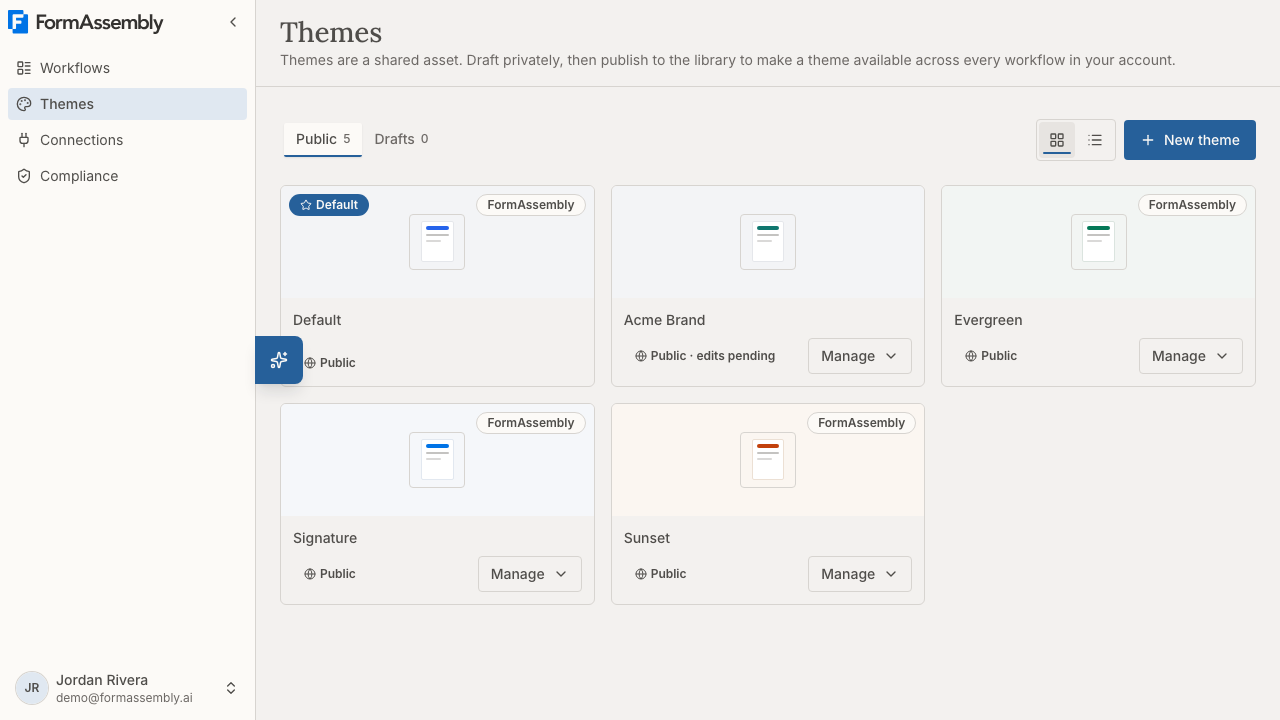
The Theme Library is the management home for your account's branding. It is separate from choosing a theme for one specific workflow, which happens in the workflow builder.
### Public and Drafts tabs
Themes are split into two tabs at the top of the page:
- **Public** — themes that have been published at least once. Published themes are visible to everyone in your account and can be applied to workflows.
- **Drafts** — themes that have never been published. A draft theme is visible only to its owner and to account admins, and cannot yet be applied to a workflow or set as the default.
Each tab shows a count, so you can see at a glance how many published themes and how many in-progress drafts exist.
Within a tab, the default theme sorts first and the remaining themes sort newest-first. Use the **Grid view** and **List view** buttons to switch between a card grid and a compact list.
Every theme appears as a card with a preview swatch generated from the theme's own colors, the theme name, a Default marker when applicable, and a status pill:
- **Public** — published, with no unpublished edits.
- **Public · edits pending** — published, but the working draft has changes that are not live yet.
- **Draft** — never published.
Each card has a management control (for example, **Manage Evergreen**) that opens the actions available for that theme: **Set as default**, **Edit**, **Enable**, **Disable** and **Delete**, as they apply to that theme.
If a theme cannot be loaded, the Theme Library says so explicitly rather than silently leaving it out of the count. A message that some themes could not be loaded means those themes still exist — it never means your account has no themes.
## How do I create a new theme?
1. Open the navigation menu and choose **Themes**.
2. Click **New theme**.
3. The theme editor opens with an empty draft. Give the theme a name — a theme saved with a blank name is called **Untitled theme**, and names do not have to be unique. If two themes share a name, FormAssembly disambiguates them by appending the author name and creation date.
4. Adjust the theme's settings in the right-hand controls and watch the preview update.
5. When you are happy with the result, publish the theme so the rest of your account can use it.
You can also start from an existing theme instead of a blank one. Click **New theme**, then in the editor's **Quick start** choose **Use an existing theme** and pick the theme you want under "Start from an existing theme". The copy is a brand-new draft that you own, leaving the original untouched. This is how you build on a FormAssembly starter theme, because starter themes cannot be edited directly.
A copy is fully independent. Later changes to the original do not flow into the copy, and vice versa.
To reopen a theme already in your account, use its card's management control and choose **Edit**. **Edit** shows on every theme authored in your account, but opening the editor additionally requires that you own the theme or are an account admin.
You can also ask **Fai**, FormAssembly's built-in AI assistant, to create a theme or copy an existing one. Themes Fai creates are saved as drafts: Fai opens the new theme in the theme editor so you can review it and publish it yourself.
## Working in the theme editor
The theme editor is a dedicated, full-height, two-pane surface. It is not part of the workflow builder.
- **Left — preview canvas.** The preview shows a built-in sample workflow rendered through the same form renderer that serves live forms, styled with your in-progress draft. The sample deliberately includes a wide range of elements — text fields, choice groups, file upload, a progress bar, and action buttons — so you can judge the theme against realistic content. The preview also shows the **Powered by FormAssembly** badge where respondents would see it, as does the builder canvas, so the preview matches the live form. The sample workflow cannot be published, submitted, or saved; it exists only as a rendering surface.
- **Right — controls.** The **Basics** tab exposes the handful of high-impact settings most people need: brand color, page and card background, body and heading fonts, and base text size. The brand color does more than one thing: it sets the button color and its hover state, the readable text color on buttons, link colors, the focus outline and the progress bar. A brand color you give Fai as a hex code when it creates a theme sets the same values. The **Advanced** tab groups every remaining setting, covering text and label colors, link and error colors, input borders and backgrounds, dropdown chevron color and size, an option to use the visitor's native browser dropdown styling instead of the theme-styled dropdown, button colors, card and input corner radius, spacing and gaps, title alignment and letter spacing, progress bar appearance, matrix table colors, focus ring, form width, hover transition speed, and page transition animation. **Quick start** offers two starting points: **Start from a preset**, and **Use an existing theme** (shown only when your account has at least one published theme). To have Fai design a theme instead, ask Fai in the chat.
The editor is intentionally compact: it exposes a curated set of high-value controls rather than every possible option, and leans on Fai for fine-grained brand matching.
**Edits autosave.** There is no manual save button in the theme editor. Every change is saved automatically to the theme's draft.
**Some settings show an empty box when they are switched off.** The logo image, logo link, and form width settings are off by default, and their fields appear empty with the off state shown as placeholder text. Clearing one of these fields switches the setting back off; you never have to delete a placeholder value before typing.
## Accessibility checks in the theme editor
The theme editor checks your theme against **WCAG 2.2 AA** after every autosave and reports the result on an **Accessibility** card above the **Basics** and **Advanced** tabs. Accessibility checks matter because a color combination that looks good can still be unreadable for respondents with low vision.
The check never blocks saving. It does govern publishing: **FormAssembly refuses to publish a theme whose current check reports failures traced to one of the theme's own settings.** Warnings never block publishing, and a failure the check cannot trace to a theme setting never blocks publishing either. See "How do I publish a theme?" below.
- Click the card header to expand it. The expanded card shows a score ring, a one-line summary of the result, and the individual findings — including the checks that passed.
- Findings are counted as **failed**, **warnings**, and **passed**, shown as three pills. Click a pill to filter the list to that severity, and click the active pill again to clear the filter. A pill stays clickable at a count of zero and simply shows that there is nothing of that kind.
- Each finding leads with the theme setting at fault, names the WCAG success criterion, and shows the measured contrast ratio against the required ratio.
- Beneath each finding sits a row of setting pills, each with a swatch of the color it drives. A contrast finding names both sides — the setting behind the foreground color and the setting behind the background — because either side may be the one worth changing. Click any pill to jump straight to that control: the editor switches to the right tab, opens the group, and scrolls the setting into view.
- Each finding also offers a **Fix with Fai** action, which sends Fai a ready-composed description of the problem and the settings involved. Fai writes to the draft, so the preview repaints and the check re-runs without a reload.
While a check is in progress, the editor shows **Checking accessibility…** in place of the result. A check that is still running finishes on its own. Occasionally a check cannot run at all and reports that it could not complete. That state does not clear by waiting, but it is recoverable: click **Publish** and FormAssembly starts a fresh check, showing **Checking accessibility…** while the new run works. If Publish keeps refusing with **The accessibility check couldn't run — try again before publishing**, reload the theme editor, which clears the condition a repeated click cannot.
Alongside the standard contrast checks, FormAssembly measures five theme-owned surfaces that general-purpose tools do not cover: the input boundary (a field must be locatable against its surroundings), the focus indicator, the progress bar fill against its track, the dropdown chevron, and the outline of an unselected rating star. FormAssembly also measures the color of the required-field asterisk, which general-purpose contrast checks skip because the marker is punctuation only.
Findings that cannot be traced back to a theme setting — for example issues that come from the form's own content, or a gradient or background image whose contrast cannot be measured — are not shown and are left out of the counts, because there is no theme control to change for them.
Two limitations apply today: the check runs against your light-mode values only, and multi-select list boxes are excluded from the text contrast check because no automated tool can measure their text contrast reliably.
## How do I publish a theme?
Click **Publish** in the theme editor. Publishing promotes the current draft so it becomes the live version of the theme.
Publishing is the reason editing is always safe. Every theme carries two copies of its settings: a **draft** working copy and a **published** copy. All edits write only to the draft, so a published theme already in use by live workflows is completely unaffected until you explicitly publish again. Publishing is repeatable — each publish promotes the latest draft.
Publishing is blocked or refused for several distinct reasons, and it is worth checking each of them:
- **A theme setting holds a value FormAssembly cannot accept.** This blocks publishing ahead of any accessibility check. **Publish** keeps its normal label and stays clickable, but refuses with **Fix invalid settings before publishing**. While a value is invalid the editor holds autosave, so no accessibility check can run on the settings you are editing, and a check still finishing for your last save does not count toward publishing — waiting does not help. The editor re-checks as you type; correct the field and the normal save-and-check cycle resumes.
- **The accessibility check reports failures traced to one of the theme's own settings.** Fix each traced failure and the check re-runs automatically. Publish becomes available once a check completes without blocking failures.
- **The accessibility check has not finished for the settings you are publishing.** A check that is still running finishes by itself, and Publish becomes available only once that check completes without blocking failures — a finished check can still report blocking failures. Renaming a theme does not invalidate a completed check.
- **The accessibility check could not run at all.** Click **Publish** to start a fresh check; Publish reads **Checking accessibility…** while that run works. If Publish keeps refusing with **The accessibility check couldn't run — try again before publishing**, reload the theme editor.
- **You are not the theme's owner and not an account admin.** Only the theme's owner or an account admin may publish a theme.
Practical consequences worth knowing:
- A theme appears in the account theme library and becomes selectable for workflows only after it has been published at least once.
- A never-published theme cannot be set as the account default.
- While a published theme has unpublished edits, its card shows **Public · edits pending**. Respondents keep seeing the published version.
- FormAssembly starter themes ship already published and cannot be published, edited, or deleted.
Where you see the draft versus the published version:
| Surface | What it renders |
| --- | --- |
| Live respondent pages | The published version of the theme |
| The theme editor preview | Your in-progress draft |
| The workflow builder canvas | The published version of the theme |
Because the workflow builder always shows published themes, in-progress theme edits are not visible on the builder canvas.
## Adding your logo
A theme can display a logo above the form title. Set the theme's logo image to an image URL, then set the logo height — the width scales proportionally. You can also control the space between the logo and the form title.
Two rules apply to logo images:
- The logo URL must be secure (`https://`). Insecure `http://` URLs are rejected, because they would trigger mixed-content warnings for respondents.
- On **embedded** forms the logo header is hidden by default, because the host page usually already provides your branding. There is a theme setting that makes the logo visible in embedded forms too.
You can also make the logo clickable by setting a logo link URL — typically your homepage. The link must be a full `http://` or `https://` web address; other kinds of links are rejected. Respondents with JavaScript disabled see the logo as a plain image rather than a link.
## Light and dark mode
A theme can optionally define a separate set of values for dark mode, applied when the respondent's device prefers a dark color scheme. Dark mode support is optional: a theme that defines only one set of values renders identically in both light and dark modes.
Dark-mode values work as overrides layered on top of the theme's light values. If a theme sets something in light mode but not in dark mode, the light value carries over into dark mode. FormAssembly starter themes are designed to work in both modes, and Fai can author both light and dark sets when you ask for them.
## Fonts
FormAssembly starter themes use a system font stack, so they load no external fonts and render fast everywhere. Each font setting in the theme editor — Body font and Heading font on the **Basics** tab, and Section heading font under **Advanced** — is a dropdown listing the stock system stacks, any fonts already imported for this theme, and an **Import a font** button.
Click **Import a font** to expand a small panel inside the same dropdown, with two ways to add a font:
- **Google** — type the font name. FormAssembly looks the font up and confirms the real family name before adding it, so a typo is reported rather than silently falling back to a generic font.
- **URL** — paste a direct link to a font file you already host, plus a display name. The link must be secure (`https://`) and end in a recognized font file extension (`.woff2`, `.woff`, `.ttf`, or `.otf`).
An imported font is added to the theme's font list, shared across all three font dropdowns, and immediately assigned to the dropdown you opened it from. Imported fonts follow the same draft rules as everything else: they go live when you publish the theme.
There is no facility for uploading your own font files for FormAssembly to host. If your brand font is not available from Google Fonts and you cannot host the file yourself at a secure URL, choose the closest available alternative.
## How do I apply a theme to a workflow?
Workflow-level theme selection lives under the **Properties** button in the builder header, in the **Themes** section of **Workflow Properties**. Open that section and pick any published theme for the workflow. The section also shows an **Edit this theme** link for themes authored in your account, which opens that theme's editor in a new tab; starter themes have no such link, because they cannot be edited.
The **Edit this theme** link is not a guarantee that you can edit the theme. The link appears for any theme authored in your account, but opening the editor additionally requires that you own the theme or are an account admin. If a teammate owns the theme and you are not an admin, following the link returns you to the Theme Library with a notice instead of opening the editor. Ask the theme's owner or an account admin to make the change, or start your own editable copy with **New theme** → **Quick start** → **Use an existing theme**.
You can also ask **Fai** — FormAssembly's built-in AI assistant, opened with the **Open Fai** button — to apply a theme to your workflow. Fai can apply any theme that is published and enabled for your account; it refuses unpublished drafts and themes that are not enabled, because only published, enabled themes are assignable. That includes a theme Fai has just created for you: publish it in the theme editor first.
Two behaviors are worth understanding:
- When a theme is selected with the builder's own picker, the selection is staged on the workflow draft and becomes live when the workflow is published — like every other builder edit. The builder canvas and Test mode preview the staged theme immediately.
- When a theme is applied by Fai, the change takes effect on the live form immediately, without waiting for a workflow publish. The builder also updates to show the theme Fai just applied, so the Themes section and the canvas stay in step with your request.
Every workflow always references an enabled, non-deleted theme. If no theme has been explicitly chosen, the workflow renders with the account default.
## Setting the account default theme
The default theme is the theme applied to newly created workflows, and the theme that workflows fall back to if their theme is disabled or deleted.
To change it, open the management control on the theme card you want (for example, **Manage Signature**) and choose **Set as default**. FormAssembly clears the previous default and sets the new one in a single operation, so your account always has exactly one default.
Only published themes can be set as the default. The current default theme cannot be disabled or deleted — designate a different default first.
## Enabling and disabling themes
Disabling a theme hides it from the workflow theme picker without deleting anything. Use the management control on a theme card and choose the Disable action; choose Enable to bring it back. Disabling is reversible.
Disabling is how you curate which FormAssembly starter themes are offered in your account. Starter themes cannot be deleted, only disabled. Anyone whose role can manage themes — which includes the Builder role as well as Admin — can enable and disable themes and set the account default.
Two guardrails apply:
- At least one theme must remain enabled in your account at all times. Disabling the last enabled theme is rejected.
- The current default theme cannot be disabled.
Before the change is applied, FormAssembly shows a confirmation dialog with the number of workflows currently using the theme. On confirmation, those workflows are immediately reassigned to the account default theme, so no workflow is ever left pointing at a disabled theme.
## Deleting a theme
Use the management control on the theme card and choose Delete. Only the theme's owner or an account admin may delete a user-authored theme. FormAssembly starter themes cannot be deleted.
Deletion asks for confirmation and shows how many workflows reference the theme. On confirmation, those workflows are reassigned to the account default theme. Deleted themes disappear from the Theme Library everywhere in the app.
The current default theme cannot be deleted — set a different theme as the default first.
## Who can manage themes?
- Creating, editing, copying, and deleting themes, and changing the account default theme, require the **Manage themes** capability, available to Admin and Builder roles on the Collect plan and above. Viewers do not have it.
- Selecting an existing theme for a workflow only requires permission to edit workflows — no theme-specific permission is needed.
- Enabling and disabling FormAssembly starter themes requires the same **Manage themes** capability, so Builders can do it as well as Admins.
- Only the owner of a theme, or an account admin, may edit, publish, or delete that theme — the Manage themes capability alone is not enough to write a teammate's theme. Anyone in the account can apply any enabled, published theme to a workflow.
- If your permission to edit a theme is removed while you have the editor open, autosave stops and reports that you no longer have permission to edit that theme.
When a member is removed from an account, their themes follow the same handling as their workflows: they transfer to the reassignment target you choose, or are deleted if no target is chosen.
## Limitations
- Themes configure design values only. Custom stylesheet rules, structural CSS overrides, and stylesheet imports are not supported by any authoring method, including Fai.
- There are no per-step theme overrides. One theme applies to all respondent-facing steps in a workflow.
- There is no theme version history. Only the current published version and the current draft are stored, so publishing overwrites the previously published version.
- The theme editor preview themes the form surface. Themed previews of the confirmation email and thank-you page are a planned follow-up, and the same limitation applies to the builder canvas today.
- Custom font file uploads are not supported. Fonts must come from Google Fonts or a font file you already host at a secure URL.
- The accessibility check covers light-mode values only, and blocks publishing only on failures it can trace to one of the theme's own settings.
- Themes do not affect the builder interface.
- The page background setting applies to FormAssembly-hosted pages only. It is not applied when a form is embedded in another site, because the host page controls the surrounding page.
## Tips & Troubleshooting
- **My theme isn't in the workflow theme picker.** The theme is probably still a draft. Open **Themes**, check the **Drafts** tab, open the theme, and publish it. Also confirm the theme has not been disabled.
- **I changed a theme but the live form looks the same.** Edits save to the draft only. Check whether the theme card shows **Public · edits pending**, then open the theme and click **Publish**.
- **The Publish button is unavailable or refuses.** Check each possible cause. A theme setting may hold a value FormAssembly cannot accept — Publish stays clickable and refuses with **Fix invalid settings before publishing**; correct the flagged field, which also resumes autosave and the accessibility check. The accessibility check may report failures traced to a theme setting — expand the **Accessibility** card, filter to the failed findings, and fix each one. The check may not have finished for your latest edit — it finishes on its own, and Publish becomes available only once a check completes without blocking failures. The check may have been unable to run at all — click Publish to start a fresh check, and if Publish keeps refusing with **The accessibility check couldn't run — try again before publishing**, reload the theme editor. Finally, you may be neither the theme's owner nor an account admin, in which case someone with that access has to publish for you.
- **Publish says "Fix invalid settings before publishing".** One of the theme's settings holds a value FormAssembly cannot accept, which blocks publishing ahead of any accessibility check and also pauses autosave, so no new check can run on the settings you are editing — waiting for a check that is still finishing will not help. Correct the flagged field; saving and the accessibility check resume as soon as the value is valid.
- **The builder canvas doesn't show my latest edits.** The builder always renders the published version of a theme. Use the theme editor preview to see in-progress draft changes.
- **I clicked "Edit this theme" and was sent back to the Theme Library.** The link appears for every theme authored in your account, but editing also requires that you own the theme or are an account admin. Ask the owner or an admin to make the change, or click **New theme** and use **Quick start** → **Use an existing theme** to start your own copy.
- **My logo isn't showing.** Confirm the image URL starts with `https://` — insecure URLs are rejected. If the form is embedded in another site, the logo header is hidden by default; enable the setting that shows the header in embedded forms.
- **My imported font isn't applying.** Re-open the font dropdown and confirm the font is selected for that setting, and that the theme has been published since the import. For a font file URL, check the link is secure (`https://`) and ends in `.woff2`, `.woff`, `.ttf`, or `.otf`.
- **I can't find the setting behind an accessibility failure.** Expand the **Accessibility** card and click one of the setting pills under the finding — the editor takes you straight to the control responsible. Or click **Fix with Fai** and let Fai propose the change on your draft.
- **Fai won't apply the theme I asked for.** Fai applies only themes that are published and enabled for your account. Publish the theme in the theme editor, and confirm it has not been disabled in the Theme Library.
- **I can't disable or delete a theme.** The current default theme cannot be disabled or deleted, and at least one theme must stay enabled. Set another theme as the default first.
- **I can't edit a FormAssembly starter theme.** Starter themes are read-only. Click **New theme**, then in **Quick start** choose **Use an existing theme** and pick the starter theme to get your own editable draft copy.
- **Dark mode looks wrong.** Dark-mode values are overrides on top of your light values. Anything you set in light mode but not dark mode carries over unchanged, so set explicit dark values for colors that need to differ.
- **My theme is called "Untitled theme".** A theme saved with a blank name is stored as **Untitled theme**. Type a name in the theme editor's name field and it saves automatically.
- **Two themes have the same name.** Names are not required to be unique. FormAssembly appends the author name and creation date to tell them apart — rename one for clarity.
- **Ask Fai for help matching a brand.** Click **Open Fai** and describe your brand colors and fonts. Themes Fai creates are drafts, and when Fai edits an existing theme it writes to the draft and asks you to publish, so you always get the final say before changes go live.
---
# Account Security
## Where to find your security settings
FormAssembly keeps account security controls on two pages:
- **Security** — the page headed **Security**, which contains the **Two-factor authentication** section with the **Set up authenticator app** button, and the **Password rotation policy** section.
- **Profile** — the page headed **Profile**, which contains the **Password** section (**Current password**, **New password**, **Confirm new password**, and the **Change password** button), along with **Identity**, **Preferences**, **Onboarding**, **Fai & AI**, **Account Membership**, and **Danger zone**.
Open either page from the primary navigation sidebar. Your personal pages are **Profile**, **Security**, and **Invitations**. Account-level pages — **Settings**, **Team**, **Identity providers**, **API clients**, **Compliance**, and **Billing** — appear according to your role. The **Password rotation policy** section on the **Security** page is shown only to members who hold the password-policy permission, which account admins hold by default.
## What is two-factor authentication in FormAssembly?
Two-factor authentication (2FA, also called multi-factor authentication or MFA) requires a second proof of identity in addition to your password when you sign in. It matters because a stolen or reused password on its own is then not enough to reach your forms, submissions, and connected services.
FormAssembly supports one second factor:
- **Authenticator app (TOTP)** — a six-digit code from an app such as Google Authenticator, 1Password, or Authy. This is the factor you enrol with **Set up authenticator app**.
- **Backup codes** — ten single-use codes generated automatically when you first turn on two-factor authentication. A backup code can be used in place of an authenticator code.
FormAssembly does **not** support SMS text messages as a second factor, because SMS is vulnerable to SIM-swap and number-porting attacks. If you want a phone-based second factor, enrol an authenticator app on your phone. (SMS is still used separately to verify ownership of a phone number you add under **Identity**.)
## Do I have to turn on two-factor authentication?
No. Two-factor authentication is optional for everyone in FormAssembly, including account admins. If you have not set up an authenticator app, FormAssembly asks for no second factor when you sign in — your password (or your Google or Apple sign-in) is the only credential.
Because two-factor authentication is optional, turning it on is worth doing even though nothing forces you to: it is the single strongest protection available on a FormAssembly account.
## How do I set up an authenticator app?
1. Open the **Security** page.
2. In the **Two-factor authentication** section, click **Set up authenticator app**.
3. Scan the QR code with your authenticator app. If you cannot scan, type the **Manual entry key** shown alongside the code into your app instead.
4. Enter the six-digit code your app generates and click **Verify & activate**.
5. Save the backup codes that appear. They are shown once and never again — see below.
Enrolment works on a phone as well as a desktop browser: you can scan the QR code with a mobile device.
## Backup codes
Ten single-use backup codes are generated when you first turn on two-factor authentication. Backup codes exist so that losing your phone does not lock you out of FormAssembly.
- The codes are displayed **once**, at the moment they are generated, and are never shown again. FormAssembly stores only hashed versions, so no one — including support — can retrieve them later. Save them somewhere safe, such as a password manager.
- At sign-in, a backup code is accepted in place of an authenticator code.
- Each code is consumed on first successful use.
- You can regenerate the set from the **Security** page with **Regenerate backup codes**. Regeneration invalidates the previous set in full — you always have at most one active set of backup codes.
- Running out of codes does **not** automatically turn off two-factor authentication. If you exhaust your codes and lose your authenticator app, the account cannot be recovered.
## What happens when I sign in?
When two-factor authentication is on, FormAssembly asks for your second factor as part of signing in:
- **Email and password sign-in:** the six-digit code is requested in the sign-in form itself.
- **Google or Apple sign-in:** a separate page asks for the code after the provider returns you to FormAssembly.
Either surface accepts an authenticator code or a backup code.
Failed two-factor codes have their own limit, counted separately from failed passwords — see **Account lockout** below.
## Removing a factor or regenerating backup codes
Removing your authenticator app and regenerating backup codes are both protected by a step-up check on the **Security** page: you must enter a current code (from your authenticator app, or a backup code in its place) before the change goes through. This prevents someone who has hijacked an open session from silently stripping your second factor.
- Click **Remove two-factor**, enter a current code, and click **Confirm remove**. Removing the authenticator app turns two-factor authentication off entirely — the section then reads "Two-factor authentication is off." — and clears your backup codes, because they are no longer usable.
- Click **Regenerate backup codes**, enter a current code, and click **Confirm regenerate**. The new set replaces the previous one in full.
- A failed verification blocks the removal or regeneration.
FormAssembly also emails your account address when two-factor authentication is turned on or off, when a new backup-code set is issued, when a backup code is used to sign in, and when two-factor attempts are locked — so a change made by someone else is visible to you even without access to the session. The advice in those emails matches how you sign in: if Google or Apple is your only credential, the email points you at that provider rather than at a FormAssembly password reset, because an account with no FormAssembly password has nothing to reset.
## What if I lose my authenticator app?
The only way back into a FormAssembly account when the authenticator app is lost is an **unused backup code**. Sign in with one of the single-use codes generated when you turned two-factor authentication on, then set up a new authenticator app from the **Security** page.
FormAssembly support is not a recovery path and cannot reset your second factor. No administrator can reset it either.
**Warning:** if you have no unused backup code, the account cannot be recovered. Deleting the account is not a way back in — deletion does not restore access to anything in the account and cannot be undone.
## Changing your password
Change your password from the **Password** section of the **Profile** page:
1. Enter your existing password in **Current password**.
2. Enter your new password in **New password**. It must be at least 12 characters.
3. Re-enter it in **Confirm new password**.
4. Click **Change password**.
Your new password cannot match your current password or any of your four most recent previous passwords. When the new password is saved, all of your other active sessions are signed out.
The password fields on the sign-in and sign-up forms have a show/hide toggle so you can check what you typed. The three change-password fields on the **Profile** page do not offer that toggle.
### Resetting a forgotten password
If you cannot sign in, use the **Forgot password?** link on the login form and enter your email address. FormAssembly always shows the same confirmation message whether or not the address matches an account, so the page cannot be used to discover who has an account.
- Submitting the form runs an automatic security check that stops bots. If the check fails, the address you typed stays in the box, an error is shown, and no email is sent.
- If the address belongs to a password-based account, an email arrives with a one-time link that is valid for **1 hour** and can be used **once**.
- Follow the link, set a new password, and sign in again. Both new-password fields on the reset-password page have a show/hide toggle so you can check what you typed.
- A successful reset signs out all of your active sessions and clears any password lockout.
- Requesting a reset does not by itself sign you out.
- Only one reset email is sent per account per minute. If you ask again straight away, no second email is sent and the link from the first email still works. Requesting a new link later replaces the earlier one.
- If you only ever sign in with Google or Apple, no reset email is sent — you have no FormAssembly password to reset.
## Password rotation policy
An account admin can require everyone in the account to change their password on a schedule, from the **Password rotation policy** section of the **Security** page. FormAssembly leaves rotation off by default, because current security guidance does not recommend forced password rotation; the policy exists for organizations whose compliance rules require it.
To set it:
1. Open the **Security** page.
2. In **Password rotation policy**, open the **Rotation cadence** selector and choose **Off (default)**, **Every 90 days**, **Every 180 days**, or **Every year**.
3. Click **Save**.
What members experience once rotation is on:
- In the **5 days before** a member's password falls due, signing in shows a change-password page instead of the Workflows page, and that page offers **Skip for now**.
- Once the due date passes, the password must be changed before the member can continue, and **Skip for now** is no longer offered.
- Members who sign in only with Google or Apple have no FormAssembly password to rotate and are exempt from the policy.
## Account lockout
FormAssembly has two separate limits, counted independently of each other: one for failed passwords and one for failed two-factor codes.
**Password sign-in.** FormAssembly blocks password sign-in after **5 or more failed attempts within a 5-minute window**. The account is locked for 30 minutes and unlocks automatically on the next sign-in attempt after that. A notification email is sent containing a password reset link, and completing a reset clears the lockout immediately. An admin can also clear it with **Unlock account**.
**Two-factor codes.** After **10 failed codes within 15 minutes**, FormAssembly stops accepting further codes until the 15 minutes pass. Neither a password reset nor an admin unlock clears this limit — you have to wait it out.
Lockout applies only to email-and-password sign-in. If you authenticate through Google or Apple, your identity provider handles failed attempts instead.
Org admins can unlock any locked user in their org — including other admins — from the row action menu in the member list, which shows a locked indicator on affected rows.
## Sessions
A FormAssembly session lasts **30 days** and is renewed daily while you keep using the account. FormAssembly holds sessions server-side, so they can be ended immediately when needed.
Sessions are signed out automatically when:
- You change your password — all of your other sessions end, and the one you are using stays signed in.
- You reset a forgotten password — all sessions end, including the one you reset from.
- An admin unlocks your locked account.
- You are removed from an account.
- The account is cancelled.
"Keep me signed in" and "remember this device" are intentionally not offered.
## Email verification
If you signed up with an email address and password, your FormAssembly account starts unverified. You can sign in, but every page redirects to a "verify your email" screen until you confirm the address.
- The verification email contains a **single-use 6-digit code valid for 1 hour**. Enter the code on the verify screen to lift the gate. FormAssembly uses a code rather than a clickable link because email security scanners often pre-fetch links and would consume a single-use link before you see it.
- After **5 incorrect entries** the code is invalidated and you must request a new one. Resends are limited to 1 per minute and 5 per hour.
- If you mistyped your address at signup, correct it from the verify screen. The previous code is invalidated and a fresh code is sent to the corrected address.
- The verify screen also lets you sign out, so you can leave without verifying and return later.
- Verification comes before everything else, including onboarding. An expired code is never a dead end — sign in again and request a new one.
- Users who sign in with Google or Apple, and users who join by accepting an invitation, are verified already and never see this screen.
## Tips & Troubleshooting
- **Your authenticator code is rejected even though it looks right.** Time-based codes depend on an accurate clock. Enable automatic date and time on the device running your authenticator app, then try the next code. A code already used to sign in or to pass a step-up check cannot be reused within its validity window.
- **You did not save your backup codes.** You cannot retrieve the old set — FormAssembly stores only hashes. While you still have access to your authenticator app, click **Regenerate backup codes** on the **Security** page and save the new set immediately. Regenerating invalidates the previous set.
- **Your two-factor codes stop being accepted after several wrong tries.** Ten failed codes within 15 minutes blocks further codes until the 15 minutes pass. Waiting is the only fix: a password reset and an admin unlock do not clear this limit.
- **You are locked out of password sign-in.** Wait for the 30-minute lockout to expire, complete a password reset using the link in the lockout email, or ask an org admin to use **Unlock account**.
- **You are asked to change your password at sign-in.** Your account admin has set a rotation cadence and your password is due, or due within 5 days. **Skip for now** is offered only in those 5 days before the due date; after it, the change is required.
- **You never received a verification, reset, or lockout email.** Check spam and quarantine folders first. Reset links expire after 1 hour and can be used once, so request a fresh one if the link has gone stale. Requesting a new reset link invalidates any earlier one.
- **You want to close your account.** On a personal account, open **Profile**, go to **Account Membership** → **Danger zone**, and click **Delete account**. If you are a member of an organization account, that section offers **Leave account** instead. Deletion cannot be undone and does not restore access to an account you are locked out of — if you have lost your authenticator app, use a backup code instead.
---
# What Happens After Submit
After a respondent clicks **Submit** on a FormAssembly form, the workflow keeps running. The Collect step hands the submitted answers to whatever steps you placed after it — a confirmation message, an email, a redirect, or a connector that sends the data to another system. This article explains each of the post-submit steps, how to configure them in the FormAssembly builder, and what respondents and workflow owners see when something goes wrong.
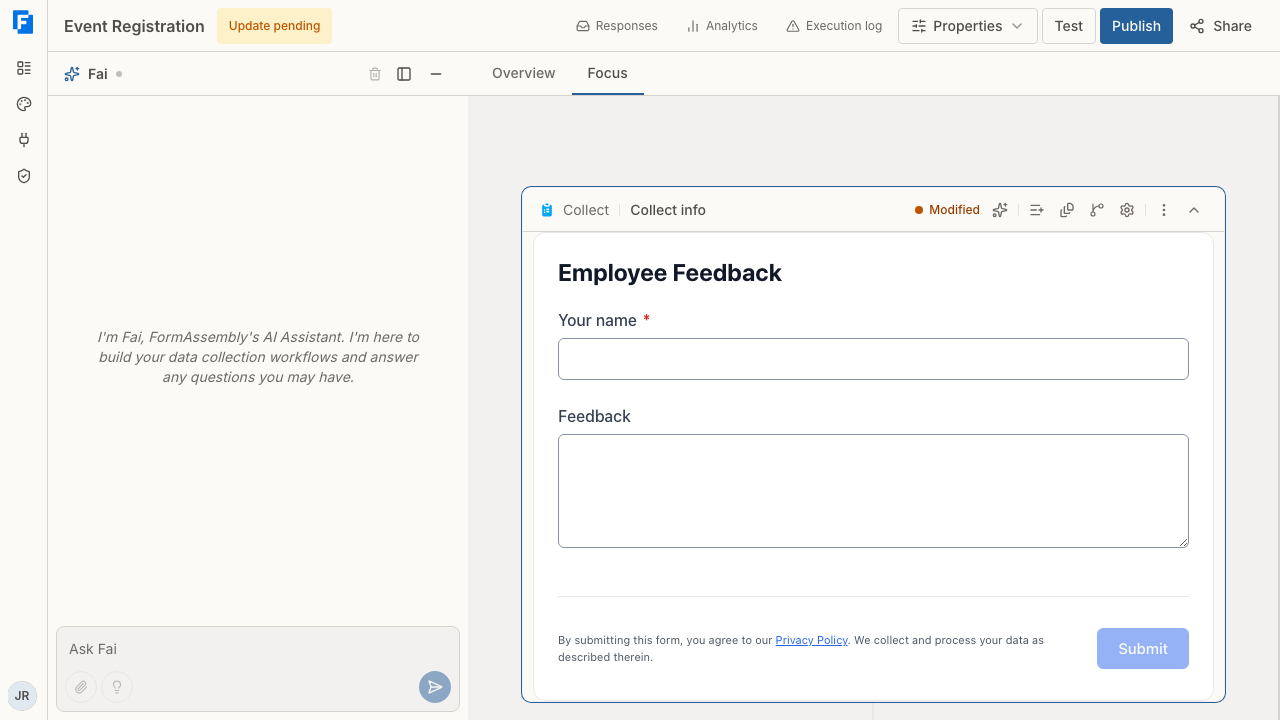
## What happens the moment a respondent clicks Submit
FormAssembly saves the submitted answers, then moves the run forward through the steps you added after the Collect step, in order:
- **Respond** steps show the respondent a confirmation (thank-you) message and end their visible journey.
- **Email** steps send a templated email — to the respondent, to your team, or both — without the respondent waiting on a browser screen.
- **Redirect** steps send the respondent to an external web address.
- **Connect** steps push the data to a connected service.
A workflow can also generate a document, collect an e-signature, ask for an approval, or hand work to someone else through an assignment after the Collect step; see also: Building Workflows for those step types.
Steps that do not require the respondent's presence (such as Email and Connect) run immediately and pass the run along, so the respondent is not left waiting. Every submission is recorded and viewable from **Responses** in the workflow's top navigation, alongside **Analytics** for aggregate reporting and **Execution log** for a list of what has failed.
To add a step after Submit, switch to **Focus** view in the builder and click **Add step**, then choose the step type you want. Adding, duplicating, moving and deleting steps are all Focus-view actions. **Overview** is a read-only map of the whole workflow: it draws every step and the connections between them, and clicking a step card there switches you to Focus. You can also ask **Fai**, the FormAssembly AI assistant in the side panel, to add a step from either view — only the **Add step** button is Focus-only. The **Add step** menu's **Connect** group contains one item, **Salesforce**; every other connector's step is added by asking Fai.
## The Respond step: your confirmation page
A **Respond** step is the thank-you or confirmation screen shown to respondents after they submit. A new workflow starts with a Respond step named **Thank You**, and its confirmation message defaults to "Thank you." A Respond step you add yourself from the **Add step** menu is named **Thank you** and starts with an empty message — fill in a confirmation message before you publish, because publishing requires one.
The Respond step is the last thing most respondents see, so it is worth more than a bare acknowledgement — use it to tell people what happens next, how long a review takes, or where to check for a follow-up email.
### How do I edit the confirmation message?
1. Click the Respond step on the canvas to open its editor.
2. Edit **Step name** if you want a clearer label on the canvas (for example, "Under Review"). The same value appears as **Step Name** on the step's settings.
3. Type your message in the **Confirmation message** editor.
4. Use the formatting toolbar for **Heading 2**, **Bold**, **Italic**, **Underline**, **Bullet list**, and **Ordered list**.
Edits are saved as you go. Hyperlinks are intentionally not available in the confirmation message editor.
### Confirmation message templates
The first time you open a Respond step, a dismissible template banner appears at the top of the editor with four presets plus a **Describe other** option:
- **Confirmation** — "Thank you! Your submission has been received…"
- **Next Steps** — "You're not quite done yet. Check your inbox for instructions…"
- **Registered** — "You're all set! Your spot is confirmed…"
- **Under Review** — "We've received your information. Your submission is under review…"
Click a preset to fill the **Confirmation message** editor with that copy, then edit it freely. The presets are deliberately generic and contain no Field References, so personalizing is your next step — after you apply a template, focus moves to **Insert field value** so you can add a Field Reference right away.
Click **Describe other** to hand off to **Fai**, the AI assistant in the side panel, and describe the confirmation message you want in your own words. **Describe other** does not change your message on its own; Fai writes the message for you.
Click the ✕ on the banner to dismiss it. The banner stays hidden for that Respond step for the rest of your builder session, but it is not remembered after a page reload.
### Personalizing with Insert field value
Use **Insert field value**, located below the **Confirmation message** editor, to drop an answer from an earlier Collect step into your message — for example, "Thanks, Alex — we've sent a copy to alex@example.com." A `{{ … }}` value placed in text is called a **Field Reference**, and **Insert field value** is the builder picker that adds one.
1. Place your cursor where the value should appear.
2. Click **Insert field value**.
3. Search or scroll the list of fields from preceding Collect steps and choose one.
The inserted reference appears as a labeled chip (for example, "First Name") rather than the raw `{{ … }}` reference. At submission time, FormAssembly replaces the chip with the respondent's actual answer. If a field is missing or has no value, the reference resolves to empty text rather than showing an error.
**Insert field value** is disabled — with an inline explanation — when there is no preceding Collect step with fields, since there would be nothing to insert.
Field References are not limited to post-submit steps: a text block on the form itself can show one too, which is useful for displaying a value collected earlier in the workflow. See also: Designing Forms.
## Sending an email after submit
An **Email** step sends a templated email when the respondent reaches that point in the workflow. Add an Email step after your Collect step to send a receipt to the respondent, notify a colleague, or both.
Click the Email step to open its editor and fill in the fields you need. All fields are optional in the editor, but a workflow needs **To**, **Subject**, and **Message** filled in to send successfully.
| Field | What it does |
| --- | --- |
| **Step name** | The label shown on the step's card in the builder. |
| **To** | The recipient address. Separate multiple addresses with commas. |
| **BCC** | Blind-copy addresses. Separate multiple addresses with commas. |
| **From name** | The display name recipients see. |
| **Reply-to** | The address that receives replies. |
| **Reply-to name** | An informational name shown alongside the reply-to address. |
| **Subject** | The subject line. |
| **Message** | The email content, edited as rich text (bold, italic, underline, lists, links). |
| **Attachments** | Files from the workflow to attach to the email. |
Text fields are saved when you click out of them, so click elsewhere after typing to commit a change. Clearing a field and clicking out clears the stored value.
There is no **Cc** field in an Email step. Use **To** for visible recipients and **BCC** for recipients who must not see each other.
### Which address does the email come from?
Workflow emails are always sent from the FormAssembly platform sending address. An Email step has no **From email** field, because sending from your own domain requires sender-domain verification, which FormAssembly does not offer yet. Use **Reply-to** to control where replies land.
**From name** overrides only the display name portion: if you set it, recipients see your name next to the platform sending address. If you leave **From name** blank, the sending address is shown as-is.
### Personalizing emails
Every text field in an Email step — **To**, **BCC**, **Reply-to**, **Subject**, and **Message** — supports Field References written as `{{ step_1.fieldId }}`, using the step and field identifiers from a preceding Collect step. The Email step does not yet have the **Insert field value** picker that Respond and Redirect steps have, so type the reference by hand, exactly in that form. FormAssembly resolves these references at send time, not while you are editing. That means you can email the respondent by putting a Field Reference for their email address in **To**, and greet them by name in the **Message**.
In **To**, each comma-separated entry must be either a complete email address or a whole Field Reference on its own. A reference spliced into an address, such as `{{ step_1.name }}@example.com`, is rejected when you publish. Separate multiple addresses with commas, never semicolons — a resolved recipient list that uses semicolons fails the step instead of sending to each address.
When **To** or **BCC** references a respondent's own answer — a text or email question, a field inside a repeating section, a choice whose labels are email addresses, or a value an assign step copies from one of those — that answer must resolve to at most one plain address, with no display name and no angle brackets. The limit applies to each referenced answer on its own; addresses you type yourself are not limited, so comma-separated literal addresses still work normally. An answer that carries two addresses (a text question in which someone typed `a@x.com, b@y.com`, or repeating-section rows holding different addresses) passes the form and then fails the step, and the **Execution log** reports it as **Email field invalid**. **Reply-to** follows the same rule: it must resolve to exactly one plain address.
Field References are also how you repeat a set of answers. A repeated block written as `{% begin step_1.sectionId %} … {% end step_1.sectionId %}` renders its contents once per submitted instance of that repeating section — useful for listing line items or multiple contacts in a single email.
An Email step sends one email addressed to the whole resolved recipient list; it does not send a separate email per person or per repeated instance. If recipients must not see each other, put the addresses in **BCC**. Duplicate addresses in a resolved list collapse to a single copy, and blank entries are dropped.
If **To** resolves to nothing on a live run — for example, the reference points to an optional email field the respondent left blank — FormAssembly sends the email to the workflow owner's address instead of failing the step, with one exception: an email that carries the respondent's resume link (the link that lets them return to a saved submission) never falls back to the owner, and the step fails instead, so the respondent's link is never mailed to someone else. The owner fallback keeps internal alerts from disappearing silently, but it also means a respondent receipt driven by an empty field lands in the owner's inbox. A **BCC** that resolves to nothing is simply omitted. A **Subject** built only from a Field Reference that resolves to empty text is sent with an empty subject line — it does not fail the step, so put some literal wording in **Subject** alongside any reference.
### Attaching files to an email
An Email step can attach files that already exist in the workflow. Click **Add a file** under **Attachments** in the Email step's editor and pick a file value from the list. You can attach:
- A file a respondent uploaded through a file upload field in a preceding Collect step.
- A file variable in the step's scope.
- The PDF produced by a Document generation step, or the document from an e-signature step. A signed document is attached as its current version.
Each attachment shows the step it comes from, and a file field inside a repeating section attaches every row's file. A file that is already attached is not offered again, and an attachment whose file no longer exists in the workflow stays listed, marked as missing, until you remove it.
The whole email, attachments included, must stay under about 10 MB. A larger email is not sent: the step fails with **Email too large** and follows its failure route. No file is ever dropped to make the email fit, so remove or shrink an attachment yourself if you hit the limit. A test run attaches the same files as a live run.
FormAssembly does not attach a PDF copy of the submission itself — only the file values listed above.
### What happens if the recipient address resolves to nothing?
On a published workflow, if everything in **To** resolves to nothing at send time — for example, the **To** field is a reference to an optional email question the respondent left blank — FormAssembly sends the email to the workflow owner's address instead of failing the step. The email still counts as a successful delivery in **Responses**, and the respondent is not sent down the failure route. The exception is an email that carries the respondent's resume link: that step fails rather than falling back to the owner, so a fresh resume link is never mailed to the owner in place of the respondent.
Two things follow from this behaviour, and both are worth planning for:
- An internal alert whose recipient is looked up during the run still reaches you, rather than disappearing, which is the point of the fallback.
- A respondent receipt addressed from an optional email question lands in the workflow owner's inbox when that question is blank. If you do not want that, make the email field required in the Collect step.
The fallback applies to live runs only, and only when **To** resolves to nothing. A **To** that resolves to an invalid address fails the step instead. In a test run, the recipient is always the person running the test anyway (see below).
## Redirecting respondents to another page
A **Redirect** step sends respondents to an external web address instead of showing a confirmation message. Use a Redirect step when the next step lives on your own website — a scheduling page, a payment page, or a knowledge base article.
1. Add a Redirect step after your Collect step.
2. Enter the destination in **Send respondents to**.
3. Optionally click **Insert field value** below the field to append an answer to the address — for example, adding an email address or record ID as a query value.
The address must start with `http` or `https`, can be up to 2,000 characters (a live counter shows how much you have used), and is required before you can publish. You can leave it empty while drafting, but the panel shows a required-field message until you enter a valid address. If a field holds a complete web address on its own, you can use a single Field Reference as the entire value.
Confirmation messages stay on the Respond step — a Redirect step does not display a message before sending the respondent away.
## How do I test what happens after Submit?
Click **Test** in the top navigation to run the workflow yourself before publishing. Test runs are deliberately isolated so real emails never reach real respondents:
- The recipient is replaced with the tester's email address — the signed-in user running the test — regardless of what **To** contains.
- **BCC** is suppressed entirely.
- The subject line is prefixed with `[TEST]`.
- A warning banner is added to the top of the email body, identifying it as a test send and showing the recipient the email would have gone to in production.
Test runs also never trigger owner failure notifications, and the live-run owner fallback does not apply to them: on a test run, an empty **To** fails the step so you find out before publishing. Address rules are still checked on a test run, so an invalid recipient fails the test send exactly as it would on a live run. Once the confirmation message, emails, and redirects look right, click **Publish**, then **Share** to distribute the form.
## What happens when a step fails?
If an Email, Connect or Document generation step cannot complete — an expired credential, an unreachable service, or a mail host that stops responding — FormAssembly handles the failure in three places:
- **The respondent** sees a short, friendly message on the next screen. Respondents never see raw error text, and they are never asked to resubmit.
- **The workflow owner** gets a durable record: the attempt is stored as a failed delivery with the underlying error, so you can see exactly what went wrong. **Execution log** in the workflow's top navigation lists these failures.
- **The workflow** follows the failure route you configured. Every Email and Connect step must have a failure route before you can publish, and that route can point to any other step — for example, a Respond step that tells the respondent their submission was received but is being processed manually. A failure route on a Document generation step is optional.
Failure emails to the owner are a workflow setting, and they are **off by default**: unless an individual failure route overrides the setting, a workflow that has not turned them on notifies no one. Turn on **Email the owner when a step fails** under **Properties → Notifications** to receive them. Fai or the API can also override the setting for a single failure route, and the route's own setting wins either way: a route set to notify the owner sends the email even when the workflow switch is off, and a route set to off sends nothing even when the workflow switch is on.
When notification is on, you receive an email with the subject `Action required: step failure in "{workflow name}"`. That email names the workflow and step, gives a human-readable reason (such as credentials expired, permission missing, rate limit exceeded, service temporarily unavailable, the connection selected for this step can't be used with its connector, the redirect step could not produce a valid link, or an invalid email address field), and includes how many failures have occurred since the last notification.
Failure notifications are debounced per workflow: after the first email, further notifications are suppressed for one hour while the failure count keeps accumulating. The next notification after that hour reports the full cumulative count. If failures stop entirely during a suppression window, no catch-up email is sent — check **Responses** for the failed deliveries to see the full picture. Notifications are not sent for test runs, or when there is no owner email available.
There is no automatic retry. When a step fails, investigate the cause, then replay the affected response: open it from **Responses** and replay it from the step that failed, either on the workflow as it stands or onto a corrected version of the workflow. See also: Viewing Responses, which covers replay in detail.
## Tips & Troubleshooting
- **The confirmation message shows a blank space where a name should be.** The referenced field had no value for that submission. Field References that resolve to nothing render as empty text by design. Make the field required in the Collect step if the value must always be present.
- **Always use Insert field value rather than typing a reference by hand.** Typing a full Field Reference directly into the Respond or Redirect editor can leave stray literal text around the inserted chip. **Insert field value** is the supported insertion path on those two surfaces.
- **A Field Reference is not resolving.** References must be written `{{ step_1.fieldId }}`, fully qualified with the step. The older double-percent spelling no longer resolves — it renders as literal text instead of the value.
- **A chip still shows an old field label after you renamed the field.** The label refreshes on your next edit anywhere in the confirmation message. Type a character and the chip updates; the stored reference was never wrong.
- **A chip is marked as unknown.** The reference points to a field that no longer exists — usually a deleted Collect field or a deleted Collect step. Delete the chip and insert a current field.
- **No email arrived.** Confirm the Email step has a value in **To**, **Subject**, and **Message**, and check that any Field Reference in **To** points to a field the respondent actually filled in. If the resolved **To** was empty, look in the workflow owner's inbox — a live run sends the email there rather than failing, unless the email carries the respondent's resume link, in which case the step fails instead and the failure appears in **Execution log**.
- **The Execution log shows Email field invalid.** A resolved address was not a single plain mailbox. The most common cause is a **To** or **BCC** reference to a respondent's answer that contained more than one address, or an address typed with a display name or angle brackets. Reference one email question that accepts a single address, and put additional recipients in the step as literal addresses.
- **The Execution log shows Email too large.** The message plus its attachments exceeded about 10 MB, so nothing was sent and the step followed its failure route. Remove an attachment, or attach a smaller file — FormAssembly never drops a file to make the email fit.
- **An attachment is marked as missing.** The file it pointed to is no longer part of the workflow, usually because the field or step that produced it was deleted. Remove the attachment and add a current file.
- **No failure email arrived.** Failure notifications are off by default. Turn on **Email the owner when a step fails** under **Properties → Notifications**. If that switch is already on, check the failure route's own notification setting as well — a route set to off suppresses the email even when the workflow switch is on. The failures themselves are always listed in **Execution log**.
- **You want the email to come from your own domain.** That is not available yet. Workflow emails always send from the FormAssembly platform sending address; use **Reply-to** to route replies to your own inbox.
- **You want to control the sender name only.** Set **From name** to change the display name recipients see.
- **Test emails went to you instead of the recipient.** That is expected. Test runs redirect all mail to the tester's address, prefix the subject with `[TEST]`, and suppress **BCC**.
- **You need multiple recipients.** Enter comma-separated addresses in **To** or **BCC**; semicolons are not accepted. A reference to a respondent's answer counts as a single recipient, so add any further recipients as literal addresses alongside it.
- **The confirmation template banner came back after a reload.** Banner dismissal lasts for the current builder session only and is not saved with the workflow.
- **You cannot publish because of the redirect step.** **Send respondents to** is required for publish and must be an `http` or `https` address (or a single Field Reference holding a complete address).
- **You cannot publish because a Respond step has no message.** A Respond step added from the **Add step** menu starts empty; type a confirmation message before publishing.
- **You cannot find Add step.** The **Add step** button appears in **Focus** view. **Overview** is a read-only map and does not add, move or delete steps.
---
# Connect to Your CRM
## What the CRM connectors do
FormAssembly's CRM connectors let a workflow read from and write to your CRM as part of a submission. Two CRMs are covered in this article:
- **Salesforce** — FormAssembly can look up Salesforce records, create new records, update existing ones, and upload files on any standard or custom object your Salesforce user can access.
- **Dynamics 365 (Dataverse)** — FormAssembly can look up Dynamics records, create new records, and update existing ones on any Dataverse table (entity) available to your Dynamics user.
Both connectors work in two directions. An outbound action (**Create a record**, **Update a record**, and — on Salesforce only — **Upload a file**) pushes submitted answers out to the CRM. An inbound action (**Lookup a record**) reads a CRM record and brings its values back into the workflow — useful for prefilling a form with what you already know about a contact, or for fetching an ID that a later action needs.
The two connectors differ in how you configure them. **Only Salesforce connector steps open an editable action card.** A Dynamics 365 step shows a read-only summary ending "Connector configuration is managed by the AI agent." — configure a Dynamics 365 step by asking Fai, FormAssembly's built-in AI assistant, reachable from the chat panel. Everything in this article about action cards, stages, pickers and mapping tables describes the Salesforce step; the Dynamics 365 capabilities and limits are stated in their own section at the end.
This matters because CRM work is usually the point of the form: instead of exporting responses and importing them later, the record exists in Salesforce or Dynamics 365 the moment someone submits.
For spreadsheet, storage, and payment connectors, see the other connector articles — this article covers the CRM connectors only.
## Before you start
You need an authorized connection to the CRM. Connections are listed on the **Connections** page, where Salesforce has its own settings link ("Salesforce connection settings"). Dynamics 365 is shown on the Connections page as **Coming soon** and cannot be opened there — connect Dynamics 365 by asking Fai. If you have not authorized your CRM yet — or if a connection has lapsed and needs reconnecting — see the **Connecting Services** article, which owns authorizing, reconnecting, sandbox connections, and disconnecting.
The Salesforce connector and the Dynamics 365 connector are both account add-ons. If your account does not include the connector you are using, FormAssembly refuses to save a workflow that contains that connector's step — ask your account administrator to add the connector to your account.
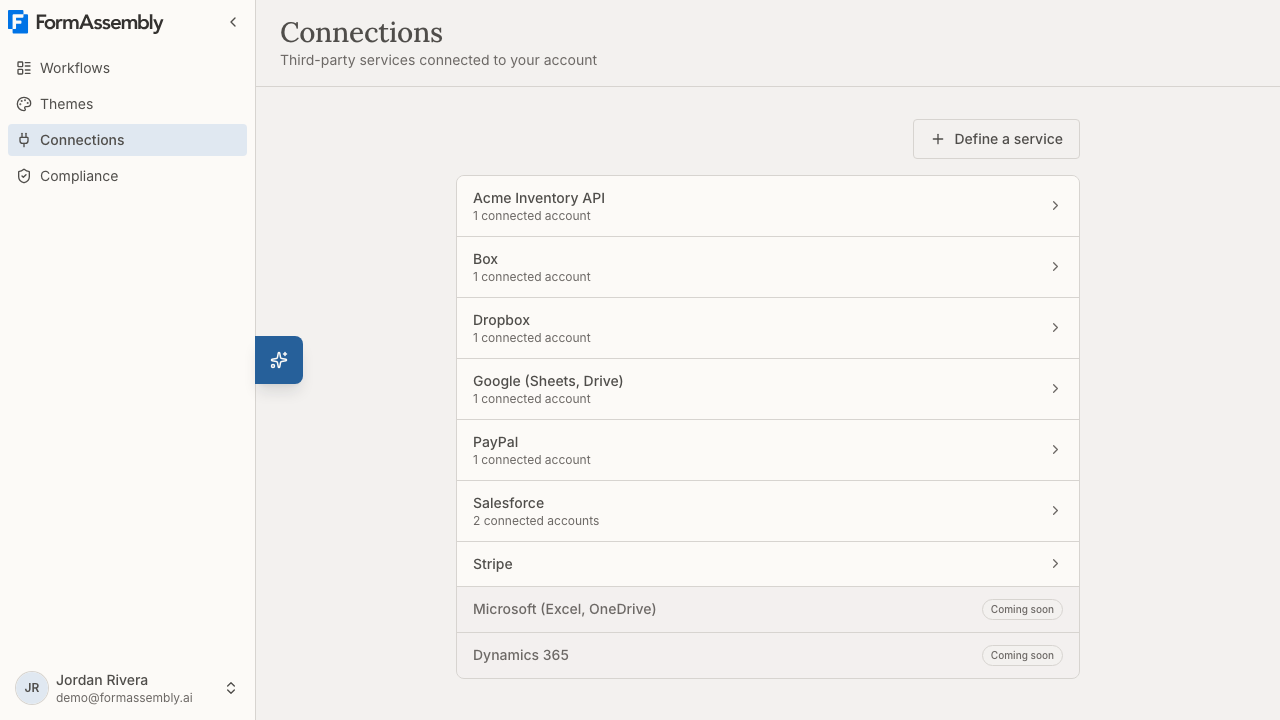
## What your CRM account needs to permit
FormAssembly acts as the user who authorized the connection. That user's permissions define the ceiling on everything below.
- **Salesforce:** the authorizing user needs API access enabled, plus read/create/update permission on each object and field you intend to use. FormAssembly lists an object only if the user can create it, update it, or both query and retrieve it. A field appears if the user can write it or filter on it — so read-only fields such as Created Date, Last Modified Date, formula fields and rollup summaries can be used in match rules and read into the workflow, but cannot be written to. Internal platform objects, and objects whose names end in `__Share` or `__Tag`, are never offered.
- **Dynamics 365:** the authorizing user needs a security role granting read/create/write on each table you intend to use. FormAssembly lists tables that are valid for Advanced Find, and lists a column only if it is valid for create or valid for update.
If an object or field you expect is missing from a picker, the usual cause is permissions on the CRM side, not FormAssembly.
## How do I add a CRM action to a workflow?
CRM work happens in a **connect** step in the workflow builder. A Salesforce step can contain several actions, and each action is one operation against the CRM (create a Contact, update an Opportunity, look up an Account).
1. Open the workflow and switch to **Focus** view in the builder, then click **Add step**. **Add step** is a Focus-view control; **Overview** is a read-only map of the whole workflow, so nothing on the Overview canvas adds, moves or removes a step. You can also ask Fai to add a step from either view.
2. In the **Add step** menu, the **Connect** group has one item, **Salesforce**. Add a Salesforce step from there and open it to configure it. A Dynamics 365 step is not in the menu — ask Fai to add one.
3. Confirm which connection the step uses. Until a connection is chosen, a Salesforce step shows "Choose a Salesforce connection above to configure this step." and no action configuration is displayed.
4. Configure each action stage by stage: **Operation & record**, **Find the record** (for Update and Lookup), **Field mapping**, **Return data to the workflow**, **Additional options**, plus **File to upload** for an upload action and **Handle repeated content** when the action references a repeatable section.
5. Use **Test** in the workflow toolbar to run the step before you **Publish**.
Every Salesforce action lives in an expandable action card. Nothing described below is hidden behind an "advanced" disclosure — no-match behavior and error handling stay visible while you configure. An action that builds on an earlier one also shows a read-only **Dependencies** section, which shows only its description; ask Fai to see or change what an action depends on.
### How the action's direction works
Each action's direction is derived from the operation you choose; there is no separate direction control on the action card. **Create a record**, **Update a record** and **Upload a file** are outbound (data leaves FormAssembly). **Lookup a record** is inbound (data comes back into the workflow).
The column order of the mapping table follows the action's direction, so it always reads left to right in the direction the data actually moves: FormAssembly on the left for an outbound action, Salesforce on the left for a Lookup.
Changing the operation on an action that already has mapped rows opens a **Switch the operation?** dialog, because a mapping row means the opposite thing in each direction. The dialog names how many mapped fields and returned fields the switch clears. Choose **Switch and clear mapping** to switch and clear the rows that no longer apply, or **Cancel** to leave the action as it is. The change cannot be undone, so build the other direction as a new action if you want to keep both.
### Choosing the object and operation
The **Operation & record** stage carries two controls, side by side:
- **Operation** — a dropdown listing the operations the connector declares. Salesforce offers **Create a record**, **Update a record**, **Lookup a record** and **Upload a file**, and all four are fully configurable in the action card.
- **Record** — a searchable picker over the Salesforce objects your connection can see. Type to filter, and press `Escape` or click outside to close.
One line beneath the record picker states what the chosen operation will do, for example "Adds a new record every time" for **Create a record**.
Choosing **Update a record** or **Lookup a record** reveals the **Find the record** stage (see Match rules below). Choosing **Upload a file** reveals the **File to upload** stage instead, and narrows the record picker to the records Salesforce can attach a file to.
Changing the record type **never clears a mapping row you gave a value to**. Rows holding a value are kept and re-validated against the new record type: a mapping that still resolves is left alone, and one that no longer resolves is flagged rather than silently deleted. Two kinds of empty row are removed: on a Create action, a row with a target and no source, and an upload action's association row, which is replaced with the new record's.
### Repeated sections: how many times an action runs
When an action references a field inside a repeatable section — from a mapping row, a match rule or a precondition — a **Handle repeated content** stage appears with a single record selector. It answers the one question the rest of the card cannot: when a respondent submits three rows, does this action run once or three times?
- For an outbound action the selector reads **Run this action**, with **Once per submission** or **Once for every submitted [Section label]**; for a Lookup it reads **Repeat this content for every result found**.
- Options are the whole submission plus every outermost repeatable section the action references, grouped by step. Choosing a section shows an inline note: "This action runs once per submitted instance of [Section Name]."
- The selection never limits which fields you can map. It only controls how many times the action runs.
- Filling one section instance per result found is not yet supported on a Lookup, and an upload whose file field sits inside a repeatable section always runs once per uploaded file.
## How do I map form answers into my CRM?
Field mappings live in a table at the bottom of each expanded Salesforce action card. Every row pairs a **target** field with a **source** value.
Click **Add another** to add a row, then choose the source type:
- **Field** — one combined picker listing form fields from any Collect step in the workflow (grouped by step) and workflow variables set by earlier actions in the same run.
- **Value** — a single input for static text or a formula. Type plain text and it is sent as-is. Click **Insert** to drop a field token into the text, so you can combine several fields with surrounding text, such as "Hi [Full Name], your total is [Amount]". An expand icon opens the Formula Editor for conditional logic or system values such as today's date.
On a **Lookup a record** action the columns are reversed: the source is a picker over the Salesforce record's fields (read-only fields included), and the target is a FormAssembly field or a workflow variable. On a Lookup row you can also create the variable as you go: type a name into the target picker and choose **Declare "{name}" as a new variable**, and FormAssembly declares a text variable on the connect step and points the row at it. If you then delete the row, clear its target, or point it somewhere else while the step's panel is still open, FormAssembly removes the variable it declared for you — as long as nothing else in the workflow writes to it. A step that only reads the variable does not keep it: that reference is left pointing at nothing, and publishing is refused. Everything else about the variable, such as a different type or a description, is edited in the step's settings panel.
A row's target field is required. A row with no source shows "Choose or type a value" and is treated as unmapped — it is not sent to the CRM. An unfinished row is not marked as an error while you are still building it: only after a publish or test attempt has been refused does an empty source read "Missing value" and an empty target read "Missing field."
### Required fields
Fields the CRM object requires are marked with an indicator both in the target picker and on a mapped row, on **Create a record** actions only. When you set (or change) a Create action's object, FormAssembly automatically adds one row for each required field that is not already mapped, with the target pre-filled and the source left as "Choose or type a value." These rows cannot be deleted, and their target cannot be cleared, because removing the row would hide the reminder without removing the CRM's constraint — you can still point the row at a different field. Required indicators and rows are not shown for Update or Lookup actions, since required-ness is a create-time constraint.
### Map specific values
On rows whose FormAssembly side is a choice field (select, multi-select, radio, or checkbox), a **Map specific values** toggle lets you translate form answers into the values your CRM expects — for example, sending `1` instead of `Yes`. Press the toggle to expand a panel below the row, listing one line per option of that field, in form order.
- **Map specific values works in both directions.** On an outbound row the form option is the key and the Salesforce value is what gets stored; on a **Lookup a record** row the Salesforce value is the key and the form option is what gets filled in.
- When Salesforce lists a field's allowed values — a picklist or multi-select picklist — the Salesforce side is a dropdown of those values. For a field with no enumerated values, such as a checkbox or a text field, you type the value instead.
- **There is no catch-all row.** An option you leave unmapped is sent unchanged, so you only need to fill in the options whose value has to differ.
- On a Lookup, two options cannot map to the same incoming value; FormAssembly refuses the second and names the option that already claims it.
- The map belongs to the row's choice field. Pointing that end of the row at a different field clears the map.
### Return Salesforce data to the workflow
**Return data to the workflow** is an optional stage on an outbound action. Click **+ Add variable** to store part of the result in a workflow variable that later steps can use. The most common use is capturing the new record's ID and URL so a later action, a condition, or a confirmation message can refer to the record that was just written.
Salesforce returns the created or updated record's ID and a link to it. A variable written here is workflow-scoped: anything later in the workflow can reference it, not just later actions in the same step. As on a Lookup row, typing a name into the destination picker offers **Declare "{name}" as a new variable**, which declares a text variable on the connect step and points the row at it; clearing or retargeting that row while the panel is still open removes the variable again if nothing else in the workflow writes to it. A step that only reads the variable does not keep it: that reference is left pointing at nothing, and publishing is refused. A half-filled row — a result field with no destination, or a destination with no result field — is kept and refused at publish.
A **Lookup a record** action does not use this stage. A Lookup writes what it fetched through its own mapping table, where the Salesforce field is the source and the FormAssembly field or variable is the target — that is the mechanism that prefills.
## Upload a File actions
**Upload a file** is a Salesforce operation for sending a respondent's uploaded file into Salesforce. Choose the target record — **Attachment** or **ContentVersion** — then use the **File to upload** picker to choose which file field in your Collect steps this action attaches. FormAssembly fills in the file's own required fields automatically at submission time (file name, file content, and file path), so they never occupy a row in the mapping table.
What is left for you to set is the parent association: **ParentId** for an Attachment, **FirstPublishLocationId** for a ContentVersion. FormAssembly inserts that row for you as soon as you choose the record. Map it to the ID of the record the file belongs to, usually a variable returned by an earlier Create or Lookup action.
Leaving the association row without a source blocks publishing, and the message names the action so you know which one to fix. Publishing is also blocked if the action has a recognized record but no file chosen. Changing the target record replaces the association row with the new record's; rows you authored yourself are untouched. You can override a file-derived field — for example, setting **Title** from a form field — by adding an ordinary row for it; delete that row and the field goes back to being filled from the file.
## Match rules for Update and Lookup
When an action's operation is **Update a record** or **Lookup a record**, the **Find the record** stage shows a rule builder that identifies which Salesforce record the action targets.
Each rule is a row with a field (a searchable picker over the Salesforce record, whose placeholder names the service — "Choose a Salesforce field"), an operator filtered to what the connector supports, and a value. The value can be typed text, or you can pick any Collect step's fields and workflow variables — including a field from the repeated-section instance the action is currently processing. **+ Add condition** appends another rule. Every row carries a letter — A, B, C… — as its stable identity, in every mode.
Once there is more than one rule, a combinator control appears between the rules and **+ Add condition**, reading **Match [All] of these conditions**. **All** (the default) requires every rule to be true; **Any** requires at least one. **Custom** reveals a logic input where you write an expression over the rows by letter, such as `(A AND B) OR C`, for mixed logic that All and Any cannot express. The expression is validated as you type, and a reference to a row you later delete is flagged rather than silently rewritten.
**Find the record** and **Precondition** rules use the same rule builder as form conditions and branching, so they offer **is one of**, **is not one of** and **is between** alongside the ordinary comparison operators. Only pattern-matching operators are not offered, because their wildcards match nothing useful when typed into a single value box.
**Respondent input is matched literally in Salesforce lookups.** A `%` or `_` a respondent types is matched as that character, not as a wildcard.
A started but unfinished rule — a field with no value, or a value with no field — is saved and survives a reload, and it blocks publishing rather than being quietly dropped. **An Update or Lookup action with no conditions at all also blocks publishing, on Salesforce and Dynamics 365 alike, and a test run is refused on the same terms.**
If a step's conditions were written by Fai or the API using logic the rule builder cannot show as rows, FormAssembly shows them as plain-language text with the note that this editor cannot show them as rows yet, plus a **Replace conditions** button. Replacing asks for confirmation, then clears the stored conditions and opens one empty row.
The same rule builder is used for preconditions (see below).
## When no match is found
Each action has a **When no match is found** dropdown, with a one-line description of the consequence under the selected option. The available options are filtered to what the connector supports:
- **Skip this action and dependent actions** — later actions that depend on this one will not run.
- **Fail this step and follow the error path** — this step fails and the workflow's failure path is triggered.
- **Continue dependent actions** — proceed as if nothing happened; the action does nothing, and later actions still run.
An **Update a record** action that matches no record behaves as a no-match: FormAssembly does not fall back to creating a record.
FormAssembly writes this choice, and the multiple-match choice, the moment an action switches into Update or Lookup. An action that arrives from Fai or the API without one shows "Choose an option" with no consequence line, reads as incomplete, and blocks publishing until you choose.
## When multiple matches are found
A **When multiple matches are found** dropdown controls what happens when the match rules resolve to more than one record. When several records match, an Update or Lookup action can skip, stop, or use one record — there is no option to act on every match. To change several records, add more actions.
- **Use the most recently modified record** — the action acts on the match the CRM last modified. A caption under the dropdown names the method, so it is never hidden: Salesforce orders by Last Modified Date descending, with record ID ascending behind it as a tiebreaker, so the pick is always deterministic. Where the object has no Last Modified Date, the caption reads "This object has no Last Modified Date, so the record ID decides."
- **Skip this action and dependent actions** — later actions that depend on this one will not run.
- **Fail this step and follow the error path** — this step fails and the workflow's failure path is triggered.
Choosing the record by a sort of your own is planned but not yet offered. Until it ships, use match conditions to narrow the result when "most recently modified" is not the record you want.
## Preconditions
Preconditions are how you make a CRM write conditional — for example, only creating an Opportunity when an amount exceeds a threshold. A **Precondition** is an optional stage that runs the action only when its rules are true, and it is not part of an action until you add one: choose **Add precondition** from the action's own menu to reveal the section, and **Remove precondition** to remove it and clear the stored conditions. With no precondition, the action always runs once the action it depends on completes.
The precondition section uses the same rule builder as matching — including **All**, **Any** and **Custom** logic — but over the workflow's own fields and variables rather than the Salesforce record's fields. An unmet precondition skips the action and everything that depends on it; it is not an error, and actions that do not depend on it still run.
An unfinished precondition rule — a field with no value, or a value with no field — blocks **Publish** and **Test**, and the refusal names the action that holds it.
## Step behavior on failure
One respondent-facing failure message applies to the whole connect step — not one per action — and its controls live in the step's settings panel: **Message shown to the respondent**, **Include the original error message from [Connector]**, and **On error, go to**. Enter the message shown to the respondent, or leave it blank to use the default banner. **Include the original error message from [Connector]** appends the raw CRM error; it defaults off, because raw CRM errors are useful in internal or test workflows but risky on respondent-facing production forms. **On error, go to** sets which step the workflow's failure path leads to.
An email notification to the workflow owner when a step fails is a separate mechanism and is not configured here.
## Additional options
**Additional options** is the action's last stage and starts collapsed. It shows only a summary of the options already set on the action — for example "Set: preserve blank values" — and carries no control for changing them.
To keep a blank form answer from overwriting an existing Salesforce value, ask Fai to turn that option on for the action, or leave the field unmapped. The setting is per action, not per step, because whether a blank should erase a stored value depends on what that action writes. It applies to Update actions only; there is no existing value to preserve on a Create. If every mapped field on an update resolves to blank while this option is on, FormAssembly skips the action rather than sending an empty update.
## Salesforce-specific behavior and limits
- **Duplicate rules** are acknowledged automatically by default, so a save that trips a duplicate alert still goes through. Salesforce **assignment rules** are applied on create and update by default.
- **Records saved by FormAssembly do not pollute your recent items** in Salesforce.
- **Blank values are sent on update by default,** which overwrites the Salesforce field with a blank value. Ask Fai to turn on the option that preserves blank values for the action, or leave the field unmapped, if you want to preserve what is already there.
- **Read-only fields cannot be written.** A formula, rollup summary or system audit field can be used in a match rule or read into the workflow, but it is not a valid mapping target for a Create or Update action.
- **Multi-select picklist fields hold several values at once.** FormAssembly handles the Salesforce format for you: a Lookup brings back each selected value separately, and an outbound action can send several values into one multi-select picklist field.
- **One record per action.** An Update action updates a single record; there is no multi-record update. Add more actions when you need to touch several records.
- **Upsert by external ID is not supported.** To achieve the same result, use an Update action with a match rule on the external ID field, or a Lookup followed by a conditional Create.
- **Salesforce daily API call limits apply.** An action that targets a repeated section may run several times per submission, which counts against those limits.
## Dynamics 365-specific behavior and limits
A Dynamics 365 connect step shows a read-only summary of what it will do, ending "Connector configuration is managed by the AI agent." To create, update or look up Dynamics 365 records, describe what you want in the chat panel and let Fai configure the step; the configuration is not editable in the builder today. The Dynamics 365 connection itself is also set up by asking Fai, since the Connections page shows Dynamics 365 as **Coming soon**. A Dynamics 365 step can still send submitted answers into Dataverse tables and prefill a form from a Dynamics record, and it runs at submission time like any other step.
- **An Update or Lookup action with no conditions cannot be published**, exactly as on Salesforce, and a test run is refused on the same terms.
- **Option set (picklist), state, and status fields use numeric values, not display labels.** Ask Fai to map the underlying numeric value rather than the label shown in Dynamics.
- **Lookup fields take the related record's ID (a GUID), not its name.** A common pattern is a lookup action that finds the parent record, stores its ID in a workflow variable, and a later action that maps that variable into the lookup field.
- **Updates are unconditional.** Dynamics updates do not perform a concurrency check, so the last write in a run wins.
- **One Dynamics instance per connection.** If your Dynamics account has access to more than one instance, FormAssembly uses the first one discovered when the connection is authorized.
- **Upsert by alternate key is not supported.** Use an update with match conditions, or a lookup plus a conditional create.
- **File and image columns, and activity party fields, are not supported** as mapping targets, and there is no file upload operation for Dynamics 365.
- **Wildcard "like" matching is not available in Dynamics match rules.** Use the **contains**, **starts with** or **ends with** operators instead; publishing is blocked if a rule uses a pattern-style match, because the pattern would be matched as literal text.
## Tips & Troubleshooting
- **An object or field is missing from a picker.** FormAssembly only lists what the authorizing CRM user can access. Check that user's profile, permission set, or security role on the CRM side, then reopen the picker.
- **The action card is empty and asks for a connection.** A Salesforce step shows "Choose a Salesforce connection above to configure this step." until you select a connection. Choose one and the stages appear.
- **The step reports a failure and asks you to reconnect.** CRM access has lapsed, and the connection shows **Reconnect required**. Click **Reconnect** on the **Connections** page — see the **Connecting Services** article for the reconnect flow.
- **Nothing was written to the CRM and the workflow continued anyway.** An Update or Lookup action found no matching record and the action's **When no match is found** setting is **Skip this action and dependent actions** or **Continue dependent actions**. Check the match rules against real data, or change the setting to **Fail this step and follow the error path** while testing so failures are obvious.
- **The wrong record was updated.** More than one record matched and the action took the most recently modified one. Tighten the match rules until they identify a single record.
- **A field was cleared unexpectedly on update.** Blank values are sent on update by default. Ask Fai to turn on the option that preserves blank values for that action, or remove that mapping row.
- **A required row cannot be deleted.** That is intended — the CRM requires the field. Fill in a source, point the row at a different field, or change the action's object if the field does not apply.
- **A variable I declared from a mapping row disappeared.** FormAssembly removes a variable a row declared if you delete that row, clear its target, or point it elsewhere while the panel is still open and nothing else in the workflow writes to it. A step that only reads the variable does not keep it — that reference is left pointing at nothing, and publishing is refused. Declare it again from the row, or add it in the step's settings panel if you want it to stay.
- **A mapped value arrived as literal text with brackets.** Field tokens must be inserted with **Insert** in the Value editor, not typed by hand. Typed plain text is always sent as-is.
- **Switching the operation warns that it will clear my mapping.** Switching between an outbound operation and **Lookup a record** reverses what every mapping row means, so the rows cannot be carried over. Choose **Switch and clear mapping** to proceed, or **Cancel** and build the other direction as a separate action.
- **Publishing is refused and the action is named as incomplete.** The usual causes are a match rule with a field but no value (or a value but no field), an Update or Lookup action with no match rules at all, an unfinished precondition rule, a no-match or multiple-match option left as "Choose an option," an upload action's association row with no source, an upload action with no file chosen, or a mapping, return-data or record-lookup row that uses a field or variable that no longer exists. In that last case publishing names the step and action ("…uses a field or variable that no longer exists. Open the step and choose a new one, or remove it."), and the row reads "This field or variable no longer exists in the workflow." Open the action and look for the "Missing field" and "Missing value" notes under the empty controls.
- **The conditions show as plain text with a Replace conditions button.** Those conditions use logic the rule builder cannot show as rows yet. Ask Fai to change them, or use **Replace conditions** to start over with rows — replacing cannot be undone.
- **I cannot find Add step.** **Add step** is in **Focus** view. **Overview** is a read-only map: hovering a step highlights its path and clicking a step card switches you to Focus, where the structural controls live.
- **Always test before publishing.** Use **Test** in the workflow toolbar and confirm the record in your CRM, especially for Update actions, before you **Publish** and **Share** the workflow.
---
# Connect to Spreadsheets & Files
FormAssembly connects to spreadsheet and file-storage services so that form submissions can be appended as rows, and respondent file uploads can be saved into cloud folders. This article covers six services: **Google Sheets**, **Microsoft Excel Online**, **Google Drive**, **Microsoft OneDrive**, **Box**, and **Dropbox**.
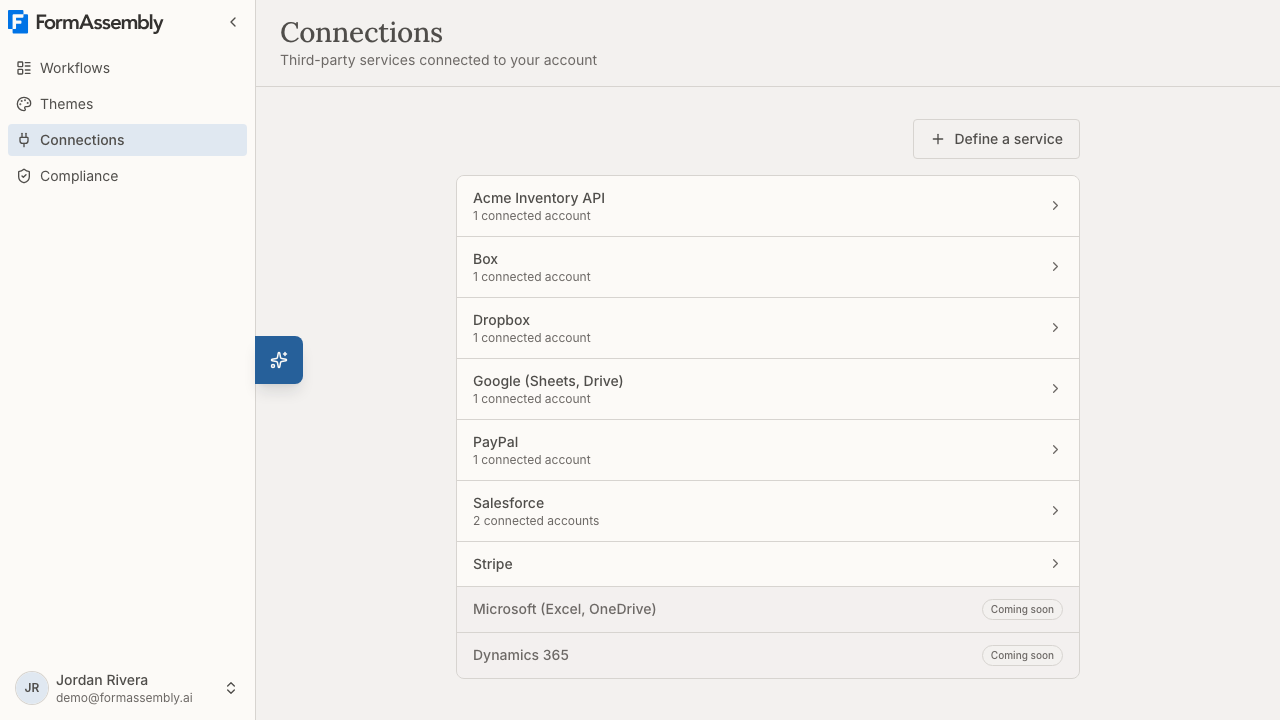
## What you can do with spreadsheet and file connections
- **Google Sheets** — append a row to a spreadsheet on each submission, and power dynamic lookup fields from spreadsheet data.
- **Microsoft Excel Online** — append a row to a worksheet table on each submission, and power dynamic lookup fields.
- **Google Drive** — upload files that respondents attach to a form into a Drive folder, and capture the resulting file URL for use later in your workflow.
- **Microsoft OneDrive** — upload respondent files into a OneDrive folder, and capture the resulting file URL.
- **Box** — upload respondent files into a Box folder, and capture the resulting Box link.
- **Dropbox** — upload respondent files into a Dropbox folder, and capture the resulting shared link.
**Box and Dropbox are account add-ons.** An account can use Box or Dropbox only when its plan includes the add-on or the account has bought it; without it, saving a workflow that contains a Box or Dropbox step is refused with a message that the connector is not available on the account. Google Sheets, Excel Online, Google Drive, and OneDrive are included in every plan. Accounts that already used Box or Dropbox in a workflow when those became add-ons were granted them automatically. See also: **Plans & Billing** for how to add an add-on.
Salesforce, Stripe, and other services are covered by their own articles. See also: **Connecting Services**.
## Before you start
You need an authorized connection for the service you want to use. On the **Connections** page, open **Google (Sheets, Drive) connection settings** for Google Sheets and Google Drive, **Box connection settings** for Box, or **Dropbox connection settings** for Dropbox. Microsoft (Excel, OneDrive) shows **Coming soon** on the Connections page and cannot be opened there — ask Fai, FormAssembly's built-in AI assistant, to connect your Microsoft account for Excel Online and OneDrive. Authorizing, reconnecting, and disconnecting are covered in **Connecting Services** — this article assumes you already have a working connection.
A single Google connection covers both Google Sheets and Google Drive. A single Microsoft connection covers both Excel Online and OneDrive. Box and Dropbox each have their own connection.
## How these steps are configured
Every service in this article is configured through Fai, FormAssembly's built-in AI assistant. The connect step for Google Sheets, Excel Online, Google Drive, OneDrive, Box, or Dropbox shows a **read-only summary** of what it will do, ending "Connector configuration is managed by the AI agent." To change what is sent, describe the change to Fai rather than editing the step directly.
These steps are also *added* by Fai. The **Add step** menu's **Connect** group contains only **Salesforce**, so there is no menu item for Google Sheets, Excel Online, Google Drive, OneDrive, Box, or Dropbox — ask Fai to add the step instead, which works from either Focus or Overview view.
The general pattern for any of these services is:
1. Ask Fai to add the connect step for the service you want, after your **Collect** step.
2. Tell Fai which connection the step should use, if your account has more than one for that service.
3. Tell Fai what you want sent — for example, "append the name, email, and order total to a new Google Sheet called Spring Orders", or "save the uploaded résumé to /Applications in Box".
4. Review the step's summary, save the workflow, and submit a test response to confirm the result lands where you expect.
## Google Sheets
### What Google Sheets can read and write
FormAssembly can **append rows** to a Google Sheet. Google Sheets in FormAssembly is **append-only**: it adds new rows and never edits, overwrites, or deletes existing rows, tabs, or spreadsheets. A Google Sheets connect step only sends data out — it does not read rows back into a workflow or prefill a form. Spreadsheet data can still be read in one place: a **dynamic lookup** form field (see below).
Row 1 of the sheet is always treated as the header row. When FormAssembly appends to a completely empty sheet, it writes a header row first using your mapping's field names, then appends the data row. If the sheet already has data, only the data row is appended.
### What the Google account needs to permit
When you authorize the Google connection, you grant FormAssembly permission to read, append to, and create spreadsheets, plus per-file access to the specific Drive files you create through FormAssembly or explicitly choose. FormAssembly does **not** receive blanket read access to your whole Google Drive.
That has one practical consequence today: FormAssembly can only see spreadsheets it created for you. A spreadsheet you created yourself in Google Sheets is invisible to FormAssembly and will not appear when you search for it by name, and sharing it or making it public does not change that, because the access is a per-file grant to FormAssembly rather than a permission on the file. Choosing a pre-existing spreadsheet through the Google file picker is planned but not yet available. For now, create the destination spreadsheet from FormAssembly; once created, it appears in the list for re-selection.
### How do I send form answers to a Google Sheet?
1. Ask Fai to add a Google Sheets step after your **Collect** step.
2. Tell Fai which Google connection the step should use.
3. Tell Fai which spreadsheet to write to — either an existing spreadsheet FormAssembly created, or a new one with a title and, optionally, a tab name. A spreadsheet created this way is placed at the top level of your Google Drive.
4. Tell Fai which form answers should become columns, and in what order.
5. Save the workflow and submit a test response to confirm the row lands where you expect.
**Column order follows the order Fai configures.** The first value writes to column A, the second to column B, and so on. If you ask Fai to reorder the columns after data already exists in the sheet, new rows will no longer line up with the existing columns.
If two spreadsheets FormAssembly created share the same title, use the created and modified dates shown alongside them to tell which one you mean.
### Dynamic lookup fields from a spreadsheet
Google Sheets can power a **dynamic lookup field** — a form field that shows matching rows from a spreadsheet for the respondent to pick from. Ask Fai to set one up; the builder's field settings have no dynamic lookup control. The options appear as soon as the respondent clicks into the field; the respondent does not need to type first, and typing narrows the list. For Google Sheets, the matching is evaluated by Google on its side, so large spreadsheets stay responsive. You can also narrow results using the current value of other fields on the form, so one field's answer filters the choices offered in another, and you can sort the matched rows by a column in ascending or descending order.
In a lookup configuration, columns are identified by **column letter** (A, B, C…), not by header label.
If Google returns a reply FormAssembly cannot read, the lookup fails with an error rather than showing empty or incorrect matches, so a broken lookup is always visible rather than silently returning nothing.
### Google Sheets limits
- Rows are appended only. Updating a cell, upserting a row, or deleting rows and tabs is not supported.
- A Google Sheets step cannot read rows into a workflow or prefill a form. Use a dynamic lookup field if respondents need to choose from spreadsheet data.
- Creating a new spreadsheet is a setup-time action. Each time you ask FormAssembly to create a spreadsheet, it creates a **new** one — it does not reuse a previously created spreadsheet with the same title.
- A spreadsheet created by FormAssembly lands in your Drive root. Move it into a folder yourself in Google Drive if you need it filed elsewhere.
- If the target spreadsheet or tab has been deleted or renamed by the time a submission runs, the run stops with an error. Ask Fai to point the step at a valid spreadsheet to fix it.
- Google Sheets reads each value the way it reads something typed into a cell, so numbers and dates become numbers and dates, and a value starting with `=` becomes a formula.
## Microsoft Excel Online
### What Excel Online can read and write
FormAssembly can **append rows** to an Excel Online workbook. Like Google Sheets, Excel Online in FormAssembly is **append-only** — existing rows are never updated or deleted, and an Excel Online connect step does not read rows back into a workflow or prefill a form. Workbook data can be read by a dynamic lookup field (see below).
Excel Online writes into a **table** on the worksheet:
- If the worksheet you name does not exist in the workbook, FormAssembly creates it.
- If the worksheet has no table, FormAssembly creates one, using your mapping's field names as the column headers.
- If a table already exists, FormAssembly appends a row to that table.
As with Google Sheets, the order Fai configures determines column order.
### What the Microsoft account needs to permit
The Microsoft connection grants FormAssembly read and write access to your OneDrive files, so the same connection serves both Excel Online and OneDrive. The account must have edit access to the workbook you target.
### Choosing a workbook
FormAssembly does not list your Excel workbooks for you — workbook browsing is not available for Excel Online. You identify the workbook by its OneDrive item identifier, which you can copy from the workbook's address in the OneDrive web interface. Keep that identifier handy before you ask Fai to configure the step.
### Dynamic lookup fields from a workbook
Excel Online can also power a dynamic lookup field. Ask Fai to set one up, and note these behavior details:
- The respondent's search text is matched against the **first column** of the range, as a case-insensitive "contains" match. An empty search returns all rows, which is why the list appears as soon as the respondent clicks into the field.
- Each additional filter field is compared against the specific column you assign to that field, so adding or reordering filter fields does not change which column each one checks. These comparisons are exact (though not case-sensitive) and use the field's declared type, so a numeric column matches numerically rather than as text.
- You can build richer filters than simple equality — grouping rules with "any" or "all", negating a rule, and using comparison operators such as greater than — because FormAssembly evaluates the rules itself after retrieving the range. In these rules, a column is identified by its column letter.
- You can sort the matched rows by a column, ascending or descending, and choose which columns appear in the result and in what order.
Matching for Excel Online happens after FormAssembly retrieves the range, and the lookup field displays at most 100 results. Keep lookup sheets modest in size for the best responsiveness. If Microsoft returns a reply FormAssembly cannot read, the lookup fails with an error rather than returning empty or incorrect matches.
### Excel Online limits
- Rows are appended only; update, upsert, and delete are not supported.
- An Excel Online step cannot read rows into a workflow or prefill a form.
- Workbook listing and workbook browsing are not available; supply the workbook identifier.
- Every cell value is treated as text.
## Google Drive
### What Google Drive can do
Google Drive in FormAssembly is a **write-only file destination**: it uploads files that respondents attach to a **file upload** field into a Drive folder. Google Drive can also upload the PDF produced by a **Document generation** step, or the signed PDF produced by an e-signature step. Google Drive cannot read files out of Drive or prefill a form from Drive.
You specify the destination as a folder path relative to your Drive root, for example `/Submissions/2026`. FormAssembly resolves each segment of the path in turn and creates any folder that does not already exist. An empty path uploads to the Drive root. FormAssembly can see only folders it created itself: a folder you made in Drive with the same name is not reused, and FormAssembly creates its own folder beside it.
### How do I save uploaded files to Google Drive?
1. Add a file upload field to your **Collect** step.
2. Ask Fai to add a Google Drive step, and tell Fai which Google connection it should use.
3. Tell Fai which file upload field to send and which folder path to upload it to.
4. Ask Fai to save the resulting Drive link back onto the file field, so later steps — an email, a Salesforce record — can reference it. The link becomes available as the file field's `publicurl` value, for example `{{ step_1.tfa_5.publicurl }}`.
5. Save and submit a test response.
### Google Drive limits
- Reading files from Drive is not supported.
- Every upload creates a new file. Duplicate names are allowed to coexist in the same folder, and existing files are never replaced.
- Shared drives are not supported; upload to a folder in the connected user's own Drive.
- If the respondent leaves the file field blank, the upload is skipped and the run continues — this is not treated as an error, provided the step is configured against the file upload field itself. Mark the file field as required if a file is always expected.
- If the step is missing the file's name or content, the run stops with an error, because that is a configuration problem rather than a runtime one.
## Microsoft OneDrive
### What OneDrive can do
OneDrive in FormAssembly is a **write-only file destination**, the OneDrive equivalent of the Google Drive connector: it uploads files from a form's file upload field, a generated document, or a signed document into a OneDrive folder. OneDrive cannot read files or prefill a form.
The destination is a folder path relative to your OneDrive root, such as `/Submissions/2026`. Missing folders in the path are created as needed, and an empty path uploads to the root.
Setup follows the same pattern as Google Drive: ask Fai to add the step, tell Fai which Microsoft connection to use, and ask Fai which file to send, which folder to use, and to save the returned link back onto the file field.
### OneDrive limits
- Reading files from OneDrive is not supported.
- Files larger than 4 MB cannot be uploaded to OneDrive through FormAssembly. Restrict your file upload field's size limit accordingly.
- Characters that OneDrive does not allow in file names (`/ \ : * ? " < > |`) are replaced with underscores.
- If a file with the same name already exists in the same folder, it is replaced. Renaming to avoid a clash applies only to folders.
- A blank file field is handled the same way as in Google Drive: the upload is skipped and the run continues. Mark the file field as required if a file is always expected.
- If the step is missing the file's name or content, the run stops with an error.
- SharePoint document libraries and shared drives are not supported.
## Box
### What Box can do
Box in FormAssembly is a **write-only file destination**: it uploads files from a form's file upload field, a generated document, or a signed document into a folder in the connected Box account and returns the file's Box link. Box cannot read, list, or delete files through FormAssembly. Box is an account add-on, so the step is available only when your plan includes it or your account has bought it.
The destination is a folder path relative to the Box root, such as `/Submissions/2026`. FormAssembly resolves each segment in turn and creates any folder that does not already exist. An empty path uploads to the root.
Setup follows the same pattern as Google Drive: ask Fai to add the step, tell Fai which Box connection to use, and ask Fai which file to send, which folder path to use, and to save the returned link back onto the file field. The link FormAssembly returns is the Box web app link for the file, which honors the folder's own sharing settings — uploading a file does not make it publicly accessible.
### Box limits
- Reading, listing, and deleting files are not supported.
- If a file with the same name already exists in the folder, FormAssembly uploads the new file under a numbered name such as `report (1).pdf` rather than replacing the existing file or adding a new version. After 20 attempts at a unique name, the run stops with an error.
- Box detects the file type from the file itself, so the file's recorded type is not sent.
- A blank file field behaves as it does for Google Drive: the upload is skipped and the run continues.
- If the step is missing the file's name or content, the run stops with an error.
- Browsing Box folders from the builder is not available; give Fai the folder path.
## Dropbox
### What Dropbox can do
Dropbox in FormAssembly is a **write-only file destination**: it uploads files from a form's file upload field, a generated document, or a signed document into a Dropbox folder and returns a shared link to the uploaded file. Dropbox cannot read, list, or delete files through FormAssembly. Dropbox is an account add-on, so the step is available only when your plan includes it or your account has bought it.
The destination is a folder path relative to the Dropbox root (or to the app folder, if your Dropbox app is scoped that way), such as `/Submissions/2026`. FormAssembly creates the destination folder, including any missing parent folders, when it does not already exist.
Setup follows the same pattern as Google Drive: ask Fai to add the step, tell Fai which Dropbox connection to use, and ask Fai which file to send, which folder path to use, and to save the returned shared link back onto the file field.
### Dropbox limits
- Reading, listing, and deleting files are not supported.
- If a file with the same name already exists, Dropbox stores the new file under a numbered name such as `report (1).pdf` rather than overwriting the existing file.
- The shared link uses your account's or team's default visibility. Link settings such as audience, password, and expiry cannot be set from FormAssembly.
- If a Dropbox team policy forbids shared links, or the account's email is unverified, the step fails with an error rather than returning a different kind of link.
- Folder paths must not contain `\ : * ? " < > |`; Dropbox rejects them and the run stops with an error.
- A blank file field behaves as it does for Google Drive: the upload is skipped and the run continues.
- If the step is missing the file's name or content, the run stops with an error.
## How file upload fields reach a storage connector
Respondents upload files directly from their browser to FormAssembly's secure storage while filling the form; the file itself is never pasted into the submission. When the submission is validated, the file is confirmed and attached to that run, so any Google Drive, OneDrive, Box, or Dropbox action in the same workflow always sees a complete, stored file. The same storage steps can also send a document generation step's PDF or an e-signature step's signed PDF.
Each file upload field gives you these values:
- **name** — the original filename.
- **size** — the file size in bytes.
- **mimetype** — the file type.
- **content** — the file itself, which is what the storage connector uploads.
- **publicurl** and **privateurl** — empty until a storage step writes a URL back to them.
The upload size cap for a form field is 50 MB, and file types are checked against the field's allowed types at upload time. A file upload field holds one file. Several files come from a file upload field inside a repeating section, and each row's file is uploaded separately.
## Tips & Troubleshooting
- **New rows are landing in the wrong columns.** The order Fai configured determines column order. If you asked Fai to add, remove, or reorder columns after the sheet already had data, restore the original order or start a new tab.
- **My existing spreadsheet doesn't appear in the list.** FormAssembly only lists spreadsheets it created for you, and picking a pre-existing spreadsheet through the Google file picker is not yet available. Create the destination spreadsheet from FormAssembly, and copy existing data into it if you need it there.
- **The run stopped with an error mentioning the spreadsheet or tab.** The target was renamed, moved to the trash, or deleted after the step was configured. Ask Fai to point the step at a spreadsheet and tab that exist.
- **A value I expected as text became a number, date, or formula.** Google Sheets reads each appended value the way it reads something typed into a cell, so an answer such as `=total` or `01/02` is interpreted rather than stored literally.
- **Saving the workflow is refused because Box or Dropbox is not available.** Box and Dropbox are account add-ons. Add the add-on to your account, or remove the step, then save again. See **Plans & Billing**.
- **I want to prefill a form from a spreadsheet.** Google Sheets and Excel Online only send data out. Use a dynamic lookup field if respondents need to search spreadsheet rows and pick one.
- **A lookup field returns nothing in Excel Online.** The search text is matched against the first column only. Move the searchable value into the first column of the range, and check that each filter field is pointed at the column you intend.
- **A lookup field shows an error instead of results.** If Google Sheets or Excel Online returns a reply FormAssembly cannot read, the lookup fails rather than showing empty or wrong matches. Check that the spreadsheet and sheet still exist and that the connection is still authorized.
- **Only 100 lookup results appear.** Lookup results are capped at 100 for display. Add filter fields, or ask respondents to type more characters, to narrow the list.
- **The same file was uploaded twice to Drive.** Google Drive allows duplicate names and every upload creates a new file. Ask Fai to include a unique value — a submission ID or timestamp — in the file name if you need distinct names.
- **Files are landing in a new Drive folder instead of the one I made.** FormAssembly can see only folders it created itself, so it creates its own folder beside yours. Point later steps at the folder FormAssembly created, or move its contents in Google Drive.
- **A OneDrive upload failed for a large file.** OneDrive uploads through FormAssembly are limited to 4 MB. Use Google Drive, Box, or Dropbox for larger files, or lower the field's size limit and tell respondents.
- **A Box or Dropbox file got a numbered name.** Both services rename rather than overwrite when a folder already holds that name. Include a unique value in the file name if the numbering is a problem.
- **A Dropbox upload failed at the sharing step.** The shared link is part of the result, so a team policy that blocks shared links, or an unverified account email, fails the step. Resolve the policy or verify the account in Dropbox.
- **The storage link is empty in a later step or email.** Ask Fai to write the returned file URL back onto the file field. Without that, `publicurl` stays empty.
---
# Connect to Developer Tools
## What "developer tools" means in FormAssembly
FormAssembly groups two connectors under developer tools — connections that talk to an API rather than to a named business application:
- **Webhook / HTTP** — sends submission data to any web address you choose, and can also read data back from that address to prefill fields or fill a dropdown list. This is the connector to use when the service you need has an API but no dedicated FormAssembly connector.
- **Google Maps** — powers address autocomplete on a form field, so respondents pick a real address instead of typing it, and the parts of that address (street, city, state, postal code, country) land in separate fields.
Other services — Salesforce, Google Sheets, Stripe, and the rest — are covered by their own articles. This article covers only Webhook / HTTP and Google Maps.
This article assumes you already have the connection you need. If you don't, see **Connecting Services** for how to add and authorize a connection from the **Connections** page. The **Connections** page has no Webhook / HTTP row: to register your own API, click **Define a service** there.
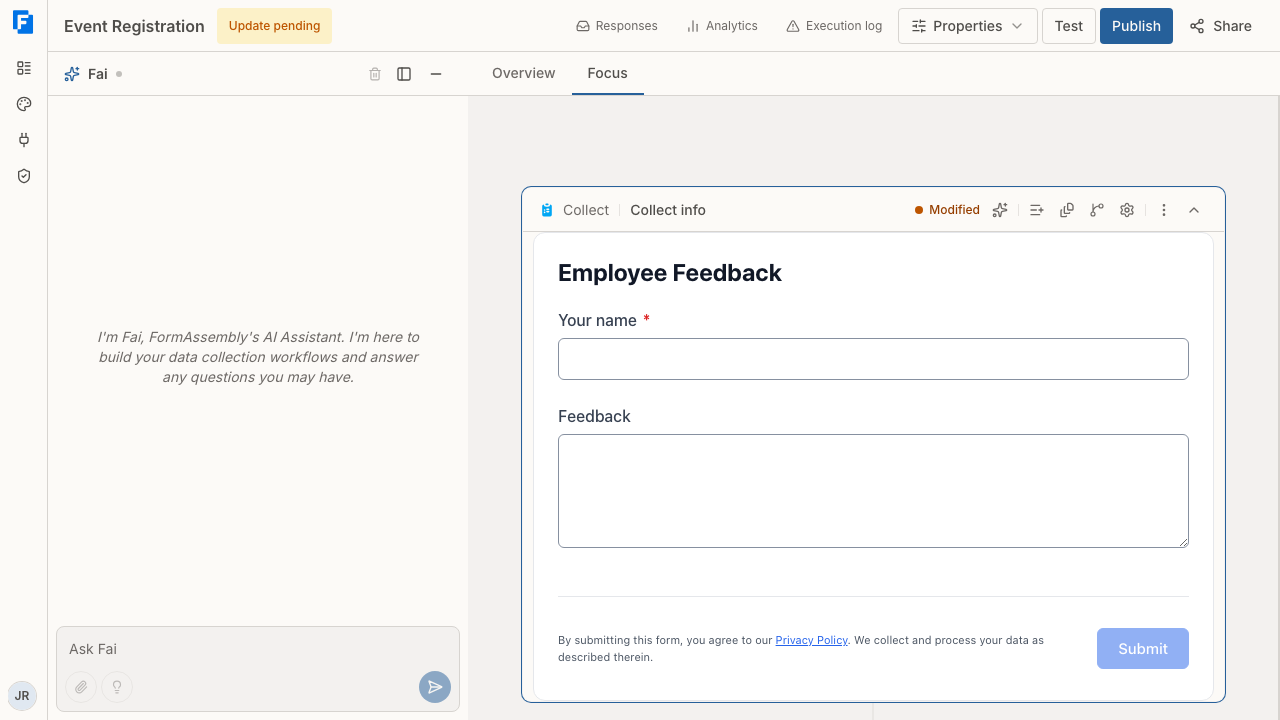
## Webhook / HTTP
The Webhook / HTTP connector is sold as an add-on. If your account does not include it, FormAssembly refuses to save a workflow that uses it and tells you the connector is not available on your account — contact your account owner or FormAssembly to add it.
### What can the Webhook / HTTP connector do?
The Webhook / HTTP connector can do three things:
- **Send data out.** After a respondent submits, FormAssembly sends the answers you map to a web address you specify. This is the classic "post my form data to my system" use case.
- **Read data in to prefill.** Before a respondent sees a form, FormAssembly can call a read-only endpoint, take values out of the response, and use them to prefill fields.
- **Fill a dropdown from live data.** A form field can search your endpoint as the respondent types and show matching results in a picklist.
The connector is **outbound only**. FormAssembly calls your endpoint; it cannot receive events that your system pushes to FormAssembly.
### What your endpoint needs to allow
The Webhook / HTTP connector authenticates per endpoint, using whatever the endpoint expects. The settings are split between the service and the connection: when you define the service with **Define a service** on the **Connections** page, you set its base web address, its optional OpenAPI description address, and its authentication method. Each connection to that service then holds only the credential — the key, token, or password. The authentication methods you can choose for a service are:
- **None — public endpoint** — for endpoints that need no authentication. You still define the service, because the service definition stores the base web address (and optionally an API description) in one place you can reuse.
- **API key** — a key sent either as a header or as a query parameter, whichever your endpoint requires.
- **Bearer token**
- **Username and password**
- **OAuth 2.0**, where you supply your service's own sign-in and token addresses. The form offers the server-to-server style of OAuth 2.0 only, because that style is usable the moment you save it — a flow that would require a browser sign-in at your service is not offered.
Two rules matter when you plan the integration:
- **Credentials live only on the connection, never in a step.** FormAssembly will not accept a step that carries its own authorization header or an API key written into a web address. This keeps secrets out of workflow configuration and out of error messages.
- **Every address used by a step must be on the same site as the service's base address.** If your service points at `https://api.example.com`, the steps that use it can call paths on `api.example.com` and nowhere else. A Webhook / HTTP step always needs a connection: without one, the step cannot be tested or published. For a public address that needs no credential, define the service with **None — public endpoint** authentication and use a connection to that service.
Your endpoint must be reachable on the public internet. FormAssembly refuses addresses on private, internal, loopback, or cloud-metadata networks, and there is no setting that overrides this. Both `https` and `http` are allowed; `https` is strongly recommended, because with plain `http` your submission data travels unencrypted.
### Describing your API so FormAssembly can help you configure it
If your service publishes an **OpenAPI description** (a standard, machine-readable document that lists an API's operations and fields), you can add its address when you define the service. FormAssembly reads that description and uses it while the step is being set up, so operations and field names come from your API's own list instead of being typed from memory — which also means Fai, FormAssembly's built-in AI assistant, can configure the step from your API's real operations rather than from what you remember of them.
Important characteristics of the OpenAPI description:
- **The description is used only while you configure, never when the workflow runs.** Steps store the finished request details. If the description later moves or breaks, your live workflows keep working — you just lose the assisted configuration until you fix it.
- FormAssembly supports OpenAPI 3.0 and 3.1, in either JSON or YAML format, supplied as a web address. Pasting or uploading a file is not supported, and older Swagger 2.0 documents are not supported.
- The document must be under 1 MB and must not reference other external documents.
- If no description is configured, or it can't be read, configuration still works — you supply the address, method, and field names yourself.
Problems in a description are reported while you configure, so they never turn into a surprise failure on a live submission.
### How do I send form data to my endpoint?
1. Open the workflow in the builder and ask Fai to add a Webhook / HTTP step where the delivery should happen — usually after the **Collect** step. The **Add step** menu has no Webhook / HTTP item, so asking Fai is the only way to add one, and asking works from either **Overview** or **Focus** view.
2. Tell Fai which connection the step should use.
3. Ask Fai to configure the delivery. A Webhook / HTTP step shows a read-only summary of its configuration ending "Connector configuration is managed by the AI agent." — there are no fields to edit on the step itself, so you describe what you want in the Fai panel and Fai writes the configuration.
4. Tell Fai the details that make up the request: the address to call, the request method (such as POST, PUT, or PATCH), the body format (a JSON object, a form-encoded body, or a body you write yourself as a template), and which answers to send and under what names. Each value you send is a form field, a workflow variable, or a fixed value you give.
5. Tell Fai if you want part of the endpoint's response stored in a workflow variable, so later steps can use it. A common use is capturing the ID of the record your endpoint just created. FormAssembly can also record a link to the created record when your endpoint supplies one, either in its response headers or in a response field you name; when the endpoint supplies neither, the ID and the link are simply left empty rather than guessed.
6. Use **Test** to run the workflow, then **Publish** when it behaves as expected.
Two details specific to Webhook / HTTP deliveries:
- **A value sent with no prefix is placed in the request body.** If you need a value in the web address instead, say that it is a query parameter. GET and DELETE requests send no body at all, so FormAssembly rejects a configuration that pairs one of them with body values — those values must be query parameters instead. This is checked while you configure, so sent data is never silently dropped behind a successful response.
- **The custom body option uses one template.** When you write the body yourself, it is a single template using the same tokens you already use in email bodies and confirmation messages, written as `{{ step_1.fieldId }}`, including repeated blocks for repeating sections. There is nothing new to learn, and no second template language. FormAssembly labels a custom body as JSON unless you set a content type of your own, which is the right default for the most common uses — a nested structure a flat list of values can't express, or a query for a GraphQL API.
### How do I pull data in to prefill a form?
To prefill, ask Fai to add a Webhook / HTTP step **before** the first **Collect** step and to configure an operation that reads from your endpoint. FormAssembly calls a read-only endpoint, takes the values you asked for, and writes them into workflow variables. You then reference those variables as default values on the form fields you want prefilled.
Three things control the behaviour, and it is worth naming all three when you ask Fai:
- **The query values** you send — each one is either a fixed value or a reference to something already known, such as a parameter in the link that launched the workflow. If a reference has no value, FormAssembly sends the parameter as empty rather than leaving it out, so a lookup for one record can never quietly widen into a request for every record.
- **Where the records are in the response.** You tell FormAssembly which part of the response holds the list of records. If the response is a plain list, or a single record on its own, leave that setting empty to use the whole response. FormAssembly cannot guess this reliably, so it asks.
- **What to do on no match or several matches.** For no match you can skip the action, stop the submission, or continue with nothing filled in. For several matches you can skip, stop, take the first record, or run the following actions once per record. "First record" means first in the order your endpoint returned them — only use it against an endpoint whose ordering you trust.
Only workflow variables are written by the connector. Getting those values onto the form is the job of a field's default value.
### How do I fill a dropdown from my endpoint?
Ask Fai to set up a dynamic lookup on the form field, using your Webhook / HTTP connection. You specify:
- The address to search and the **name of the search parameter** that receives what the respondent types.
- **Where the results are** in the response, plus which result field supplies the visible label and which supplies the underlying identifier.
- **Extra fields** to carry along, so selecting a result can also fill other fields on the form (for example, choosing a customer name also fills their email and account number).
- Any **linked parameters**, so one field's selection narrows another field's list.
- A **minimum number of characters** before FormAssembly searches. The default is 1, which means an empty box triggers no request. Set it to 0 if you want a default list to appear before the respondent types anything.
Limits worth knowing before you design the field:
- **You can carry at most 25 extra fields** alongside the label. This is a limit of the dynamic-lookup feature, not of your endpoint.
- **A search returns at most 100 results.** Design the search so the right answer appears near the top, and raise the minimum character count if lists come back too broad.
- **Only the parameters you configure are ever sent.** Respondents cannot add parameters, change the address, or alter the headers, because FormAssembly builds each search request from your stored configuration alone.
### What if my endpoint's search parameter expects an expression?
Some endpoints don't accept a bare search term. An Airtable filter formula or a Jira JQL query expects a snippet of that service's own query language, and sending the typed term on its own makes the term *be* the whole expression — Airtable reads a bare `ada` as a field name and rejects the request.
For those endpoints, ask Fai to configure a **search expression** for the lookup instead of sending the term verbatim. Write the expression in the endpoint's own language and place the `%%query%%` token where the respondent's term belongs — for example, an Airtable search formula that tests whether the name contains the query token. FormAssembly substitutes the typed term into that position when it builds the request.
Rules that apply to a search expression:
- **Do not put quotes around the token.** FormAssembly adds the quoting and escaping itself, so a respondent who types an apostrophe or a quotation mark cannot break the expression.
- **Write "contains" behaviour in the endpoint's own spelling.** Asterisk wildcards have no meaning here, because FormAssembly cannot know what your endpoint treats as a wildcard.
- **FormAssembly quotes values with double quotes and backslash escaping.** A query language that uses single quotes and doubles them to escape — such as an OData filter — is not a safe target for a search expression; use a plain search parameter against such a service instead.
- Every field you reference in the expression must be declared as a linked parameter, and an undeclared reference is reported when you publish rather than being sent.
Leave the search expression empty for an ordinary endpoint that takes a plain term, such as one with a `q` parameter. A query value is data, not an expression, so there is nothing for a template to add.
## Google Maps address autocomplete
The Google Maps connector adds address autocomplete to a form field. As the respondent types, FormAssembly shows up to five suggested addresses from Google Places; selecting one writes the full formatted address into the field. Ask Fai to set the lookup up on the field you want to autocomplete.
Google Maps is different from every other connector in one respect: **it needs no connection of your own.** FormAssembly uses a platform-level Google key, so there is nothing to authorize on the **Connections** page and nothing to reconnect.
**The lookup field itself holds the whole formatted address**, not just the street line — for example `5780 West Delap Road, Ellettsville, IN 47429, USA`. If you are sending the address to a CRM that expects a street on its own, do not map the lookup field into that street field. Map the separate street number and street name parts described below, and combine them into one value when the address is sent to the CRM.
### Filling separate address fields
Ask Fai to turn on address details for the lookup field so it receives the structured parts of the selected address, then map each part to a field on your form. The parts available are:
- Street number
- Street name
- City
- State or province
- Postal code
- Country code (the two-letter ISO code, such as `US` or `FR`)
- Google place ID (a stable identifier Google assigns to the selected place)
You map the parts you want by name and can ignore the rest — nothing has to be mapped in order or without gaps. The place ID and all six address parts are always returned when details are enabled. Parts that don't exist for a given address come back empty rather than being left out, so your field mapping stays stable from one country to the next.
### International behaviour
- **United Kingdom and Sweden:** the city comes from the postal town, and FormAssembly handles that automatically.
- **Some Asian cities**, including Hong Kong and parts of Japan, report the city at a sub-locality level; this is also handled automatically.
- **Countries without postal codes** return an empty postal code.
- **Countries without a state or province level** return an empty state.
Suggestions are returned in English. Language and region biasing are not configurable, and address parts beyond the six listed above (such as neighbourhood or sub-premise) are not available.
### Address validation
Google Maps also powers address validation, which answers a different question from autocomplete: instead of "which known places match this text?", validation asks "is this address real and complete, and what is its canonical form?" It returns one of three verdicts — verified, needs confirmation, or not verified — along with Google's canonical version of the address and the parts it could not confirm.
Address validation is used today by FormAssembly's AI intake agents, which check an address a respondent gives in conversation and ask about the doubtful part before accepting it. Validation does not run on the autocomplete path, so turning autocomplete on or off does not change it, and there is nothing to configure on the form field. A verified verdict means Google raised nothing to confirm or fix; it is not a guarantee that mail will arrive.
## Limits that apply to Webhook / HTTP requests
- **Timeouts and size caps.** A delivery has 30 seconds and accepts up to 10 MB of response. A prefill read or a dropdown search has 8 seconds and 1 MB. Slow endpoints are the most common cause of failed deliveries.
- **No automatic retries.** If your endpoint fails, FormAssembly records the failure and moves on. Build your own retry or reconciliation on your side if delivery must be guaranteed.
- **Request volume caps.** FormAssembly allows up to 1,000 outbound requests per account per minute across deliveries, prefills, and searches, and up to 60 dropdown searches per form session per minute. Normal use stays far below both.
- **Redirects are followed at most three times**, and an authorization or cookie header is removed if a redirect sends the request to a different site. Only standard redirect responses are followed; an unusual redirect status is treated as an ordinary response, so FormAssembly records what that response returned rather than calling the address it points at. A credential sent as an API key in a header of your own naming does continue across such a hop. Configure the final address directly wherever you can.
- **Test mode calls the same endpoint as a live run.** The Webhook / HTTP connector has no separate sandbox address, so if you need a rehearsal target, point a test copy of the workflow at a different address.
## FormAssembly's own API
FormAssembly publishes a public REST API, so your own systems can work with FormAssembly rather than only the other way round. The API reference is published at `/api/openapi/ui` on your FormAssembly address, and the machine-readable OpenAPI document at `/api/openapi`.
To call the API, an account admin registers an application on the **API clients** page and uses the credentials it issues. See **Team & Account** for how API clients are created and managed.
## Tips & Troubleshooting
- **A submission succeeded but no data arrived.** Check the request method. GET and DELETE send no body, so values meant for the body must be sent as query parameters. FormAssembly blocks that combination while you configure, so this usually means the values went out as query parameters and your endpoint expects them elsewhere.
- **The service or connection can't be saved.** The base address must be reachable on the public internet and must not be a private, internal, or loopback address. If you also supplied an OpenAPI description address, FormAssembly checks that it can be read and understood before saving, and reports what's wrong.
- **The step can't be tested or published.** A Webhook / HTTP step must use a connection to a service you defined. If the endpoint needs no credential, define the service on the **Connections** page with **None — public endpoint** authentication and point the step at a connection to it.
- **Fai declines to add a Webhook / HTTP step.** The connector is an add-on, and Fai will not add the step when your account does not have it. Ask your account owner to add the add-on, then ask Fai again.
- **The step won't accept your configuration because of an authorization header.** Credentials belong on the connection, not in the step. Remove the header (or the key from the address) and select the connection that carries the credential instead.
- **The step fails with an authorization error only when the endpoint redirects.** An authorization or cookie header is dropped when a redirect crosses to a different site, so your endpoint receives the request without the credential. Point the step at the final address instead of the redirecting one; a connection that authenticates with an API-key header is not affected.
- **Fai has to ask you for every address and field name.** That means no usable OpenAPI description is attached to the service, or it couldn't be read. Configuration still works — supply the address, method, and field names yourself — and adding a working description address restores the assisted configuration.
- **Prefill filled nothing.** Confirm which part of the response holds the records; if the response is a plain list or a single record, leave that setting empty. Also check your no-match setting: "skip" and "continue" both leave fields blank without stopping the submission.
- **The dropdown returns nothing until several characters are typed.** That is the minimum character setting. Lower it to 0 to show a list before typing, but expect broader, less useful results at one or two characters.
- **Your endpoint rejects the search as an invalid formula or query.** The endpoint's search parameter expects an expression rather than a plain term. Ask Fai to configure a search expression in the endpoint's own language with the `%%query%%` token where the term belongs, and leave the token unquoted.
- **Some mapped fields don't populate after a dropdown selection.** You are likely past the 25 extra-field limit. Reduce the number of carried fields.
- **The respondent picked an address and the field cleared itself.** When the address parts have to be fetched at the moment of selection, a failure there undoes the selection rather than completing it with empty parts, and a validation message appears on the field. The respondent can retry or pick another address; asking Fai to turn on address details avoids the extra fetch, because the parts arrive with the suggestions.
- **A CRM's street field received the whole address.** The lookup field holds the complete formatted address. Map the street number and street name parts and combine them for the street field instead.
- **Failures mention the endpoint's response.** FormAssembly stores what your endpoint returned so the failure is diagnosable later in the **Execution log**. Respondents see only your configured error message unless you choose to show them the original.
- **An address value breaks the request.** Values substituted into a web address are encoded as a single path segment, so they cannot rewrite the path or retarget the request. A value that is exactly a dot or a double dot is refused outright rather than sent, because it would move the request up a level and turn a single-record read into a whole-collection read. If your endpoint expects a value containing slashes, send it as a query parameter instead.
---
# Taking Payments
## What a Stripe payment step does
A payment step in FormAssembly is a **Connect** step that uses your Stripe connection to collect money as part of a workflow run. When a respondent reaches the payment step, FormAssembly builds a Stripe Checkout page from the line items you configured, sends the respondent to Stripe to pay, and then brings them back into the workflow with the payment result attached to the run.
Payments always use **Stripe-hosted Checkout**. Card numbers, wallets, and any bank verification steps are handled entirely on Stripe's page, which means card data never passes through FormAssembly and you don't have to build or secure a payment form yourself.
A payment step can charge:
- **One-off amounts** — either a fixed price from your Stripe catalog or a custom amount calculated from the respondent's answers.
- **Subscriptions** — recurring prices from your Stripe catalog.
- **A combination of line items** — several charges assembled into a single checkout.
## What a PayPal payment step does
A PayPal payment step is the other payment connector in FormAssembly, and it works the same way as the Stripe step: the respondent is sent to a **PayPal-hosted approval page**, pays there, and is returned to the workflow with the result attached to the run. Card and wallet data never pass through FormAssembly.
A PayPal payment step runs in one of two modes, and a single step can only be one or the other:
- **A one-time order** made up of one or more line items that you describe directly (name, amount, quantity). PayPal has no one-time price catalog, so every one-time item is defined in the step itself.
- **A subscription** against exactly one active billing plan from your PayPal catalog. Create the plan in your PayPal dashboard first; FormAssembly cannot create products or plans for you.
A PayPal step cannot mix one-time items and a subscription. If you ask Fai for both in one step, the step will not run — use two steps instead.
## Is Stripe included in my plan?
Payment connectors are sold as an account add-on in FormAssembly, covering Stripe and PayPal together. Your account can use a Stripe or PayPal payment step when your plan includes the payments add-on or you have purchased it separately. If your account does not have it, saving a workflow that contains a payment step is refused with a message explaining that the connector "isn't included in your account's plan. It's available as an add-on. Talk to sales to have it enabled for your account." Every save of the workflow is refused until the payment step is removed.
## Before you start: connect Stripe
A payment step needs a Stripe connection, authorized from the **Connections** page; see the **Connecting Services** article for how to connect, reconnect, and disconnect. The connection grants FormAssembly read and write access to your Stripe account so it can read your catalog prices and create checkouts on your behalf.
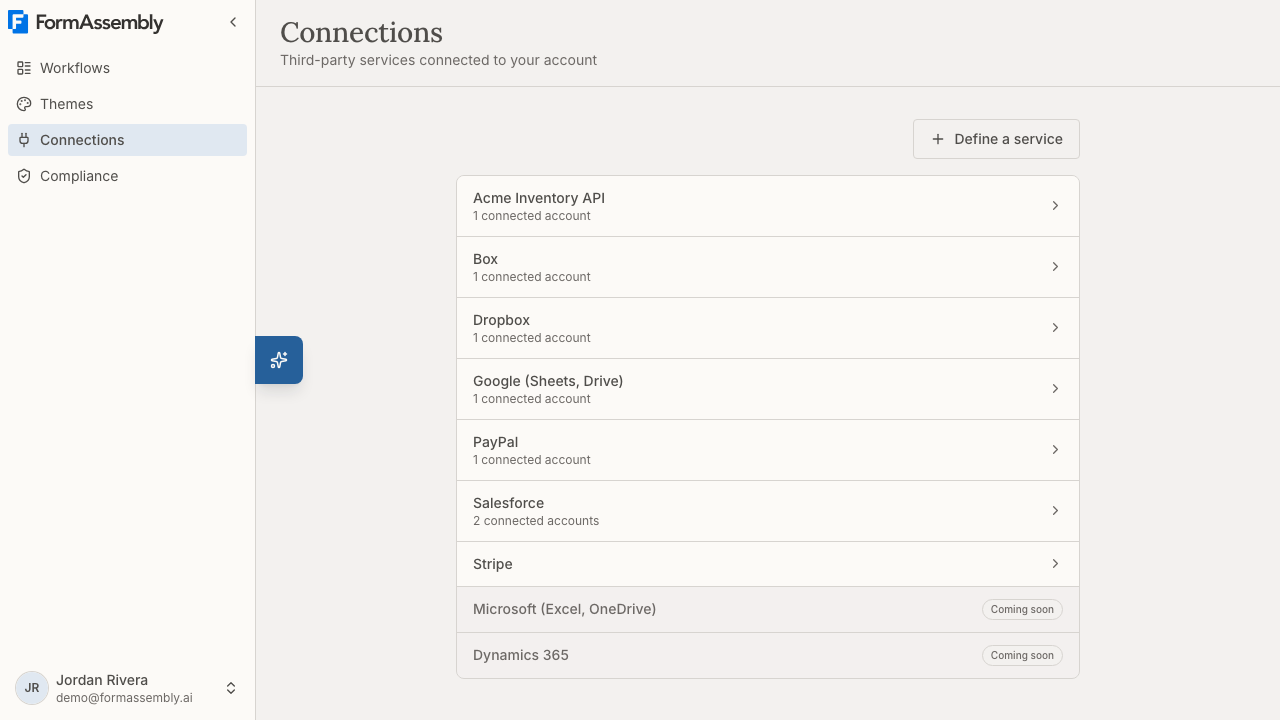
Nothing else needs to be enabled in Stripe up front — however, if you plan to charge fixed prices or subscriptions, create those products and prices in your Stripe catalog first so they are available to select. If you want to rehearse payments without moving real money, also authorize a Stripe sandbox (test-mode) connection on the same page. See [Testing payments safely](#how-do-i-test-a-payment-without-charging-a-real-card) below.
## Before you start: connect PayPal
A PayPal payment step needs a PayPal connection, authorized from the **Connections** page by completing PayPal's seller sign-up; see the **Connecting Services** article for the details. FormAssembly acts as a PayPal partner: funds settle in your own PayPal account, and FormAssembly takes the payment on your behalf.
Two things must be true on the PayPal side before the connection can be stored: your account must be able to receive payments, and your primary email address must be confirmed. Billing plans for subscriptions are authored in your PayPal dashboard. A sandbox PayPal connection is available on the same page for testing, as it is for Stripe.
## How do I add a payment step to a workflow?
Payment steps are configured through **Fai**, the AI assistant built into the FormAssembly builder. Fai authors the connector configuration for you, so you describe what you want to charge rather than filling in a technical form. The **Add step** menu has no payment item — ask Fai to add a Stripe or PayPal step. The payment step itself shows a read-only summary on the canvas, ending "Connector configuration is managed by the AI agent" — to change what is charged, ask Fai.
1. Open the workflow you want to take payments in.
2. Make sure you have a **Collect** step that gathers whatever the payment depends on — for example the respondent's email, a quantity, a donation amount, or a plan choice.
3. Click **Open Fai** to open the chat panel. You can ask Fai to add a step from either **Overview** or **Focus** view.
4. Describe the payment in plain language. For example: *"After the form, add a Stripe payment step that charges the Standard Ticket price times the Number of tickets field, and prefill the email from the Email field."*
5. Fai adds the payment step to the workflow and configures the checkout. Review the step, then switch to **Focus** view and click **Add step** there to add anything that should happen after payment (a confirmation, a Salesforce record, an email). **Add step** and the other structural controls are available in Focus view only; **Overview** is a read-only map of the workflow, and clicking a step card there switches you to Focus.
6. Click **Test** to run the workflow end to end, then **Publish** when the workflow is ready.
You can keep refining the step by asking Fai for changes — "add a $5 processing fee line item", "allow promotion codes", "change the button to say Donate".
## Configuring the checkout
The payment step has one checkout configuration plus one entry per line item. Ask Fai for each of the settings below.
### Checkout configuration
- **Currency** is required only when the step has a custom-amount line item, and it applies to those items. Use the standard three-letter code, such as `USD`, `EUR`, or `JPY`. A checkout made only of catalog prices takes its currency from those prices.
- **Customer email** is optional. Map it to an email field from a Collect step so Stripe's email box is prefilled and the respondent doesn't retype it.
- **Submit button label** is optional and applies to one-off payments only. Stripe supports **Pay**, **Donate**, and **Book**.
- **Allow promotion codes** is optional. Turn it on to show a promo code box on the Stripe Checkout page.
### Line items
Each line item is either a catalog item or a custom amount.
- **Catalog line items** reference an existing active price in your Stripe catalog. FormAssembly lists your active prices so you can pick one by product name and amount, or you can map the price to a field — for example a picklist of plans whose values are Stripe prices, so the respondent chooses what they're paying for.
- **Custom-amount line items** don't need anything in your Stripe catalog. You supply a product name, an optional description, and an amount that can be a fixed value, a mapped field, or a calculation over fields (for example quantity × unit price, or a percentage-based fee).
- **Quantity** defaults to 1 and can be mapped to a field such as "Number of tickets".
- **Subscriptions must use a catalog price.** Recurring pricing has to come from Stripe; you cannot build a custom recurring amount from a form field.
- If any line item is a subscription, the whole checkout becomes a subscription checkout. Otherwise it is a one-off payment.
- A line item attached to a repeated section produces one line item per submitted instance of that section — useful for "add another attendee" style forms.
Amounts must be positive and can't be finer than the currency allows (no fractional yen, no third decimal on dollars). An invalid amount stops the step before FormAssembly ever contacts Stripe.
To pull answers into line items, tell Fai which field each value comes from — for example "take the amount from the Donation amount field". Fai writes the configuration; the payment step itself is read-only.
## Configuring a PayPal checkout
A PayPal payment step has the same shape: one checkout configuration plus the items being charged.
### PayPal checkout configuration
- **Currency** is required for a one-time order. A subscription takes its currency from the PayPal billing plan.
- **Brand name** is optional and replaces your business name on PayPal's approval page.
- **Customer email** is optional and prefills the payer's email address.
- **Description** is optional, applies to one-time orders only, and appears on the order.
### PayPal line items
- **One-time items** are defined in the step: a name, an optional description, a unit amount in major units (dollars, not cents), an optional quantity (defaults to 1), and an optional category of digital goods, physical goods, or donation. Amounts can be fixed, mapped from a field, or calculated.
- **A subscription item** references an active billing plan from your PayPal catalog. FormAssembly lists your active plans so you can pick one by name and price, or map the plan to a field so the respondent chooses. Quantity is honoured only for plans that support it; PayPal rejects it otherwise.
- **One mode per step.** A step holds either one-time items or exactly one subscription plan. Mixed or empty steps stop before PayPal is contacted.
- A one-time item attached to a repeated section produces one item per submitted instance.
- Amounts must be positive and respect the currency's precision — whole numbers for PayPal's non-fractional currencies such as JPY and HUF, two decimals otherwise.
## What the respondent sees
1. The respondent fills in your **Collect** step and submits it.
2. FormAssembly assembles the line items and sends the respondent to Stripe's hosted Checkout page, showing each line item, its quantity, and the total. A PayPal step sends the respondent to PayPal's approval page instead, where they approve the order or subscription.
3. The respondent pays on Stripe or PayPal. Any card authentication or wallet flow happens there.
4. Stripe or PayPal returns the respondent to the workflow, which picks up where it left off and continues to the next step — a confirmation message, a record creation, an email, or anything else you've added.
FormAssembly confirms the payment with Stripe or PayPal itself before advancing the run, so a respondent can't skip a payment by editing the return address in their browser.
## What happens if a respondent cancels or the payment fails?
If the respondent clicks back out of Stripe Checkout or PayPal's approval page without paying, the payment step follows its **failure** path. You author what happens next — most workflows send the respondent back to the **Collect** step so they can try again. Resubmitting creates a brand-new checkout; the abandoned one simply expires.
A genuine cancel is treated as a normal outcome: the respondent sees no error banner, and the workflow owner is not sent a failure notification. Real errors — an expired checkout, a declined or voided PayPal capture, or a problem reaching the payment provider — do show an error banner and are reported as failures.
If the payment is confirmed as successful, the workflow advances down the **success** path even if the respondent arrived back through the cancel link. The confirmed payment always wins over what the return link claims.
If you move a run backwards past the payment step (a replay), FormAssembly expires the unpaid Stripe checkout that run was parked on, so the respondent cannot pay for a step the run has already left. A checkout that was already paid or already expired is left as it is.
PayPal orders expire if they are not approved within PayPal's own window of about three hours. A respondent who leaves the approval page open past that point and then returns gets a failure with an error, and should resubmit.
## What payment details can later steps use?
After a successful payment, the payment provider returns the payment result to the payment step. A payment detail becomes usable elsewhere only once you **map it to a workflow variable** on the payment step — ask Fai to write the details you need into variables. Once mapped, later steps reference the value by the payment step's name (for example `{{ step_2.checkout_amount_paid }}`) in confirmation messages, field mappings, conditions, and emails.
For Stripe, the details available to map are:
- **Checkout and payment status** — the checkout session ID and the payment status.
- **Amount and currency** — the amount paid as a plain decimal, and the currency code.
- **Customer** — the Stripe customer ID and the email address the respondent entered at checkout.
- **Payment intent** — its ID, status, and a link straight to it in your Stripe dashboard.
- **Subscription** — for subscription checkouts, the subscription ID and a dashboard link.
- **Per line item** — the price ID, product ID, dashboard links, and whether the line item was a custom amount.
For PayPal, the details available to map are:
- **Payment status** — the status of the payment, plus a reason when it is pending.
- **Amount and currency** — the amount paid or due, and the currency code. For one-time orders, the PayPal fee and the net amount are also available when PayPal reports them.
- **Payer** — the payer's PayPal ID, email address, and name.
- **Order** — for one-time orders, the order ID, the capture ID, and a link to the payment in PayPal.
- **Subscription** — for subscriptions, the subscription ID and status, the plan ID, the start time, the next billing time, and a link to the subscription in PayPal.
A PayPal payment can complete as **pending** — an eCheck or a PayPal review that clears over days, which FormAssembly treats as a success because the payer has done their part. If fulfilment must wait for cleared funds, map the payment status into a variable and branch on it.
A common pattern is to include the amount paid and the customer email in the **Confirmation message** on the following Respond step, and to write the payment intent or capture ID into a Salesforce or Google Sheets record so finance can reconcile.
## How do I test a payment without charging a real card?
Ask Fai to set a **sandbox connection** on the payment step; the payment step has no connection picker of its own. A sandbox connection is a separate connection to the provider's test environment — Stripe test mode, or a PayPal sandbox merchant — authorized with **Connect sandbox account** on that provider's connection settings page, reached from the **Connections** page. When a payment step has both a live and a sandbox connection:
- Runs started from **Test** in the builder use the sandbox connection. The checkout is created in the provider's test environment and the respondent pays with a test card (for Stripe, `4242 4242 4242 4242` succeeds and `4000 0000 0000 0002` declines). No real money moves.
- Live, published runs always use the live connection. FormAssembly never runs a real submission against a sandbox connection.
If a payment step has **no** sandbox connection set, test runs use the live connection like any other step — meaning **a test run creates a real checkout and can take a real payment**. A test-mode banner tells you the run is a test in both cases, so read it before entering a card.
Once a sandbox connection is set on the step, FormAssembly never quietly falls back to the live connection: if that sandbox connection has been disconnected or is no longer valid, the test run fails at the payment step with an error rather than charging a real card.
You can build and test with a sandbox connection only, but publishing a workflow requires the live connection to be set.
### Which line items test cleanly in the sandbox?
- **Custom-amount line items** test cleanly — they don't depend on anything existing in your Stripe catalog. PayPal one-time orders are the same: every item is defined in the step, so nothing has to exist in a catalog.
- **Respondent-chosen catalog prices** (a picklist backed by your Stripe catalog with its own sandbox connection) also test cleanly, because the picklist lists your test-mode catalog inside a test-mode run. A respondent-chosen PayPal plan behaves the same way.
- **A fixed catalog price picked in the builder will fail in a sandbox test run.** Stripe generates price IDs per environment and they can never match across live and test mode — even copying a price to live mode creates a new ID. Test those steps with a custom-amount line item, or accept that the fixed-price path is exercised only against the live connection. A fixed PayPal billing plan has the same limitation: a live plan ID does not exist in the sandbox.
The builder's price and plan pickers always list items from your **live** catalog, because step configuration targets production. If you have authorized only a sandbox connection, the pickers have no live catalog to list — build and test with custom-amount line items or field-mapped prices until you connect your live account.
## Limitations
- **Hosted checkout only.** Payments use Stripe's hosted Checkout page or PayPal's hosted approval page. Embedded card fields, saved payment methods, invoicing, and tax configuration are not available.
- **No refunds or captures from FormAssembly.** Issue refunds and capture authorized payments in the Stripe or PayPal dashboard.
- **Lookups are limited to catalog pricing.** FormAssembly reads your active Stripe prices and your active PayPal billing plans, which is what backs the builder's pickers and respondent-facing picklists. There is no prefill from existing Stripe or PayPal customers, and no customer or payment-method lookups.
- **No platform fees or shipping on PayPal.** Platform fees, authorizations without capture, vaulting, shipping, and multiple purchase units are not supported.
- **Closed tabs leave the run parked.** If a respondent pays and then closes the tab before returning, the payment completes with the provider but the workflow run stays parked at the payment step. The payment is visible in your Stripe or PayPal dashboard; the run will not continue on its own.
- **Two payment steps in one workflow are supported.** Each payment step writes its results into the variables you map on that step, so a second payment step does not overwrite the first one's payment details.
- Customers are created by Stripe Checkout itself; you cannot manage Stripe customer records from FormAssembly. Likewise, PayPal products and billing plans are authored in your PayPal dashboard.
## Tips & Troubleshooting
- **The respondent lands back on the form after paying.** Check the payment step's failure path — if a genuine cancel loops back to the **Collect** step, that's expected. If a *successful* payment lands there, confirm the step's success path leads to your intended next step.
- **A sandbox test run fails immediately at the payment step.** The most common cause is a fixed catalog price or billing plan: that ID exists only in your live catalog. Swap in a custom-amount line item for testing, or ask Fai to add one.
- **The test run charged a real card.** The payment step had no sandbox connection set. Authorize a sandbox connection with **Connect sandbox account** on the **Connections** page and ask Fai to set it on the step.
- **The step aborts before the payment page opens.** Check the mapped amount. Zero, negative, blank, or non-numeric amounts stop the step, as do amounts with more decimal places than the currency allows. For PayPal, also check that the step holds either one-time items or a single subscription plan, not both.
- **A subscription line item won't accept an amount.** Recurring pricing has to come from your catalog — create the recurring price in Stripe or the billing plan in PayPal, then reference it in the line item.
- **Where do I see the error details?** Open **Execution log** on the workflow to see what the payment step reported, including the reference PayPal returns for its own support team.
- **PayPal says the seller is not ready.** Your PayPal account cannot receive payments yet, or your primary email is unconfirmed. Finish those steps in PayPal, then connect again from the **Connections** page.
- **PayPal says "The provider did not finish setting up the account."** The full message is *"The provider did not finish setting up the account. Complete the sign-up with the provider, then connect again."* — the sign-up on PayPal's side was left before it finished. Finish signing up with PayPal, then connect again from the **Connections** page.
- **How do I confirm which PayPal account is connected?** A successful PayPal connection shows a banner naming the connected PayPal account's email address. If that is not the account you expect funds to settle in, connect again with the right account.
- **A PayPal payment shows as pending.** eChecks and PayPal reviews clear over days. The workflow treats the payment as successful; map the payment status to a variable and branch on it if fulfilment must wait for cleared funds.
- **The confirmation message shows nothing where the amount should be.** Check that the amount is actually mapped to a variable on the payment step — unmapped payment details are not available downstream — and remember that payment variables are written only when the payment completes, so they're available on the success path only. Use the **Insert field value** control on the **Confirmation message** to insert them rather than typing the name by hand.
- **Prefill the email.** Mapping your form's email field to the checkout email reduces drop-off and makes the returned customer email match the response.
- **Verify with the dashboard links.** The payment and subscription links returned by the step point directly at the record in Stripe or PayPal — write them into your CRM or a sheet to make reconciliation quick.
---
# Roles & Permissions
## What are roles and permissions in FormAssembly?
A **role** in FormAssembly is a named bundle of permissions that determines what a person can do inside your account — build workflows, view submissions, invite teammates, manage billing, and so on. A **permission** is a single capability, such as "Create new workflows" or "Export submission data".
Every member of a FormAssembly account holds **exactly one role**. There are no per-user exceptions and no stacking of multiple roles, so the answer to "what is this person allowed to do?" is always a single lookup. If someone needs a capability their role doesn't include, assign them a different role.
Roles are separate from two other systems you may encounter:
- **Your plan** determines which features the whole account can use. A person can only do something if their role grants the permission **and** your plan includes that feature.
- **Resource-level sharing** determines who can see or edit one specific workflow or report. Sharing is independent of roles — a role says what kind of actions someone can take, sharing says which items they can take them on.
Permissions are additive. A member starts with nothing and gains capabilities through their role. Removing a permission doesn't actively block someone — it simply means the capability was never granted.
## The three preset roles
Every FormAssembly account is created with three preset roles, and the person who created the account is assigned **Admin** automatically. All three are marked **Built-in** on the Roles tab.
### Admin
Full account access. Admins can do everything: build and publish workflows, view and export submissions, manage team members and roles, configure identity providers, register API clients, change account settings, and manage billing. Intended for account owners and IT administrators.
### Builder
Create and manage workflows. Builders hold 12 permissions: they can view, create, edit, publish, delete, and share workflows, view, export, and delete submitted responses, view compliance state, manage themes, and view the member list. Builders see the member list so they can choose whom to share a workflow with or hand it to. Builders cannot manage team membership, change account settings, or access billing. Intended for the people doing the day-to-day work of building and operating forms.
### Viewer
Read-only access via resource-level sharing. The Viewer role holds three permissions — View workflows, View submissions, and Export submissions — so a Viewer can read workflows and their responses and export that data, but cannot create, change, or delete anything. Because a Viewer owns no workflows, the role reaches only the workflows someone has shared with it. Intended for stakeholders who need scoped, read-only visibility into results.
A Viewer with no shared resources can authenticate but sees nothing. That is by design — pair the Viewer role with resource-level sharing.
### Why do I see "Member" and "Admin" in some places?
FormAssembly shows one system two ways. The Roles tab names the three roles above; the Members tab and the invite form use only the two words **Member** and **Admin**. The Member/Admin label is derived from the role a person holds, not stored separately — anyone whose role confers admin access is shown as **Admin**, and everyone else is shown as **Member**.
| Member/Admin label | Role it assigns or reflects |
| --- | --- |
| Admin | Admin |
| Member | Builder |
Because the Member/Admin vocabulary has no word for **Viewer**, a member holding the Viewer role is displayed as **Member** on the Members tab. To see exactly who holds a given role, open that role from the **Roles** tab and read its **Members** section. The Viewer role, and any custom role, is assigned from a role's detail page rather than from the Members tab.
## Where do I manage roles and members?
Roles and membership both live on the **Team Management** page in FormAssembly.
1. In the account navigation, click **Team**.
2. On **Team Management**, use the tabs at the top:
- **Members** lists everyone in the account with the derived **Member** or **Admin** label for each person. This is where you promote or demote a member between Admin and Builder.
- **Roles** lists every role defined in the account, with its description and whether it is **Built-in**, and holds the **New role** button for creating a custom role.
- **Groups** lets you collect people into a user group so you can share workflows with the whole set at once.
- **Guests** lets someone from another FormAssembly account work in yours.
Groups and guests do not grant roles or permissions themselves. See also: Guest Access & User Groups.
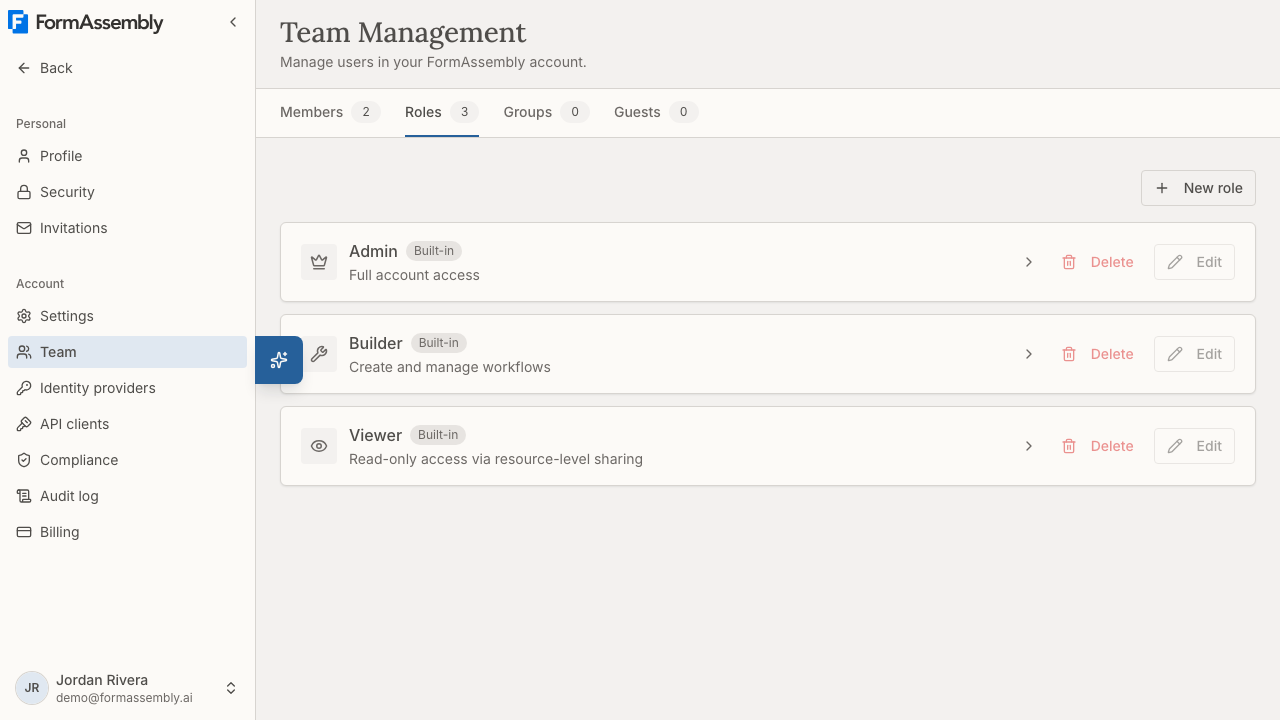
Each role in the list shows an **Edit** button and a **Delete** button, but both buttons are disabled — existing role definitions cannot be changed or removed in FormAssembly yet, custom roles included. Click the role name itself to open its detail page. Role names are links only for account admins; for everyone else the names are plain text and the detail page cannot be opened.
## How do I see what a role can do?
Click a role name on the **Roles** tab to open its detail page. The page has two parts:
- A **Permissions** heading that shows how many permissions the role currently holds out of the total available — for example, *Permissions (26 of 26 granted)* for Admin.
- A **Members** section listing everyone who currently holds that role.
The count leaves out permissions your plan does not include, so Admin reads *26 of 26 granted* only on the Enterprise plan. On a lower plan the total is smaller, because plan-gated permissions are not counted.
Permissions are grouped into categories you can expand one at a time: **WORKFLOWS**, **SUBMISSIONS**, **TEAM**, **ROLES**, **ACCOUNT**, **COMPLIANCE**, and **THEMES**.
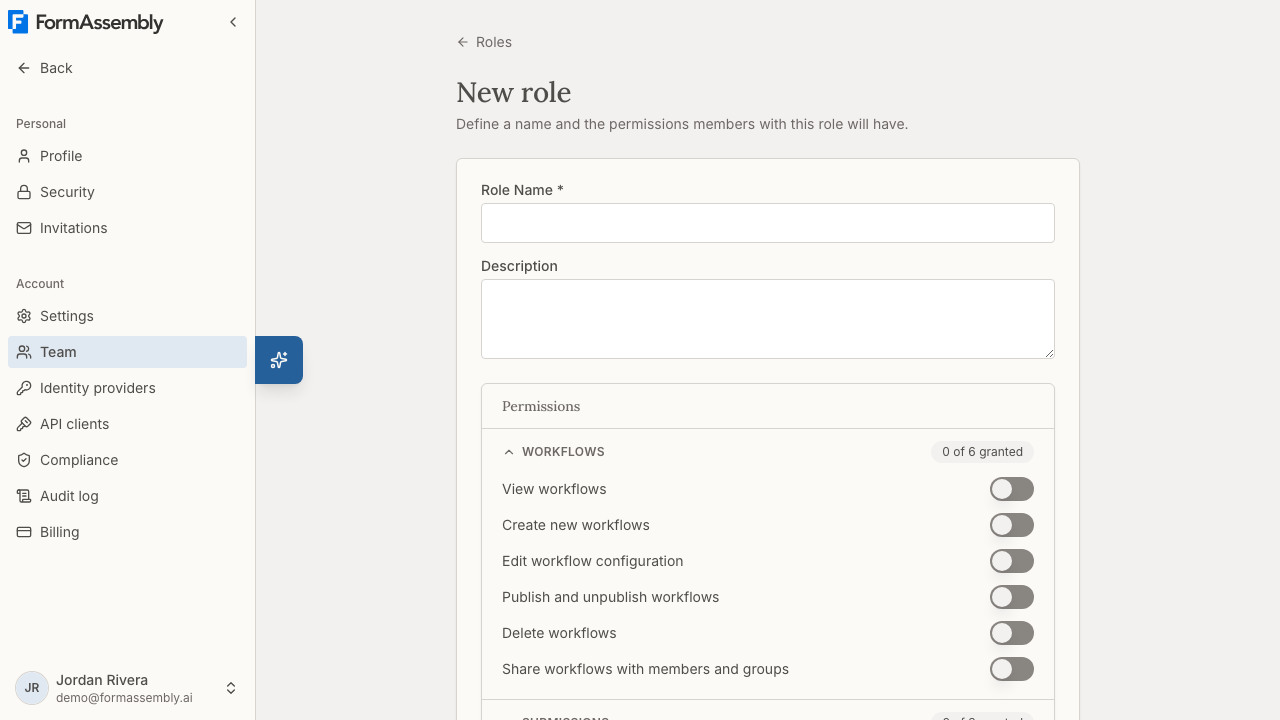
## Permission reference
The tables below show all 26 permissions in the FormAssembly catalog, what each permission allows, and which preset roles hold it.
### Workflows
| Permission | What it allows | Admin | Builder | Viewer |
| --- | --- | --- | --- | --- |
| View workflows | View workflows in the account | ✓ | ✓ | ✓ |
| Create workflows | Create new workflows | ✓ | ✓ | — |
| Edit workflows | Edit workflow configuration | ✓ | ✓ | — |
| Publish workflows | Publish and unpublish workflows | ✓ | ✓ | — |
| Delete workflows | Delete workflows | ✓ | ✓ | — |
| Share workflows | Share workflows with members and groups | ✓ | ✓ | — |
Workflow permissions decide **what** a person may do with a workflow, not **which** workflows they can reach. Which individual workflows someone can act on is decided by ownership, admin status, or a share. A Builder holds Edit workflows, for example, but can only edit the workflows they own or that have been shared with them at an access level that permits editing.
### Submissions
| Permission | What it allows | Admin | Builder | Viewer |
| --- | --- | --- | --- | --- |
| View submissions | View submitted responses | ✓ | ✓ | ✓ |
| Export submissions | Export submission data | ✓ | ✓ | ✓ |
| Delete submissions | Delete individual submissions | ✓ | ✓ | — |
All three preset roles hold Export submissions, and the permission is available from the Collect plan, so Admins, Builders, and Viewers can export a workflow's responses from its Responses page. See also: Viewing Responses.
### Team
| Permission | What it allows | Admin | Builder | Viewer |
| --- | --- | --- | --- | --- |
| View team | View the member list | ✓ | ✓ | — |
| Invite members | Invite new members | ✓ | — | — |
| Manage member roles | Change member roles | ✓ | — | — |
| Remove members | Remove members from the account | ✓ | — | — |
| Manage groups | Create, rename, and delete user groups, and edit their members | ✓ | — | — |
### Roles
| Permission | What it allows | Admin | Builder | Viewer |
| --- | --- | --- | --- | --- |
| Manage roles | Edit role definitions and create new roles | ✓ | — | — |
### Account
| Permission | What it allows | Admin | Builder | Viewer |
| --- | --- | --- | --- | --- |
| Account settings | Edit account name, timezone, and preferences | ✓ | — | — |
| Billing | View and manage billing and plan | ✓ | — | — |
| Cancel account | Cancel the account | ✓ | — | — |
| Password policy | Configure the account's password rotation policy | ✓ | — | — |
| Configure identity providers | Configure identity providers (SAML/OIDC) for respondent authentication | ✓ | — | — |
| Designate which identity provider enforces platform login for the account | Choose the identity provider that would enforce sign-in to FormAssembly for the account's own members | ✓ | — | — |
| API clients | Register API clients for the account and manage their secrets | ✓ | — | — |
Configuring identity providers requires the Enterprise plan. The permission governs **respondent** authentication: it lets a workflow require the people filling out your forms to sign in. Configuring identity providers does not change how your own team signs in to FormAssembly, which is not available yet — see also: Single Sign-On (SSO).
The permission to designate which identity provider enforces platform login also requires the Enterprise plan, and no screen uses it yet, because team sign-in through an identity provider is not available in FormAssembly (see also: Single Sign-On (SSO)).
### Compliance
Compliance permissions are available on the Enterprise plan only.
| Permission | What it allows | Admin | Builder | Viewer |
| --- | --- | --- | --- | --- |
| View compliance | View compliance state and the audit trail | ✓ | ✓ | — |
| Review compliance | Submit verdicts on workflow compliance | ✓ | — | — |
| Configure compliance | Configure compliance policies | ✓ | — | — |
Review compliance is what makes someone a Reviewer in FormAssembly. There is no separate reviewer setting — reviewer status comes from the role a person holds.
### Themes
| Permission | What it allows | Admin | Builder | Viewer |
| --- | --- | --- | --- | --- |
| Manage themes | Create, edit, clone, and delete themes; set the account default theme | ✓ | ✓ | — |
Theme management is available from the Collect plan.
## How do I change a member's role?
Changing which role a member holds is available today, and FormAssembly offers two places to do it: the **Members** tab, which toggles a person between Admin and Builder, and a role's own detail page, which can assign any role in the account.
### From the Members tab (Admin or Builder)
1. In the account navigation, click **Team** and open the **Members** tab.
2. Find the person you want to change.
3. Click the row actions button for that person — it is labelled **Actions for** followed by their name.
4. Choose the role item, which toggles between two states depending on the role the person holds today:
- **Promote to admin** assigns the **Admin** role.
- **Demote to member** assigns the **Builder** role.
There is no list or dropdown of all three roles on a member's row. The **Viewer** role and custom roles cannot be assigned from this control — promoting and demoting move a member between Admin and Builder only.
### From a role's detail page (any role)
1. In the account navigation, click **Team** and open the **Roles** tab.
2. Click the name of the role you want the person to hold.
3. In the role's **Members** section, find the person and use the role picker on their row — it is labelled **Role for** followed by their name. The picker lists every role in the account, Viewer and custom roles included.
4. Click **Save**.
The role detail page is the only place to give someone the **Viewer** role or a custom role, and it is open to account admins only.
Role is also set at invite time. The default role for a new invite is **Builder**.
Two other conditions apply to role changes: you must be an admin of the account to change anyone's role, and the person you are changing must already be a member of the account. Selecting the role a member already holds does nothing.
You also cannot hand out a permission you do not hold yourself. FormAssembly only lets you assign a role whose every permission is included in your own role, so a role you could not fully grant is offered disabled with the reason shown. This applies wherever a role is chosen — inviting a member, promoting or demoting someone, choosing a role on the role detail page, and creating a guest grant.
### Can I change my own role?
Yes. An admin can change their own role, including demoting themselves, as long as the change leaves the account with another admin. The one constraint is that **the last remaining admin cannot be demoted** — FormAssembly rejects the change whether you are demoting yourself or someone else. Promote a second member to Admin first, then retry.
## Can I create custom roles?
Yes. Creating a custom role is available on the Automate plan and above, to members whose role includes **Manage roles**. Create one when none of the three preset roles matches what a group of people actually needs.
1. In the account navigation, click **Team** and open the **Roles** tab.
2. Click **New role**.
3. On the **New role** page, enter a **Role Name**. The name is required, can be up to 64 characters, and must be unique in the account.
4. Optionally enter a **Description**, up to 256 characters.
5. Under **Permissions**, expand each category — **WORKFLOWS**, **SUBMISSIONS**, **TEAM**, **ROLES**, **ACCOUNT**, **COMPLIANCE**, **THEMES** — and switch on each permission the role should grant.
6. Click **Save**. Click **Cancel** to return to the Roles tab without creating the role.
Two things can interrupt step 5:
- Switching on a sensitive permission opens **Enable a sensitive permission?**, which explains what the permission allows. Click **Enable permission** to confirm. Confirmation is required when the permission is added to the role, not each time someone uses it.
- A permission above your account's plan is locked and says which plan unlocks it. You cannot add a plan-gated permission to a custom role until the plan includes it.
The **New role** button is shown only to users whose role includes **Manage roles**, and it does not appear on personal accounts, which have a single member. On the Collect plan the button is disabled with the tooltip "Upgrade to the Automate plan or higher to create custom roles"; accounts on the Collect plan use the preset roles as they are.
**What you cannot do yet:**
- Edit which permissions an existing role grants. The **Edit** button on the Roles tab is visible but disabled.
- Rename a role.
- Delete a role. The **Delete** button on the Roles tab is visible but disabled.
These limits apply to custom roles as well as the three built-in ones, so decide a custom role's name and permission set before you save it. Until role editing is available, pair the closest role with resource-level sharing to narrow what a person can see.
### Sensitive permissions
Some permissions carry significant organizational impact, so FormAssembly shows a confirmation prompt explaining what the permission allows before it is added to a role.
The sensitive permissions are:
- **Manage member roles** — grants the ability to change what others can do, including escalating their own access.
- **Invite members** — adds new members to the account.
- **Remove members** — can remove members, including admins.
- **Manage groups** — adding someone to a group gives them every workflow shared with that group.
- **Manage roles** — can redefine what any role can do account-wide.
- **Billing** — access to payment and subscription information.
- **Cancel account** — can permanently cancel the account.
- **Password policy** — can force every member to rotate their password on a cadence.
- **Configure identity providers** — controls how respondents authenticate before filling out your forms.
- **Designate which identity provider enforces platform login for the account** — would control how the account's own members sign in to FormAssembly.
- **API clients** — registers apps that any FormAssembly user can connect, under the account's name.
- **Share workflows** — widens who can reach a workflow and the submission data behind it.
- **Delete submissions** — permanently deletes collected data.
- **Review compliance** — can approve or block workflows on behalf of the account.
- **Configure compliance** — can change compliance policy affecting all workflows.
## How does FormAssembly stop me from locking myself out?
Your account must always have at least one member holding each of three governing permissions: **Manage member roles**, **Cancel account**, and **Manage roles**. These permissions are what make an account governable — without them, nobody could manage membership, redefine roles, or close the account.
FormAssembly checks this at every action that could leave a permission ungoverned:
- **Changing a member's role** is rejected if that person is the only holder of a governing permission and the new role lacks it. In practice this means the last remaining Admin cannot be moved to another role.
- **Removing a member** is rejected if they are the only holder of a governing permission.
When an action is blocked, the error message names the permission that would be left ungoverned. To proceed, first grant that permission to another member — by promoting them to Admin — then repeat the action.
The same protection will apply to editing and deleting role definitions once those actions are available.
## How do plans affect roles and permissions?
Some permissions are only available on certain plan tiers. A permission your plan does not include has no effect for members holding it.
- **Compliance permissions** require the Enterprise plan.
- **Configure identity providers** requires the Enterprise plan, as does the permission to designate which identity provider enforces platform login.
- **Manage roles** (editing roles and creating custom roles) requires the Automate plan.
- All other permissions, including **Export submissions**, are available from the Collect plan.
Where a permission is outside your plan, the role detail page shows an upgrade prompt in place of that permission rather than a blank space or an error. One area behaves differently: if you open **Identity providers** without the Configure identity providers permission, FormAssembly returns you to the Workflows page instead of showing an upgrade screen. If you land on Workflows unexpectedly, that is why.
**Downgrades do not destroy your role setup.** If your plan changes to one that no longer includes a permission, roles keep their definitions and the affected permissions simply become inactive until the plan is restored.
## How are permissions enforced?
A member's effective access is the overlap between what their role grants and what your plan includes. Buttons, navigation items, and fields in FormAssembly reflect that effective access — they appear disabled or hidden when a capability is not granted — but the interface is only a reflection. Access is enforced independently behind the scenes, so hiding or showing a control is never the thing that protects your data.
Every role and membership change is recorded, including who made the change and when, but there is no page for browsing those records yet. The Audit Trail on the Compliance logs view records **compliance events only** — it does not list role or membership changes — requires the Enterprise plan, and offers free-text search, a **Source** filter, and a date-range filter, with a **Download CSV** button. See also: FormAssembly Logs.
## Tips & Troubleshooting
- **Someone can't export submissions.** Export submissions is held by all three preset roles on every plan, so check which workflows that person can reach: export happens on a workflow's Responses page, and a role only reaches the workflows it owns or that have been shared with it. See also: Viewing Responses.
- **A Viewer signs in and sees nothing.** That is by design — the Viewer role can read workflows and responses but owns none, so there is nothing to show until someone shares specific workflows or reports with that person.
- **You invited a "Member" and can't find that name on the Roles tab.** Member is the derived label used on the Members tab and the invite form; the role it assigns is **Builder**. Open the Builder role from the Roles tab to see its permissions and its members.
- **The Edit and Delete buttons on the Roles tab do nothing.** Both buttons are disabled because existing role definitions cannot yet be changed or removed in FormAssembly. You can create a new role, but you cannot edit, rename, or delete one.
- **The New role button is disabled, or missing.** A disabled button with an upgrade tooltip means your account is on the Collect plan; creating custom roles needs the Automate plan or higher. A missing button means your role does not include **Manage roles**, or you are on a personal account, which has a single member.
- **You can't assign the Viewer role from the Members tab.** The member row actions only promote to Admin or demote to Builder. Assign Viewer, or any custom role, from the role's detail page using the role picker in its **Members** section.
- **Role names on the Roles tab aren't clickable.** Role detail pages are open to account admins only. Ask an admin to check the role's permissions or members for you.
- **You can't demote or remove a member.** They are probably the last remaining admin, or the only person holding one of the governing permissions (Manage member roles, Cancel account, or Manage roles). Promote another member to Admin first, then retry.
- **A promote or demote option is shown disabled.** You cannot assign a role that carries a permission your own role does not include. Ask another admin whose role covers those permissions to make the change.
- **You need one person to have a slightly different set of permissions.** FormAssembly does not support per-user exceptions. On the Automate plan or higher, create a custom role with exactly the permissions that person needs; otherwise pick the closest preset role and use resource-level sharing to scope what they can see.
- **A permission appears in the list but doesn't work.** Check your plan. Compliance permissions and the two identity provider permissions need the Enterprise plan, and role management needs the Automate plan. A permission outside your plan stays in the role definition but has no effect until the plan includes it.
---
# Guest Access & User Groups
## What is guest access?
Guest access in FormAssembly lets someone who already has their own FormAssembly account work in your account for a limited time, under one of your account's roles, without joining your team as a member. A guest keeps their own identity and their own account, counts toward no seat, and never appears on your Members list — their access ends on the date it was granted until, or the moment you revoke it.
Guest access exists for consultants, agency partners, and FormAssembly Support: people who need real access to build or review work inside your account, but who should not become permanent members of your team.
Two things are true of every guest grant:
- **Both sides consent.** You invite the guest; the guest accepts the invitation before any access begins.
- **Access is time-bound and revocable.** Access lasts 1, 7, 14, 30, or 60 days, and you can revoke it at any point before it ends.
Guest access is available on org accounts. A personal account cannot invite guests.
## For admins: inviting and managing guests
### Who can invite a guest?
Anyone whose role carries the team-invite permission — typically an account admin — can invite guests, view the guest roster, and revoke access. The same permission is required to open the **Guests** tab.
You can only grant a role that is no more powerful than your own. In the invite form, a role you are not permitted to assign is disabled and shows the reason.
### How do I invite a guest?
1. Open **Team** from the account settings rail. The page is titled **Team Management**.
2. Select the **Guests** tab.
3. Under **Invite a guest**, enter the person's address in **Guest's email**.
4. Choose a **Role**. The list holds every role in the account, including Viewer and any custom role your account has defined. The default is **Builder** when you are allowed to assign it; otherwise the first role you can assign is selected.
5. Choose how long access lasts under **Access lasts** — 1, 7 (default), 14, 30, or 60 days.
6. Click **Send invitation**.
FormAssembly emails the guest an invitation naming you, your account, the role, and the date access would end, with a link to accept.
Beside the role, FormAssembly states what the role will let the guest see: a role that confers admin sees and manages everything in the account, while any other role sees only what the guest builds and what is shared with them. Read that line before sending — it is the clearest summary of what you are handing over.
### Rules that apply when you invite
- The email must belong to an existing, active FormAssembly user who is a member of some account. Guests are existing users, not new signups — use a member invitation for someone who has no account yet.
- You cannot invite someone who is already a member of your account.
- Access can be at most 60 days out. A longer request is refused rather than shortened.
- Only one pending invitation can exist per person per account at a time.
- If you are yourself working in the account as a guest, any guest you invite cannot outlast your own access.
A refused invitation shows the reason inline, directly in the form.
### The Guests roster
The **Guests** tab holds two lists, and the tab's count is the number of live grants.
**Guests** lists live access — invitations not yet answered, plus active guests. Each row shows the guest's name and email, their home account, the role, the status (**Invited** or **Active**), who invited them (marked as a guest when the inviter was themselves a guest), and when access ends. Each row has a revoke (trash) button, labelled for screen readers as "Revoke guest access for {name}".
**Past guests** lists access that has ended, with the status (**Revoked**, **Declined**, or **Expired**) and the date access actually stopped. Ended grants are retained for the audit trail, so you can always see who had access and when.
### How do I revoke guest access?
Click the revoke (trash) button on the guest's row in the **Guests** list on the **Guests** tab. Revocation takes effect immediately: the guest's next action resolves back to their own account, with no waiting period and no need for them to sign out and in.
You can revoke an invitation that has not been accepted yet, and you can revoke active access.
### Extending access
Access dates cannot be edited. To extend a guest's access, invite them again with a new duration — fresh consent is required on both sides. You can send the new invitation before the current access lapses, so there is no gap.
### What happens when guest access ends?
When a guest's access to your account ends — by revocation, by expiry, or because the guest left — FormAssembly handles their work exactly as it handles a departing member's:
- **Workflows and themes** the guest owned in your account are reassigned to a recipient: the person who invited them, if that person is still an active member, otherwise the account's longest-standing admin.
- **Connections** the guest created in your account are deleted, because an authorization belongs to the person who granted it. Any step bound to one will show as missing a connection until a member reconnects under their own authorization. Connection services the guest defined are left in place.
Timing differs by how access ended. When access is **revoked**, or when the guest leaves, reassignment happens immediately. When access **expires**, there is a **48-hour grace period**: access stops at the expiry moment, but the guest's work is left in place for 48 hours, so a new grant accepted within that window picks up where the old one left off. During the grace period the guest's workflows keep running on their connections, and admins keep full access to everything throughout.
A guest who never accepted an invitation leaves nothing behind, so nothing is reassigned.
## For guests: working in someone else's account
### How do I accept a guest invitation?
1. Sign in to your own FormAssembly account.
2. Open **Invitations** from your account settings rail, under the Personal group beside Profile and Security. Waiting invitations also appear at the top of your account menu, which carries a count while any is waiting; if more than three are waiting, click **View all N invitations** to open the full page.
3. Click the invitation to open its page. The page names the account, the role and what it will let you see, who invited you, and the date access would end.
4. Click **Accept**, or **Decline** if you do not want the access.
Accepting switches you straight into the account and lands you on the Workflows page, with the guest banner at the top. You can also reach an invitation from the link in the email, but you do not need the email — invitations are always listed in the app.
You can answer an invitation only while it is still waiting and unexpired. You can answer invitations from any account you are working in; unlike your own settings, answering an invitation changes nothing that belongs to you.
### How do I switch between accounts?
Once you hold at least one active guest grant, a **Switch account** group appears at the top of your account menu in the sidebar (and at the top of the More sheet on mobile). It lists your own account first as **Your account**, then each account you are a guest in, labelled **Guest · **. The account you are currently in is marked.
Choose an account to switch into it. FormAssembly reloads and lands you on the Workflows page, which every account has. Switching applies to your whole session, so switching in one tab switches every tab and client you are signed in on.
### The guest banner
While you are working in an account as a guest, a banner sits at the top of the content column. The guest banner names the account, carries a **Guest** badge, states your role and the date your access ends, and offers two actions:
- **Back to ** switches you back to your own account.
- **Leave ** ends your own access to that account.
The banner cannot be dismissed, because it is the one thing that tells you which account your actions are affecting.
### What can I do as a guest?
Exactly what your granted role allows, in that one account — no more and no less. If your role carries team permissions, you administer that account's members as a member with the same role would. If your role carries the compliance review permission, you act as a Reviewer there alongside members.
A few things stay with your own account:
- **Your profile, security, and authorized apps settings are yours, not an account's**, so a change applies in every account you work in. While acting as a guest, those pages show a notice in place of their forms, with **Back to ** to switch home and open the same page there. Change your password, your name, or your multi-factor settings from your own account.
- **Onboarding and the onboarding checklist** belong to your own account and do not appear while you are acting as a guest.
- **Leaving your own account** is done from your own account. If you try to remove yourself while acting as a guest, FormAssembly asks you to switch back home first.
If a password change is overdue on your account, you can switch home but not into a guest account until you have changed it — the password change happens at home.
### How do I leave an account I'm a guest in?
Click **Leave ** on the guest banner and confirm. FormAssembly states the consequences first: access ends immediately, you need a new invitation to come back, your workflows and themes in that account are handed to the recipient, and your connections there are deleted. After confirming, you land back in your own account.
A pending invitation to the same account is left alone, so you can decline it separately if you do not want to return.
## User groups
A user group is a named set of users in one account, managed on the **Groups** tab of the **Team** page. Groups exist so that "the Admissions team can edit these workflows" is one sharing record plus a membership list, rather than one record per person that drifts as people join and leave.
**A group confers no roles or permissions of its own.** What someone may do is still decided by their own role; a group decides only which workflows they reach. Sharing a workflow with a group gives everyone in the group access at the level you chose, and adding someone to a group gives them every workflow shared with that group.
### How do I create a group?
1. Open **Team** from the account settings rail and select the **Groups** tab.
2. Under **Create a group**, enter a **Group name** (1–64 characters, unique within the account).
3. Optionally add a **Description (optional)**, up to 256 characters.
4. Click **Create group**.
The **Groups** list shows the account's groups with their member counts; expand a group to see its members. Creating, renaming, deleting groups, and adding or removing members require the group-management permission; deleting a group asks for confirmation.
### Adding and removing members
Members are added from the people who have standing in the account — active members, and guests with current access. Add or remove a member from the group's row on the **Groups** tab.
- **Membership takes effect immediately**, on the member's next action. Nothing is cached.
- **A user can belong to any number of groups.** When several groups, or a group and a direct share, reach the same workflow, the most permissive access level applies.
- **Groups are flat.** A member is always a person, never another group.
- **Removing someone from the account** removes them from its groups. **Deleting a group** removes the group from every workflow it was shared with, but never touches the workflows themselves. Deleting a group also ends any guest access that *other* FormAssembly accounts granted to that group, so the group's members lose that access on their next action; it does not revoke guests in your own account.
- A guest's group memberships are kept if their access lapses, and confer nothing while they have no current access; a new grant restores them.
### Who can see a group?
Group names and descriptions are visible to everyone acting in the account, because the Collaborators dialog on a workflow offers every group of the account to anyone who can share. A group's member list and member count are visible only to people whose role carries team-view or group-management permission — being in a group does not by itself let you see who else is in it.
## FormAssembly Support access
When someone in your account allows FormAssembly Support into the account from a support request, that access appears on the **Guests** tab as a single row for the Support group, together with the support case number it was granted for, the role, who granted it, and when access ends. Each Support staffer who has taken up the access is listed beneath the row by name and email, with the date they did so.
The row's status is **Active** while the access is live; it is never **Invited**, because the Support group as a whole was consented to rather than one named person. The revoke (trash) button on the row ends the access for the group and for everyone who took it up, in one action — the same as revoking any other guest.
Your account sees the Support group's name and the staffers who actually used the access. It never sees FormAssembly's internal member list, and it never manages that group.
See also: Getting Help, for how Support access is requested and granted in the first place.
## Tips & Troubleshooting
- **"No such user" or a refused invitation.** Guest access requires an existing FormAssembly user who is a member of some account. If the person has no FormAssembly account yet, invite them as a team member instead, or ask them to sign up first. The invite form shows the exact reason inline.
- **A role is greyed out in the invite form.** You cannot grant a role carrying permissions you do not hold yourself. The disabled role states why. Ask an admin with the broader role to send the invitation.
- **60 days is the maximum.** A longer duration is refused, not shortened. For longer engagements, re-invite the guest when access lapses — you can send the new invitation before the current one ends so access is continuous.
- **The guest can't see your invitation.** Waiting invitations are always listed under **Invitations** in the guest's account settings and at the top of their account menu, so a lost email is never a blocker. Confirm you invited the address attached to their FormAssembly user.
- **A guest says they can't change their password or profile while in your account.** That is expected. A guest's profile, security, and authorized apps settings apply in every account they work in, so they are changed only from their own account. The pages show **Back to ** for exactly that.
- **A workflow fails after a guest leaves.** The guest's connections in your account are deleted when their access ends, because an authorization cannot be transferred. A member needs to reconnect the affected connect step under their own authorization. Workflows and themes themselves are reassigned, not deleted.
- **Guest access expired by accident.** You have 48 hours. Invite the guest again and have them accept within the grace period, and their work in your account stays with them. After that window, their workflows and themes move to the recipient.
- **A guest can't demote or remove your last admin.** The last-admin protection counts members only, and guests are never on the Members list, so a guest admin cannot remove the account's final member admin — and cannot be removed as a member either. Revoke their grant instead.
- **Sharing with a group isn't giving someone access.** Check two things: that the person is actually in the group on the **Groups** tab, and that the workflow lists the group as a collaborator. A group confers no permissions by itself, so also confirm the person's own role allows the action they are attempting.
- **Deleted a group by mistake.** Deleting a group removes it from every workflow it was shared with, and it ends any guest access that other accounts granted to that group — so the group's members lose access to those accounts. It does not revoke guests in your own account; to end a guest's access to your account, use the revoke (trash) button on the **Guests** tab. Recreating the group with the same name does not restore the shares or the guest access — re-share the workflows, re-add the members, and ask the other account for a new invitation.
---
# Single Sign-On (SSO)
> **This article is for account administrators.** Configuring an identity provider is an account admin task on the **Enterprise** plan, done from the **Identity providers** page in the primary navigation sidebar; if you do not have both the admin permission and the Enterprise plan, FormAssembly redirects you away from that page to the Workflows page rather than showing a locked or upgrade screen, which is why you may land on the Workflows page instead.
> If you are not an admin — or you want to know what signing in through SSO looks like as an end user, and what SSO changes about two-factor authentication and password resets — see **Account Security** instead.
## What is Single Sign-On in FormAssembly?
Single Sign-On (SSO) lets people authenticate with your own identity provider (IdP) — such as Okta, Entra ID, Ping, or any SAML 2.0 or OpenID Connect (OIDC) provider — instead of a FormAssembly password. In FormAssembly, SSO is configured once as an **identity provider** record on your account, and that record is then required on the workflows you want to protect.
Identity provider records you configure today are used for **workflow authentication**: respondents must sign in through your identity provider before they can open or continue a workflow, so a form can be restricted to your employees, students, or members. SSO for **team sign-in** — your own FormAssembly members signing in to the platform through your identity provider — is not yet available; see "Can I use SSO for team sign-in?" below.
## Before you begin
Collect the following before you start, because FormAssembly cannot verify a provider connection without them:
- Your identity provider's **issuer** (entity ID for SAML, issuer URL for OIDC). This value is permanent on the provider record once saved.
- For SAML: the **IdP sign-on URL** and the **signing certificate** your provider uses to sign assertions.
- For OIDC: the **discovery URL** (or the explicit endpoints), the **client ID**, and the **client secret** from an application you create in your provider.
- Confirmation that your provider releases an **email address** for every user. A provider that releases no email address cannot confirm anybody in FormAssembly — the sign-in fails before any account is matched.
You also need permission to create an application or service provider entry in your identity provider, because FormAssembly's sign-in URLs have to be registered there.
## How do I add an identity provider?
1. Open the primary navigation sidebar and click **Identity providers**.
2. Click **Add identity provider**.
3. Choose the protocol — SAML or OIDC. The protocol cannot be changed later.
4. Enter a **name**. The name is an internal label for admins, so use something that identifies the population the provider serves, such as "Staff Okta" or "Student Entra ID".
5. Enter the **issuer** exactly as your identity provider publishes it.
6. Fill in the protocol-specific fields (below) and save the provider.
7. Copy the FormAssembly URLs from the saved provider record into your identity provider's application configuration.
8. Test the connection with one user before you require SSO for anyone else.
You can add more than one provider, including several of the same protocol. That is the normal setup when different populations authenticate against different directories — for example, staff through one provider and contractors through another.
### SAML 2.0 providers
For a SAML provider, supply:
- The identity provider's **sign-on URL**.
- The **Signing certificate (PEM)**. A provider record holds one signing certificate, which FormAssembly stores as supplied because certificate material is public. To rotate a certificate, replace the value on the provider record.
- Optionally, an **attribute mapping** for the subject, email address, and display name. Provide a mapping when your identity provider releases these values under non-standard attribute names.
If you do not supply a mapping, FormAssembly uses the SAML NameID as the subject and looks for email and display name under the common attribute names your provider is likely to send.
### OIDC providers
For an OIDC provider, supply:
- The **discovery URL**, or the explicit authorization, token, and JWKS endpoints if your provider does not publish discovery.
- The **client ID** and **client secret** of the application you created in your provider. The client secret is encrypted by FormAssembly and is not displayed again after saving.
- The **scopes** to request. Include whatever scope your provider requires to release an email address.
- Optionally, a **claim mapping** for the subject, email address, and display name.
## Which URLs do I register at my identity provider?
Each saved provider record has its own set of FormAssembly URLs, generated from that record. Copy them from the provider record into your identity provider:
- **SAML:** the service provider **metadata URL**, the **entity ID**, and the **assertion consumer service (ACS) URL**, which receives the signed assertion.
- **OIDC:** the **redirect URI**, which receives the authorization response.
These URLs are a stable contract: once a provider record exists, its URLs never change shape, so you do not need to revisit your identity provider configuration when you edit other provider settings.
**FormAssembly supports service-provider-initiated sign-in only.** Sign-in must begin at FormAssembly — from the sign-in card on a gated workflow. An assertion that arrives from a tile or bookmark in your identity provider's dashboard, with no sign-in request from FormAssembly, is rejected. Tell your users to start at FormAssembly rather than at the IdP portal.
## What cannot be changed after a provider is created?
Two fields on a provider record are permanent:
- The **protocol** (SAML or OIDC).
- The **issuer**.
If either changes at your identity provider, add a new provider record and point your workflows at the new record. FormAssembly does not allow these edits because a subject identifier is only meaningful within one issuer: changing the issuer would silently change who every previously confirmed identity refers to.
Everything else — name, endpoint URLs, certificate, client secret, scopes, mappings — can be edited in place. Editing those values keeps every existing reference to the provider working, which is how you rotate a certificate or migrate an endpoint without breaking published workflows.
## Can I use SSO for team sign-in?
**Not yet.** Identity providers you configure in FormAssembly are used for workflow (respondent) authentication only. Platform sign-in through your own identity provider is planned for the Enterprise plan but is not available today, so there is nothing to designate and no procedure to follow.
What you cannot do yet:
- You cannot make one of your provider records the sign-in method for your FormAssembly members. Members continue to sign in with email and password, or with Google or Apple.
- Just-in-time provisioning and SCIM are not available. Membership is managed on the **Team** page, by invitation or by approving a join request.
- Multi-factor authentication for your members is handled by FormAssembly rather than delegated to your identity provider.
For how member sign-in, two-factor authentication, session timeouts, and password resets work today, see **Account Security** — that article owns those rules, and this article does not restate them.
## How do I require SSO on a workflow?
You can require your identity provider on a workflow so that only authenticated people can open or continue it. This is the setting to use for internal request forms, employee onboarding, or anything where an anonymous link is not acceptable.
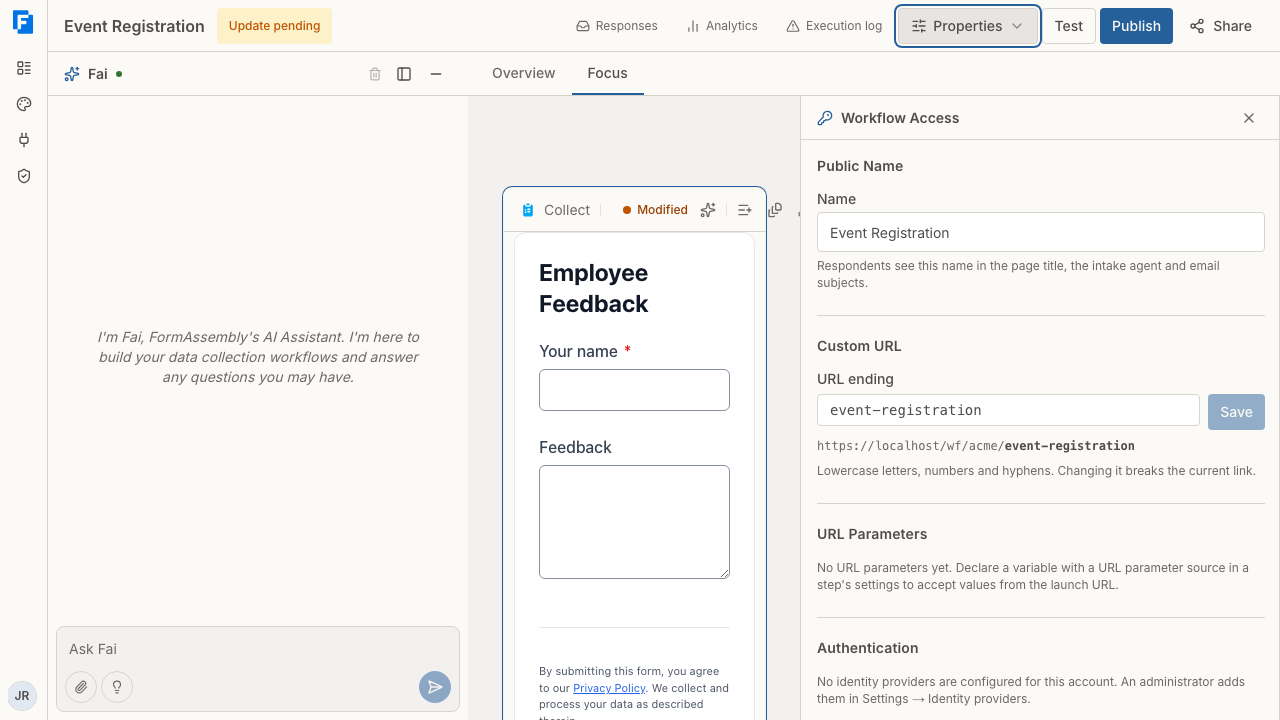
1. Open the workflow in the builder.
2. Click **Properties** in the workflow's top navigation.
3. In the Properties panel, open **Access**, then **Authentication**.
4. Choose the identity provider that respondents must sign in through, then click **Publish**.
Respondents who open the workflow see a sign-in card instead of the first step, and the form is not rendered until they have signed in. Embedded workflows show the same sign-in card in place of the form; the sign-in itself opens as a full-page navigation off your host page and returns the respondent to the FormAssembly-hosted run page.
### What respondent sign-in does and does not do
- **Respondent sign-in is not a platform login.** It establishes identity for one workflow run. It creates no FormAssembly user, grants no role, and gives no access to the builder, responses, or any other workflow.
- **A signed-in respondent is recorded as the run's actor**, so approvals, signatures, and audit entries are attributed to that person rather than to an anonymous visitor.
- **Save and resume still works.** On a workflow gated by an identity provider, the emailed resume link locates the saved run but is not proof of identity: following it prompts a fresh sign-in, and the run resumes only when the same person is confirmed again.
- **Assignment invitations into a gated workflow are routing credentials, not proof.** Clicking the invitation takes the assignee to your identity provider; the invitation is only spent once a confirmed sign-in comes back, so an assignee who abandons or fails the sign-in can retry with the same link.
- **Termination at your identity provider takes effect at the next sign-in challenge.** FormAssembly does not cache directory membership, but a respondent who is already working in a run keeps their live session for up to four hours before the next challenge refuses them.
- **Mailbox verification is separate.** Signing in through your identity provider proves directory identity, not that the person receives mail at the asserted address, so FormAssembly records the provider confirmation rather than marking the address mailbox-verified.
## Disabling a provider
Provider records are disabled, never deleted, because published workflows and previously confirmed identities keep referring to them.
Disable a provider to stop new sign-ins through it. FormAssembly checks the disabled state both when a sign-in starts and again when the response comes back from your identity provider, so a provider disabled mid-sign-in still refuses the attempt. Existing references and previously confirmed identities stay intact, so re-enabling the provider restores sign-in with no reconfiguration.
Before disabling a provider, check that no published workflow still requires it — otherwise the affected respondents cannot sign in at all.
**A disabled provider blocks publishing.** A workflow whose chosen provider has been disabled shows that provider as "{name} (disabled)" in the Authentication setting, and the builder refuses to publish the workflow until you re-enable the provider or choose another one. A saved workflow can also hold a stale reference — a provider setting that no longer resolves to any configured provider record. The builder says so and blocks publishing in the same way until you choose a configured provider.
## Tips & Troubleshooting
- **"This provider cannot confirm anybody" / sign-in fails with no account matched.** Your identity provider is not releasing an email address. Add the scope or attribute that releases email, or set an attribute or claim mapping on the provider record that names where the address is sent.
- **Sign-in from your IdP dashboard tile does nothing.** FormAssembly accepts service-provider-initiated sign-in only. Have users start at the FormAssembly workflow link, or point the tile at that link instead of sending an unsolicited assertion.
- **SAML signature or audience errors.** Confirm that the certificate on the provider record is the current signing certificate, and that the entity ID and ACS URL registered at your identity provider match the values shown on the provider record exactly, including protocol and trailing path.
- **Timestamp or clock-skew errors.** FormAssembly allows a small clock difference between systems. If assertions are refused as expired or not yet valid, check time synchronization on your identity provider.
- **A respondent's sign-in is refused even though their address looks right.** The address already belongs to a respondent who proved their mailbox or who is linked to a different provider. FormAssembly refuses rather than silently merging two identities; reconciling the records is a deliberate admin action.
- **Publishing is blocked with the provider shown as disabled.** Re-enable the provider on the Identity providers page, or choose a different provider in **Properties → Access → Authentication**, then publish again.
- **You changed identity providers, not just endpoints.** A new issuer means a new provider record. Add the new provider, repoint any gated workflows, verify a sign-in, then disable the old record.
- **Always test with one account first.** Requiring a provider on a published workflow affects every respondent, so confirm one successful sign-in round-trip before you share the link.
---
# FormAssembly Logs
## What the FormAssembly Execution log records
The Execution log is a per-workflow diagnostic record of every step failure FormAssembly's workflow engine reported while running your workflow, plus every replay an author requested and every replacement an author made. It exists to answer one question: **why did this step fail?** Each failure entry carries the full error text the failing system returned — the third-party rejection, the email transport message — so you can fix the step or the connection without guessing. Replay entries are notices rather than failures ("Replayed from {step} by {user}") and carry no error text, and replacement entries ("Replaced on a corrected version at {step} by {user}") carry none either.
The Execution log records two kinds of failure:
- **Failures a step routed as a failure** — a third-party service rejecting a Connector step's request, an email transport error, or a step whose retry attempts ran out. Connector steps and Email steps are the step types that fail this way today.
- **Failures that stop the run outright** — a step that cannot proceed on the run's own data and has no failure route that could change the outcome, such as a Redirect step whose URL does not resolve to a usable web address. The entry is recorded before the run ends, because the raw reason is exactly what you need to fix the step.
The Execution log does **not** record:
- Successful steps. The Execution log is a record of failures, replays and replacements, not an execution history of everything a run did.
- Platform errors — a fault inside FormAssembly itself rather than in your workflow or a connected service. Those are reported to FormAssembly's own monitoring, not to your workflow, because no workflow can be authored around them.
- The data FormAssembly sent to an external system, or how each field mapping resolved.
**Only three step types record failure entries in the Execution log:** Connector steps, Email steps and Redirect steps. A collect (Form) step records nothing here, so an empty Execution log for a workflow built only of collect steps is expected.
**One entry is recorded per failed attempt.** A step that retries and fails three times produces three entries, each with its own attempt number. Test runs record entries exactly as live runs do, and those entries are marked as test.
## How do I open the Execution log?
The Execution log is scoped to a single workflow. You can reach it two ways:
1. From the **Workflows** list, open the row menu for the workflow and choose its execution log.
2. From the workflow builder toolbar, alongside the links to that workflow's responses and analytics.
The page opens with the breadcrumb **Workflows / {workflow name} / Execution log**, and lists the workflow's failures with the most recent first.
The builder link appears only once a workflow has been saved — an unsaved workflow has never run, so it has nothing to log.
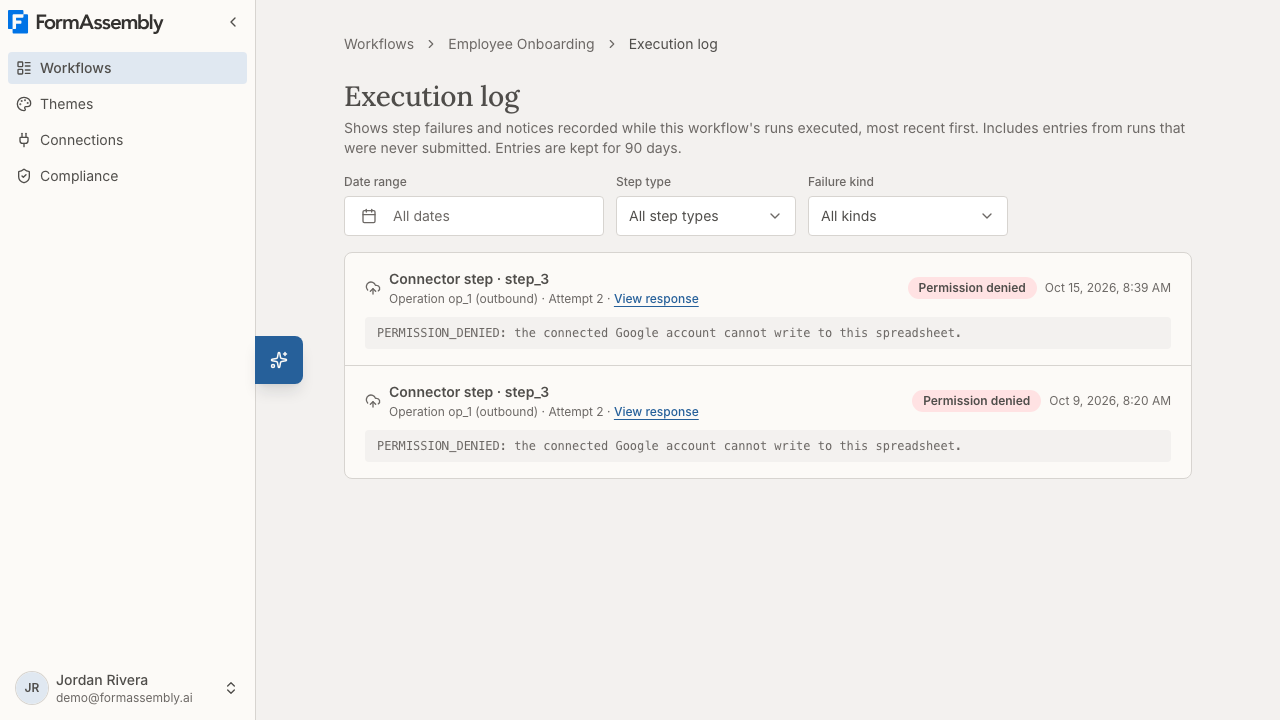
## What does each Execution log entry show?
Every entry identifies the failure precisely enough to act on:
- **The step** that failed, and its step type (Connector step, Email step, or Redirect step).
- **The attempt number**, so a repeated failure reads as a sequence of attempts rather than as separate problems.
- **The failure kind** — a short classification of what went wrong (see the table below).
- **The time** the failure happened.
- **The error text** the failing system returned, on a failure entry. Long messages are shortened and marked as truncated.
- For Connector steps, **which operation failed** and its direction — inbound (reading data into the form) or outbound (sending data to the external system).
The error text is treated as data that may contain respondent information. FormAssembly never writes it to its own application logs, and deletes it on the same triggers as respondent data: log retention, workflow or account deletion, and response purge.
## Do replays appear in the Execution log?
Yes. When an author replays a response from a step — re-running the run from that point — FormAssembly records an entry in the Execution log reading "Replayed from {step} by {user}", so the replay sits in the list beside the failures it answers.
A replay entry is not a failure: it carries no error text, it always shows attempt 0, and it names the person who requested it. Replay is not one of the options in the **Failure kind** filter, because it is not a failure kind. If the requesting user's account has since been deleted, the entry remains but shows no name.
## Do replacements appear in the Execution log?
Yes. When an author replays a response onto a corrected version of the workflow — replacing the original response — FormAssembly records an entry reading "Replaced on a corrected version at {step} by {user}". One entry is recorded against the original response, naming the step the replacement started from and the person who made it.
Like a replay entry, a replacement entry is not a failure: it carries no error text, and it is not one of the options in the **Failure kind** filter.
## How do I filter the Execution log?
Three filters sit above the list, each defaulting to everything:
1. **Date range** — set a window instead of **All dates** to narrow to the period you are investigating.
2. **Step type** — set a step type instead of **All step types** to look at only **Connector step** failures, only **Email step** failures, or only **Redirect step** failures.
3. **Failure kind** — set a kind instead of **All kinds** to separate, for example, expired credentials from rate limiting.
Combine all three when a workflow has failed in more than one way: filtering to one step type and one kind is usually the fastest route from "this workflow is failing" to "this connection needs reconnecting".
## Failure kinds
The failure kind names the class of failure so you can act on it without reading the raw error text. The names below are exactly the options the **Failure kind** filter offers.
| Failure kind | What it means and what to do |
| -------------------- | ----------------------------------------------------------------------------------------------------------------------------------------------------- |
| Authentication failed | The credentials for the connection have expired or been revoked. Click **Reconnect** on the connection from **Connections**. |
| Permission denied | The connected account is signed in but lacks permission for what the step tried to do. Check the account's object and field access in the target system. |
| Rate limited | The external service rejected the request because too many were sent. This often resolves on its own. |
| Service unavailable | The external service was temporarily unavailable. This often resolves on its own. |
| Transport error | The request could not be completed, or the error did not fit another kind. The raw error text is the detail to read here. |
| Wrong connection for connector | The connection chosen on the step cannot back that connector. This is a configuration fault rather than a credential one — change or remove the connection on the step. |
| Retries exhausted | A step that was set aside to be retried ran out of attempts. Such an entry names no operation, because the retry decision is made before the work runs. |
| Redirect URL invalid | A Redirect step's URL resolved to something that is not a usable absolute web address. Because the URL depends on respondent data, this can only be caught at run time — check how the redirect URL is built. |
| Email field invalid | An Email step's recipient address did not pass its check when the step ran. The step fails as a whole rather than sending to the good addresses and dropping the bad one — check the step and the field it takes the address from. |
| Email too large | An Email step's message, attachments included, would exceed the size limit. The check runs before the send, so nothing was delivered — reduce or remove attachments on the step. |
New step types and new failure sources may add kinds over time, so treat the list above as the current set rather than a closed one.
## Where else do step failures appear?
The Execution log is the most complete view, but failures surface in three other places in FormAssembly:
**On the Responses list.** A red warning triangle beside the status badge, labelled "A delivery for this response failed", marks a response where something never reached its destination. The triangle is shown whatever the response's own status says: a response can read **Completed** and still have a failed delivery behind it, and an in-progress response can already have one. Open **Responses** for the workflow, then use the search box, **Filters** and the **Timeframe** control to find affected responses.
**On a response's detail page.** Open a response with **View response** from the row or the row's **Response actions** menu. The detail page lists the delivery records for that response and, after them, the Execution log entries recorded for that response — most recent first, each with step, step type, attempt, kind, time and the full error text, plus a link to the full log for the workflow. A failed delivery record shows a short reason naming the kind and a **See error details** link down to its full error text. That link is best-effort: delivery records live as long as the response, while Execution log entries expire after 90 days, so an older response may show the short reason with no link.
**By email.** Owner failure emails are a workflow setting: turn on **Email the owner when a step fails** under **Properties → Notifications** in the builder. The setting is **off by default**, so a workflow that has never been changed emails no one. With it on, FormAssembly emails the workflow owner with the workflow name, the step name, a human-readable reason and a count of failures since the last notification. The setting covers Connector steps, Email steps and Document generation steps, as well as a response stopped by an error. Fai or the API can override it for a single failure route — turning notification on for one route in a workflow that is otherwise off, or off for one route in a workflow that is otherwise on. Notifications are debounced per workflow so a burst of failures does not flood your inbox: after an email is sent, further failures are counted quietly for about an hour and reported in the next email. If failures stop entirely during that quiet period, no catch-up email is sent — the initial email already told you something was wrong, and the Execution log holds the full detail.
**Test and preview runs never send the owner notification email.** A test run records Execution log entries exactly as a live run does — entries yes, email no — so a failure you triggered while testing appears on this page but produces no message in your inbox. Two other situations also produce no email: **Email the owner when a step fails** is off (the default, or an override that turns it off for that route), and the workflow owner has no reachable email address. If you turned on owner notification and tested it, check the Execution log to confirm the failure was recorded, then verify with a live response before assuming notification is broken.
## Can I ask Fai about a failure?
Yes. Click **Open Fai** and ask why a step or a response failed. Fai, FormAssembly's built-in AI assistant, can read the Execution log entries for a workflow or a single response and report the failure reason back to you in the chat, which is often quicker than filtering the list by hand. Fai sees only what you can see — the same workflows and responses your own account has access to.
## How long are Execution log entries kept?
Execution log entries are deleted **90 days** after they are recorded. Deletion runs daily and touches nothing else — delivery records and audit records have their own retention.
Entries are also deleted early when the data they describe goes away: deleting a workflow or an account removes its Execution log entries, and purging a response removes the entries recorded for that response.
Because the Execution log expires at 90 days while responses keep their delivery records, an older response can show that a delivery failed without showing the original error text. Investigate failures while they are recent.
## Who can see the Execution log?
Access follows workflow access. The workflow's author reads the Execution log for the workflows they own, a collaborator reads it for the workflows shared with them, and an account administrator reads the account's entries. No one can read another account's entries. Entries are never editable or deletable by hand — FormAssembly writes them during execution, and retention removes them.
## Audit Trail: who did what
The Execution log answers *why a step failed*. A separate record, the **Audit Trail**, answers *who did what* for compliance activity — the compliance events recorded against your workflows and policies, such as evaluations, reviewer decisions and policy changes. Open it from **Compliance** in the left navigation. The Audit Trail requires the Enterprise plan.
The Audit Trail is append-only, it can be narrowed with free-text search, a **Source** filter and a date range, and it can be exported to CSV. It deliberately carries **no error text**, which is why the Execution log exists alongside it. See also: the Audit Trail documentation for the full list of recorded events.
## Tips & Troubleshooting
- **A failure appears in the Execution log but the response looks fine.** That is expected. A delivery failure does not change a response's own status — FormAssembly records the response as completed when the run reaches its end, whether or not a connector or email reached its destination. Use the warning triangle on the Responses list, not the status badge, to find undelivered responses.
- **Three entries for one failure.** A step that retries records one entry per attempt. Read the attempt numbers: the last attempt usually carries the real kind, and a **Retries exhausted** entry means the attempts ran out.
- **The same failure over and over across many responses.** Filter by **Failure kind** first. **Authentication failed** across every response almost always means one expired connection, not a broken workflow — click **Reconnect** on it from **Connections**. **Wrong connection for connector** means the step is pointing at a connection that cannot serve it, so reconnecting will not help — change the connection on the step.
- **An entry with no matching response.** The Execution log is the only surface that shows failures from runs that never got far enough to be saved as a response — for example a Connector step that pre-fills a form and fails before anyone submits it. There is no response to open; the Execution log entry is the whole record.
- **Nothing in the Execution log, but a step still isn't working.** Check that your filters are not hiding it (set **Date range** back to **All dates**, **Step type** to **All step types**, and **Failure kind** to **All kinds**). If the list is genuinely empty, the step may be succeeding while doing nothing you expected — check the response detail page's delivery records and the path the run took. Remember that collect steps never record Execution log entries.
- **Test runs count.** Entries from test and preview runs are recorded and marked as test, so a log full of failures after a testing session is normal. Re-check after a live run before assuming the workflow is broken.
- **No failure email arrived.** The usual reason is that **Email the owner when a step fails** under **Properties → Notifications** is off, which is the default. Turn it on, then confirm with a live response — a test or preview run records Execution log entries but never sends the owner notification email.
- **The Execution log does not replay failures.** There is no re-run control on this page — a replay is started from the response's own detail page, and the Execution log records it once it has happened. For a configuration problem, fix the connection, credentials or step configuration, then republish and collect a new response.
---
# Analytics & Insights
FormAssembly provides two levels of analytics to help you understand how your data collection is performing: an account-wide summary on the **Workflows** page and a detailed per-workflow **Analytics** page. Both update automatically as submissions come in — no setup required. Team members see analytics for the workflows they own, while account admins see analytics across all workflows in the account.
Every chart in FormAssembly analytics is paired with a visually hidden data table that screen readers announce as the accessible alternative to the chart. The tables are not shown on screen and are not a substitute for an export.
---
## Account-Level Analytics
The **Analytics** section appears at the top of the **Workflows** page, giving you a quick snapshot of submission activity across all your workflows.
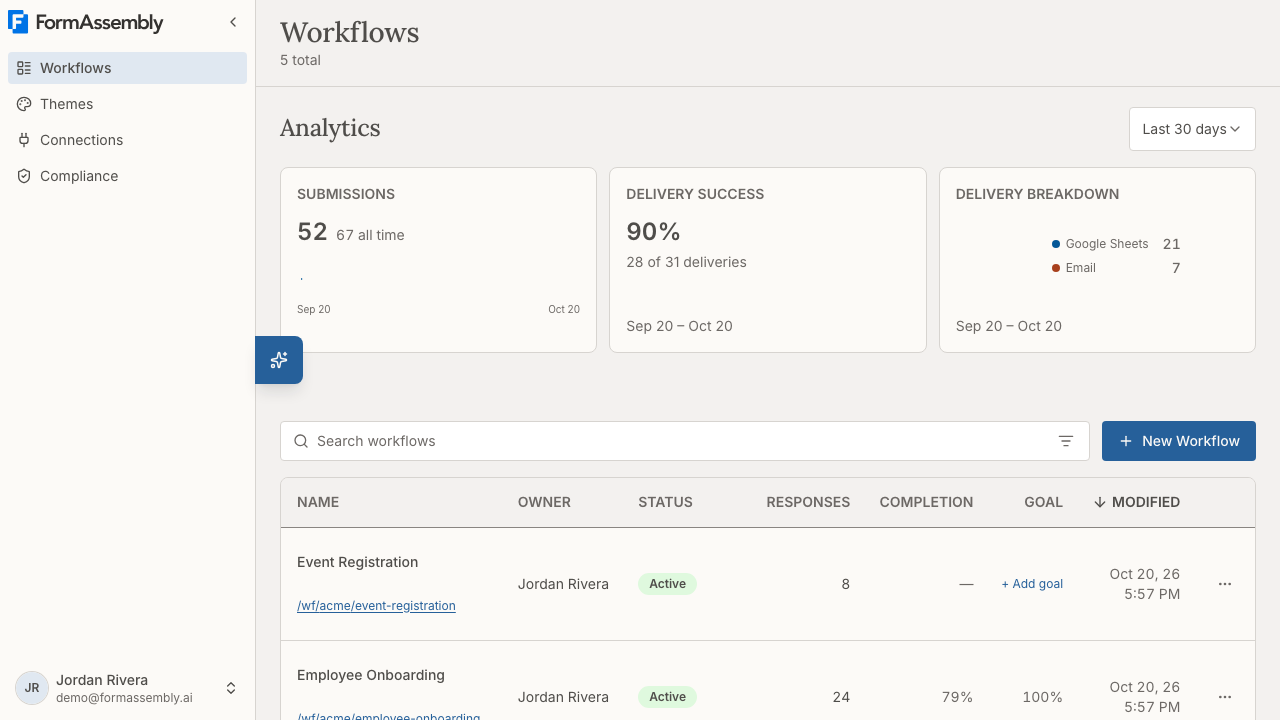
### What you'll see
The account dashboard has three live cards:
- **Submissions** — The number of real (non-test) workflow runs in the selected time range, shown alongside the all-time count for your account and a sparkline. Days are used for ranges of 30 days or less; longer ranges are grouped by week.
- **Delivery success** — The percentage of deliveries that succeeded, counted per delivery rather than per run, shown alongside a count (for example, "47 of 50 deliveries"). Deliveries still pending are excluded from the calculation. If the range contains no succeeded or failed deliveries — including when every delivery is still pending — the card shows **No connector deliveries** instead of a percentage.
- **Delivery breakdown** — A donut chart showing how many successful deliveries were sent to each destination (for example, Salesforce, Google Sheets, or Email), with a text legend naming each destination. Failed deliveries are not included, and a destination only appears if it received at least one delivery in the selected range.
### Changing the time range
1. Open the time-range menu above the analytics cards. The control shows the range currently selected, such as **Last 30 days**.
2. Select a preset: Last 7 days, Last 30 days (the default), Last 3 months, Last 6 months, or Last 12 months.
3. To pick your own dates, choose **Custom** and select a start and end date. Future dates are disabled.
The selected time range applies to all analytics cards except the all-time total submissions count. Test runs are excluded from every metric, and there is no option to include them.
### Locked cards
If your account is not on the Enterprise plan, two cards on the dashboard are locked and appear grayed out with a lock icon and an **Upgrade** badge:
- **Completion time** — "See how long respondents take to complete your forms on average"
- **Abandonment rate** — "Find out how many respondents started but didn't finish"
Click either locked card to open the upgrade dialog and learn how to unlock advanced analytics. On the Enterprise plan the locked cards are absent, and no completion-time or abandonment card appears in their place on the account dashboard.
### Workflow list columns
The workflow table on the **Workflows** page includes analytics columns for each workflow:
- **Responses** — The number of submissions the workflow has received.
- **Completion** — The completion rate (the percentage of respondents who viewed the form and submitted it).
- **Goal** — The conversion rate of the workflow's first success metric. If no success metric has been defined, a **+ Add goal** link appears so you can open the workflow's analytics page and create one.
These columns give you at-a-glance performance data without opening the per-workflow analytics page. The columns load a moment after the rest of the table, so brief placeholders in the **Completion** and **Goal** columns are normal. On small screens such as phones, the **Completion** and **Goal** columns are hidden.
### Empty state
If your account has no submissions yet, you'll see an encouraging message: *"Your submissions will appear here once your first workflow is live."* On the Collect and Automate plans, the locked **Completion time** and **Abandonment rate** cards still appear below the message so you can preview what's available. On the Enterprise plan there are no locked cards, in the empty state or anywhere else on the dashboard.
> **Note:** If your selected time range has zero submissions but your account has submissions in other periods, you'll see zeros — not the empty state. The empty state only appears when you have no submissions at all.
---
## Per-Workflow Analytics
Each workflow has its own detailed **Analytics** page with in-depth data about how respondents interact with your form.
To open it, navigate to a workflow from the **Workflows** list, or open the workflow actions menu at the end of a workflow row and choose **Analytics**. The **Analytics** link is available for active, draft, and archived workflows, and the page shows the workflow name in the breadcrumb (for example, **Workflows / Employee Onboarding / Analytics**).
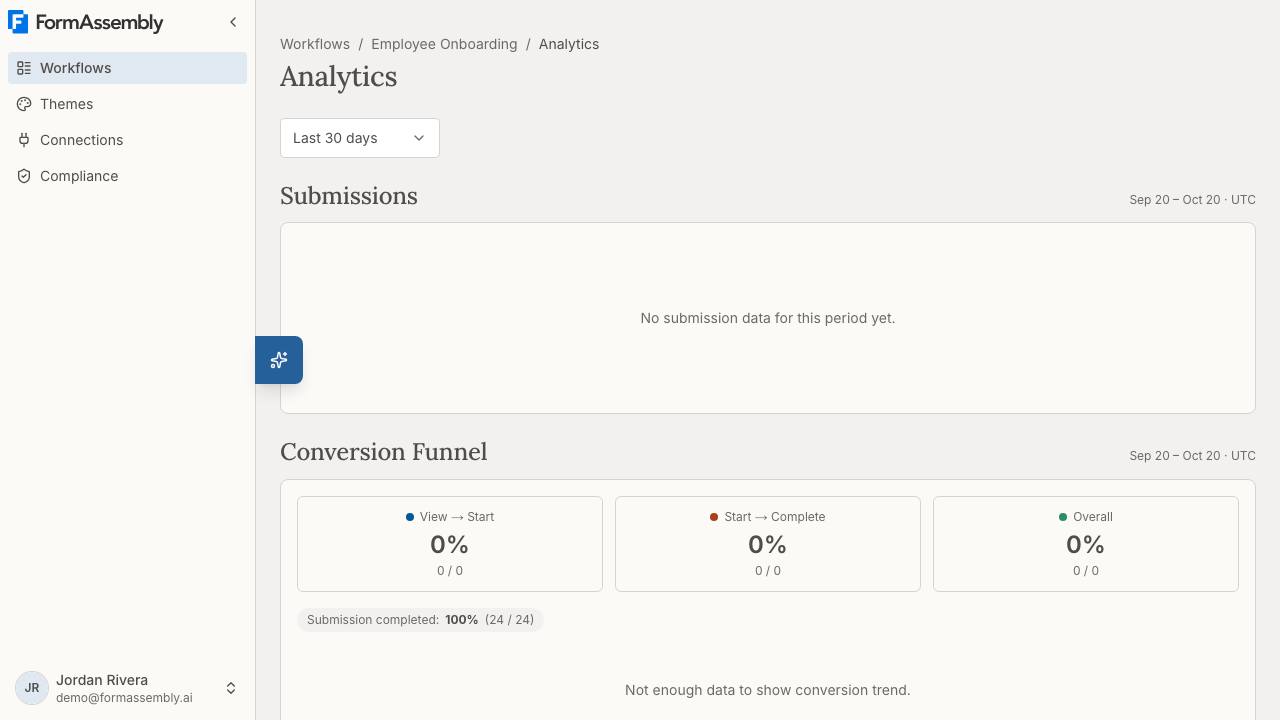
The dashboard itself renders for published (active) workflows. For a draft or archived workflow, the page shows a "Not published yet" card — *"Analytics become available once you publish this workflow and respondents start submitting."* — with an **Open in builder** button.
The following sections appear on the page: **Submissions**, **Conversion Funnel**, **Completion Time**, **Abandonment**, **Success Metrics**, **Time per Field**, **Validation Errors**, and **Respondents**. **Validation Errors** and **Respondents** appear only when there is data for them, and **Time per Field** appears only when there is field-timing data.
If the workflow has just been published and has no analytics data yet, the page shows the **Submissions** section with its own empty state, a **No analytics data yet** card — *"Analytics will appear here once your first respondent fills out this workflow. Share your workflow link to get started."* — and the **Success Metrics** panel, so you can define metrics before any data arrives. Other sections are not shown until data exists.
### Filtering by time range
Open the time-range menu at the top of the page to choose a period; the control shows the range currently selected, such as **Last 30 days**. The same presets are available as on the account-level dashboard (Last 7 days, Last 30 days, Last 3 months, Last 6 months, Last 12 months), plus **Custom range**.
If you are entering a custom range and one of the two dates is empty, FormAssembly does not reload the charts and shows the message *"Choose both a start and end date to load analytics."* The previously loaded charts stay on screen until both dates are filled in.
If analytics fail to load, the page shows a single generic error message. Reload the page, and if the error persists, confirm you are still signed in and that the workflow has not been deleted.
### Version markers
Thin dashed vertical lines appear on every chart to mark when a new version of the workflow was published. These help you correlate changes in metrics with specific edits — for example, "abandonment spiked the day we added a new required field." Hover over a marker to see the version number and publish date. Only published versions create markers; running a test does not add one.
---
## Submissions
The **Submissions** section shows how many submissions the workflow received on each day in the selected time range.
A submission is counted for every real (non-test) run of the workflow, including runs where a later step or delivery failed — the respondent still submitted the form. Test runs are never counted.
---
## Conversion Funnel
The **Conversion Funnel** section shows how respondents progress through your form in three stages, each displayed as a stat card with its percentage, count, and denominator:
| Stage | What it measures |
|---|---|
| **View → Start** | The percentage of people who viewed the form and then began filling it out |
| **Start → Complete** | The percentage of people who started filling out the form and submitted it |
| **Overall** | The end-to-end conversion rate from view to completion |
A respondent counts as having "started" at their first interaction with a field, not simply at page load.
If you have defined any success metrics for the workflow, each metric also appears beside the funnel as its own conversion-rate chip showing the metric name, its percentage, and its met/total volume. A success metric measures whether a submitted run met a business rule, so it reads as a rate alongside the funnel rather than as a fourth funnel stage. Chips always reflect your current metrics: a renamed metric shows its new name, and a deleted metric drops out entirely.
Below the stat cards, a **Conversion rates over time** chart plots the same three rates day by day, with one additional line per success metric that has evaluations in the range. The chart needs at least two days of data; over a shorter range it shows a "not enough data" message instead.
---
## Completion Time
The **Completion Time** section shows how long respondents take to finish your form, as average and median stat cards with daily trends:
- **Average completion time** — The mean time from the form first appearing to the workflow run completing.
- **Median completion time** — The midpoint time, which is less affected by outliers (for example, someone who left a tab open for hours).
Completion time measures the whole span of the workflow, so a multi-page or multi-form workflow reports one duration rather than one per form. A run counts only when the workflow run itself completes; submitting a single collect form is not enough on its own. Failed and abandoned runs are excluded, as are runs missing either boundary, so you're seeing the time for respondents who actually completed the workflow.
---
## Abandonment
The **Abandonment** section helps you understand where respondents give up:
- **Abandonment rate trend** — A chart showing the percentage of respondents who started the form but never completed the run, tracked over time.
- **Top drop-off fields chart** — A bar chart of the top ten fields that were the last thing a respondent interacted with before leaving. Hovering a bar shows the field and its count under the label **Drop-offs**.
A session starts at the respondent's first field interaction — the same boundary the conversion funnel uses — so someone who opened the form and closed the tab without typing anything is counted in neither the numerator nor the denominator. A session counts as abandoned when the tab or window is hidden or closed and the run never completes, so a respondent who tabs away and later returns to finish is not counted as abandoned.
If a particular field appears frequently in the drop-off chart, it may be confusing, too personal, or too time-consuming. Consider simplifying that question or making it optional.
---
## Success Metrics
Success metrics let you define what "success" means for a specific workflow and then track how often that outcome is achieved.
### Viewing success metrics
The **Success Metrics** section displays each metric you've defined along with its conversion rate for the selected range, the underlying met/total evaluation volume, and a trend sparkline. A metric that has been evaluated but never met shows **0%** with its volume; a metric with no evaluations in the selected range shows **No data yet** instead of 0%. If you haven't defined any metrics yet, you'll see a prompt to create your first one. Each active metric also shows the date its measurement started, so you can tell how much history a rate is based on.
### Adding a metric
1. In the **Success Metrics** section, click **+ Add metric**.
2. Choose a metric type. Three types exist:
- **Form submission** — The respondent finished and submitted the form. No extra configuration needed.
- **Connector outcome** — A specific connector step (for example, a Salesforce integration) succeeded.
- **Field value** — A specific field meets a condition you define. For numeric fields, set a comparison (for example, "donated_amount >= 50"). For choice fields (radio, checkbox, dropdown), select one or more expected answers.
3. Give the metric a name that describes the outcome (for example, "Donation over $50" or "Opted in to newsletter").
4. Save the metric.
> **Note:** The panel configures **Field value** metrics today. **Form submission** and **Connector outcome** appear in the type list but are disabled, with the note *"Field value metrics are available for configuration right now."* Metrics of those types that already exist are evaluated and reported normally.
The metric is evaluated automatically for every new completed workflow run. Only the pass/fail result is stored — respondent answers are never saved. If a run submits the form more than once — for example, an approval step sends it back for correction — the most recent evaluation is the one that counts.
Each metric form opens inline on the row you are working on. You can have several editors open at once; each one closes only when you click its own Save or Cancel, so opening another editor never discards a pending edit.
### Which fields you can measure
Field-value metrics are limited to fields the metric can evaluate safely and unambiguously:
- **Numeric comparisons** require a field that submits a number, such as a number or rating field.
- **Choice matches** can select more than one answer only on multi-value fields (checkbox or multi-select). Radio and dropdown fields submit a single answer, so they are limited to one choice.
- **Ranked-choice fields are not eligible**, because their submitted value is an ordering rather than a single answer.
- **Fields marked as sensitive** (PII, PHI, PCI, credentials, or other) appear in the picker but are disabled, with the classification named so you can correct a misclassified field in the builder.
- **Fields inside a repeating section** are also disabled, because a repeating section collects one answer per instance and there is no single value for a metric to measure.
Fields are listed by their label and grouped under the workflow step they belong to, and the picker is searchable.
### How many metrics can I define?
A workflow can have up to **20 active success metrics**. When you reach the cap, the **+ Add metric** control is hidden and the panel reads *"This workflow has reached the 20-metric limit. Delete a metric to add another."* Deleting a metric frees a slot immediately. Duplicate definitions are allowed, so two metrics can track the same condition and each will use a slot.
### Editing a metric
Click the edit button next to a metric (for example, the button labeled **Edit metric Submission completed**) to change it.
- **Renaming a metric preserves its recorded results.** A name is a label only, so a rename saves in place and the trend continues uninterrupted.
- **Changing what a metric measures resets it.** If you change the step, the field, the operator, the threshold, or the choice set, the previously recorded results no longer answer the same question, so measurement restarts from the moment you save. FormAssembly asks you to confirm before applying a definition change and tells you that recorded results will be cleared.
- Reordering the choices in a choice-match metric is not a change in meaning and saves in place.
### When a metric stops being measured
A metric can outlive the field it targets. If the published form drops that field, converts it to ranked choices, removes the validation that made it numeric, marks it sensitive, or moves it into a repeating section, the metric becomes unevaluable rather than wrong: new runs stop producing results, and the history already recorded stays intact and correctly attributed to the earlier period.
The **Success Metrics** panel shows the reason on the row — for example, "a field no longer in this form", "a field now marked sensitive, which is no longer measured", or "a field now in a repeating section, which is no longer measured". You cannot edit the definition while it is in that state, but you can still rename the metric, so a metric worth keeping for its history does not have to be deleted to be relabelled. Choosing an eligible field from the picker restores the definition editor and restarts measurement.
### Removing a metric
To remove a metric, click the delete button next to it (for example, the button labeled **Delete metric Submission completed**). FormAssembly asks you to confirm first, in a **Delete metric?** dialog explaining that the metric will no longer be evaluated on new submissions and that historical results are kept but will not appear on the dashboard. After deletion the metric stops appearing in the funnel and on the workflow list.
---
## Time per Field
The **Time per Field** section pinpoints which questions take respondents the longest:
- **Average field time trend** — An overall trend of how long respondents spend per field.
- **Average time per field chart** — A horizontal bar chart ranking individual fields by average time, from highest to lowest.
**Time per Field** is part of advanced analytics. On a plan without advanced analytics it appears as a locked card; click it to open the upgrade prompt, the same way the **Completion time** and **Abandonment rate** cards work on the account dashboard.
Fields where respondents spend significantly more time than others are candidates for simplification — consider breaking a complex question into smaller steps, improving help text, or rephrasing.
---
## Validation Errors
The **Validation Errors** section reveals which fields cause the most problems for respondents:
- **Validation error trend** — A chart tracking the total number of validation errors over time.
- **Validation error frequency by field** — A bar chart showing how often each field triggers errors, broken down by the validation rule that fired (required, email, integer, and so on), and whether the error was resolved before submission.
- **Field error rate chart** — Error rates per field, comparing sessions with errors against total sessions. This helps you see which fields cause errors most frequently relative to how often they are encountered.
A session that reaches submission necessarily resolved its errors, since submission requires validation to pass; errors in a session that never submits are treated as unresolved. Fields with high error counts and low resolution rates may need clearer instructions, a different input format, or less strict validation rules.
---
## Respondents
The **Respondents** section gives you a breakdown of who is filling out your forms based on anonymous technical metadata:
- **Device Type chart** — A donut chart showing the split between **desktop**, **mobile**, and **tablet** respondents.
- **Browser chart** — A donut chart showing the distribution across browsers like **Chrome**, **Edge**, **Firefox**, and **Safari**.
Geolocation is not collected. This information can help you prioritize testing. For example, if most respondents use mobile devices, make sure your form looks and works well on smaller screens.
---
## Privacy & Data Collection
Analytics data is collected automatically for every published workflow. Here's what you should know about how it works:
- **No personal data is stored.** Field answers and respondent identities are never captured. Only anonymous interaction signals (e.g., time spent on a field, which fields triggered errors) are recorded.
- **No cookies are used.** Each form load gets a random session identifier that has no connection to the respondent's identity. Because no identifier is stored in the browser, a page refresh counts as a new view.
- **Referrer URLs are sanitized.** Query strings are stripped from referrer URLs to avoid capturing tracking parameters or personal information.
- **Device and browser information** is derived during processing; raw technical details are not retained.
- **Sensitive fields are excluded from measurement.** Fields you mark as sensitive, and fields inside repeating sections, cannot be used in a success metric, because even a pass/fail outcome on such a field can reveal the answer behind it.
- **Deleting a workflow or account deletes its analytics.** When a workflow or account is deleted, the corresponding analytics data is deleted too, and older analytics data is aged out over time under the platform retention policy.
---
## Tips & Troubleshooting
- **I don't see any analytics data.** Analytics appear once your workflow has been published and has received at least one real submission. Test submissions are always excluded from all metrics.
- **The Analytics page says the workflow isn't published yet.** The dashboard renders for active workflows. For a draft or archived workflow, use **Open in builder** to finish and publish the workflow first.
- **Some sections are missing from the Analytics page.** Validation Errors and Respondents appear only when there is data for them, and Time per Field appears only when there is field-timing data. Keep collecting submissions and the sections will appear.
- **My latest submission isn't in the charts yet.** Analytics charts read summaries that are refreshed on a regular cadence, measured in minutes rather than seconds. Analytics are not real-time; wait a few minutes and reload the page.
- **My numbers look different from what I expected.** Make sure the time range is set to the period you're interested in. The default is Last 30 days, which may not cover older submissions.
- **The custom range won't load.** Both a start date and an end date are required. Until both are set, FormAssembly leaves the previously loaded charts in place and shows *"Choose both a start and end date to load analytics."*
- **The conversion funnel says there isn't enough data.** The conversion rates over time chart needs at least two days of data. Widen the time range and check again.
- **The conversion funnel shows a big drop at "View → Start."** This is common. Many visitors view a form without starting it. Consider improving your form's introduction or reducing the number of visible fields on the first page to make it feel less overwhelming.
- **A field shows up as a top drop-off point.** Respondents are leaving the form at that question. Try making the field optional, simplifying the question, or adding help text to explain why the information is needed.
- **Validation errors are high for a field, but most are resolved.** This means respondents are making mistakes but figuring it out. Consider adding placeholder text or adjusting the format hint to prevent errors in the first place.
- **I published a new version, but the charts don't show the change yet.** Version markers appear as vertical dashed lines on charts. If your new version was just published, give it a day for data points to accumulate on either side of the marker.
- **The delivery success card says "No connector deliveries."** The selected time range contains no succeeded or failed deliveries — often because every delivery is still pending, or because none of your workflows deliver to a connector. Widen the time range and check again.
- **Locked cards can't be clicked through.** Completion time and abandonment rate at the account level, and Time per Field on the per-workflow page, are part of advanced analytics, available on the Enterprise plan. Click a locked card to open the upgrade dialog.
- **I can't see the Completion and Goal columns on my phone.** Those two columns on the **Workflows** list are hidden on small screens. Open the workflow's Analytics page, or use a larger screen, to see them.
- **I can only configure Field value metrics.** The Success Metrics panel configures field-value metrics today; Form submission and Connector outcome appear in the type list but are disabled. Existing metrics of those types keep being evaluated and reported.
- **Success metrics show a low conversion rate.** Review your metric definition to make sure the condition matches what you expect. For field-value metrics, double-check the comparison operator and threshold. You can edit a metric at any time, but remember that changing the definition restarts measurement.
- **A metric's rate has stopped moving.** Check the metric row for a note explaining that its field is no longer measurable — for example, the field was removed from the form, marked sensitive, or moved into a repeating section. Point the metric at an eligible field to resume measurement.
- **I can't add another metric.** A workflow supports up to 20 active success metrics. Once you reach the cap, the **+ Add metric** control is hidden and the panel reads *"This workflow has reached the 20-metric limit. Delete a metric to add another."* Delete a metric you no longer need to free a slot.
- **I need the data in a spreadsheet.** Exporting analytics data is not available in FormAssembly. Each chart's data table exists only as a hidden accessible alternative for screen readers, so it cannot be copied from the page in place of an export.
---
# Getting Help
## Ways to get help in FormAssembly
FormAssembly offers three ways to get help, listed here in the order most people try them:
- **Ask Fai**, the AI assistant built into FormAssembly. Fai can answer questions from the FormAssembly documentation, walk you through a workflow problem, and — when it cannot solve the problem — file a support request on your behalf.
- **Use the support form**, reached from **Get help** in the account menu. The form is always available, whether or not Fai is enabled on your account, and it also works when you are not signed in.
- **Use the partner support form**, for FormAssembly partners (resellers, consultants, and implementation partners) opening a case on behalf of a customer account.
All three routes reach the same support team and create the same kind of support case. Which one you use is a matter of convenience, not priority.
## How do I get help from Fai?
Fai is the AI assistant available inside FormAssembly. Ask it your question in plain language — Fai can explain how a feature works, help you interpret an Execution log entry, or suggest how to build a step.
If troubleshooting stalls, or the problem needs access Fai does not have, Fai can raise a support request for you:
1. Describe the problem to Fai as you would to a person.
2. If Fai suggests filing a support request — or if you ask it to — it will gather the details it needs conversationally.
3. Fai shows you a summary of the request before sending it. Read it and confirm, or correct anything that is wrong.
4. Once you confirm, Fai files the request and gives you the case number.
Fai never files a request on an assumption; it always confirms the summary with you first.
Two things to know about the Fai route:
- **Fai requires you to be signed in.** If you cannot sign in, use the support form instead.
- **A request filed through Fai does not include your browser and operating system.** Fai runs on the server and cannot read them. If the problem is browser-specific, mention your browser and version in your description, or use the support form instead, which captures them automatically.
## Can I send feedback to Fai instead of filing a case?
Yes. Besides filing a support request, you can ask Fai to send feedback — a bug, a feature request, or general feedback — under your name or anonymously. Feedback goes to the FormAssembly product team, and nobody replies to it. Use feedback when you want to tell FormAssembly something; file a support request when you need someone to act on your problem.
## How do I submit a support request from the form?
To open the support form, choose **Get help** from the account menu. The page is titled **Contact FormAssembly Support Team**.
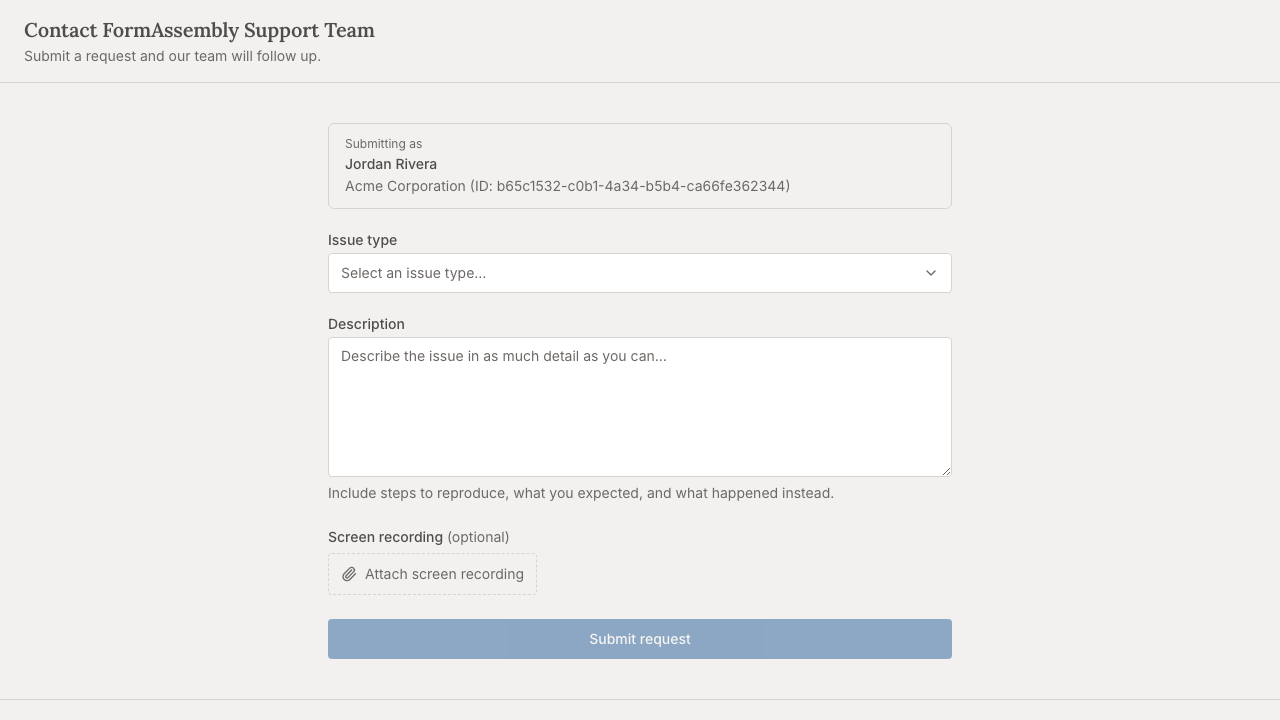
1. Choose an **Issue type**. The available types are Support Request, Billing Request, Feature Request, Bug Report, and Other.
2. Write a **Description**. The field is free text with no follow-up questions, so include everything that matters: what you were doing, what you expected, what happened instead, and the name of the workflow or step involved.
3. Optionally add a **Screen recording (optional)** — see below.
4. Optionally allow FormAssembly Support into your account — see "Letting Support into your account".
5. Click **Submit request**.
After you submit, the page reads **Request received** and tells you the support team will follow up at your email address. The support form does not show a case number; only a request filed through Fai reports one in the conversation. A confirmation email may also arrive.
The footer of the support page links to **Docs**, the **Master Subscription Agreement**, the **Privacy Policy**, the **Data Processing Agreement**, and **Accessibility**.
## What should I include in a support request?
Include anything that lets the support team reproduce or locate the problem without writing back to ask:
- **What you were trying to do**, in one or two sentences.
- **What actually happened**, including the exact wording of any error message you saw.
- **Where it happened** — the name of the workflow, the step, the form, or the page.
- **When it happened**, if it was a one-off rather than something you can reproduce on demand.
- **Whether it still happens**, and whether it happens for other people on your team.
You do not need to type your account details. When you are signed in, FormAssembly attaches your account and user information to the request automatically, along with basic environment information — your browser and operating system — captured from the form. That is also true when you are signed in as a guest of another account: the request is filed against the account you are currently working in, and the support team can see that you are acting as a guest.
### Attaching a screen recording
The support form can attach a video you have already recorded, under **Screen recording (optional)**. A recording is often faster and clearer than a written description of a visual problem.
1. Record your screen with whatever tool you normally use, saving a video file such as .mp4, .webm or .mov.
2. Click **Attach screen recording** and choose the file.
3. Click **Submit request**. The video is sent with your request.
Notes on screen recording:
- Recording is always optional. You can click **Submit request** without one.
- A recording larger than about 15 MB is refused with the message "Recording is too large". Trim the video or record a shorter run-through of the problem.
- Anything visible on the screen you record is included in the video, so close unrelated windows and sensitive documents before you start.
- The same **Attach screen recording** button is on the partner form.
## Letting Support into your account
The signed-in support form offers an optional checkbox, unchecked by default, that lets FormAssembly Support work inside your account for 7 days to investigate the case. Granting access is often the fastest way to resolve a problem that only reproduces in your account, because the support team can look at the configuration directly instead of asking you to describe it.
Before you tick it, understand exactly what it grants:
- **Support receives the Admin role**, which sees and manages everything in the account. It is not a read-only or scoped-to-one-workflow level of access.
- **Access lasts 7 days** and then ends on its own.
- **You can revoke access at any time** from Team → **Guests**. The grant appears there as the FormAssembly Support group, along with the case number and whoever claimed it. See also: Guest Access & User Groups.
Who is offered the checkbox:
- **Only someone who could grant that access themselves** is offered it — that is, a member with permission to invite people to the account and a role carrying every permission of the account's Admin role. No grant can exceed what its creator could give.
- **If you are not eligible**, the form tells you that an account admin can allow it instead.
- **Personal accounts cannot grant support access at all.** If you are working in a personal account, the form tells you that support access is not available there.
- **Support access is never offered on the unauthenticated form or the partner form.**
Fai can offer support access as well, during a conversation that leads to a support request. Fai only requests it when you say yes explicitly.
After you submit, you are told whether access was granted and the date it ends. If the access could not be granted — for example, because your role does not allow it — the request itself still goes through; you are told access was not granted and why. Never resubmit the form to retry support access, as that creates a second case. Ask in the existing case instead.
## Can I get support if I can't sign in?
Yes. The support form works without signing in, which is the route to use if you are locked out, cannot reset your password, or cannot reach your account.
What differs when you are not signed in:
- **You identify yourself manually.** The form asks you to say whether you are an existing FormAssembly customer or not, and to supply your first name, last name, and email address. Existing customers can also supply a username and an account identifier — your account ID, your login URL, or the URL of a workflow or form you have access to. The account identifier is optional but strongly encouraged, because without it the support team has to find your account by hand.
- **No account context is attached automatically.** Your browser and operating system are still captured, but nothing else.
- **Support access cannot be offered**, because there is no signed-in account to grant it in.
- **You complete a short anti-spam challenge** before the request is sent.
If you choose that you are not a FormAssembly customer, the form first asks whether you are filling out a form created by an organization that uses FormAssembly — a survey, a job application, a registration form. Answer **Yes** and the form explains that FormAssembly Support cannot help with that form or its content, and that you should contact the organization that sent you the form directly; no case is created. Answer **No** and the form opens as usual, with an optional **Company name** field alongside your name and email address.
## Partner support
FormAssembly partners — resellers, consultants, and implementation partners — use the dedicated **Partner support** form to open a case on behalf of a customer account. Partners do not sign in to FormAssembly, so the partner form is always completed without a session.
Nothing inside the app links to the partner form. Reach it directly at `/support/partner` on the FormAssembly site.
The partner form asks for:
- **First name** and **Last name**.
- **Email address** — use the address FormAssembly has on file for you as a partner. A request sent from an address FormAssembly does not recognise is refused and no case is created.
- **Account identifier** — required on the partner form. Supply the customer's account ID, their login URL, or the URL of a workflow or form on their account.
- **Issue type** and **Description**, exactly as on the standard form.
- **Screen recording (optional)**, exactly as on the standard form.
Click **Submit request** to file the case. As on the standard form, the page then reads **Request received** and the support team follows up at the email address you supplied.
## Tips & Troubleshooting
- **Submit once.** Submitting the form again creates a second case for the same problem, which slows triage down. If you need to add information, reply to the support team's email on the existing case.
- **If Fai reports an error while filing, do not assume nothing happened.** Check for a case number in the conversation before filing again, and mention the possible duplicate in your description if you do refile.
- **Keep the case number Fai gives you.** It is the reference the support team uses. The support form and the partner form do not show one; the team identifies your request from the email address it was filed with.
- **Your description stays internal.** The free-text description you write is recorded as an internal note on the case for the support team, not published anywhere customer-facing.
- **Describe browser issues explicitly when using Fai.** The form captures your browser and operating system; a request filed through Fai does not.
- **Use an issue type that matches the request.** Billing questions filed as Bug Report reach the wrong queue first and take longer to resolve.
- **Unrecognised email addresses are refused on the unauthenticated and partner forms.** If your submission is rejected and you have a FormAssembly account, sign in and file the request from **Get help** instead, which identifies you from your session.
- **Revoke support access when the case is closed** if you do not want to wait out the 7 days. Go to Team → **Guests** and remove the FormAssembly Support grant.
- **Check the docs first for configuration questions.** The **Docs** link in the support page footer, and Fai itself, answer most "how do I set this up" questions faster than a case can be triaged.