Compliance & Policies
How to govern data collection across your account using the Compliance Oversight dashboard — including policies, the Review Gate, risk tracking, and the audit trail.
Overview of the Compliance Dashboard
The Compliance area is your organization's control center for governing data collection across your FormAssembly account. From here you can:
- Monitor the compliance status of every active workflow.
- Define and manage policies — both standard (provided by FormAssembly) and custom rules you write yourself.
- Require reviewer approval before any workflow goes live.
- Access a permanent, tamper-proof audit trail of every compliance action taken in your account.
The Compliance dashboard is available to account administrators and to anyone whose role carries the compliance review permission. Compliance features are part of the Enterprise plan.
Navigating the Compliance Dashboard
Compliance in FormAssembly is split across two surfaces, because authoring the rules and applying them are different jobs.
The Compliance dashboard — where review work happens. Open it from Compliance in the main navigation. It has two sections:
- Workflow Status — The primary view for monitoring and reviewing workflows.
- Audit Trail — Browse and export a permanent log of all compliance events.
Compliance administration — where you decide what the policies are and whether review is required. Open your account settings and click Compliance. It has two sections:
- Review Gate — Configure whether compliance review is required before publishing, and set up approval stages.
- Policy Library — Manage the rules your workflows are evaluated against.
Click any of these section links to switch between views. Account administrators can reach both surfaces. The Policy Library and Review Gate open only for people whose role includes the permission to configure compliance — administrators have it by default, and a custom role can include it. A reviewer whose role does not include that permission can open the dashboard but not the administration sections.
Workflow Status
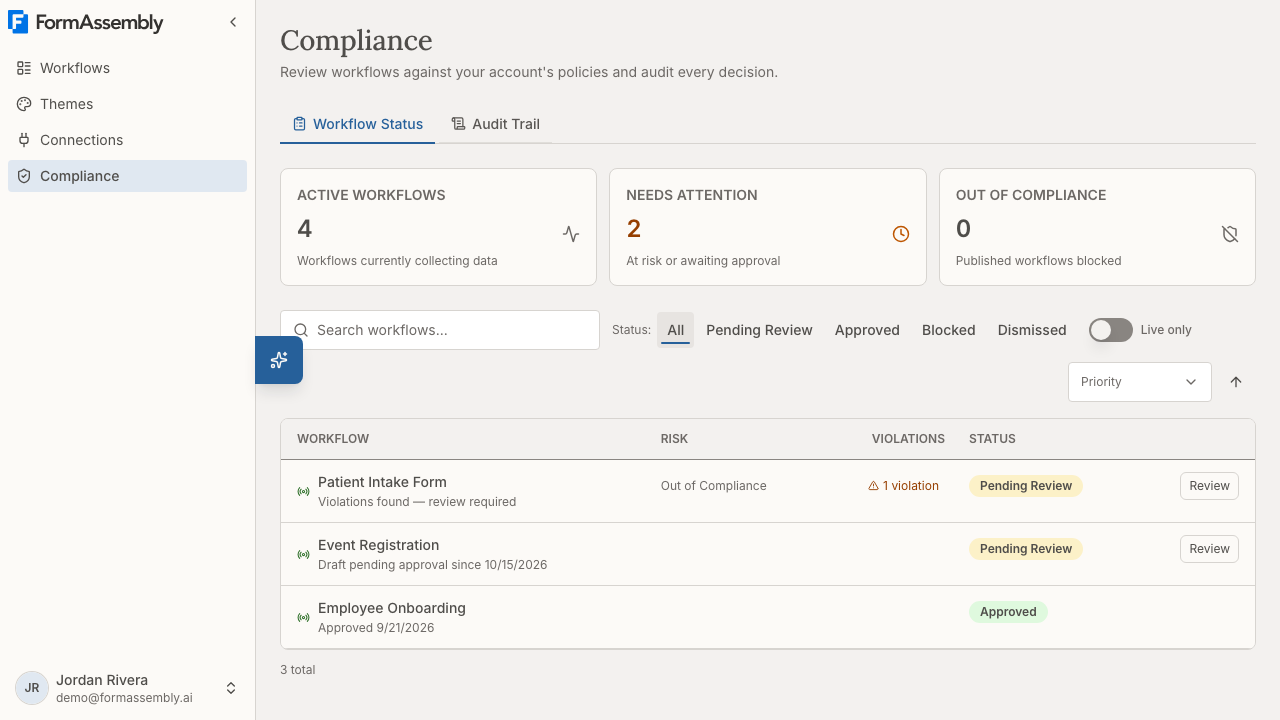
Workflow Status is where you see every workflow that has a compliance record. It shows which workflows are actively collecting data, which ones need attention, and which have been blocked.
Workflow Status covers the whole account for administrators and reviewers alike, regardless of who created each workflow, because a reviewer's authority is account-wide. A reviewer who is not an account administrator therefore sees other members' workflows, but only in read-only form — reviewing a workflow never grants the ability to edit it.
Summary Metrics
At the top of the page, summary cards give you an at-a-glance view:
| Metric | What It Means |
|---|---|
| Active Workflows | Total number of workflows currently live and collecting data. |
| Needs Attention | Workflows flagged with compliance risk or with a draft awaiting review. |
| Out of Compliance | Workflows that have been blocked by a reviewer. |
The Workflow Table
Each row in the table represents a workflow with a compliance record. Columns include:
- Workflow — The workflow name, a live indicator (green dot) when the workflow is actively collecting data, and a subtitle describing its current compliance situation.
- Risk — A computed risk label. Workflows actively collecting data with unresolved issues show Out of Compliance or Compliance Risk. Blocked workflows show Blocked. Workflows with no live risk leave this column empty.
- Violations — The number of policy violations found. Expand to see details.
- Status — The current compliance state: Pending Review, Approved, Blocked, or Review Dismissed.
- Actions — Reviewers see a button to open the workflow in a read-only review mode, where they can inspect AI findings, approve, or block.
Only workflows that have a compliance record appear in the Workflow Status list. A compliance record is created when someone publishes a workflow while compliance review is enabled. Archived workflows are excluded from the dashboard.
Searching and Filtering
Use the search field (labeled Search workflows...) to find workflows by name.
Filter by compliance status using the buttons below the search field:
- All — Show every workflow with a compliance record.
- Pending Review — Show only workflows awaiting a reviewer decision.
- Approved — Show only workflows that have been approved.
- Blocked — Show only workflows that have been explicitly blocked.
- Dismissed — Show only workflows whose review was dismissed because the policy that flagged them was disabled or deleted.
Toggle Live only to narrow the list to workflows that are currently active and collecting data.
Sorting
By default, workflows are sorted by priority — the highest-risk workflows appear first, then alphabetically by name. Blocked workflows sort after the others. Use the sort controls to change the sort field (priority, name, or requested date) and toggle between ascending and descending order.
Understanding Risk Levels
Risk is calculated based on the published (live) version of a workflow:
| Risk Label | What It Means |
|---|---|
| Out of Compliance | The workflow is live and has unresolved violations from a policy evaluation. This is the highest risk. |
| Compliance Risk | The workflow is live and is pending review, but no specific violations were found. |
| Blocked | A reviewer has explicitly blocked the workflow. If the live version is blocked, the workflow is automatically taken offline. |
| (empty) | No live risk. The published version is approved, or only a draft is pending review. |
A draft awaiting review does not affect the risk level of the live workflow. If a workflow has both a live risk and a pending draft, the live risk takes precedence.
What Happens When a Workflow Is Blocked
- Blocked draft: The draft cannot be published. The currently live version (if any) is unaffected.
- Blocked published version: The live workflow is taken offline. The workflow owner can fix the draft and resubmit it for a new compliance review.
Policy Library
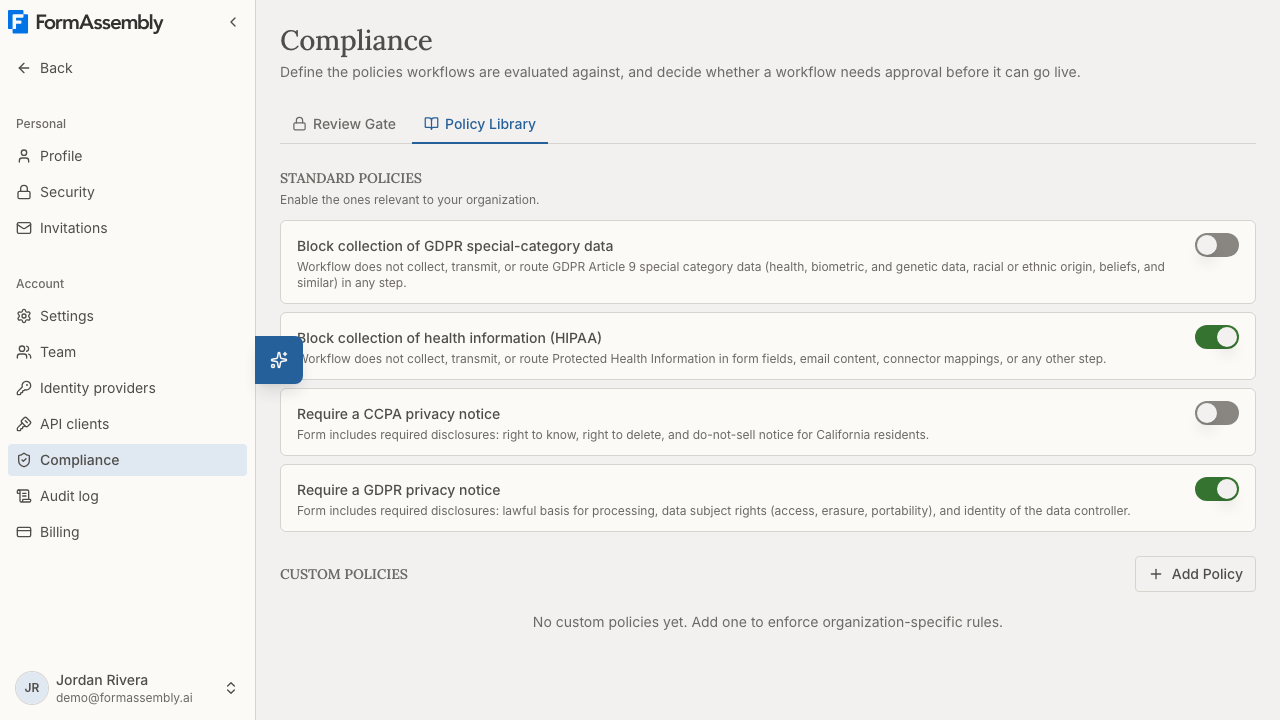
The Policy Library contains all the rules your workflows are evaluated against. Open it from your account settings under Compliance. Policies are organized into two groups:
- STANDARD POLICIES — Provided by FormAssembly. You can enable or disable these for your account, but you cannot edit or view their rule text.
- CUSTOM POLICIES — Rules you define in your own words to match your organization's specific requirements.
Only people who can configure compliance — account administrators by default — can see the Policy Library or create, edit, enable, disable, or delete policies.
Standard Policies
FormAssembly provides the following standard policies, each named for what it checks:
| Policy | Checks |
|---|---|
| Require a GDPR privacy notice | Before or at collection, the form discloses the lawful basis for processing, the data subject's rights (access, rectification, erasure, portability), and the data controller's identity and contact details. |
| Require a CCPA privacy notice | Before or at collection, the form gives California residents notice of the categories and purposes of personal information collected, the right to deletion, and — if data is sold or shared — a do-not-sell-or-share opt-out. |
| Block collection of health information (HIPAA) | No step collects, displays, transmits, or routes Protected Health Information, whether in form fields, email content, or connector mappings. |
| Block collection of GDPR special-category data | No step collects, transmits, or routes GDPR Article 9 special category data (health, biometric, genetic, racial or ethnic origin, political or religious beliefs, union membership, sex life or orientation). |
Disabling a standard policy is the only way to override it — there are no per-account exceptions to an enabled policy.
Accessibility is deliberately not a standard policy. Accessibility is enforced where it is decided: the form renderer handles semantic markup, labels, and keyboard behavior, and the theme editor audits your chosen colors and focus indicators against WCAG 2.2 AA and refuses to publish a theme with accessibility errors.
Enabling or Disabling a Standard Policy
Each standard policy has a toggle. Turn it on to include it in compliance evaluations; turn it off to exclude it.
Enabling a policy returns every Approved compliance record in the account to Pending Review, so the change is applied to work that was already signed off. The confirmation dialog says so: "any that were previously approved will require re-review." Live workflows stay live and keep collecting data — the reset affects their compliance status, not their availability. FormAssembly does not re-run policy evaluation against published workflows, so a reset record has no new violations attached until the workflow is submitted again.
Disabling a policy never resets approvals — removing a constraint is never a compliance regression. Disabling or deleting a policy does resolve that policy's open violations across your account, so those violations stop flagging the workflows they were raised on. If a workflow was held in Pending Review only by those violations, and nothing else flags it, its record moves to Review Dismissed: no review is pending and the author can publish again. A record that another policy still flags, or that a person asked to have reviewed with no violations attached, stays in Pending Review, and a blocked record stays blocked.
Creating a Custom Policy
- Click Add Policy.
- Enter a Name — a short identifier for the policy.
- Optionally add a Description explaining the policy's purpose and scope.
- Write the Rule text in plain, natural language. This is the instruction that will be evaluated against your workflow definitions. For example: "Every form must include a privacy notice checkbox before the submit button."
- Save the policy.
Saving a new enabled policy returns every Approved compliance record in the account to Pending Review, just as enabling a standard policy does.
Editing a Custom Policy
You can update a custom policy's name, description, or rule text at any time. Saving always edits the policy in place — the Policy Library has no option to publish a change as a new version. Saving an enabled custom policy returns every Approved compliance record in the account to Pending Review, even when the only change is to the name, so make edits deliberately.
Compliance evaluations always use the active (most recent) version of each enabled policy. When a violation is recorded, FormAssembly stores the exact policy version that detected it, so you always know which rule text applied at the time.
Standard policies work differently: only FormAssembly can change their rule text, and FormAssembly always publishes such a change as a new version. When FormAssembly withdraws a standard policy, the policy stops being evaluated and its open violations are resolved, but past violations and audit records remain intact.
Deleting a Custom Policy
Anyone who can configure compliance can delete any custom policy in the account, not only the ones they created. Deleting a policy resolves its open violations, as disabling it does. The deletion is recorded in the audit trail.
How AI Policy Evaluation Works
When AI-assisted review is enabled, each enabled policy is evaluated against the full workflow definition — form content, connector configurations, email templates, and field mappings. The AI returns:
- A pass or fail result for each policy.
- For failures, a list of violations with explanations and, where possible, references to the specific fields involved.
Violations are advisory — they inform the reviewer's decision. Only a human reviewer can ultimately approve or block a workflow based on the findings.
Note: Custom policy rule text is evaluated as-is. FormAssembly does not validate the legal correctness or enforceability of your custom policies. Work with your legal team to ensure your policies are appropriate.
Policies and the AI Assistant
All enabled policies are automatically shared with the AI assistant (Fai) as context when building workflows. This means Fai proactively tries to create workflows that conform to your active policies. Fai receives the name and description of every enabled policy, plus the rule text of your custom policies; the rule text of standard policies is withheld from Fai exactly as it is from every other client.
Review Gate
The Review Gate section opens for anyone whose role includes the permission to configure compliance — account administrators by default. Find it in your account settings under Compliance. This is where you configure whether workflows must pass a compliance review before they can be published.
Enabling Compliance Review
Use the toggle labeled Require compliance review before publishing to turn the review gate on or off.
- Off (default): Workflows publish immediately with no compliance check.
- On: When a user tries to publish a workflow, it is evaluated against all enabled policies. If it doesn't pass automatically, it is held for reviewer approval.
If the review gate is on but no policies are enabled, no compliance check runs and workflows publish immediately. In that situation, a draft that was previously held in Pending Review or Review Dismissed is superseded — the earlier check no longer applies, so the record is marked approved and its violations are resolved. A draft that a reviewer blocked is not released this way: disabling policies never works around a block, so the draft returns to Pending Review for a reviewer to decide.
When compliance review is enabled and AI is also enabled on your account, an AI-assisted review option becomes available. Within that, you can enable auto-approve, which automatically approves workflows that pass evaluation with zero violations — no human reviewer needed. Both AI-assisted review and auto-approve are off by default. Auto-approve never applies to the resubmission of a blocked draft, which always goes to Pending Review.
Each of these setting changes is permanently recorded in the audit trail.
Important: Before enabling compliance review, make sure at least one person in your account holds a role that can review workflows. FormAssembly refuses to enable the review gate when nobody can review, and the Review Gate section warns you when the account is in that state. A later role change can still leave an enabled gate with no reviewer, so check reviewer coverage whenever you change roles.
Approval Stages
Under APPROVAL STAGES, you can define a sequence of approval steps that draft workflows must pass through before publication. This is useful for organizations that require sign-off from multiple people or teams.
- Click Add stage to create a new approval stage.
- Assign one or more people to the stage. The picker lists the people in your account who can review. A stage is satisfied when any one of its assigned people approves.
- Add additional stages as needed. Stages are evaluated in order — the first stage must be satisfied before the second activates, and so on.
- Click Save stages to apply your changes.
If no stages are configured, any reviewer can approve a draft in a single step.
Approval stages apply only to draft workflows awaiting publication. Published workflows that are flagged require only a single reviewer decision, regardless of approval stage configuration.
Reviewer Role
A reviewer is any user whose role in the account carries the compliance review permission. There is no separate Reviewer role to assign. Reviewers can:
- Approve or block any workflow's compliance record in the account.
- Receive the compliance email notifications described under Notifications.
Reviewers do not automatically have account admin privileges, and a reviewer whose role does not also include the permission to configure compliance cannot open the Review Gate or Policy Library. This separation of duties is intentional — the person who builds and publishes a workflow should not be the same person who approves it.
Assigning Reviewers
Who reviews follows from the roles your users hold; there is no separate Reviewer switch on the Team page. The Admin role carries the compliance review permission, so account administrators can review workflows out of the box. To let someone review without making them an administrator, an administrator creates a custom role that includes the review-compliance permission: open your account settings, click Team, open the roles list, and click New role. Creating a custom role requires the Automate plan or higher. A guest who holds a role carrying the permission reviews in that account exactly as a member with the same role would.
Compliance review — including the permission to review — is an Enterprise plan capability. On a lower plan, nobody is a reviewer regardless of the role they hold. Changing who reviews is a role change, and is recorded in the audit trail as one.
The Review Process
What Happens When a Workflow Is Submitted for Publication
When compliance review is required and at least one policy is enabled:
- The user attempts to publish their workflow.
- All enabled policies are evaluated against the draft workflow definition.
- If AI-assisted review and auto-approve are both enabled, and zero violations are found, the workflow is auto-approved and publishes immediately.
- If violations are found, or if AI-assisted review is not enabled, or if auto-approve is not enabled, the workflow moves to Pending Review and publication is held.
- The draft appears in Workflow Status for the reviewers assigned to the current approval stage, or for all reviewers if no stages are configured. FormAssembly does not send an email when a draft first enters Pending Review, so reviewers should check the Compliance dashboard.
- A reviewer opens the workflow in read-only mode, reviews the AI findings and the workflow itself, and either approves or blocks it. The reviewer can record notes alongside the decision, and those notes are kept with the compliance record.
- On approval, FormAssembly validates the exact draft that was reviewed, then publishes it as the new live version.
- On block, the draft cannot publish. The workflow owner can revise and resubmit.
Each new evaluation resolves the record's earlier violations first, so a resubmitted draft never carries the previous draft's findings.
When a reviewer opens a workflow for review, FormAssembly shows the definition that matches the record being decided: reviewing a draft shows the pending draft, and reviewing a published record shows the live definition data is currently collected under. Blocking a published record takes the live workflow offline, so that decision is always made against the live definition. If a published record is reviewed for a workflow that has never been published, FormAssembly shows the draft rather than an empty canvas.
What Happens When Policies Change
Enabling a policy, creating a custom policy, or saving an enabled custom policy returns every Approved compliance record in the account to Pending Review. There is no prompt or option to choose otherwise, and FormAssembly does not re-run policy evaluation against published workflows.
- Live workflows stay live and keep collecting data while their records sit in Pending Review.
- Reset records carry no new violations — a reviewer decides on the workflow as it stands, and a fresh evaluation runs the next time the workflow is submitted for publication.
- No email is sent when approvals are reset, so tell your reviewers when you make a policy change.
Disabling or deleting a policy leaves approvals untouched and resolves that policy's open violations, as described under Enabling or Disabling a Standard Policy.
No-AI Mode
If AI is disabled on your account, automated policy evaluation is skipped entirely. When compliance review is on and at least one policy is enabled, workflows submitted for publication go directly to Pending Review for human review without AI-generated annotations. With no policy enabled, no compliance check runs and the workflow publishes. All other compliance features — the review gate, approval stages, and the audit trail — continue to work normally.
Notifications
FormAssembly sends compliance email in two cases only:
- A draft approval stage is satisfied and the next stage activates. The reviewers assigned to the newly activated stage are emailed that it is their turn.
- A reviewer blocks a live workflow, taking it offline. Every other reviewer in the account is emailed.
No email is sent when a draft first enters Pending Review, when a draft is blocked, when a policy change returns approved records to Pending Review, or when a workflow is auto-approved. Workflow owners are not emailed at all.
Notification emails include the workflow name, the account name, a description of the event, and a direct link to the Compliance page. They do not include a summary of violations — open the workflow in Workflow Status to see the findings. If you are the person who triggered the event, FormAssembly does not send you a duplicate notification.
Audit Trail
The Audit Trail provides a permanent, tamper-proof record of every compliance-related action in your account. Records cannot be edited or deleted.
What Is Logged
Workflow compliance events:
- AI evaluations completed
- Workflows auto-approved by AI
- Workflows submitted for publication
- Reviewer approvals and blocks
- Approved records returned to Pending Review by a policy change
- Draft records promoted to published status
- Published records replaced by a promoted draft, and draft checks superseded because no policy is enabled
- Reviews dismissed because the policy that flagged a workflow was disabled or deleted
Policy events:
- Custom policies created, updated, or deleted
- New policy versions published
- Policies enabled or disabled
- Review gate settings changed (with before/after values)
Every event records who performed the action (or "system" for automated actions), the timestamp, and relevant details such as the specific policy involved and any state changes.
Browsing and Exporting
The Audit Trail is a paginated list that you can search, sort, and filter. To export records:
- Apply any search terms, filters, or sort order you need.
- Download as CSV. The export includes all matching records (not just the current page), with your search, sort, and filter criteria applied.
This export is useful for satisfying audit and assessment evidence requirements (SOC 2, internal audits, regulatory inquiries) without manual documentation.
Privacy Declarations
FormAssembly can record privacy declarations — immutable proof of what privacy-related question was shown to a respondent and how they answered. These records support GDPR consent documentation, CCPA opt-out evidence, acknowledgment of privacy notices, and any other privacy-related act your organization needs to evidence.
How Privacy Declarations Work
Any field in a form can be designated as a privacy declaration field by turning on Keep as privacy evidence in the field's settings, with one exception: file upload fields cannot be declaration fields, because the answer to a file question is the file's content, which the record cannot snapshot. Marking a field as required or sensitive does not make it a declaration field — only Keep as privacy evidence does.
When a respondent submits the form, FormAssembly records one declaration entry per declaration field, capturing:
- The text of the question as it appeared at the time of submission.
- The respondent's answer (or an explicit record that no answer was given).
- The version of the legal text (account-level or workflow-level policy) shown to the respondent.
- The version of the workflow that was live at the time of submission.
- The timestamp and IP address of the submission.
- A workflow run identifier generated by FormAssembly, which identifies the run that produced the declaration record. The workflow run identifier is not the same value as your destination system's record ID: for connector steps, the record ID returned by the destination system (for example, a Salesforce record ID) is stored separately as the delivery's external ID, and that external ID is what you join against to find the matching workflow run and its declaration records.
A declaration field that conditional logic hides from the respondent records nothing — no declaration entry is written for a question that was never shown.
FormAssembly does not interpret the meaning of a response — whether an answer represents opt-in, opt-out, consent, acknowledgment, or withdrawal is determined by your field and choice labels. FormAssembly records the question and the response factually.
In a workflow with multiple form steps, FormAssembly captures declaration records immediately after each step that contains declaration fields — not after the entire workflow is complete. This ensures declaration records are preserved even if the respondent does not finish the entire workflow.
Test submissions produce no declaration records. A test submission has no respondent, and declaration records are protected from deletion, so a test record would persist as fabricated evidence in your compliance data.
FormAssembly does not store respondent identity. All other submission data is passed through to your connected systems. The declaration record's value is as immutable proof of the declaration act — what was shown and what was answered — tied to a workflow run that you can trace back to an individual using your own systems.
Linking Declarations Back to a Person
Tracing a declaration record back to an individual relies on the delivery step in your workflow:
- For connector steps, FormAssembly stores the record ID returned by the destination system (for example, a Salesforce record ID) as the delivery's external ID. Use that external ID to find the matching workflow run and its declaration records.
- For email steps, the workflow run identifier generated by FormAssembly travels in the email's message headers (as
X-FA-Run-ID), not in the message body, so the recipient has a reference alongside the submitted data. - Workflows with no delivery step (no connector and no email) produce declaration records that cannot be traced back to an individual using FormAssembly data alone.
What Counts as a Response
- For text, number, date, time, and rating fields, the entered value is recorded.
- For checkboxes, the labels of all checked options are recorded; a null value is recorded if nothing is checked.
- For radio buttons and dropdowns, the label of the selected choice is recorded; null if nothing is selected.
- For multi-select fields, the labels of all selected choices are recorded; null if none are selected.
- For ranked-choice fields, the labels of all choices are recorded in the order the respondent ranked them; null if nothing was ranked.
A null response is not omitted — FormAssembly explicitly records that the question was presented even when the respondent did not respond.
Withdrawal and Opt-Out
Withdrawal of consent and opt-out requests are handled the same way as any other privacy declaration. Create a form with a declaration field for the withdrawal or opt-out question, and the respondent's submission produces a new declaration record documenting the act. Linking a withdrawal record to a prior consent record is your organization's responsibility.
What Deleting Data Does to Declaration Records
Removing a respondent's data and removing the proof that a question was asked are distinct operations, and no deletion silently takes declaration records with it:
- Deleting a workflow run (through retention or a response purge) does not delete its declaration records. You lose the ability to trace that run back to an individual, but the record keeps its own snapshot of the question, the answer, the timestamp, the legal text version, and the workflow version.
- Deleting a workflow version that a declaration record depends on is refused, so the record always stays connected to proof of what the respondent saw.
- Deleting the account removes its declaration records. Your organization is the data controller, and once the account is gone there is no one left for FormAssembly to hold the evidence for.
Erasure Requests
Declaration records are retained as proof of the declaration act. Deleting a declaration record would destroy the proof that the declaration was obtained — which is itself a compliance requirement — so declaration records are protected from deletion, and the current version of FormAssembly provides no tool for erasing or editing one. The IP address of the submission is the only directly identifying value FormAssembly stores in a declaration record; the rest of the record is question text, response, timestamps, and version references. FormAssembly does not provide a self-service erasure path for respondents. If you need to handle an erasure request that touches declaration records, contact FormAssembly.
Account and Workflow Legal Text
Each FormAssembly account can define a default legal policy — such as a privacy notice or terms of use — that is shown to respondents on workflows.
Which text applies: If a workflow has a workflow-level override set, that override applies to that workflow. If no override is set, the account-level policy applies. This is why the AI assistant (Fai) reports the workflow-level override when one exists, and the account-level policy otherwise.
What you can change: Legal text is edited in Account Settings. There is no way to create or change a workflow-level override in the current version of FormAssembly.
Both account-level and workflow-level legal text is versioned. When the text is updated, FormAssembly preserves a snapshot of the previous version. Privacy declaration records reference the specific version of the legal text that was shown to the respondent at the time of submission, so you always have proof of exactly what language was in effect.
The AI assistant (Fai) can read the effective legal text for a workflow and answer questions about it, but Fai cannot edit legal text. Change your legal text in Account Settings.
FormAssembly does not validate the legal correctness of account-provided legal text. Work with your legal team to ensure your legal language is appropriate for your jurisdiction and compliance requirements.
Legal Agreements
FormAssembly publishes three legal documents that are relevant to your account:
- Master Subscription Agreement (MSA) — Accepted by an account administrator, whose acceptance binds the account. Acceptance is recorded per user with the version accepted and the date. Older versions keep the name they were published under, so a historical version may appear as "Terms of Service" or "Early Preview Agreement".
- Data Processing Agreement (DPA) — Must be accepted by the account administrator. This governs how FormAssembly processes data on your behalf. The DPA includes an annex listing the categories of personal data that may be processed through FormAssembly — such as contact information, employment data, financial information, demographic data, survey responses, and file uploads.
- Privacy Policy — Informational; describes how FormAssembly itself collects and processes personal data. No acceptance is required.
All three documents are publicly accessible and linked from the site footer. Each document has its own page, and older versions remain viewable — when you open a historical version, a banner appears at the top with a link to the current version.
Acceptance and Re-Acceptance
- The Master Subscription Agreement is accepted during onboarding. When FormAssembly publishes a new version, the next administrator to sign in to an account that has not yet accepted it is prompted to accept on that login. Until that acceptance, that administrator cannot access the platform, but other members are unaffected and submission processing continues uninterrupted.
- The DPA is accepted by the account administrator during onboarding. When a new version is published, the admin is prompted to re-accept on their next login. Submission processing continues uninterrupted during this period — your live workflows are not affected.
In your account settings, you can view which version of each document was accepted and when. The link to view an accepted document opens that exact version, so you always see what you agreed to. If a newer version is available, a notice appears indicating that re-acceptance will be prompted at next login.
Sensitive Data Restrictions
FormAssembly restricts the collection of sensitive data categories, including:
- GDPR Article 9 special categories: health data, racial or ethnic origin, political opinions, religious beliefs, biometric data, and others.
- HIPAA Protected Health Information (PHI): medical records, diagnoses, health insurance information, and related data.
Collection of these data types requires specific compliance agreements and reports (such as a HIPAA Business Associate Agreement or a SOC 2 Type II report).
In the product, these restrictions are checked through the standard policies Block collection of health information (HIPAA) and Block collection of GDPR special-category data. Enable them in the Policy Library and turn on compliance review so that workflows are evaluated against them before publication. As with every policy, the resulting violations are advisory — they inform the reviewer's decision, and a human reviewer approves or blocks the workflow.
Tips & Troubleshooting
- No one can approve workflows. Reviewing follows from roles: the Admin role can review, and there is no separate Reviewer switch on the Team page. If compliance review is enabled and nobody in the account holds a role that can review, workflows stay stuck in Pending Review. Keep at least one administrator available to review, or create a custom role that includes the review-compliance permission and assign it.
- Reviewers didn't get an email. FormAssembly emails reviewers in only two cases: when an approval stage is satisfied and the next stage activates, and when a reviewer blocks a live workflow. Nothing is emailed when a draft first enters Pending Review, so ask reviewers to watch Workflow Status.
- A workflow shows "Out of Compliance" but the draft is fine. Risk is based on the published (live) version, not the draft. Submit the draft for review to resolve the issue.
- Approved workflows went back to Pending Review after a policy change. This is expected. Enabling a policy, creating one, or saving an enabled custom policy — even for a name change — returns every approved compliance record in the account to Pending Review. The workflows stay live; a reviewer needs to approve them again.
- A workflow shows "Review Dismissed". A dismissed record means the only violations holding the workflow in review came from a policy that has since been disabled or deleted. No review is pending — the author can publish the workflow again.
- Compliance review is on but workflows still publish immediately. A compliance check only runs when at least one policy is enabled. If every policy in the Policy Library is turned off, publishing proceeds with no evaluation.
- AI auto-approve isn't working. Auto-approve requires three settings to be active: compliance review must be enabled, AI-assisted review must be enabled, and auto-approve must be enabled. If any one of these is off, workflows go to Pending Review for human decision. Also, a single violation from any enabled policy prevents auto-approve, and auto-approve never applies to a draft that was previously blocked.
- A blocked published workflow went offline. This is expected behavior. When a reviewer blocks the published version of a live workflow, FormAssembly automatically takes the workflow offline to protect your organization. The workflow owner can fix the draft and resubmit it for a new compliance review.
- You can't find the Policy Library on the Compliance dashboard. Policy administration lives in account settings: open your account settings and click Compliance to reach Review Gate and Policy Library. Only people whose role includes the permission to configure compliance can open those sections.
- Can't find a workflow on the Compliance dashboard. Only workflows that have been published while compliance review was enabled have a compliance record. Archived workflows are also excluded. If a workflow has never gone through a compliance check, it will not appear on the dashboard.
- A declaration record can't be matched to a person. Tracing a declaration record back to an individual depends on a delivery step. If a workflow has no connector step and no email step, FormAssembly has no external record ID to join against — add a delivery step so future runs are traceable.
- You can't find where to change legal text for a single workflow. Legal text is edited in Account Settings, and the current version of FormAssembly provides no way to create or change a workflow-level override. If a workflow already has an override set, that override still takes precedence for that workflow at runtime; workflows without an override use the account-level text.
Was this article helpful?