Team & Account Settings
How to manage your account profile, invite team members, set up your privacy policy, and handle legal agreements.
Account Settings
The Account settings page contains organization-wide settings that apply to all team members and workflows. Every member can open the page, but only members who hold the account-settings permission — normally admins — can change what is on it; for everyone else the fields are read-only.
To open the page, click Settings in the FormAssembly primary navigation sidebar. The same sidebar also links to your personal pages — Profile, Security, and Invitations — and to the account pages Team, Identity providers, API clients, Compliance, and Billing.
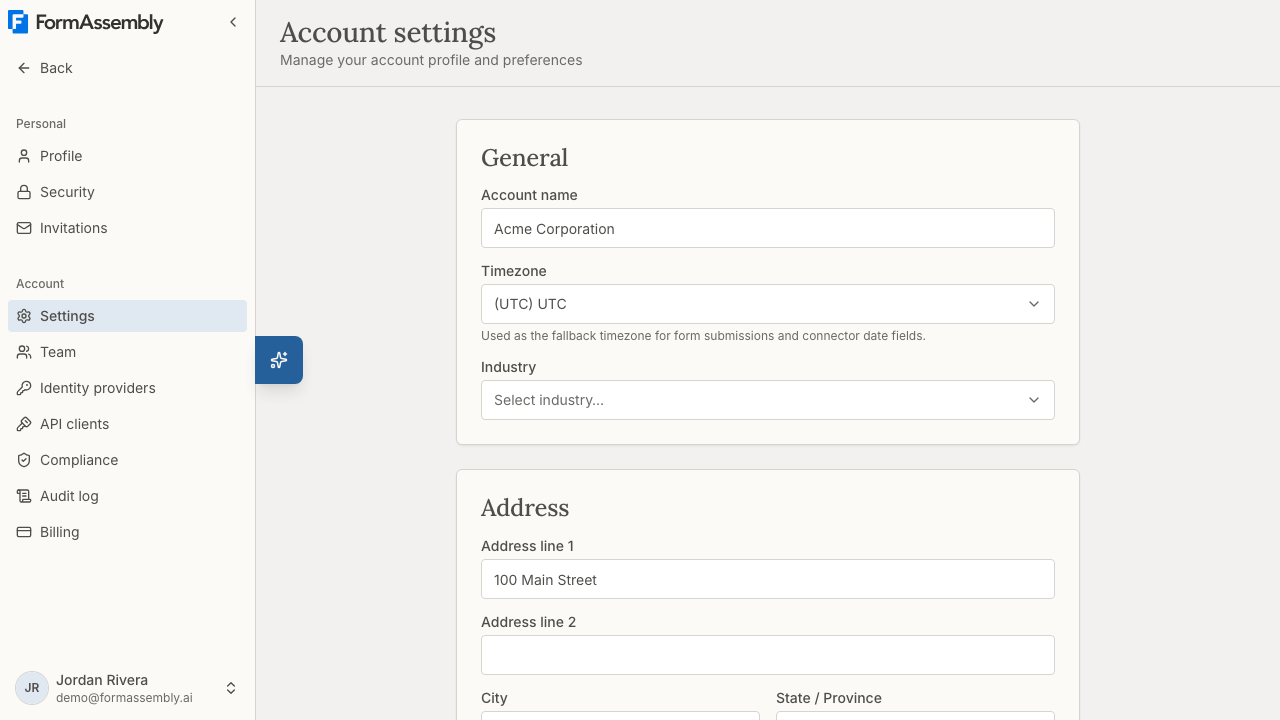
General
The General section includes the following fields:
- Account name — The display name for your account. You can change this at any time.
- Timezone — The timezone used across your account for displaying dates and times, as the fallback timezone for form submissions, and as the authoritative timezone for date-time values sent to connected systems (such as Salesforce). Start typing a city or region name in the Account timezone field to filter the list, then select the matching timezone. Timezones are displayed in the format
(UTC±N) Region/City. - Industry — An optional field describing your organization's industry. Start typing in the Industry field to filter the available options.
Click Save changes to apply your updates.
How timezone works: Your account timezone is initially set during signup based on your browser's detected timezone. If that detection fails, it defaults to UTC. You can update it here at any time. The timezone is used as the default for dates and times throughout the app, as a fallback when a form respondent's timezone cannot be detected, and as the authoritative timezone for date-time values delivered to connected systems regardless of the respondent's timezone. Individual team members can override the display timezone in their own user settings.
Your account slug cannot be changed. The account slug is set once when your account is created and is not editable afterwards, because changing it would break every published workflow URL. You will need to type your account slug if you ever cancel the account.
Address
The Address section holds your organization's mailing address. All fields are optional, and the address does not affect how your forms or workflows behave.
- Address line 1
- Address line 2
- City
- State / Province
- Country — Start typing in the Country field to search and select from the list.
- Postal code
Click Save changes to apply your updates.
Your Privacy Policy
The Your Privacy Policy section lets you write a privacy policy that is shown to respondents at the bottom of every form in your account's workflows.
Use the rich text editor to compose or paste your policy. The editor toolbar includes:
- Bold, Italic, and Underline for text formatting
- Bullet list and Ordered list for structured content
- Link to add hyperlinks (for example, a link to your organization's full external privacy policy)
Click Save policy to publish your changes.
Each time you save, a new version of your policy is created. Respondents always see the latest version, and previous versions are preserved for compliance records. If a respondent submitted a form under an earlier version, that version is linked to their submission record.
You can also click the Privacy Policy link to preview the current published policy.
Important details:
- Leave the policy blank if you do not want to display anything to respondents.
- You are responsible for ensuring your policy text meets all applicable legal requirements (such as GDPR or CCPA). FormAssembly does not validate legal correctness.
- Individual workflows can override this account-level policy with their own version. Workflow-level overrides are not yet editable in the current version.
Asking Fai about your privacy policy: Fai is the AI assistant built into FormAssembly, available from the button labeled Open Fai. Fai can tell you which privacy policy text applies to a workflow (a workflow-level override if one exists, otherwise your account-level policy), or tell you that no policy is configured. Fai cannot edit your privacy policy — to change it, edit the Your Privacy Policy section on the Account settings page and click Save policy.
FormAssembly Legal Agreements
The FormAssembly Legal Agreements section provides access to FormAssembly's own legal documents. Each agreement shows the version you accepted and the date of acceptance. Click View next to any agreement to read the version you accepted. These documents include:
- Master Subscription Agreement (MSA) — Accepted by an account admin, whose acceptance binds the account. Acceptance is recorded per user, with the version and date. If a new version is published, the next admin to sign in is prompted to accept it before continuing to use the app. Older versions that you accepted under an earlier name are shown under the name they were published with.
- Data Processing Agreement (DPA) — The account admin must accept this on behalf of the account. It governs how FormAssembly processes data on your behalf.
- Privacy Policy — FormAssembly's own privacy practices, covering how account data, analytics, and session information are handled. The Privacy Policy is informational and does not require acceptance.
The full text of each document is also published on a public page that anyone can read without signing in, and each is linked from the site footer. When you open a historical version rather than the current one, a banner at the top of the page links to the current version.
If a newer version of the Master Subscription Agreement or DPA has been published since you accepted, a notice is displayed: "A new version is available. You will be prompted to accept it on next login."
Re-acceptance: When FormAssembly publishes a new version of the Master Subscription Agreement or DPA, affected users are prompted to accept the updated terms at their next login. Until you re-accept, you cannot access the app — but your workflows continue to collect and process submissions without interruption.
Sensitive data categories: FormAssembly does not permit collecting GDPR special-category data (such as health, biometric, religious, or political data) or HIPAA protected health information unless your plan includes the required compliance certifications. FormAssembly checks your forms for these categories, warns you in the builder, and blocks publication if any are found. See also the compliance documentation for the full list of categories and the upgrade path.
Danger Zone
The Danger zone section contains the option to permanently cancel your account.
Export your responses first. Cancellation cannot be undone, so download everything you still need before you begin: open a workflow's Responses page and click Export to build a zip of CSV files. Export runs one workflow at a time, so repeat it for each workflow whose responses you want to keep.
Click Cancel account to begin the cancellation process. A confirmation dialog will explain the consequences and ask you to type your account slug to confirm.
What happens when you cancel:
- All team members lose access immediately, and any active sessions end on the next request.
- All workflows are unpublished — respondents visiting your form URLs will see an unavailable message.
- Your subscription is cancelled and no further charges are made. Any deferred billing is forgiven.
- All data (workflows, team members, submission records) is retained in a soft-deleted state for audit and compliance purposes, but is no longer accessible.
Any admin on the account can start cancellation.
A personal account has no Danger zone on the Account settings page: its owner deletes it from Profile with Delete account, typing the account's URL name (its slug) to confirm.
This action cannot be undone. Cancellation is permanent and cannot be reversed from within the app. Your data is retained in a soft-deleted state for audit and compliance purposes, but no one on the account can open, view, or retrieve it afterwards — so only cancel once you are certain you no longer need access to anything in the account.
API Clients
The API clients page lets admins register an application so it can call FormAssembly's REST API on your account's behalf. Register a client when you want your own system — rather than a person — to read or create data in FormAssembly.
To open the page, click API clients in the FormAssembly primary navigation sidebar. For each client you register, you give it a name, list the redirect addresses FormAssembly is allowed to return users to after they authorize it, and choose the permissions the client is granted. FormAssembly issues a client secret when the client is created; store it somewhere safe, because the secret is shown once and you must replace it if it is lost or exposed. Replacing a secret immediately stops the old one from working, so update your application at the same time.
See also: the FormAssembly API reference for how to authenticate and which endpoints are available.
Billing
The Billing page shows your current plan and your usage against it. Click Billing in the FormAssembly primary navigation sidebar to open it. The page does not show invoices or a payment method, and plan changes are arranged with the FormAssembly sales team rather than made in the app. See also: Plans & Billing for how billing and upgrades work.
Team Management
The Team Management page lets admins invite new members, assign roles, promote or demote members, and remove members from the account.
To open the page, click Team in the FormAssembly primary navigation sidebar.
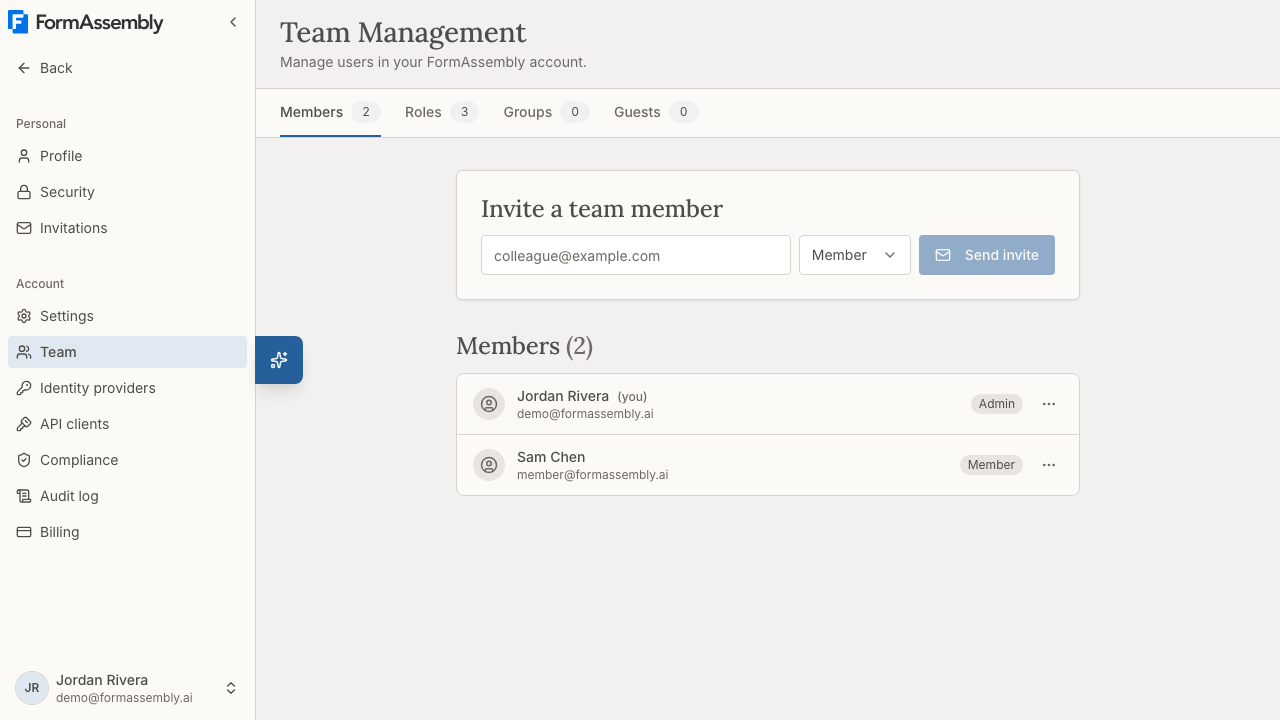
The page includes tabs for Members, Roles, Groups, and Guests. Each tab shows a count next to its name. The Members tab is where you manage individual team members. The Roles tab lists your account's roles and includes New role for creating a custom role — see Roles & Permissions for how to build one. The Groups tab lets you organize members into groups you can grant access with, and the Guests tab lists people from outside your account who have been given access to work in it. The Guests tab appears only on organization accounts, and only to members who can invite people. See also: Guest Access & User Groups for how to use both.
Inviting a Team Member
- In the Invite a team member section, enter the person's email address in the Email address field.
- Click the Role dropdown and select a role:
- Member — Assigns the Builder role. Can create and manage their own workflows. - Admin — Assigns the Admin role. Can manage all workflows, team members, and account settings.
- Click Send invite.
The invitee will receive an email with instructions to join your account.
Your account has three roles — Admin, Builder, and Viewer — which you can see on the Roles tab of the Team Management page. The invite dropdown offers only the two most common choices, so an invited Member appears under the Builder role. See also: Roles & Permissions for what each role can do.
Viewing Your Team
The Members section displays all current members along with a count (for example, Members (2)). Each member has an actions button that lets admins manage that member's role or remove them from the account.
The Members tab also includes:
- Pending invites — Lists each invitation you have sent with the role it assigns and its expiry date, plus a button to revoke the invitation.
- Access requests — Lists people asking to join the account, where an admin approves or rejects each request.
- Locked — A badge shown on a member who is locked out of the account. Open that member's row actions and choose Unlock account to restore their access.
Promoting a Member to Admin
To give a team member admin privileges, click the actions button next to their name (for example, the button labeled Actions for Sam Chen) and select the option to promote them to admin. The member will immediately gain access to account settings, team management, and all workflows.
As on the invite dropdown, Admin and Member here mean the Admin role and the Builder role respectively.
Constraint on role changes: The last remaining admin cannot be demoted, whether an admin is demoting themselves or someone else. To remove the last admin's privileges, promote another member to admin first. An admin who is not the last admin may change their own role, including demoting themselves to member.
Demoting an Admin to Member
To remove admin privileges from a team member, click the actions button next to their name (for example, the button labeled Actions for Sam Chen) and select the option to demote them to member. The member will immediately lose access to account settings, team management, and other members' workflows.
Removing a Team Member
To remove a member from the account, click the actions button next to their name (for example, the button labeled Actions for Sam Chen) and select the option to remove them.
A confirmation dialog will appear showing the member's name and how many workflows they own. If the member owns any workflows, you will have the option to reassign those workflows to another active team member:
- In the dialog, select a team member from the list to receive the removed member's workflows.
- If you do not select anyone, the removed member's workflows will be deleted.
- Confirm the removal.
Important details:
- Only non-admin members can be removed directly. To remove an admin, demote them to Member first, then remove them.
- The last admin on the account cannot be removed. To leave as the last admin, you must either promote someone else to admin first or cancel the account entirely.
- Removed members cannot log in or access any account resources. Their data is retained for audit purposes.
- Workflows can only be reassigned to one recipient. All of the removed member's workflows go to the same person.
- Themes owned by the removed member follow their workflows — they go to the same recipient, or are removed if you do not choose one.
- The removed member's connections are deleted rather than transferred, because a credential belongs to the person who authorized it. A connect step that used one of those connections shows a missing connection until another member reconnects it. Connection services the member set up remain available to admins.
- Removing a member also ends any guest access that person holds in other accounts.
Leaving an Account
Any team member can leave a FormAssembly account themselves from Profile: in the Danger zone section under Account Membership, click Leave account. A confirmation dialog explains that their workflows will be permanently removed, and the member must confirm to proceed. The Account settings page has no leave control.
Important details:
- Leaving an account does not offer workflow reassignment, because members cannot see other members' identities. All workflows owned by the departing member are removed.
- The last admin on the account cannot leave. Promote another member to admin first, then leave — or cancel the account instead.
- To hand the account to someone else, promote that person to admin first, and then leave the account.
- If you are currently working in another account as a guest, switch back to your home account first — you can only leave your home account from within it.
Tips & Troubleshooting
- Timezone seems wrong? Your timezone is detected from your browser during signup. If it was incorrect (for example, you signed up while traveling), update it in the General section of Account settings and click Save changes.
- Can't find your country or timezone? Start typing in the field — the list filters as you type. For timezone, try the name of a major city in your region.
- Can't demote or remove yourself? If you are the only admin, you must promote another team member to admin before you can change your own role or leave the account.
- Invited someone as a Member but can't find "Member" on the Roles tab? The invite dropdown's Member option assigns the Builder role, so the person appears under Builder.
- Privacy policy not showing on forms? Make sure you have entered text in the Your Privacy Policy editor and clicked Save policy. If the editor is blank, nothing will be displayed to respondents.
- Team member didn't receive their invite? Ask them to check their spam or junk folder. You can also re-send the invite by entering their email address again and clicking Send invite.
- Need to reassign workflows before someone leaves? Ask the admin to remove the member from the Team Management page and choose a recipient in the removal dialog. If the member leaves on their own, their workflows are removed instead of reassigned.
- A workflow stopped delivering after someone left? Their connections were deleted with their membership. Open the affected connect step and reconnect it with a current member's credentials.
- Can't change anything on Settings or Team? Settings opens for every member, and Team appears for anyone who may view the member list, which includes Builders, so they can pick people to share a workflow with. Changing account settings, members, and roles is admin-only — ask an existing admin on your account to promote you.
- A respondent asked you to erase their data? Erasure requests are handled by account admins, not by respondents directly. Privacy declaration records are anonymized rather than deleted, so the proof that the question was asked and answered is preserved.
- Accidentally cancelled your account? Account cancellation cannot be undone through the app. Contact FormAssembly support as soon as possible for assistance — see Getting Help for how to reach support and grant support access.
Was this article helpful?