Getting Help
How to contact FormAssembly Support from the app or the support form, what to include, the partner support path, and how to let Support into your account to investigate.
Ways to get help in FormAssembly
FormAssembly offers three ways to get help, listed here in the order most people try them:
- Ask Fai, the AI assistant built into FormAssembly. Fai can answer questions from the FormAssembly documentation, walk you through a workflow problem, and — when it cannot solve the problem — file a support request on your behalf.
- Use the support form, reached from Get help in the account menu. The form is always available, whether or not Fai is enabled on your account, and it also works when you are not signed in.
- Use the partner support form, for FormAssembly partners (resellers, consultants, and implementation partners) opening a case on behalf of a customer account.
All three routes reach the same support team and create the same kind of support case. Which one you use is a matter of convenience, not priority.
How do I get help from Fai?
Fai is the AI assistant available inside FormAssembly. Ask it your question in plain language — Fai can explain how a feature works, help you interpret an Execution log entry, or suggest how to build a step.
If troubleshooting stalls, or the problem needs access Fai does not have, Fai can raise a support request for you:
- Describe the problem to Fai as you would to a person.
- If Fai suggests filing a support request — or if you ask it to — it will gather the details it needs conversationally.
- Fai shows you a summary of the request before sending it. Read it and confirm, or correct anything that is wrong.
- Once you confirm, Fai files the request and gives you the case number.
Fai never files a request on an assumption; it always confirms the summary with you first.
Two things to know about the Fai route:
- Fai requires you to be signed in. If you cannot sign in, use the support form instead.
- A request filed through Fai does not include your browser and operating system. Fai runs on the server and cannot read them. If the problem is browser-specific, mention your browser and version in your description, or use the support form instead, which captures them automatically.
Can I send feedback to Fai instead of filing a case?
Yes. Besides filing a support request, you can ask Fai to send feedback — a bug, a feature request, or general feedback — under your name or anonymously. Feedback goes to the FormAssembly product team, and nobody replies to it. Use feedback when you want to tell FormAssembly something; file a support request when you need someone to act on your problem.
How do I submit a support request from the form?
To open the support form, choose Get help from the account menu. The page is titled Contact FormAssembly Support Team.
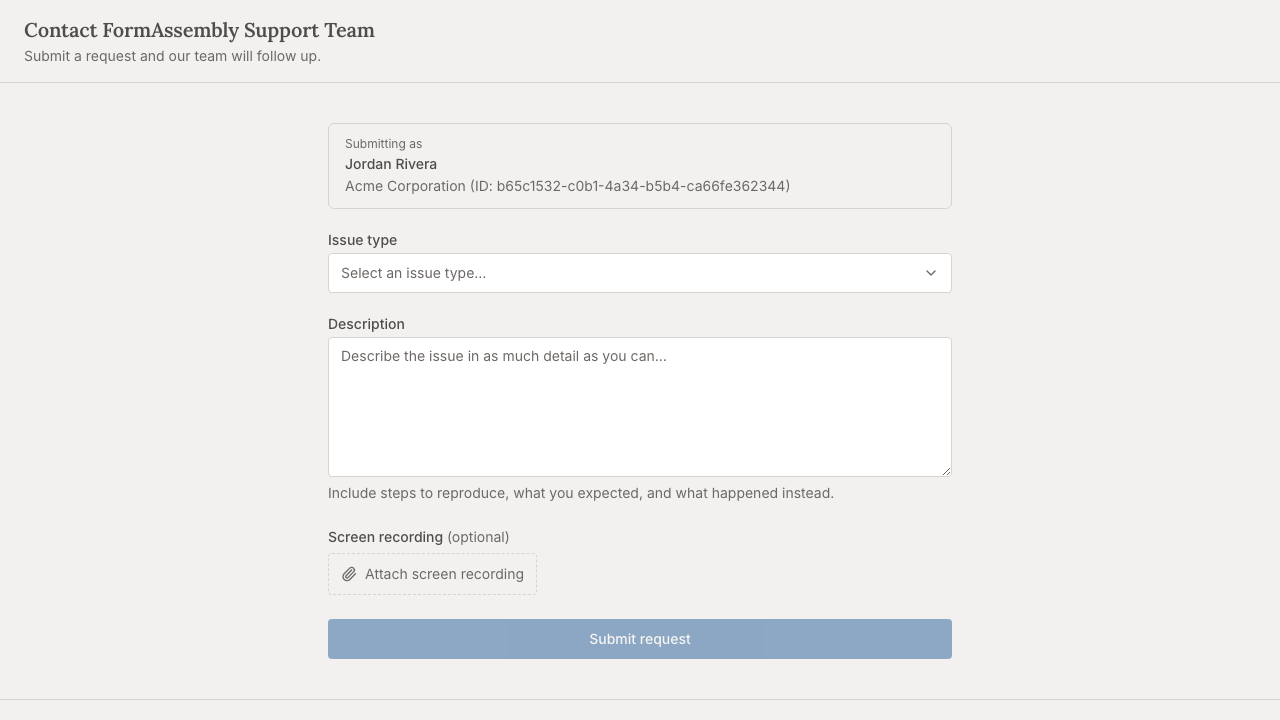
- Choose an Issue type. The available types are Support Request, Billing Request, Feature Request, Bug Report, and Other.
- Write a Description. The field is free text with no follow-up questions, so include everything that matters: what you were doing, what you expected, what happened instead, and the name of the workflow or step involved.
- Optionally add a Screen recording (optional) — see below.
- Optionally allow FormAssembly Support into your account — see "Letting Support into your account".
- Click Submit request.
After you submit, the page reads Request received and tells you the support team will follow up at your email address. The support form does not show a case number; only a request filed through Fai reports one in the conversation. A confirmation email may also arrive.
The footer of the support page links to Docs, the Master Subscription Agreement, the Privacy Policy, the Data Processing Agreement, and Accessibility.
What should I include in a support request?
Include anything that lets the support team reproduce or locate the problem without writing back to ask:
- What you were trying to do, in one or two sentences.
- What actually happened, including the exact wording of any error message you saw.
- Where it happened — the name of the workflow, the step, the form, or the page.
- When it happened, if it was a one-off rather than something you can reproduce on demand.
- Whether it still happens, and whether it happens for other people on your team.
You do not need to type your account details. When you are signed in, FormAssembly attaches your account and user information to the request automatically, along with basic environment information — your browser and operating system — captured from the form. That is also true when you are signed in as a guest of another account: the request is filed against the account you are currently working in, and the support team can see that you are acting as a guest.
Attaching a screen recording
The support form can attach a video you have already recorded, under Screen recording (optional). A recording is often faster and clearer than a written description of a visual problem.
- Record your screen with whatever tool you normally use, saving a video file such as .mp4, .webm or .mov.
- Click Attach screen recording and choose the file.
- Click Submit request. The video is sent with your request.
Notes on screen recording:
- Recording is always optional. You can click Submit request without one.
- A recording larger than about 15 MB is refused with the message "Recording is too large". Trim the video or record a shorter run-through of the problem.
- Anything visible on the screen you record is included in the video, so close unrelated windows and sensitive documents before you start.
- The same Attach screen recording button is on the partner form.
Letting Support into your account
The signed-in support form offers an optional checkbox, unchecked by default, that lets FormAssembly Support work inside your account for 7 days to investigate the case. Granting access is often the fastest way to resolve a problem that only reproduces in your account, because the support team can look at the configuration directly instead of asking you to describe it.
Before you tick it, understand exactly what it grants:
- Support receives the Admin role, which sees and manages everything in the account. It is not a read-only or scoped-to-one-workflow level of access.
- Access lasts 7 days and then ends on its own.
- You can revoke access at any time from Team → Guests. The grant appears there as the FormAssembly Support group, along with the case number and whoever claimed it. See also: Guest Access & User Groups.
Who is offered the checkbox:
- Only someone who could grant that access themselves is offered it — that is, a member with permission to invite people to the account and a role carrying every permission of the account's Admin role. No grant can exceed what its creator could give.
- If you are not eligible, the form tells you that an account admin can allow it instead.
- Personal accounts cannot grant support access at all. If you are working in a personal account, the form tells you that support access is not available there.
- Support access is never offered on the unauthenticated form or the partner form.
Fai can offer support access as well, during a conversation that leads to a support request. Fai only requests it when you say yes explicitly.
After you submit, you are told whether access was granted and the date it ends. If the access could not be granted — for example, because your role does not allow it — the request itself still goes through; you are told access was not granted and why. Never resubmit the form to retry support access, as that creates a second case. Ask in the existing case instead.
Can I get support if I can't sign in?
Yes. The support form works without signing in, which is the route to use if you are locked out, cannot reset your password, or cannot reach your account.
What differs when you are not signed in:
- You identify yourself manually. The form asks you to say whether you are an existing FormAssembly customer or not, and to supply your first name, last name, and email address. Existing customers can also supply a username and an account identifier — your account ID, your login URL, or the URL of a workflow or form you have access to. The account identifier is optional but strongly encouraged, because without it the support team has to find your account by hand.
- No account context is attached automatically. Your browser and operating system are still captured, but nothing else.
- Support access cannot be offered, because there is no signed-in account to grant it in.
- You complete a short anti-spam challenge before the request is sent.
If you choose that you are not a FormAssembly customer, the form first asks whether you are filling out a form created by an organization that uses FormAssembly — a survey, a job application, a registration form. Answer Yes and the form explains that FormAssembly Support cannot help with that form or its content, and that you should contact the organization that sent you the form directly; no case is created. Answer No and the form opens as usual, with an optional Company name field alongside your name and email address.
Partner support
FormAssembly partners — resellers, consultants, and implementation partners — use the dedicated Partner support form to open a case on behalf of a customer account. Partners do not sign in to FormAssembly, so the partner form is always completed without a session.
Nothing inside the app links to the partner form. Reach it directly at /support/partner on the FormAssembly site.
The partner form asks for:
- First name and Last name.
- Email address — use the address FormAssembly has on file for you as a partner. A request sent from an address FormAssembly does not recognise is refused and no case is created.
- Account identifier — required on the partner form. Supply the customer's account ID, their login URL, or the URL of a workflow or form on their account.
- Issue type and Description, exactly as on the standard form.
- Screen recording (optional), exactly as on the standard form.
Click Submit request to file the case. As on the standard form, the page then reads Request received and the support team follows up at the email address you supplied.
Tips & Troubleshooting
- Submit once. Submitting the form again creates a second case for the same problem, which slows triage down. If you need to add information, reply to the support team's email on the existing case.
- If Fai reports an error while filing, do not assume nothing happened. Check for a case number in the conversation before filing again, and mention the possible duplicate in your description if you do refile.
- Keep the case number Fai gives you. It is the reference the support team uses. The support form and the partner form do not show one; the team identifies your request from the email address it was filed with.
- Your description stays internal. The free-text description you write is recorded as an internal note on the case for the support team, not published anywhere customer-facing.
- Describe browser issues explicitly when using Fai. The form captures your browser and operating system; a request filed through Fai does not.
- Use an issue type that matches the request. Billing questions filed as Bug Report reach the wrong queue first and take longer to resolve.
- Unrecognised email addresses are refused on the unauthenticated and partner forms. If your submission is rejected and you have a FormAssembly account, sign in and file the request from Get help instead, which identifies you from your session.
- Revoke support access when the case is closed if you do not want to wait out the 7 days. Go to Team → Guests and remove the FormAssembly Support grant.
- Check the docs first for configuration questions. The Docs link in the support page footer, and Fai itself, answer most "how do I set this up" questions faster than a case can be triaged.
Was this article helpful?