Designing Forms
How forms work inside workflows, including layout, fields, validation, localization, and theming.
Accessing the Form Designer
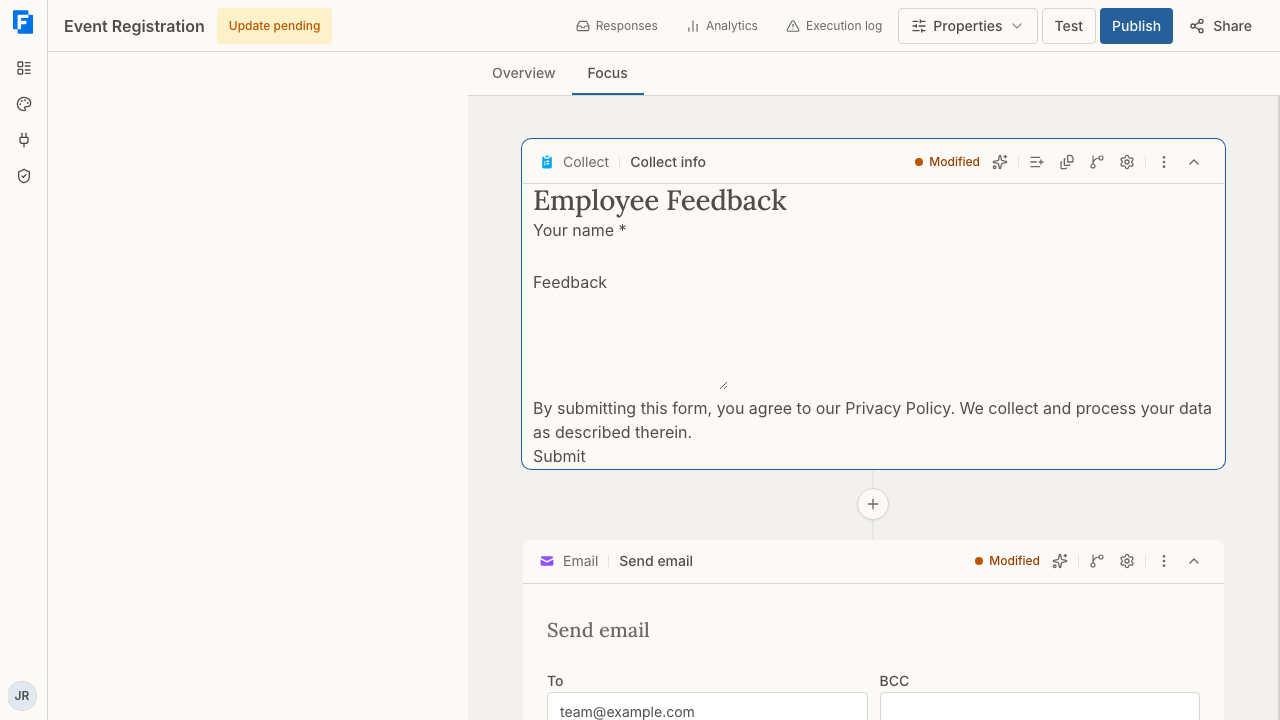
Forms in FormAssembly live in a workflow's Collect steps. A workflow can have no Collect step, one, or several, so open the workflow and select the Collect step you want to edit. Selecting a step card in Overview switches the builder to Focus view, which is where you edit a step and where all structural controls live. Focus view displays a live preview of your form, so you can see changes in real time.
The header of the Collect step carries icon-only buttons (named here by their tooltips). They appear only while the step card is expanded in Focus view:
- Add field opens the Fields tab of the Properties panel, which lists the field types you can add from the builder.
- Pages opens the Pages tab, where you add and organize the pages of a multi-page form.
- Step settings opens the settings for the Collect step itself.
- Ask Fai about this step points Fai at the step and puts your cursor in the chat box. It sends nothing on its own.
- Routing appears on any step that leads on to another step.
The Elements tab sits beside Fields in the same Properties panel.
You can design your form in three ways:
- Add fields and elements from the Properties panel — Select Add field in the Collect step header to open the Fields tab, then click a field type to add it to your form, or drag it onto the form.
- Edit directly in the preview — Click on any label, hint text, or other editable content in the form preview to edit it inline, and select a field to open its toolbar.
- Use Fai, the AI agent — Type instructions in the chat input area and select Send to have Fai add fields, rearrange your form, apply validation, and more. Fai is FormAssembly's built-in AI assistant for form design.
All three approaches update the same form, so you can freely switch between them.
Note: There is no undo in the form designer. Deleting a field or a section happens immediately, with no confirmation. Deleting a page asks you to confirm first, but it cannot be undone either.
Using the AI Agent to Design Your Form
Fai, the AI agent, appears in the conversation panel — docked on the left side of the screen by default, though you can dock it right or let it float. Most form settings now have a builder control, so use the panels first and Fai as a shortcut. Fai is the only way to set a few things: the workflow's translations, the overall form width, a hint placed beside the input or a form-wide hint position, custom Next and Previous button labels, a custom input mask, and a default value carried over from an earlier step.
Examples of what you can ask:
- "Add an email field called Work Email and make it required."
- "Show the 'Please specify' field only when Other is selected."
- "Limit the résumé upload to PDF and Word documents, maximum 5 MB."
- "Set the Order Total field to Quantity times Unit Price."
- "Translate this workflow into French."
To include reference materials or examples when chatting with Fai, select Attach File (the paperclip) to upload a file alongside your message. Send is the paper plane button.
After Fai makes changes, review the form in the canvas to confirm everything looks correct.
Adding Fields and Elements
Select Add field in the Collect step header to open the Fields tab. Field types are grouped as Basic, Choice and Advanced, and the tab lists every field type you can add. Click a field type to add it at the bottom of the page you are editing, or drag it onto the form to drop it exactly where you want it.
The Elements tab, beside Fields, holds layout building blocks under the heading Layout:
- Title sets the form title rather than adding a block.
- Text adds a block of static text.
- Section creates a section that groups related fields.
- Divider adds a horizontal rule.
Dropping one field beside another also creates a section automatically, placing the two fields side by side in a plain column section.
To reorder fields, drag them, or focus a field's drag handle and press the Up or Down arrow keys to move it within its page or section.
Editing Content Inline
You can click directly on editable text in the form preview to make quick changes. Inline editing covers:
- The form title, when it is shown
- Page titles
- Field labels and existing hints
- Existing section headings
- Choice labels on radio, checkbox and ranked-choice fields (dropdown and multi-select list options are edited in the Options group of field settings)
- Text blocks
- The Submit button text, except when Review before submit is turned on, which fixes the button to "Review"
Next and Previous buttons, input values and dividers are not inline-editable. Ask Fai to change Next/Previous labels; default values are set in the field's settings.
Field Types
FormAssembly supports a variety of field types to capture different kinds of data. The following field types are available in the Fields tab of the Properties panel, which you open with Add field in the Collect step header:
| Field type | Best for |
|---|---|
| Short text | A single line of text, such as names, titles, or IDs |
| Long text | Multiple lines of text, such as comments or descriptions |
| A validated email address | |
| Phone | A phone number |
| Number | A numeric value |
| Date | A calendar date |
| Date & time | A calendar date and a time together |
| Time | A time of day |
| Single select (radio) | Picking one option when all choices should be visible |
| Multi-select (checkboxes) | Picking one or more options from a list |
| Multi-select list | A scrollable list where respondents can select multiple values |
| Dropdown | Selecting one option from a compact list |
| Ranked choices | Ordering options by preference |
| Rating | A star rating scale |
| File upload | Attaching documents, images, or other files |
A short text field can also look up its options from a connected spreadsheet, from Salesforce or from your own API as the respondent types. A dynamic lookup like this is set up by asking Fai — see also: Connect to Spreadsheets & Files and Connect to Developer Tools.
Hidden is not a field type. Any field can be hidden from respondents, so that it stores a value they never see, with the Hidden from respondents switch in the field's Visibility group. A hidden field still shows on the builder canvas, marked as hidden, so you can find and edit it. (The "Hidden" label position is a different thing — it hides only the label.) File upload is the one field type that cannot be hidden, because a hidden upload control could never receive a file.
There is no matrix, grid or Likert question type. To ask respondents to rate several items on the same scale, add one radio field per item using the same set of options.
File upload limits
A file upload field accepts one file of up to 50 MB, of any file type, by default. To restrict the allowed types, use Allowed types (Images, Documents, Archives, Audio) and Other extensions in the field's Validation group, and set a lower limit with Max size (MB).
Note: File upload is the one field type that requires JavaScript in the respondent's browser. If JavaScript is disabled, the upload control is replaced with the message "File upload requires JavaScript", and a form with a required file upload cannot be submitted.
The Field Toolbar
Selecting a field in the form preview shows its toolbar. Field settings open from Edit field settings on that toolbar. The toolbar offers:
- Mark required / Mark optional — the same setting as Required in the field's Validation group. It is not shown on a hidden field.
- Edit field settings — opens the settings panel for the field. On a section, this button reads Edit section settings.
- Duplicate — adds a copy of the field.
- Move to page — available on multi-page forms, for fields that are not inside a section. The field lands at the end of the page you choose.
- Edit choices — opens the Options group, on dropdown, multi-select list, radio, checkbox and ranked-choice fields.
- Delete — removes the field immediately, with no confirmation and no undo.
Options group
In the Options group of field settings you can add, rename and reorder options (drag them, or move them with the arrow keys), paste several options at once with Add multiple (one per line), and select options to delete in bulk. Deleting more than five options asks for confirmation, and at least one option must remain.
Field Settings
Open Edit field settings on a field's toolbar to open that field's settings panel. The settings a respondent reads stay open at the top of the panel:
- Label, Hint, and Placeholder (placeholder is offered on short text, long text, email and phone fields).
- The field's value setting — Default value, or a Respondent input / Calculated choice on fields that can hold a calculation.
- Scale on rating fields, from 2 to 10 stars.
Everything else sits in collapsible groups. A closed group shows a one-line summary of its current settings, so you can check a field without opening anything:
- Options — the option list and its bulk tools, on fields with options (described above).
- Validation — Required, Read-only, the rules for that field type, and one Error message. See Validation below.
- Visibility — Hidden from respondents and Only show when…, the conditional display rule. See Conditional Logic below.
- Appearance — Style, Label position, Width, Hint position, Choice layout, and a nested Spacing group holding Height, Padding and Margin. Height is set in lines of text.
- Data & privacy — Sensitive data and Keep as privacy evidence (not offered on file upload fields). See also: Compliance & Policies.
A field that is hidden from respondents shows a shorter panel: Hint, Placeholder, Scale and the whole Validation and Appearance groups are withheld, because none of them change anything a respondent sees. Label, the field's value, Visibility and Data & privacy stay editable, and the withheld settings return as soon as you show the field again.
Style offers Plain, Emphasized, Muted or Borderless. Style is not offered on radio, checkbox, ranked choice, rating or file upload fields.
Read-only shows the respondent the field's value but does not let them change it. It is not offered on file upload or ranked-choice fields, on a date field that defaults to the current date or a relative offset, or on a calculated field (which is read-only already).
Layout and Appearance
Layout settings described in this section control how your form's fields, labels, and groups are arranged. Colors, fonts, and other visual styling come from the theme selected for the workflow, not from an individual form or field — see also: Themes & Branding.
Label Placement
Labels can be positioned in several ways relative to their fields:
- Above (default) — Labels appear directly above the input, stacked vertically.
- Below — Labels appear underneath the input.
- Left — Labels appear to the left of the input, aligned to the left edge of a label column. Step settings calls this Left-aligned.
- Right — Labels appear to the left of the input, aligned to the right edge of a label column, closest to the input. Step settings calls this Right-aligned.
- Hidden — Labels are visually hidden but still occupy space in the layout. Use this to keep fields aligned while hiding certain labels.
- Inside — The label starts inside the input and floats above it when the field is focused or has a value. Inside applies only to short text, long text, and number fields; it is not offered on other field types, which show their label above the field instead.
Set the form-wide default in Step settings → Default label position, and override it on an individual field in that field's Appearance group.
Choosing Inside on a field clears its placeholder, and while a label is inside, no placeholder is shown — including one added later.
Only use hidden labels when the field's purpose is obvious from context, for example a single search input or a field with a meaningful placeholder.
Note: On small screens (phones and narrow windows), side-by-side labels automatically switch to appearing above the field for readability.
Hint Placement
Hints are short descriptions that help respondents understand what a field expects. In the Appearance group, Hint position offers two choices:
- Below (default) — Hint text appears below the input.
- Tooltip — An info icon appears next to the label. Respondents click or hover over it to see the hint in a popup. Clicking the icon keeps the hint open until the respondent clicks it again or presses Escape, which is what makes the hint readable on a touch screen. The tooltip is keyboard accessible and can be dismissed with the Escape key.
Placing a hint beside the input, or setting a hint position for the whole form, is done by asking Fai.
Form and Field Width
Width in a field's Appearance group sets how wide the input is within its row: Full, Half or Third. A half-width field leaves the rest of its row empty rather than pulling the next field up beside it — to place fields side by side, use a section with columns, or drop one field to the left or right of another.
Builder widths are percentages, so fields shrink with the form and never overflow on small screens. A fixed width set through Fai can overflow. The overall form width is set by asking Fai.
Fieldset Layouts
When you group related fields into a section, select the section and use Edit section settings to control its appearance and arrangement:
- Style — Boxed (the default) draws a border, background, and padding around the fields. Plain applies the layout only, with no surrounding container. A section that has a label always shows that label as a heading for the group, whichever style you choose.
- Columns — Stacked (the default) puts one field below another. 2, 3 or 4 arranges the fields in a grid. The column count is a maximum: columns collapse as the form narrows.
- Repeat — see Repeatable Sections below.
- Visibility — Only show when…, the section's conditional display rule.
You can also ask Fai — for example, "Make the address section plain with no border."
Choice Layouts
For radio button and checkbox fields, Choice layout in the Appearance group controls how the options are arranged. Choose Columns or Rows and a count. By default, options are listed one per line (Columns: 1). To have options flow left to right and wrap, use Rows: 1.
All choice layouts automatically adjust on smaller screens, reducing column counts as needed.
Form layouts respond to the space actually available to the form, not just to the size of the device. A form embedded in a narrow sidebar or a modal window reflows in the same way it would on a phone.
Multi-Page Forms
For longer forms, you can split your content across multiple pages. Respondents navigate between pages using Previous and Next buttons, and a Submit button appears on the final page.
Adding pages
Pages are added in the Pages panel, not on the form preview itself. To add a page:
- Select the Collect step in Focus view so the step header is visible.
- Select Pages in the Collect step header. This opens the Pages tab of the Properties panel.
- Select Add page and give the page a title.
- Move the fields that belong on the new page onto it, and repeat for any further pages.
Once your form has more than one page, a page tab strip also appears above the form on the canvas, with its own Add page shortcut for adding further pages quickly.
Pages panel settings
A single-page form shows just Add page in the Pages panel (the Pages button in the Collect step header). Once the form has more than one page, the Pages panel also shows the page list and these controls:
- Show page titles (on by default)
- Show page numbers
- Show navigation tabs
- Show progress bar (off by default) — the progress bar shows how far through the pages the respondent is, and its appearance depends on the theme selected for the workflow
- Add display condition (or Edit display condition once a page has one), on the page's own row
- Copy page
- Delete page and Disable multi-page, which merges every page into one
Reorder pages by dragging them or using the arrow keys. Delete page and Disable multi-page both ask for confirmation and cannot be undone.
Key behaviors:
- Page-level validation — When a respondent selects Next, the current page's fields are validated before advancing. If any required fields are empty or values are invalid, errors appear inline and the respondent stays on the current page.
- Navigation tabs — With tabs shown, selecting a tab jumps straight to that page without validating the current page, and the Previous and Next buttons remain available alongside the tabs.
- Conditional pages — A page hidden by a condition is skipped by Previous and Next, and its tab is removed.
- All data is submitted at once — Moving between pages does not send answers to the server. The form is submitted only when the respondent selects Submit on the final page.
Custom Next and Previous labels are set by asking Fai.
Review before submitting
Review before submit is a switch in Step settings, under Submission, and works on any form, single-page or multi-page. When it is on, the form shows a review button instead of submitting directly. Selecting it displays a summary of the entered answers with a button to go back and edit, plus a final submit button.
Step settings is organized as collapsible groups: Appearance (Show form title, Default label position), Submission (Submit button label, Review before submit, Allow save & resume) and Variables, which holds the variables the step declares for later steps. Save & resume lets respondents return to a part-finished form — see also: Collecting Responses.
Repeatable Sections
Repeatable sections let respondents add multiple entries of the same group of fields. For example, a job application form might include a repeatable "Employment History" section where the respondent can add as many previous jobs as needed.
To make a section repeatable, select it, choose Edit section settings, and use the Repeat settings: a Repeatable switch, Max instances (from 2 to 1,000, or blank for no limit), and an Add button label. You can also ask Fai — for example: "Make the employment history section repeatable, with a maximum of 5 entries."
Each repeatable section includes:
- An Add another button (or the custom label you specify) to add a new entry
- A Remove button on each additional entry — the first entry cannot be removed
The Add another button disappears once the section's maximum is reached, and a submission claiming more entries than the maximum is cut back to the maximum.
Each entry is recorded separately, including entries where the respondent left every field blank, so a section that was shown three times is stored as three entries. If a repeatable section is hidden by conditional logic — either by its own condition or by a condition on the page or section that contains it — it is recorded as having no entries at all.
One submission can contain at most 1,000 entries in total, counted across every repeatable section and every level of nesting. Respondents cannot add entries beyond that limit — the Add another buttons stop offering new entries once it is reached. Keep the maximums you set on individual sections modest so that a form with several repeatable sections stays comfortably inside the overall limit.
When a respondent removes an entry, the entries below it move up one position and keep the answers already given, including any uploaded files.
Note: In the builder preview, the Add another button is shown but does not add entries.
Conditional Logic
Conditional logic lets you show or hide fields, sections and pages based on a respondent's answers. For example:
- Show a "Please specify" text field only when "Other" is selected from a dropdown.
- Display an additional section only when a respondent answers "Yes" to a question.
- Hide irrelevant questions based on earlier responses.
To set a condition on a field or a section, open its settings and turn on Only show when… in the Visibility group, then build the rule. To set one on a page, use Add display condition (or Edit display condition) on that page's row in the Pages panel (the Pages button in the Collect step header). Rules are lettered A, B, C and combine with All, Any or Custom logic, where Custom lets you write an expression from those letters, such as (A AND B) OR C. Fai can also set conditions for you. An item that carries a condition shows a Conditional pill in the builder.
Where no field precedes the item — the form's first field, or a section at the top of the first page — you cannot add a condition, and the settings say why, because there is nothing for the rule to read. A condition already stored there still shows, so you can see it and remove it. A field hidden from respondents offers no conditional display setting either, since respondents never see the field; a condition already stored on a hidden field stays visible so you can remove it. Turning Only show when… off on an item that already has a condition asks you to confirm, and the condition cannot be brought back.
A condition can only use fields on the same form that come before the item it controls. Publishing is blocked if a condition points at a field that comes after it — move the field above, or change the condition. Publishing is also refused when a condition names a field on another step: a show/hide condition reads only its own form. To act on an answer collected in an earlier step, branch the workflow instead (see also: Building Workflows).
The rule builder offers these operators: is and is not; >, ≥, < and ≤ (dates compare as dates); contains, starts with and ends with, each with a "does not" form; is one of and is not one of, which match when any one of several values matches; is between, which takes a From and a To value and includes both; and is empty and is not empty. A single-choice field (dropdown or radio) offers is, is not, is one of, is not one of, is empty and is not empty, and picks its values from the field's own options. A checkbox or multi-select field adds contains and does not contain. The comparison operators (>, ≥, <, ≤), starts with, ends with and is between are never offered on a choice field.
Conditions are re-evaluated as soon as an answer changes — for text fields, when the respondent leaves the field.
Important details:
- Hidden fields are not validated — If a required field is hidden by a condition, it will not block form submission.
- Inside repeatable sections, conditions are scoped per entry — A condition inside one entry looks only at the answers in that same entry, so each entry can show and hide fields independently. It can also use fields outside the section, just not sibling entries.
- Hiding a section hides everything inside it — If a section or page is hidden by a condition, all of its fields and any nested repeatable sections are treated as hidden and their data is discarded on submission.
Note: Conditional logic is not applied in the builder preview — all fields are shown there so you can see and edit the whole form. Test conditions using Test or on the published form.
Validation
Validation rules ensure respondents provide data in the expected format before submitting. Set them in the Validation group of a field's settings, which holds Required, Read-only, the rules that apply to that field type, and one Error message. Fai can set the same rules for you.
Available validation types
| Rule | What it checks |
|---|---|
| Required | Field must not be left empty |
| Must be a valid email address | |
| Phone number | Must be a valid phone number format |
| URL | Must be a valid web address |
| Integer | Must be a whole number, with optional minimum and maximum |
| Decimal number | Must be a number (with decimals allowed), with optional minimum and maximum |
| Date | Must be a valid date, with an optional range between fixed dates |
| Time | Must be a valid time (a time range is not enforced) |
| Minimum and maximum length | Limits the number of characters or words |
| Minimum and maximum selections | Limits how many options can be chosen on checkbox, multi-select and ranked-choice fields |
| Rating | Must fall within the field's scale |
| File type and size | Restricts uploads to specific types and to a size limit |
| Custom pattern | Validates against a custom pattern you define (short text fields only) |
On a short text field, Format offers None, Email, Phone, URL, SSN, ZIP code, Currency and Custom pattern; choosing Custom pattern reveals a Pattern box. Short text and long text fields also offer Min length and Max length, counted in characters or words; number fields offer Min value and Max value; checkbox, multi-select and ranked-choice fields offer Min selections and Max selections; file fields offer Allowed types, Other extensions and Max size (MB).
How validation works
- As respondents fill out the form — A field is checked when the respondent leaves it, and errors appear inline below the field. Radio buttons and checkboxes are checked on Next or Submit instead.
- On page navigation — In multi-page forms, the current page's fields are validated when the respondent selects Next. Minimum length, and minimum and maximum selections on checkbox and multi-select fields, are checked only at final submit.
- On the server — Most validation rules are re-checked on the server when the form is submitted, regardless of what happened in the browser. This prevents anyone from bypassing validation. File type is checked again when the file is uploaded, and no upload can exceed 50 MB, but a field's own lower size limit is checked only in the browser.
Each field can have one custom error message, which replaces the default message for that field's validation rules. "Please enter a valid value." is the server's message for a value that is not a number; in the browser, a number field with a format or a range shows the field's own error message instead.
Fields hidden from respondents are still validated. An error on such a field appears as a message at the top of the form, since the field itself has nowhere to show one. This is separate from fields hidden by conditions, which are skipped.
In repeatable sections, each entry is validated independently — a required field that is hidden in one entry is skipped, while the same field in another entry is still validated.
Input Formatting
Some text fields format the respondent's input automatically as they type. FormAssembly applies automatic formatting to fixed-length formats — Social Security numbers (###-##-####) and US ZIP codes, which keep a ZIP+4 extension — or to any input mask you ask Fai to define. An SSN is masked but not validated; a ZIP code is masked and validated. Phone numbers, email addresses and URLs are validated but not masked, because a fixed mask would corrupt valid international values. A text field formatted as currency only gets a numeric keyboard; a number field formatted as currency or percentage is validated as a decimal. A custom pattern cannot be combined with a format. Automatic formatting requires JavaScript.
Default Values
Text, long text, number, time, rating and date fields have a Default value setting at the top of field settings. On a date field the options are None, Current date, or Custom.
Fai can also set a default, including a value carried over from an earlier step, and choice fields can have options selected by default. If a referenced value cannot be resolved, the field is left blank. File upload fields cannot have a default, and a calculated field has no default.
Field References in text blocks
A text block on a form can show a value collected in an earlier step: a field's answer or a variable the step declares. Write it as a Field Reference — a {{ … }} value placed in text — for example {{ step_1.firstName }}. When the form opens, the respondent sees the value in place of the reference.
Typical uses are greeting the respondent by a name captured earlier or passed in the link, showing a reference number a connected system returned, and showing an approver's comment when a response comes back for correction.
Type the Field Reference into the text block yourself, or ask Fai to add it. Text blocks have no picker for inserting one.
Points to keep in mind:
- The builder shows the Field Reference as you typed it, not the value. Use Test to see the value.
- The value is filled in once, when the form opens. A text block cannot echo an answer from the same form as the respondent types.
- A value that contains HTML is shown as plain text, never as formatting.
- A Field Reference that resolves to nothing shows as blank. Publishing is refused when a Field Reference names a field or variable that does not exist.
- A text block's show/hide condition cannot depend on a variable from an earlier step; conditions read only fields on the current form.
Calculations
Calculation fields automatically compute a value from other fields in the form — for example, totaling line items in an order form or adding up rating scores. To set one up, open the field's settings, switch its value from Respondent input to Calculated, then write the formula in the formula editor, a plain text box opened with the fx button. Fai can write the formula instead. Calculation results update in real time as the respondent fills out the form, and calculated fields are read-only.
What calculations support today:
- A calculated result can go in a text, paragraph text, number, date or time field, and must suit that field's data type: a number field takes a number, a date field a date, a time field a time, and a text field anything.
- A formula refers to other fields by their calculation names, and can also name a field by its id (for example
tfa_3). When a calculation name and an id are the same, the calculation name wins. The builder does not show field ids, so in practice use calculation names, or ask Fai to write the formula. Each field is read as its own data type, never guessed from what was typed: a text field holding42is text. A choice field reads as the chosen option's label, so choice answers cannot be scored numerically — scoring star ratings works. Checkbox and multi-select answers, date & time fields and file uploads cannot be read by a formula. - A formula can also read a field collected on an earlier step, named as
step_N.followed by that field's id — for examplestep_1.tfa_3. The value of an earlier-step field is fixed when the page loads, while a field on the current form stays live. Only fields on earlier Collect steps can be named this way, never a variable or an option. A field inside a repeatable section on an earlier step can be read only if it is a number, and the formula gets the sum of its rows; publishing refuses a formula that reads any other kind of repeated earlier-step field. A step counts as earlier when some path through the workflow reaches this step after it; a step reached only through a loop reads empty until the loop has run. An assignment's workflow and the workflow around it cannot read each other's steps. - Operators are
+,-,*,/and^(to the power of) on numbers;&joins values into text (a date shows as YYYY-MM-DD, a time as HH:MM:SS, a yes/no as TRUE or FALSE); and=,<>,<,<=,>,>=compare two values of the same kind and give TRUE or FALSE. Text goes in double quotes, for examplefirst & " " & last. There are no functions yet, and no date arithmetic. - A rating field can be referenced but cannot hold a result.
How calculations behave:
- A hidden or unanswered field is empty, not 0: arithmetic involving an empty value gives an empty result, and
&joins it as nothing. - In repeatable sections, calculations are scoped appropriately — a total field inside a repeating section uses only the values from that same entry, while a total field outside the section sums values across all entries.
- All calculations are re-evaluated on the server when the form is submitted. The server-computed result always takes precedence, preventing tampering.
- Field order does not matter — a total field can appear above the fields it adds up. Calculations are evaluated in dependency order, not in the order fields appear on the form.
- A calculation that depends on itself, directly or through other calculations, blocks publishing, and so does one whose types do not fit (for example a number multiplied by a text field). Fix the formula to publish.
- A calculation shows "error", with the message "This value can't be calculated.", when it divides by zero, when a number it reads is not a plain decimal (for example
1e3), or when the result is too large or too precise to compute exactly. - Results are exact and are not rounded, use a period decimal separator with no thousands separators, and are never shown in scientific notation.
Note: Calculations are not evaluated in the builder preview. Use Test to see calculated values update.
Form Language
A workflow has a default language and can offer translations. The default language is the language the workflow's content is written in; each translation holds the workflow's text in one more language. The workflow offers its default language plus every translated language, and each response runs in exactly one of them.
Setting the default language
To set the default language in FormAssembly, select Properties in the workflow header and choose Languages. The Default Language setting is there. The same panel lists the workflow's translations with how much text each one leaves out — "Nothing omitted", or "N omitted". The Languages panel does not add, remove or edit translations; ask Fai for that.
Asking Fai "Set this workflow's language to French." rewrites the workflow's content in French. To offer French alongside the original language, ask Fai to translate the workflow into French instead.
What a translation covers
A translation holds the respondent-facing text the workflow owns:
- The public workflow name.
- Form titles, and page, section and field labels.
- Hints, choice labels and the submit button label.
- HTML blocks.
- Emails, confirmation and response messages, and approval text.
- The availability message.
- The intake agent's nickname and welcome message.
A translation may leave text out. Any text a translation omits is shown in the default language, which is often what you want — an email that goes to your own staff can stay in the default language while the form itself is translated.
How a respondent's language is chosen
When a respondent starts a response, FormAssembly picks the first offered language that matches the respondent's browser preferences (French for Canada matches French). If nothing matches, the response runs in the default language. That language then applies to every step of that response, including its emails. Resuming a response, replaying it, or opening a later step from a link keeps the same language. A person assigned a task gets their own browser's language.
Switching language
When a workflow offers more than one language, the form shows a language switcher, with each language named in its own language. Choosing a language reloads the current page in that language and keeps whatever the respondent has already entered.
Stored answers do not depend on language
Choice values, conditions, calculations and connector mappings all use the default-language values, so a translation never changes what is saved or sent on.
Supported languages
FormAssembly's own text on the form — button labels, page counters, validation messages and similar — follows the response's language, using built-in translations in 15 languages:
- English (US) and English (UK)
- French
- Spanish
- German
- Portuguese (Brazil) and Portuguese
- Italian
- Dutch
- Japanese
- Chinese (Simplified) and Chinese (Traditional)
- Korean
- Arabic
- Hebrew
A language without its own built-in translation falls back to its base language — Canadian French uses French, for example — and then to English (US). Chinese variants other than Simplified and Traditional fall back to English (US).
Right-to-left layout
Forms in Arabic, Hebrew, Persian or Urdu automatically render with right-to-left layout. Persian and Urdu have no built-in translation, so they get right-to-left layout with English FormAssembly text.
Entering numbers
Respondents must type numbers in plain form, using a period as the decimal separator and no thousands separators — for example, 1234.56. Calculation results are shown the same way, regardless of the form's language. A value typed as 1.234,56 cannot be read as a number, so a live calculation that uses it shows "error" while the respondent types; when the form is submitted, the value is refused with "Please enter a valid value." If your form collects numbers from respondents who are used to comma decimals, add a hint telling them to enter the number in plain form.
Forms and JavaScript
FormAssembly forms rely on JavaScript in the respondent's browser. A simple single-page form can still be submitted without it, but with JavaScript disabled:
- A multi-page form shows only its first page and cannot be submitted.
- Conditional fields and sections stay hidden, even when their condition is met.
- Calculations and input masks do not run.
- File upload shows "File upload requires JavaScript", so a form with a required upload cannot be submitted.
Tips & Troubleshooting
- You can't find the Fields, Elements, or Pages tab. Those tabs live in the Properties panel and are opened from the Collect step header in Focus view: Add field opens the Fields tab (with Elements beside it), and Pages opens the Pages tab. In Overview, click the Collect step card to switch to Focus view first.
- You can't find a setting in field settings. Most settings sit in collapsible groups — Options, Validation, Visibility, Appearance (with Spacing inside it) and Data & privacy. A closed group shows a summary of what it holds, so open the group whose summary mentions the setting.
- A hidden field's settings are missing. A field hidden from respondents withholds Hint, Placeholder, Scale and the Validation and Appearance groups, because they would change nothing. Show the field again and the settings return.
- You deleted something by mistake. There is no undo. Deleting a field or section is immediate; deleting a page asks for confirmation but cannot be reversed either. Re-add the item, or ask Fai to rebuild it.
- The preview doesn't behave like the live form. The builder preview shows all fields regardless of conditions, does not run validation, does not evaluate calculations, and does not add repeatable entries. Use Test to check conditional logic, validation, and calculated values before publishing.
- A floating label isn't floating. The Inside label position applies only to short text, long text, and number fields. Other field types show their label above the field.
- A placeholder disappeared. Choosing Inside as the label position clears the placeholder, and no placeholder is shown while the label is inside — including one you add afterwards.
- Side-by-side labels look misaligned. Use the Hidden label position rather than deleting the label text — hidden labels keep the label column in place so inputs stay aligned.
- Two fields won't sit side by side. Setting a field's Width to Half leaves the rest of the row empty. Put the fields in a section with Columns set to 2, or drag one field to the left or right of the other.
- An operator you expect is missing on a choice field. A single-choice field offers only is, is not, is one of, is not one of, is empty and is not empty; a checkbox or multi-select field adds contains and does not contain. The comparison operators, starts with, ends with and is between are never offered on a choice field.
- Publishing is blocked by a condition. A condition can only use fields on the same form that come before the item it controls. Move the referenced field above the item, change the condition, or — if the condition needs an answer from an earlier step — branch the workflow instead.
- A calculation shows "error". The formula divided by zero, read a value that is not a plain decimal (such as
1e3), or produced a result too large or too precise to compute exactly. Check the values being referenced. - A calculation can't be set up. A result must go in a text, paragraph text, number, date or time field and suit that field's data type, and a formula cannot read checkbox, multi-select, date & time or file upload answers. Choice answers read as the option's label, so they cannot be scored numerically.
- A total is blank. A hidden or unanswered field is empty rather than 0, and arithmetic involving an empty value gives an empty result.
- A total is wrong while the respondent types. Numbers must be entered in plain form with a period decimal separator and no thousands separators. A value like
1.234,56makes the live total show "error" and is refused at submit with "Please enter a valid value." - A Field Reference shows as text instead of a value. The builder preview always shows a Field Reference as typed. Use Test to see the value, and check that the reference names a field or variable from an earlier step.
- A required field didn't block submission. Conditionally hidden fields are not validated. If the field must always be answered, remove the condition that hides it.
- A respondent can't submit a form with a file upload. File upload requires JavaScript in the respondent's browser. If JavaScript is disabled, the control is replaced with the message "File upload requires JavaScript" and a required upload blocks submission.
- Some text on a translated form is still in the original language. A translation may omit text, and anything it omits is shown in the default language. Ask Fai to translate the missing text; the Languages panel in Properties shows how much each translation leaves out.
- A respondent saw the wrong language. FormAssembly matches the respondent's browser preferences against the languages the workflow offers, and uses the default language when nothing matches. The respondent can switch language on the form, and that choice applies to the rest of the response.
- Multi-column layouts look like a single column. Column layouts collapse based on the space available to the form, so a narrow window, sidebar, or embed will show fewer columns.
- A repeatable section recorded blank entries. Every entry the respondent was shown is recorded, even if all of its fields were left empty. Lower Max instances, or hide the section with a condition when it does not apply.
- A respondent can't add another entry. Either the section's Max instances has been reached, or the submission has reached the overall limit of 1,000 entries across all repeatable sections. Lower the maximums on your repeatable sections so the total stays within that limit.
- The form's colors or fonts aren't what you expected. Colors and typography come from the theme selected for the workflow, not from the form itself. See also: Themes & Branding.
See also: Building Workflows.
Was this article helpful?