Analytics & Insights
How to track submission trends, monitor delivery success, analyze conversion funnels, and define success metrics using the account and per-workflow analytics dashboards.
FormAssembly provides two levels of analytics to help you understand how your data collection is performing: an account-wide summary on the Workflows page and a detailed per-workflow Analytics page. Both update automatically as submissions come in — no setup required. Team members see analytics for the workflows they own, while account admins see analytics across all workflows in the account.
Every chart in FormAssembly analytics is paired with a visually hidden data table that screen readers announce as the accessible alternative to the chart. The tables are not shown on screen and are not a substitute for an export.
Account-Level Analytics
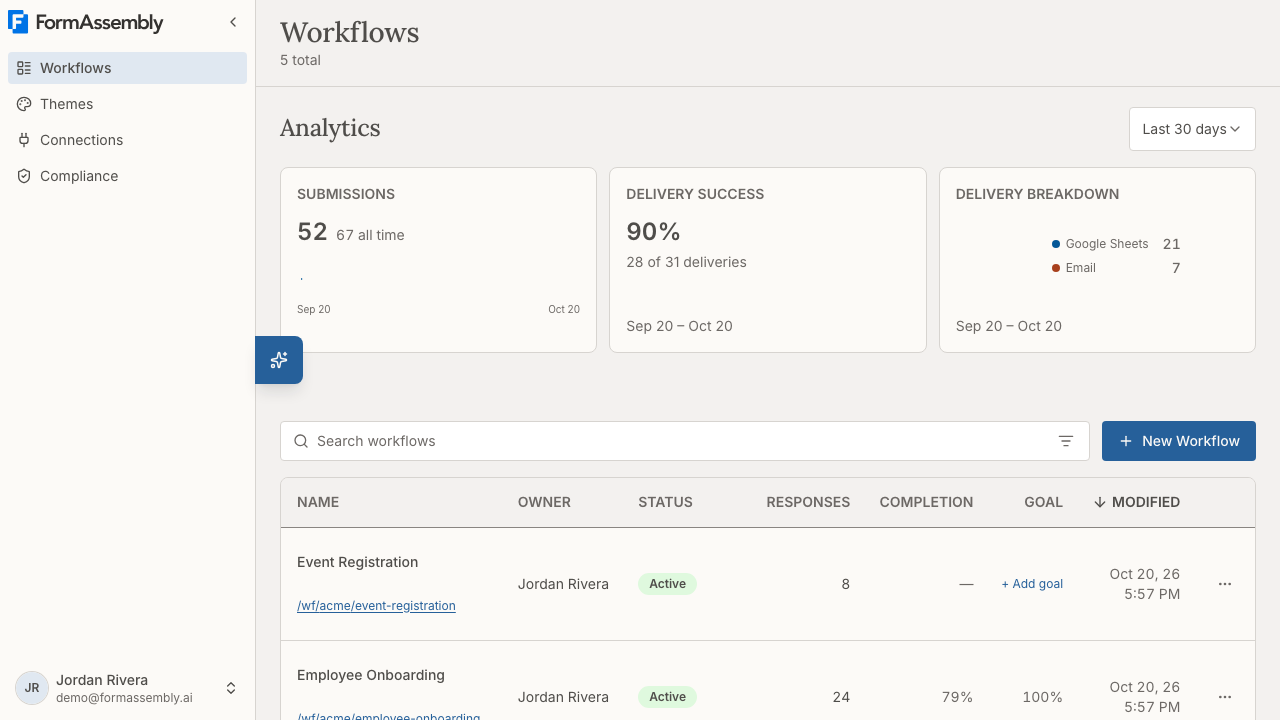
The Analytics section appears at the top of the Workflows page, giving you a quick snapshot of submission activity across all your workflows.
What you'll see
The account dashboard has three live cards:
- Submissions — The number of real (non-test) workflow runs in the selected time range, shown alongside the all-time count for your account and a sparkline. Days are used for ranges of 30 days or less; longer ranges are grouped by week.
- Delivery success — The percentage of deliveries that succeeded, counted per delivery rather than per run, shown alongside a count (for example, "47 of 50 deliveries"). Deliveries still pending are excluded from the calculation. If the range contains no succeeded or failed deliveries — including when every delivery is still pending — the card shows No connector deliveries instead of a percentage.
- Delivery breakdown — A donut chart showing how many successful deliveries were sent to each destination (for example, Salesforce, Google Sheets, or Email), with a text legend naming each destination. Failed deliveries are not included, and a destination only appears if it received at least one delivery in the selected range.
Changing the time range
- Open the time-range menu above the analytics cards. The control shows the range currently selected, such as Last 30 days.
- Select a preset: Last 7 days, Last 30 days (the default), Last 3 months, Last 6 months, or Last 12 months.
- To pick your own dates, choose Custom and select a start and end date. Future dates are disabled.
The selected time range applies to all analytics cards except the all-time total submissions count. Test runs are excluded from every metric, and there is no option to include them.
Locked cards
If your account is not on the Enterprise plan, two cards on the dashboard are locked and appear grayed out with a lock icon and an Upgrade badge:
- Completion time — "See how long respondents take to complete your forms on average"
- Abandonment rate — "Find out how many respondents started but didn't finish"
Click either locked card to open the upgrade dialog and learn how to unlock advanced analytics. On the Enterprise plan the locked cards are absent, and no completion-time or abandonment card appears in their place on the account dashboard.
Workflow list columns
The workflow table on the Workflows page includes analytics columns for each workflow:
- Responses — The number of submissions the workflow has received.
- Completion — The completion rate (the percentage of respondents who viewed the form and submitted it).
- Goal — The conversion rate of the workflow's first success metric. If no success metric has been defined, a + Add goal link appears so you can open the workflow's analytics page and create one.
These columns give you at-a-glance performance data without opening the per-workflow analytics page. The columns load a moment after the rest of the table, so brief placeholders in the Completion and Goal columns are normal. On small screens such as phones, the Completion and Goal columns are hidden.
Empty state
If your account has no submissions yet, you'll see an encouraging message: "Your submissions will appear here once your first workflow is live." On the Collect and Automate plans, the locked Completion time and Abandonment rate cards still appear below the message so you can preview what's available. On the Enterprise plan there are no locked cards, in the empty state or anywhere else on the dashboard.
Note: If your selected time range has zero submissions but your account has submissions in other periods, you'll see zeros — not the empty state. The empty state only appears when you have no submissions at all.
Per-Workflow Analytics
Each workflow has its own detailed Analytics page with in-depth data about how respondents interact with your form.
To open it, navigate to a workflow from the Workflows list, or open the workflow actions menu at the end of a workflow row and choose Analytics. The Analytics link is available for active, draft, and archived workflows, and the page shows the workflow name in the breadcrumb (for example, Workflows / Employee Onboarding / Analytics).
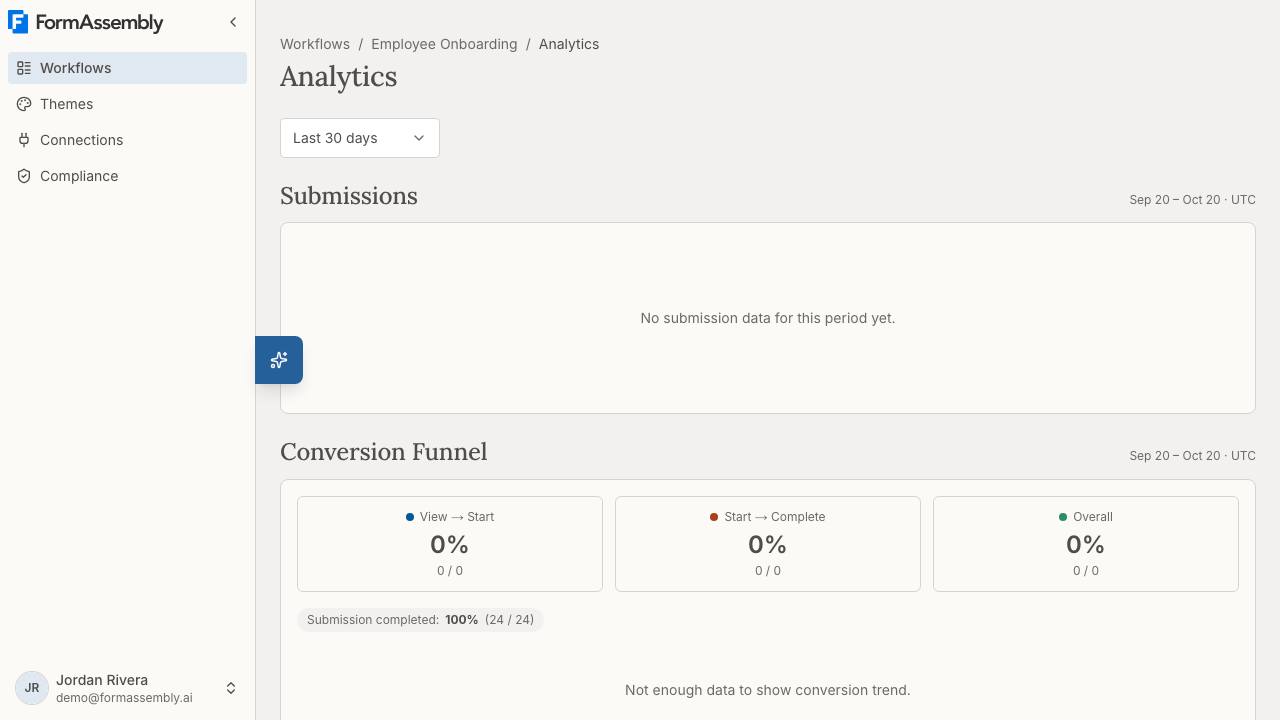
The dashboard itself renders for published (active) workflows. For a draft or archived workflow, the page shows a "Not published yet" card — "Analytics become available once you publish this workflow and respondents start submitting." — with an Open in builder button.
The following sections appear on the page: Submissions, Conversion Funnel, Completion Time, Abandonment, Success Metrics, Time per Field, Validation Errors, and Respondents. Validation Errors and Respondents appear only when there is data for them, and Time per Field appears only when there is field-timing data.
If the workflow has just been published and has no analytics data yet, the page shows the Submissions section with its own empty state, a No analytics data yet card — "Analytics will appear here once your first respondent fills out this workflow. Share your workflow link to get started." — and the Success Metrics panel, so you can define metrics before any data arrives. Other sections are not shown until data exists.
Filtering by time range
Open the time-range menu at the top of the page to choose a period; the control shows the range currently selected, such as Last 30 days. The same presets are available as on the account-level dashboard (Last 7 days, Last 30 days, Last 3 months, Last 6 months, Last 12 months), plus Custom range.
If you are entering a custom range and one of the two dates is empty, FormAssembly does not reload the charts and shows the message "Choose both a start and end date to load analytics." The previously loaded charts stay on screen until both dates are filled in.
If analytics fail to load, the page shows a single generic error message. Reload the page, and if the error persists, confirm you are still signed in and that the workflow has not been deleted.
Version markers
Thin dashed vertical lines appear on every chart to mark when a new version of the workflow was published. These help you correlate changes in metrics with specific edits — for example, "abandonment spiked the day we added a new required field." Hover over a marker to see the version number and publish date. Only published versions create markers; running a test does not add one.
Submissions
The Submissions section shows how many submissions the workflow received on each day in the selected time range.
A submission is counted for every real (non-test) run of the workflow, including runs where a later step or delivery failed — the respondent still submitted the form. Test runs are never counted.
Conversion Funnel
The Conversion Funnel section shows how respondents progress through your form in three stages, each displayed as a stat card with its percentage, count, and denominator:
| Stage | What it measures |
|---|---|
| View → Start | The percentage of people who viewed the form and then began filling it out |
| Start → Complete | The percentage of people who started filling out the form and submitted it |
| Overall | The end-to-end conversion rate from view to completion |
A respondent counts as having "started" at their first interaction with a field, not simply at page load.
If you have defined any success metrics for the workflow, each metric also appears beside the funnel as its own conversion-rate chip showing the metric name, its percentage, and its met/total volume. A success metric measures whether a submitted run met a business rule, so it reads as a rate alongside the funnel rather than as a fourth funnel stage. Chips always reflect your current metrics: a renamed metric shows its new name, and a deleted metric drops out entirely.
Below the stat cards, a Conversion rates over time chart plots the same three rates day by day, with one additional line per success metric that has evaluations in the range. The chart needs at least two days of data; over a shorter range it shows a "not enough data" message instead.
Completion Time
The Completion Time section shows how long respondents take to finish your form, as average and median stat cards with daily trends:
- Average completion time — The mean time from the form first appearing to the workflow run completing.
- Median completion time — The midpoint time, which is less affected by outliers (for example, someone who left a tab open for hours).
Completion time measures the whole span of the workflow, so a multi-page or multi-form workflow reports one duration rather than one per form. A run counts only when the workflow run itself completes; submitting a single collect form is not enough on its own. Failed and abandoned runs are excluded, as are runs missing either boundary, so you're seeing the time for respondents who actually completed the workflow.
Abandonment
The Abandonment section helps you understand where respondents give up:
- Abandonment rate trend — A chart showing the percentage of respondents who started the form but never completed the run, tracked over time.
- Top drop-off fields chart — A bar chart of the top ten fields that were the last thing a respondent interacted with before leaving. Hovering a bar shows the field and its count under the label Drop-offs.
A session starts at the respondent's first field interaction — the same boundary the conversion funnel uses — so someone who opened the form and closed the tab without typing anything is counted in neither the numerator nor the denominator. A session counts as abandoned when the tab or window is hidden or closed and the run never completes, so a respondent who tabs away and later returns to finish is not counted as abandoned.
If a particular field appears frequently in the drop-off chart, it may be confusing, too personal, or too time-consuming. Consider simplifying that question or making it optional.
Success Metrics
Success metrics let you define what "success" means for a specific workflow and then track how often that outcome is achieved.
Viewing success metrics
The Success Metrics section displays each metric you've defined along with its conversion rate for the selected range, the underlying met/total evaluation volume, and a trend sparkline. A metric that has been evaluated but never met shows 0% with its volume; a metric with no evaluations in the selected range shows No data yet instead of 0%. If you haven't defined any metrics yet, you'll see a prompt to create your first one. Each active metric also shows the date its measurement started, so you can tell how much history a rate is based on.
Adding a metric
- In the Success Metrics section, click + Add metric.
- Choose a metric type. Three types exist:
- Form submission — The respondent finished and submitted the form. No extra configuration needed. - Connector outcome — A specific connector step (for example, a Salesforce integration) succeeded. - Field value — A specific field meets a condition you define. For numeric fields, set a comparison (for example, "donated_amount >= 50"). For choice fields (radio, checkbox, dropdown), select one or more expected answers.
- Give the metric a name that describes the outcome (for example, "Donation over $50" or "Opted in to newsletter").
- Save the metric.
Note: The panel configures Field value metrics today. Form submission and Connector outcome appear in the type list but are disabled, with the note "Field value metrics are available for configuration right now." Metrics of those types that already exist are evaluated and reported normally.
The metric is evaluated automatically for every new completed workflow run. Only the pass/fail result is stored — respondent answers are never saved. If a run submits the form more than once — for example, an approval step sends it back for correction — the most recent evaluation is the one that counts.
Each metric form opens inline on the row you are working on. You can have several editors open at once; each one closes only when you click its own Save or Cancel, so opening another editor never discards a pending edit.
Which fields you can measure
Field-value metrics are limited to fields the metric can evaluate safely and unambiguously:
- Numeric comparisons require a field that submits a number, such as a number or rating field.
- Choice matches can select more than one answer only on multi-value fields (checkbox or multi-select). Radio and dropdown fields submit a single answer, so they are limited to one choice.
- Ranked-choice fields are not eligible, because their submitted value is an ordering rather than a single answer.
- Fields marked as sensitive (PII, PHI, PCI, credentials, or other) appear in the picker but are disabled, with the classification named so you can correct a misclassified field in the builder.
- Fields inside a repeating section are also disabled, because a repeating section collects one answer per instance and there is no single value for a metric to measure.
Fields are listed by their label and grouped under the workflow step they belong to, and the picker is searchable.
How many metrics can I define?
A workflow can have up to 20 active success metrics. When you reach the cap, the + Add metric control is hidden and the panel reads "This workflow has reached the 20-metric limit. Delete a metric to add another." Deleting a metric frees a slot immediately. Duplicate definitions are allowed, so two metrics can track the same condition and each will use a slot.
Editing a metric
Click the edit button next to a metric (for example, the button labeled Edit metric Submission completed) to change it.
- Renaming a metric preserves its recorded results. A name is a label only, so a rename saves in place and the trend continues uninterrupted.
- Changing what a metric measures resets it. If you change the step, the field, the operator, the threshold, or the choice set, the previously recorded results no longer answer the same question, so measurement restarts from the moment you save. FormAssembly asks you to confirm before applying a definition change and tells you that recorded results will be cleared.
- Reordering the choices in a choice-match metric is not a change in meaning and saves in place.
When a metric stops being measured
A metric can outlive the field it targets. If the published form drops that field, converts it to ranked choices, removes the validation that made it numeric, marks it sensitive, or moves it into a repeating section, the metric becomes unevaluable rather than wrong: new runs stop producing results, and the history already recorded stays intact and correctly attributed to the earlier period.
The Success Metrics panel shows the reason on the row — for example, "a field no longer in this form", "a field now marked sensitive, which is no longer measured", or "a field now in a repeating section, which is no longer measured". You cannot edit the definition while it is in that state, but you can still rename the metric, so a metric worth keeping for its history does not have to be deleted to be relabelled. Choosing an eligible field from the picker restores the definition editor and restarts measurement.
Removing a metric
To remove a metric, click the delete button next to it (for example, the button labeled Delete metric Submission completed). FormAssembly asks you to confirm first, in a Delete metric? dialog explaining that the metric will no longer be evaluated on new submissions and that historical results are kept but will not appear on the dashboard. After deletion the metric stops appearing in the funnel and on the workflow list.
Time per Field
The Time per Field section pinpoints which questions take respondents the longest:
- Average field time trend — An overall trend of how long respondents spend per field.
- Average time per field chart — A horizontal bar chart ranking individual fields by average time, from highest to lowest.
Time per Field is part of advanced analytics. On a plan without advanced analytics it appears as a locked card; click it to open the upgrade prompt, the same way the Completion time and Abandonment rate cards work on the account dashboard.
Fields where respondents spend significantly more time than others are candidates for simplification — consider breaking a complex question into smaller steps, improving help text, or rephrasing.
Validation Errors
The Validation Errors section reveals which fields cause the most problems for respondents:
- Validation error trend — A chart tracking the total number of validation errors over time.
- Validation error frequency by field — A bar chart showing how often each field triggers errors, broken down by the validation rule that fired (required, email, integer, and so on), and whether the error was resolved before submission.
- Field error rate chart — Error rates per field, comparing sessions with errors against total sessions. This helps you see which fields cause errors most frequently relative to how often they are encountered.
A session that reaches submission necessarily resolved its errors, since submission requires validation to pass; errors in a session that never submits are treated as unresolved. Fields with high error counts and low resolution rates may need clearer instructions, a different input format, or less strict validation rules.
Respondents
The Respondents section gives you a breakdown of who is filling out your forms based on anonymous technical metadata:
- Device Type chart — A donut chart showing the split between desktop, mobile, and tablet respondents.
- Browser chart — A donut chart showing the distribution across browsers like Chrome, Edge, Firefox, and Safari.
Geolocation is not collected. This information can help you prioritize testing. For example, if most respondents use mobile devices, make sure your form looks and works well on smaller screens.
Privacy & Data Collection
Analytics data is collected automatically for every published workflow. Here's what you should know about how it works:
- No personal data is stored. Field answers and respondent identities are never captured. Only anonymous interaction signals (e.g., time spent on a field, which fields triggered errors) are recorded.
- No cookies are used. Each form load gets a random session identifier that has no connection to the respondent's identity. Because no identifier is stored in the browser, a page refresh counts as a new view.
- Referrer URLs are sanitized. Query strings are stripped from referrer URLs to avoid capturing tracking parameters or personal information.
- Device and browser information is derived during processing; raw technical details are not retained.
- Sensitive fields are excluded from measurement. Fields you mark as sensitive, and fields inside repeating sections, cannot be used in a success metric, because even a pass/fail outcome on such a field can reveal the answer behind it.
- Deleting a workflow or account deletes its analytics. When a workflow or account is deleted, the corresponding analytics data is deleted too, and older analytics data is aged out over time under the platform retention policy.
Tips & Troubleshooting
- I don't see any analytics data. Analytics appear once your workflow has been published and has received at least one real submission. Test submissions are always excluded from all metrics.
- The Analytics page says the workflow isn't published yet. The dashboard renders for active workflows. For a draft or archived workflow, use Open in builder to finish and publish the workflow first.
- Some sections are missing from the Analytics page. Validation Errors and Respondents appear only when there is data for them, and Time per Field appears only when there is field-timing data. Keep collecting submissions and the sections will appear.
- My latest submission isn't in the charts yet. Analytics charts read summaries that are refreshed on a regular cadence, measured in minutes rather than seconds. Analytics are not real-time; wait a few minutes and reload the page.
- My numbers look different from what I expected. Make sure the time range is set to the period you're interested in. The default is Last 30 days, which may not cover older submissions.
- The custom range won't load. Both a start date and an end date are required. Until both are set, FormAssembly leaves the previously loaded charts in place and shows "Choose both a start and end date to load analytics."
- The conversion funnel says there isn't enough data. The conversion rates over time chart needs at least two days of data. Widen the time range and check again.
- The conversion funnel shows a big drop at "View → Start." This is common. Many visitors view a form without starting it. Consider improving your form's introduction or reducing the number of visible fields on the first page to make it feel less overwhelming.
- A field shows up as a top drop-off point. Respondents are leaving the form at that question. Try making the field optional, simplifying the question, or adding help text to explain why the information is needed.
- Validation errors are high for a field, but most are resolved. This means respondents are making mistakes but figuring it out. Consider adding placeholder text or adjusting the format hint to prevent errors in the first place.
- I published a new version, but the charts don't show the change yet. Version markers appear as vertical dashed lines on charts. If your new version was just published, give it a day for data points to accumulate on either side of the marker.
- The delivery success card says "No connector deliveries." The selected time range contains no succeeded or failed deliveries — often because every delivery is still pending, or because none of your workflows deliver to a connector. Widen the time range and check again.
- Locked cards can't be clicked through. Completion time and abandonment rate at the account level, and Time per Field on the per-workflow page, are part of advanced analytics, available on the Enterprise plan. Click a locked card to open the upgrade dialog.
- I can't see the Completion and Goal columns on my phone. Those two columns on the Workflows list are hidden on small screens. Open the workflow's Analytics page, or use a larger screen, to see them.
- I can only configure Field value metrics. The Success Metrics panel configures field-value metrics today; Form submission and Connector outcome appear in the type list but are disabled. Existing metrics of those types keep being evaluated and reported.
- Success metrics show a low conversion rate. Review your metric definition to make sure the condition matches what you expect. For field-value metrics, double-check the comparison operator and threshold. You can edit a metric at any time, but remember that changing the definition restarts measurement.
- A metric's rate has stopped moving. Check the metric row for a note explaining that its field is no longer measurable — for example, the field was removed from the form, marked sensitive, or moved into a repeating section. Point the metric at an eligible field to resume measurement.
- I can't add another metric. A workflow supports up to 20 active success metrics. Once you reach the cap, the + Add metric control is hidden and the panel reads "This workflow has reached the 20-metric limit. Delete a metric to add another." Delete a metric you no longer need to free a slot.
- I need the data in a spreadsheet. Exporting analytics data is not available in FormAssembly. Each chart's data table exists only as a hidden accessible alternative for screen readers, so it cannot be copied from the page in place of an export.
Was this article helpful?