Building Workflows
How to create, edit, publish, and manage workflows using the AI-powered builder and canvas.
Workflows are the core of FormAssembly. A workflow defines an entire data collection process — from the form your respondents fill out, to email notifications, data delivery to external systems, and a final confirmation page. Fai, FormAssembly's built-in AI assistant, helps you build and refine workflows through natural conversation. This article covers how to create, edit, test, publish, and manage workflows.
The Workflows Page
The Workflows page is your home base. It lists every workflow in your account along with key details.
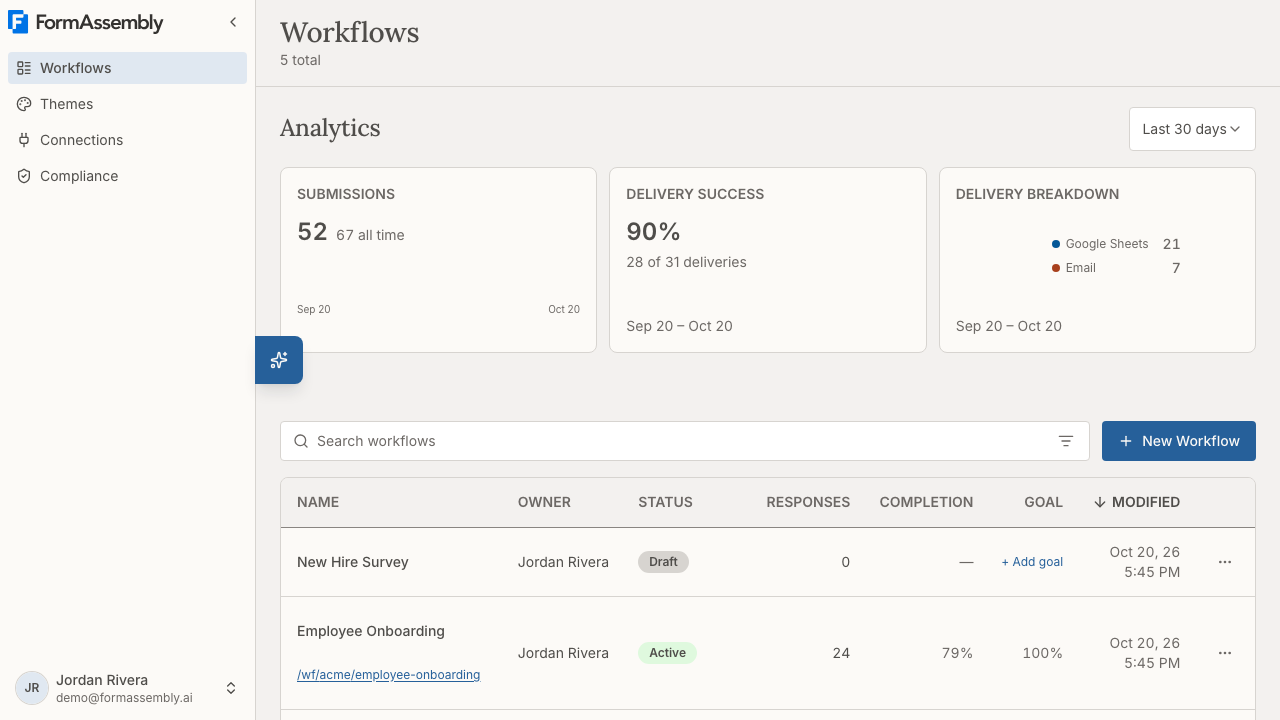
The workflow table includes these columns:
- Name — The name of your workflow (click to open it in the builder). Published workflows also show their public URL (for example,
/wf/acme/patient-intake) beneath the name; click it to open the live workflow. - Owner — The person who owns the workflow. This column appears whenever your list includes a workflow you do not own — for example if you are an account admin, or if a colleague shared a workflow with you. On narrow screens the owner's name appears under the workflow name instead of in its own column.
- Status — The current state: Draft, Active, or Archived.
- Responses — The number of responses the workflow has collected.
- Completion — The completion rate for the workflow.
- Goal — The submission goal for the workflow. Click + Add goal to set a target.
- Modified — When the workflow was last edited.
- Published — When the workflow was last published.
Finding workflows
Use these tools to locate a specific workflow:
- Search — Type in the Search workflows... field to filter by name.
- Filters — Click Filters to narrow the list by column. You can filter on Name, Owner, Status, Access (how you reach the workflow — as its owner, or through a share), Responses, Modified, and Published. Two quick filters are offered: My workflows and Status is Active. Your filters are remembered until you clear them, and Clear filters clears the search and filters while keeping your sort order.
- Sort — Click a column header (Name, Owner, Status, Responses, Modified, or Published) to sort the list by that column, and click the active header again to reverse the direction. The list sorts from its headers; there is no separate sort control in the toolbar. Completion and Goal do not sort.
Analytics
The Analytics section at the top of the page shows submission trends and delivery breakdowns for your workflows.
- Submission trend for selected period — A table showing submissions by date. Use the Time range control to adjust the period.
- Delivery breakdown by destination — Shows how submissions were delivered to each connected destination.
Additional analytics — including Completion time and Abandonment rate — are advanced analytics. On a plan that does not include advanced analytics they appear as locked cards; click one to open the upgrade prompt.
Creating a New Workflow
To create a new workflow, click New Workflow on the Workflows page (or Create a workflow in the onboarding checklist). A What data are you collecting? dialog asks how you want to start. The fastest way is to describe what you need to Fai, FormAssembly's AI assistant.
- Click New Workflow.
- In Describe your workflow to Fai, describe the data collection process you want to create. For example: "Create a patient intake form that collects name, date of birth, insurance info, and sends a notification email to our front desk."
- Click Build it with Fai. The builder opens with the Fai panel expanded and your description already sent.
- Fai builds your workflow — adding form fields, steps, and connections automatically.
To build it yourself instead, click Start from scratch in the same dialog. The builder opens with a Form step and a Thank You step already in place, and Fai is not involved. Upload a file and Import existing form are shown as coming soon.
Once you're in the builder, you can also attach files for context by clicking Attach File before sending a message to Fai, or click Suggestions for prompt ideas.
Your workflow is saved automatically as a draft. About two seconds after your last change, the builder saves your progress — you never need to save manually. The first autosave creates the workflow record, so the workflow appears in your Workflows list as soon as your first change is saved.
The Workflow Builder
The builder is where you design and refine your workflow. It combines the Fai AI assistant with a visual canvas that shows your workflow as a series of connected steps.
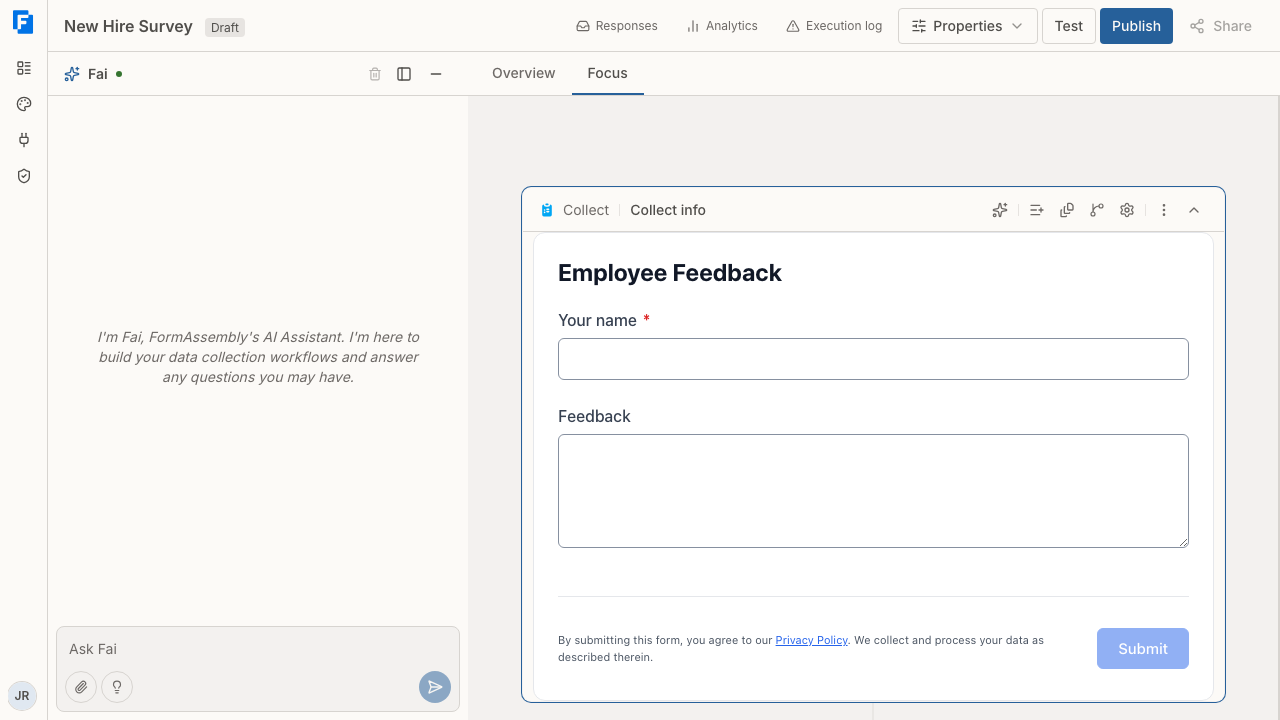
Builder layout
The builder has two main areas:
- Fai panel (left side) — Your conversation with Fai, the AI assistant. Use the Chat input to ask for changes, and click Send to submit. Click Suggestions for prompt ideas. You can resize this panel using the Chat panel width control, reposition it with Change panel position, or collapse it with Minimize Fai panel. Click Clear conversation history to start a fresh conversation with Fai.
- Canvas (right side) — A visual representation of your workflow, showing each step from top to bottom.
At the top of the builder, the navigation bar includes Responses (links to the workflow's responses), Analytics (links to the workflow's analytics view), Execution log (links to the workflow's execution log), Properties, Test, Publish, and the Share button. The builder header also displays your workflow name — click it to rename the workflow — and its current status: Draft if the workflow has never been published, Published if the live version is up to date, or Update pending if you have saved changes that haven't been published yet. Click the Update pending badge to open the summary of changes. Renaming a workflow does not change its public URL.
The two workflow names
A FormAssembly workflow has two names, stored and edited separately:
- The internal name is what you and your team see — in the Workflows list, in the builder header, and in exports and emails sent to you. Click the workflow name in the builder header to change it. The change saves immediately and does not need to be published.
- The public name is what respondents see — on the workflow's page, in the intake agent, and as the default subject of assignment and resume emails. Set it under Properties → Access → Public Name, in the Name field. The public name travels with your draft, so it reaches respondents when you publish.
Changing one name never changes the other, and neither one changes the workflow's URL. If you ask Fai to "rename this workflow" without saying which name you mean, Fai asks you first.
Builder panels
At the top of the canvas area, the Builder view buttons let you switch between views:
- Overview — Shows a compact overview of all steps in your workflow as a map of the whole flow, with each connection between steps labeled (for example, Success or Failure). You can zoom and pan the map, and hovering a step card highlights the whole path that step belongs to. Clicking any step card switches to Focus view and scrolls to that step, and updates the browser address so you can bookmark or revisit a link that opens the builder directly on that step. Step cards in Overview are read-only: nothing on the Overview canvas adds, edits, moves, or removes a step.
- Focus (default) — Shows steps expanded with their full content, so you can review and edit details directly on the canvas. Focus view is also where the structural controls live — adding, duplicating, moving, and deleting steps are all Focus-view actions.
In Focus view, an Add step button at the bottom of the active path lets you add a new step at the end of the workflow. You can also ask Fai to add a step from either view — only the Add step button itself is limited to Focus view.
Clicking Step settings on any step opens the Properties panel on the right side of the canvas, showing the settings for that step in collapsible groups — such as Step Name and Step Description, plus a Variables group where you can click Add variable to declare a value the workflow can reuse. Collect steps add an Appearance group (Show form title and the label position choices Above, Below, Left, Right, Inside, Hidden) and a Submission group (Submit button label, Review before submit, and Allow save & resume).
Workflow Properties
Clicking Properties in the navigation bar opens the workflow's own settings — not the settings of a step — in the same right-side panel. Choose a section from the Workflow Properties list:
- Themes — Pick an already-published theme for the workflow. An Edit this theme link opens that theme's editor in a new tab for themes your account authored. See also: the Themes article.
- Agent — Configure the intake agent that can collect answers conversationally instead of as a plain form.
- Access — Holds Public Name (the name respondents see), Custom URL (the ending of the workflow's public URL), URL Parameters (a read-only list of the variables your workflow accepts in its URL), and Authentication (whether respondents must sign in).
- Languages — Sets the workflow's Default Language and lists the workflow's Translations. A workflow can offer more than one language: each response runs in one language, chosen from the respondent's browser when the response starts, and the respondent can switch language on the form. This section does not add or edit translations — ask Fai to create or change them. An assignment's sub-workflow carries its own translations, and a person assigned a task sees it in their own browser's language. See also: the Form Design article, which owns the translation details.
- Availability — Set a start and end date and time for the workflow, and the message respondents see outside that window. The time zone is always named next to the dates.
- Data & Privacy — Lists Purge Settings, View Purge Log, and Respondent IP Anonymization.
- Notifications — Contains the Email the owner when a step fails switch, which is off by default. Turn it on to have FormAssembly email the workflow's owner when a step fails during a run. See also: What Happens After Submit, which covers what those emails contain and how they are batched.
- Collaboration — Lists the workflow's Collaborators and its Ownership. See [Collaborators and ownership](#collaborators-and-ownership) below.
Changing the workflow's URL
A workflow's public URL ends in a slug that FormAssembly generates from the workflow's name when the workflow is created. Renaming the workflow never changes it, but you can change it yourself under Properties → Access → Custom URL (or by asking Fai).
- Open Properties → Access.
- In URL ending, type the new ending. It must be 3–100 characters, using lowercase letters, digits, and hyphens, and cannot start or end with a hyphen. The full public URL is shown below the field as you type.
- Click Save. If the workflow is live, FormAssembly asks you to confirm first.
Changing the URL breaks the old one immediately. There is no redirect: links you have already shared, embed snippets already on other sites, and resume or invitation links already emailed stop working, and a respondent part-way through the workflow in an open tab cannot submit. A new URL ending must also be unused by any other workflow in your account.
Understanding the canvas
The canvas displays your workflow as a vertical sequence of steps. Each step shows:
- The step name (editable via the Step name field)
- The step content, which varies by step type (form fields, email configuration, confirmation message, etc.)
Each step has a Step tools sidebar with relevant options:
- Collapse step — Minimizes the step on the canvas.
- Add field — Adds a new field (available on form steps).
- Pages — Manages the pages of the form (available on form steps).
- Routing — Opens the Branching section of the Properties panel for that step, where you manage where each outgoing path goes (available on steps that have at least one outgoing connection).
- Step settings — Opens the Properties panel for the step.
- Ask Fai about this step — Starts a conversation with Fai focused on the selected step.
In Focus view, each step also includes a Step actions button for additional options such as duplicating, moving, or deleting the step. A step cannot always be deleted, and each case shows its own message. A step can only be deleted when it leads to at most one other step, so branching steps must be simplified first. FormAssembly also refuses to delete a step when it is the only step in the workflow, when it allows save & resume, when a save & resume path leads to it, when it is the only step in the Default branch while custom branches exist, or when a connector's conditional error route goes to it. When a step has unpublished changes, a change indicator appears on the step card — Added for new steps, or Modified for steps that changed. Click the indicator to see what changed.
To add a new step before the first step or between existing steps, click any of the Add step buttons that appear between steps in Focus view. The Add step menu includes a Search steps field so you can find a step type by name.
Branching paths
When a step leads to more than one possible next step — for example, a connector that continues one way on success and another way on failure — your workflow has multiple paths. Focus view shows one path at a time:
- Below each step card, a row of labeled pills shows every outgoing connection from that step (for example, Success, Failure, Otherwise, or a condition summary such as If Priority is "yes").
- Click a pill that points to another path to switch the canvas to that path. Your scroll position is preserved.
- Click a pill that points to a step on the same path to scroll straight to that step.
- You can also swipe horizontally on a trackpad to move between paths.
Steps that come before a branch (and steps where paths rejoin) appear on every path, so you always see the shared parts of your workflow.
Routing and conditional branching
Routing is a configuration on a step, not a step of its own — it decides which of a step's outgoing paths a submission follows. Click Routing in a step's Step tools sidebar to open the Branching section of the Properties panel for that step. Every step with at least one outgoing connection offers Routing; a terminal step (the last step on a path) does not, because it has nothing to route to.
A step's branches come in two kinds:
- Built-in outcome branches are the fixed outcomes of the step type — for example a connector's Success and Failure, or an approval's Approved and Denied. Their logic and names are fixed and cannot be edited, added, removed, or reordered; you choose only where each outcome goes by building out its path on the canvas. Each built-in row in the panel explains this, so a read-only row does not read as broken.
- Custom branches are the conditional paths you add yourself. Each custom branch has an optional name you can set (so the branch reads as what it means in your workflow, such as "New students"), at least one condition row, and an evaluation mode of all, any, or custom. In custom mode you write an expression referencing the condition letters (A, B, C…), for example
A or (B and C), and the builder validates it as you type.
Condition rows are lettered A, B, C… in every evaluation mode. The letters describe each row's current position rather than a permanent name, so adding, removing, or reordering a condition re-letters the list. The evaluation selector appears only once a branch has more than one condition.
Branch rules are written with the same rule builder as form conditions, so they offer the same operators. That includes is one of and is not one of, which take several values and match when any one of them matches, and is between, which takes a From and a To value. On a choice field, is one of lets you pick from the field's own options. There is no pattern-matching operator. See also: the Designing Forms article, which lists every operator in full.
Adding your first custom branch to a step also creates a Default branch — the catch-all that handles anything matching no other rule. Its summary reads "Handles every other response", it takes no conditions and no custom name, and it is always evaluated last. If the step already had a linear path after it, that path becomes the Default branch's path rather than being duplicated or orphaned. Removing the last custom branch also removes the Default branch.
Every new custom branch also gets its own blank Respond step, so the branch ends somewhere instead of continuing into the Default branch's path. Because that Respond step starts with no message, publishing is blocked until you write what that path should tell the respondent — the error names the step. A branch's only step cannot be deleted: FormAssembly shows "Cannot remove the only step in a branch. Remove the branch instead." Delete the branch itself if you no longer need the path.
Custom branches are evaluated in order, top to bottom, and the first branch whose conditions match is the one taken — so the order you put them in sets their precedence. Drag a branch's handle (or use its keyboard move controls) to reorder. A custom branch must have at least one condition, and removing a branch also removes the steps in its path immediately — the builder has no undo yet, so remove a branch only when you are sure.
Unfinished rules are kept, not discarded. A condition row with no field chosen, or with no value for an operator that needs one, is saved along with the rest of your draft and reloads exactly as you left it. Publish and Test refuse to run while any branch has an unfinished rule, and the message names the step and the branch. After a blocked attempt, each incomplete row is marked "Missing field" or "Missing value" until you fill it in.
On the canvas, custom branches appear as connected branch cards showing each branch's name and a one-line summary of its rule, with the active branch visually distinguished. Above them, a branch-count indicator ("N Branches") is the fork's interactive control: click it to open the step's Branching section. Built-in outcome branches keep the labeled pill row described in Branching paths above.
Supported step types
Your workflow can include these step types, available from the Add step menu in Focus view:
| Step type | What it does |
|---|---|
| Collect (shown as Form on the canvas badge and in the Properties panel) | Displays a form to collect responses from your respondent. |
| Sends an email notification (e.g., to your team) with the submitted data. | |
| Respond | Shows a confirmation message at the end of the workflow. |
| Redirect | Sends respondents to a URL. |
| Salesforce | Sends data to Salesforce as CRM records. |
| Approval | Requires sign-off from a reviewer before the workflow continues. |
| Document generation | Merges submitted answers into a Word or PowerPoint template and produces a PDF. |
Approval steps run and publish normally, but the builder has no editor for them yet: a step inserted from the menu shows an "Under construction" placeholder, and its Approved, Denied, and Comment outcomes are read-only in the Branching section. Ask Fai to configure an approval step (for example, "Add an approval step and send it to our compliance manager."), otherwise it cannot be completed or published.
Document generation steps
Document generation turns a response into a finished PDF — a signed-off form, a registration confirmation, an offer letter — using a template you supply. Document generation is available on every plan.
- In Focus view, open the Add step menu and choose Document generation.
- Ask Fai to set the step up. The builder has no settings panel for document generation, so selecting the step on the canvas shows "Under construction." — Fai is the way to configure it.
- Fai asks you to upload a Word (
.docx) or PowerPoint (.pptx) template in the chat, then maps your form data to the template's merge fields, including repeating sections. A template must be a.docxor.pptxfile of at most 10 MB.
The step produces a PDF named after the template, which appears on the response. Generated — and signed — documents are files the workflow can pass on: a later Salesforce step can upload the PDF, and an assignment step can hand it to the assignee. Tags in your template that start with signature or signer are reserved for e-signature and are not mapped. A failure path for the step is optional.
A document generation step with no template blocks publishing. If Publish reports that, ask Fai to attach the template.
E-signature steps
An e-signature (sign) step asks one person to sign a document produced by a document generation step, in their browser. E-signature is available on the plans that include it, and e-signature steps are set up by Fai rather than from the builder.
- On a plan that includes e-signature, the Add step menu does not list E-Signature. Ask Fai to add a signing step instead (for example, "After the offer letter is generated, send it to the candidate to sign.").
- On a plan without e-signature, the Add step menu shows E-Signature locked. Choosing it opens the upgrade prompt and adds no step to your workflow.
- A sign step on the canvas is read-only: its settings show, and no builder control changes them. Ask Fai to change the step.
- Fai builds signing from a document generation template tagged for each signer. Several signers are several assignment steps — one after another for serial signing, or in parallel — and every signer adds to the same signed document.
- A sign step ends Signed or Declined, and your workflow can route each outcome to its own path.
- Signing works only on FormAssembly's hosted page. An embedded form shows the step and can decline, but cannot sign.
Assignment steps and sub-workflows
An assignment step hands part of a workflow to another person — the workflow pauses, that person receives an invitation, and their own set of steps runs as a sub-workflow. Assignment steps run and publish normally in FormAssembly, but they are created by asking Fai rather than from the Add step menu, so ask Fai if you need one (for example, "After the form, assign a review to our compliance manager.").
Once an assignment step exists, the builder shows it in both views:
- Overview draws the assigned person's steps inside a labeled container, captioned with the assignee's name, connected to the assignment step by a dashed line.
- Focus shows a summary card with an Open assignment flow button. Click it to work through the sub-workflow as its own flow, with branch pills and step cards behaving as they do in the main workflow. A breadcrumb above the canvas takes you back out.
Steps inside a sub-workflow are edited like any other step, including their Step settings. Only the assignment step itself has no settings panel — ask Fai to change the assignment.
Choosing a connector
Only Salesforce connector steps can be added from the builder. The Add step menu's Connect group has one item, Salesforce ("CRM records"); choosing it creates the step with that connector already selected and named after it, ready to configure. Every other connector's step — Dynamics 365, Google Sheets, Google Drive, Excel, OneDrive, Box, Dropbox, Webhook / HTTP, Stripe, and PayPal — is added by asking Fai (for example, "Send each response to a Google Sheet.").
Some connectors are sold as account add-ons. Salesforce, Webhook / HTTP, Dynamics 365, Dropbox, Box, and the payment connectors (Stripe and PayPal together, as one add-on) are account add-ons: your account can use one only when its plan includes it or the account bought it. Google Sheets, Excel Online, Google Drive, and OneDrive are included in every plan. Accounts that had already used Dynamics 365, Dropbox, or Box in a workflow when those became add-ons were granted them automatically. A connector your account has not purchased still shows its tile, marked Add-on; choosing it opens a dialog explaining that the connector is available as an add-on, with Not now and Talk to sales options, and no step is added.
The connector type cannot be changed after the step is created. To use a different system, delete the step and add a new connector step.
If Fai or an import created a connector step that has no connector configured yet, the step shows a message explaining that the connector hasn't been set up — ask Fai to configure it, or replace the step.
Editing Your Workflow
There are two ways to make changes: through Fai, or by editing step details directly.
Using the AI assistant
For structural changes — adding steps, removing steps, reordering the flow, or building out form fields — describe what you want in the Chat input and click Send. Fai handles the heavy lifting, and you can ask Fai for these changes from either Overview or Focus view. You can also click Ask Fai about this step in any step's Step tools sidebar to start a conversation focused on that specific step.
Examples of what you can ask:
- "Add a phone number field to the form."
- "Send a confirmation email to the respondent after they submit."
- "Remove the redirect step and replace it with a thank-you message."
- "Reorder the steps so the email notification comes before the connector."
Editing step details directly
For quick edits, switch to the Focus builder view, where each step is expanded with its full content. Depending on the step type, you can edit:
- Form steps — Update field labels, hint text, and placeholders directly in the form preview. Use Add field in the Step tools sidebar to add new fields. You can also drag fields to reorder them within the form.
- Email steps — Change the To, BCC, From name, Reply-to, Reply-to name, Subject, or Message fields. The message editor includes formatting options for bold, italic, underline, bullet lists, ordered lists, and links. The Attachments field attaches a file the workflow already holds: click Add a file and choose a file upload, a file variable, or a generated or signed PDF, and use the remove button to take one off. A file that no longer exists in the workflow shows "No longer in this workflow" and blocks publishing until you remove it. See also: What Happens After Submit, which covers the attachment size limit.
- Done steps — Update the redirect URL or edit the Confirmation message using the rich text editor, which includes Heading 2, Bold, Italic, Underline, Bullet list, and Ordered list options. Click Insert field value to include an answer the respondent submitted in your confirmation message; the value it adds is a Field Reference, written
{{ step_1.fieldId }}. If the step is new, you can pick a starting point from the template choices — Confirmation, Next Steps, Registered, Under Review, or Describe other — or click Dismiss template picker to write your own. - Connector steps — Only Salesforce connector steps open an editable action card. Every other connector's step — Dynamics 365, Google Sheets, Google Drive, Excel, OneDrive, Box, Dropbox, Webhook / HTTP, Stripe, and PayPal — shows a read-only summary ending "Connector configuration is managed by the AI agent." Ask Fai to configure those steps.
Document generation steps have no settings panel in the builder; ask Fai to change the template or the mapping. Sign steps are read-only on the canvas; ask Fai to change them.
Use the Step settings button in any step's Step tools sidebar to open the Properties panel for additional configuration options.
All changes — whether from Fai or your direct edits — are kept in sync. When you switch from direct editing back to Fai, it already knows about your latest changes. If Fai and you change the same thing at nearly the same moment, the most recent change wins.
Autosave
The builder autosaves your work approximately two seconds after your last change. You'll never lose progress. All edits are saved to a draft — your published (live) workflow is never affected until you explicitly publish.
Testing Your Workflow
Before publishing, you can run through your entire workflow just as a respondent would experience it. Test mode produces real results — emails are actually sent, and data is delivered to connected systems — so you get an accurate preview.
Test mode is available to the workflow's owner and to admins of the account — the same people who can edit and publish the workflow. The test link is tied to your own signed-in session, expires after about an hour, and cannot be shared with colleagues.
How to test
- In the builder, click Test in the top navigation bar.
- A new browser tab opens with your workflow loaded in test mode.
- Fill out the form and complete the workflow from start to finish.
Test mode loads your latest saved draft if one exists, or the published version of the workflow if no draft is pending. Clicking Test first saves any change that hasn't been saved yet, so the test always runs against what you see on screen. If that save fails, the test does not start and the builder shows a message explaining that your changes couldn't be saved — wait a moment and click Test again.
What happens during a test
- Forms display and function exactly as they will for respondents, with a visible test mode banner at the top of each page.
- Email steps send the email to your email address (not the configured recipient), with the subject prefixed by
[TEST]and a banner noting it's a test. BCC recipients are also suppressed during test mode. - Connector steps execute against real external systems. Any records created in Salesforce, Google Sheets, or other connected services are real — keep this in mind and clean up test records if needed. If a connector step has a test (sandbox) connection configured, that step runs against the sandbox environment instead, and records are created there. Because the choice is made per step, a single test run can mix sandbox-backed and live-backed steps.
- Assignment steps send their invitation to you rather than to the assignee, so you can follow the link and complete the assigned part of the workflow yourself.
- Document generation steps produce a real PDF, which appears on the test response.
- Test submissions are recorded separately from real submissions, so they won't skew your analytics.
Test mode banner
Every page you see during a test displays an amber banner:
Test mode — this is a preview of your draft workflow. It will not appear to real respondents.
Real records will be created in connected systems (e.g. Salesforce, Google Sheets).
This banner is never visible to real respondents.
Filling the form with test data
The test mode banner includes a Fill Test Data button that populates the form with valid sample data in one click, so you can run a workflow end to end without typing every answer by hand.
- Fill Test Data answers visible fields one at a time in order and moves between pages using the form's own navigation, so conditions, calculations, and dependent lists behave exactly as they do for a respondent.
- Email fields are filled with your own account email address, so email steps you trigger during the test are deliverable to you.
- Free-text answers are filled with lorem ipsum text, which makes test data easy to recognize wherever it lands — including in the real records a test run creates in connected systems.
- Choices, dates, numbers, and ratings are filled with values that satisfy the field's own validation rules. Generated web addresses use a reserved domain that cannot resolve, so a test run never reaches a real site.
- Dynamic lookup fields are answered by choosing a real row from the connected dataset, exactly as a respondent would — so any fields the lookup fills in from that row are populated by the lookup itself and are not filled separately. If no matching row is found, the field is left empty.
- Fields that are hidden by a condition, read-only, or already have a value (such as a default or prefilled answer) are left as they are.
- A repeatable section is repeated once, so the test exercises the repeat behavior. A section that already has more than one instance is left as it is.
- File upload fields and fields with a custom validation pattern are left empty. If such a field is required, normal form validation will prompt you for it when you try to continue.
- Fill Test Data is not offered when the form itself is not visible — for example while a preview is in conversation mode. Switch back to the form view and the button returns.
Fill Test Data does not produce a report of what it filled — the form's own validation tells you if anything still needs an answer.
When Test is unavailable
The Test button is temporarily unavailable while a save is in progress. It is also unavailable if your workflow contains step types your plan does not include — in that case, clicking Test shows the upgrade prompt. FormAssembly also validates your workflow before starting a test, using the same checks as publishing. If any steps are incomplete (for example, a connector without a configuration or an email without a recipient), the builder displays an error message explaining what needs to be fixed. The Test button does not require a draft — after publishing, you can continue to test the published version of your workflow.
Because a test runs your workflow for real (real emails, real connector calls), your workflow must be fully ready to publish before it can be tested — draft-valid is not enough. Test runs the same readiness checks as Publish, so a test is blocked whenever publishing would be, including:
- A connector step has no connection selected (for example, a "Save to Salesforce" step whose account has not been authorized).
- A step is missing required configuration (an email step with no recipient, unwired failure routing, and similar).
- A connector mapping, return-data or record-lookup row points at a field or variable that no longer exists — the message names the step and the action.
- A form step has answer paths that might not cover every submission, so a default path is needed.
- A branch has a condition that is only half filled in — the message names both the step and the branch.
- A new branch's Respond step has no message yet — the message names the step.
- A document generation step has no template attached — the message names the step, and Fai is how you attach one.
- A calculation on a form field is broken — the message names both the step and the field the calculation is on.
When this happens, clicking Test shows a "Can't test yet" banner listing the specific step(s) to fix, with an option to ask Fai for help. Resolve the listed issues and the Test button works again. (This is the same gate that guards Publish — see the Publishing section below.)
Blocked test attempts do not count against your testing limit. FormAssembly allows up to 40 test sessions per hour, a cap set high enough that normal authoring never reaches it.
Publishing Your Workflow
Publishing makes your workflow live and accessible to respondents at a public URL. Until you publish, your workflow exists only as a draft.
How to publish
- In the builder, click Publish in the top navigation bar.
- The system validates your workflow and promotes your draft to the live version.
- On success, a popup appears showing your live URL and embed options (see [Sharing](#sharing-your-workflow) below).
Clicking Publish first saves any change that hasn't been saved yet, so the version that goes live is the one on screen. If that save fails, publishing stops and the builder shows a message explaining that your changes couldn't be saved — try again in a moment.
If your account requires compliance review, clicking Publish submits the workflow for review instead of publishing it: Publish is then disabled and the header shows Submitted for review. See also: the Compliance & Policies article.
If there are issues — such as incomplete steps, a document generation step with no template, unfinished branch conditions, a step your plan does not include, or references that no longer resolve — the builder displays an error message explaining what's blocking publication. The error message includes an option to ask Fai for help fixing the issue, or you can resolve it manually and try again. Each problem is listed by step name, so you can see exactly which step needs attention. You can dismiss the message, but dismissing it does not resolve the problem: the same checks run the next time you click Publish or Test.
Workflow statuses
| Status | Meaning |
|---|---|
| Draft | The workflow has never been published. Only you can see it. |
| Active | The workflow is published and accessible at its public URL. |
| Archived | The workflow has been taken offline. Its public URL no longer works, but the workflow is not deleted. |
After publishing, if you make further edits, those changes are saved as a new draft. Your live workflow remains unchanged until you click Publish again. The builder shows an Update pending indicator when there are unpublished changes.
What happens when you publish
- Your workflow becomes reachable at its public URL (for example,
/wf/acme/patient-intake). The URL was generated when the workflow was created; publishing and renaming never change it, and you can change it yourself under Properties → Access → Custom URL. - A version snapshot is saved automatically, capturing the state of your workflow at the time of publication.
- Your draft is cleared, and the workflow status becomes Active.
Viewing changes before publishing
When your workflow has unpublished changes, the builder highlights what's different from the live version:
- Added steps appear with an Added indicator on their canvas card.
- Modified steps appear with a Modified indicator on their canvas card.
Click the indicator on any step to see a summary of what changed. To review all changes across your workflow at once — including removed steps — click Update pending in the builder header.
- Added steps show the step name and type.
- Removed steps (no longer in the draft) show the name and type they had when last published, marked Removed. Removed steps appear only in the full change summary, not on the canvas.
- Modified steps list each changed field with its before and after values.
Changes to rich text content, form contents, and connector configuration are listed as "Modified" rather than showing a word-by-word comparison. Form changes are summarized in plain language instead — for example Renamed "Phone" to "Mobile", Made "Email" optional, Added section "Payment", or Reordered fields — with at most two changes spelled out before the rest collapse into "and N more changes". Reordering steps appears as a change to the flow, showing the step names before and after. Clearing a field and re-entering the same value is not reported as a change.
Sharing Your Workflow
Once published, you can share your workflow with respondents in two ways.
Getting the share link
- In the builder, click the Share button in the top navigation bar (available whenever the workflow is published).
- A popup appears with:
- Live URL — The direct link respondents can visit to fill out your workflow. Click the copy button to copy it to your clipboard, or click the external link to open it in a new tab. - Embed snippet — An HTML code block you can paste into any website to embed the workflow on a page. Click the copy button to copy the snippet.
The Share button is available at any time after your workflow has been published — you don't need to re-publish to access it. If you change the workflow's URL ending, the popup and the embed snippet update to the new URL right away.
Viewing workflow analytics
To view analytics for a published workflow, click the Analytics link in the builder's top navigation bar. This opens the analytics view for the selected workflow, showing submission trends and delivery data.
Viewing responses
To see the submissions your workflow has collected, click the Responses link in the builder's top navigation bar. FormAssembly stores submitted answers as each run progresses, which is what makes multi-step workflows resumable and lets you review responses after the fact. Any PDFs produced by document generation steps appear on the response as well.
Checking the execution log
To see what happened while your workflow ran — including a connector step that failed to deliver — click Execution log in the builder's top navigation bar.
Managing Workflows
Workflow actions
On the Workflows page, each workflow row has a Workflow actions button (in the Actions column). Click it to access options such as archiving or deleting the workflow.
Shared workflows and available actions
Your Workflows list includes the workflows you own, the workflows a colleague shared with you, and — if you are an account admin — every workflow in the account. A workflow you reach only through a share carries a Shared · Viewer or Shared · Editor badge, and the actions in its row follow that level:
- As the owner or an account admin, you can edit, view responses and the execution log, clone, view analytics, test, archive or unarchive, delete, and manage collaborators.
- As an editor collaborator, you can edit the workflow, view responses and the execution log, clone it, and archive or unarchive it. Analytics and Test are not available to collaborators.
- As a viewer collaborator, you can view responses, view the execution log, and clone the workflow. There is no read-only builder, so clicking the workflow's name opens its responses instead.
Collaborators and ownership
Collaborators are the people and user groups you give access to one workflow. Open Properties → Collaboration in the builder, or choose Collaborators from the workflow's row actions on the Workflows page.
- Collaborators lists everyone the workflow is shared with and their access level. Add a person (by name or email) or a user group (by name) at Viewer or Editor, change a level in place, or remove a collaborator after confirming. A Viewer can read the workflow and its responses; an Editor can also change, publish, and unpublish it. Neither level can delete the workflow, edit or delete responses, change the owner, or add further collaborators.
- Only the workflow's owner or an account admin can manage collaborators. Everyone else sees the section with a note explaining who can change it.
- Ownership names the current owner. The owner or an account admin can click Change owner and pick someone else in the account. Confirm the change carefully: the previous owner loses access immediately unless they are an account admin or a collaborator, and there is no option to keep them on as one.
Archiving a workflow
Archiving takes a workflow offline. The public URL stops working, but the workflow and its data are preserved. You can find archived workflows by filtering the Workflows page on Status is Archived. Archiving a live workflow also unpublishes it.
Deleting a workflow
When you delete a workflow, it's removed from your workflow list but can be recovered by an account admin. Permanent deletion (which cannot be undone) is available only to account admins and requires explicit confirmation.
Accessing Fai from the Workflows page
You can open Fai from the Workflows page by clicking the Open Fai button. This lets you ask Fai questions or start building a new workflow without opening the builder first.
Tips & Troubleshooting
- "Publish" is grayed out? Your workflow may contain a step type your plan does not include, there may be no draft changes to publish, or the workflow may be awaiting compliance review (the header then shows Submitted for review). Check for any steps marked with a lock icon on the canvas, and click the step to see the upgrade prompt.
- Can't find the Add step button? Structural controls live in Focus view. Overview is a read-only map of the whole workflow, so switch to Focus to add, duplicate, move, or delete a step — or ask Fai, which works from either view.
- Looking for workflow-wide settings? Step settings on a step card opens that step's settings; Properties in the top navigation bar opens the workflow's own settings (Themes, Agent, Access, Languages, Availability, Data & Privacy, Notifications, Collaboration).
- Respondents see the wrong name? Respondents see the public name, set under Properties → Access → Public Name. Renaming the workflow in the builder header changes only the internal name your team sees.
- Need the workflow in another language? Properties → Languages sets the default language and lists the workflow's translations, but translations themselves are created by Fai — ask Fai to add one. Respondents start in their browser's language when one is available and can switch language on the form.
- Changed the URL and links broke? Changing the URL ending takes effect immediately and keeps no redirect. Re-share the new link, update any embeds, and expect previously emailed resume or invitation links to stop working.
- Need a Google Sheets, Dropbox, Stripe or other non-Salesforce connector step? Only Salesforce appears in the Add step menu's Connect group. Ask Fai to add any other connector's step, and ask Fai to configure it afterwards.
- Need an assignment step? Assignment steps are not offered in the Add step menu yet. Ask Fai to add one, then use Open assignment flow in Focus view to review and edit the assigned person's steps.
- Need a signature step? Ask Fai to add one. On a plan that includes e-signature the Add step menu does not list E-Signature; on a plan without it, the menu shows the step locked and choosing it opens the upgrade prompt. A sign step already on the canvas is read-only — ask Fai to change it.
- Added an Approval step and it shows "Under construction"? Approval steps cannot be configured on the canvas yet. Ask Fai to set up the approval — including who approves it — or the workflow will not publish.
- Added a Document generation step and it shows "Under construction"? Document generation has no settings panel in the builder. Ask Fai to set it up: Fai asks you to upload a Word (.docx) or PowerPoint (.pptx) template of at most 10 MB in the chat and maps your form data to the template's merge fields. A step with no template blocks publishing.
- An email attachment says "No longer in this workflow"? The file the attachment pointed at has been removed from the workflow. Remove the attachment, or attach a file the workflow still holds — publishing is blocked until you do.
- Can't edit a Success or Failure branch? Built-in outcome branches have fixed logic and names. You choose only where each outcome goes by building out its path; use Routing to add your own conditional branches instead.
- Publish blocked by a half-filled condition? An unfinished rule is kept in your draft rather than discarded, and the error names the step and the branch. Fill in the missing field or value and try again.
- Want to know when a step fails? Turn on Email the owner when a step fails under Properties → Notifications. It is off by default.
- Test mode creates real records. Emails are sent and external system records (e.g., Salesforce) are created during testing. Plan to clean up test data in your connected systems after testing.
- Test emails go to you, not the configured recipient. During a test, all email steps deliver to the email address of whoever started the test, with a
[TEST]prefix in the subject line. BCC recipients are also suppressed. This prevents accidental emails to real recipients.
- Test links can't be shared. The test session belongs to the person who started it and expires after about an hour. To let a colleague see the workflow, publish it and share the live URL instead.
- A field stayed empty after Fill Test Data? File uploads, fields with a custom validation pattern, read-only fields, and fields that already had a value are skipped by design. Fill anything required by hand and continue.
- Your live workflow is safe while you edit. All edits go to a draft — your published workflow is untouched until you click Publish. Respondents always see the last published version.
- Can't find a workflow? Check your filters. If it was archived, filter on Status is Archived to find it. If it was deleted, ask an account admin to recover it.
- Can't delete a step? FormAssembly refuses when the step leads to more than one other step, when it is the only step in the workflow or in a branch, when it allows save & resume or a save & resume path leads to it, or when a connector's conditional error route goes to it. The message tells you which case applies — ask Fai to simplify the branching first, or remove the whole branch.
- Picked the wrong connector? The connector type is fixed once the step is created. Delete the connector step and add a new one with the right system.
- Removed a branch by mistake? Removing a branch also removes the steps in its path immediately, and the builder has no undo yet. Re-add the branch and rebuild its path, or ask Fai to rebuild it for you.
- Autosave isn't working? The builder saves about two seconds after your last change. If you see the Test button temporarily unavailable, a save is in progress. Wait a moment and try again.
- Saves failing after a connector was added? If your workflow contains an add-on connector your account is not entitled to use, saving is rejected until that step is removed — including saves of unrelated edits. The error message names the connector, and the same message appears when you click Publish or Test.
- Submission data is both stored and delivered. FormAssembly retains submission data as your workflow runs and delivers it to your configured destinations (email, Salesforce, etc.). Data is stored in the platform and sent to connected systems.
- Need help with a specific step? Click Ask Fai about this step in any step's Step tools sidebar to get targeted help from Fai without leaving the canvas.
Was this article helpful?