Account Security
How to turn on two-factor authentication, keep backup codes, understand session timeouts and account lockout, and reset a forgotten password.
Where to find your security settings
FormAssembly keeps account security controls on two pages:
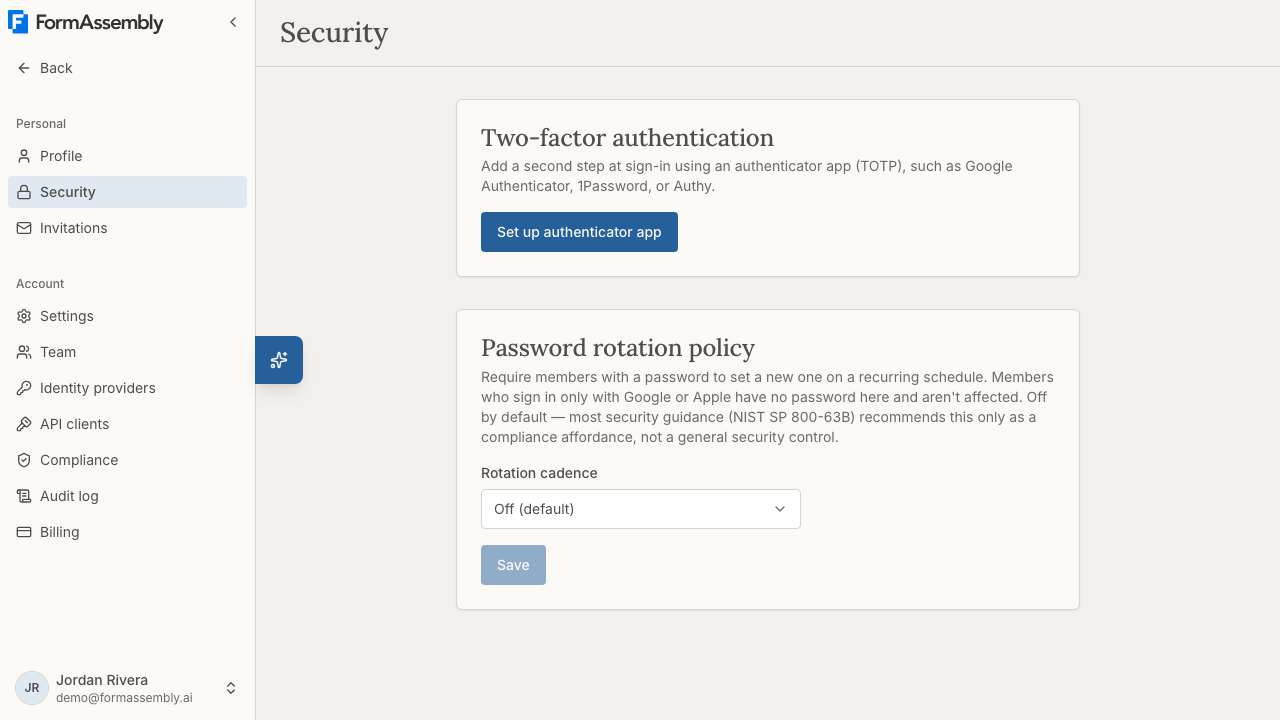
- Security — the page headed Security, which contains the Two-factor authentication section with the Set up authenticator app button, and the Password rotation policy section.
- Profile — the page headed Profile, which contains the Password section (Current password, New password, Confirm new password, and the Change password button), along with Identity, Preferences, Onboarding, Fai & AI, Account Membership, and Danger zone.
Open either page from the primary navigation sidebar. Your personal pages are Profile, Security, and Invitations. Account-level pages — Settings, Team, Identity providers, API clients, Compliance, and Billing — appear according to your role. The Password rotation policy section on the Security page is shown only to members who hold the password-policy permission, which account admins hold by default.
What is two-factor authentication in FormAssembly?
Two-factor authentication (2FA, also called multi-factor authentication or MFA) requires a second proof of identity in addition to your password when you sign in. It matters because a stolen or reused password on its own is then not enough to reach your forms, submissions, and connected services.
FormAssembly supports one second factor:
- Authenticator app (TOTP) — a six-digit code from an app such as Google Authenticator, 1Password, or Authy. This is the factor you enrol with Set up authenticator app.
- Backup codes — ten single-use codes generated automatically when you first turn on two-factor authentication. A backup code can be used in place of an authenticator code.
FormAssembly does not support SMS text messages as a second factor, because SMS is vulnerable to SIM-swap and number-porting attacks. If you want a phone-based second factor, enrol an authenticator app on your phone. (SMS is still used separately to verify ownership of a phone number you add under Identity.)
Do I have to turn on two-factor authentication?
No. Two-factor authentication is optional for everyone in FormAssembly, including account admins. If you have not set up an authenticator app, FormAssembly asks for no second factor when you sign in — your password (or your Google or Apple sign-in) is the only credential.
Because two-factor authentication is optional, turning it on is worth doing even though nothing forces you to: it is the single strongest protection available on a FormAssembly account.
How do I set up an authenticator app?
- Open the Security page.
- In the Two-factor authentication section, click Set up authenticator app.
- Scan the QR code with your authenticator app. If you cannot scan, type the Manual entry key shown alongside the code into your app instead.
- Enter the six-digit code your app generates and click Verify & activate.
- Save the backup codes that appear. They are shown once and never again — see below.
Enrolment works on a phone as well as a desktop browser: you can scan the QR code with a mobile device.
Backup codes
Ten single-use backup codes are generated when you first turn on two-factor authentication. Backup codes exist so that losing your phone does not lock you out of FormAssembly.
- The codes are displayed once, at the moment they are generated, and are never shown again. FormAssembly stores only hashed versions, so no one — including support — can retrieve them later. Save them somewhere safe, such as a password manager.
- At sign-in, a backup code is accepted in place of an authenticator code.
- Each code is consumed on first successful use.
- You can regenerate the set from the Security page with Regenerate backup codes. Regeneration invalidates the previous set in full — you always have at most one active set of backup codes.
- Running out of codes does not automatically turn off two-factor authentication. If you exhaust your codes and lose your authenticator app, the account cannot be recovered.
What happens when I sign in?
When two-factor authentication is on, FormAssembly asks for your second factor as part of signing in:
- Email and password sign-in: the six-digit code is requested in the sign-in form itself.
- Google or Apple sign-in: a separate page asks for the code after the provider returns you to FormAssembly.
Either surface accepts an authenticator code or a backup code.
Failed two-factor codes have their own limit, counted separately from failed passwords — see Account lockout below.
Removing a factor or regenerating backup codes
Removing your authenticator app and regenerating backup codes are both protected by a step-up check on the Security page: you must enter a current code (from your authenticator app, or a backup code in its place) before the change goes through. This prevents someone who has hijacked an open session from silently stripping your second factor.
- Click Remove two-factor, enter a current code, and click Confirm remove. Removing the authenticator app turns two-factor authentication off entirely — the section then reads "Two-factor authentication is off." — and clears your backup codes, because they are no longer usable.
- Click Regenerate backup codes, enter a current code, and click Confirm regenerate. The new set replaces the previous one in full.
- A failed verification blocks the removal or regeneration.
FormAssembly also emails your account address when two-factor authentication is turned on or off, when a new backup-code set is issued, when a backup code is used to sign in, and when two-factor attempts are locked — so a change made by someone else is visible to you even without access to the session. The advice in those emails matches how you sign in: if Google or Apple is your only credential, the email points you at that provider rather than at a FormAssembly password reset, because an account with no FormAssembly password has nothing to reset.
What if I lose my authenticator app?
The only way back into a FormAssembly account when the authenticator app is lost is an unused backup code. Sign in with one of the single-use codes generated when you turned two-factor authentication on, then set up a new authenticator app from the Security page.
FormAssembly support is not a recovery path and cannot reset your second factor. No administrator can reset it either.
Warning: if you have no unused backup code, the account cannot be recovered. Deleting the account is not a way back in — deletion does not restore access to anything in the account and cannot be undone.
Changing your password
Change your password from the Password section of the Profile page:
- Enter your existing password in Current password.
- Enter your new password in New password. It must be at least 12 characters.
- Re-enter it in Confirm new password.
- Click Change password.
Your new password cannot match your current password or any of your four most recent previous passwords. When the new password is saved, all of your other active sessions are signed out.
The password fields on the sign-in and sign-up forms have a show/hide toggle so you can check what you typed. The three change-password fields on the Profile page do not offer that toggle.
Resetting a forgotten password
If you cannot sign in, use the Forgot password? link on the login form and enter your email address. FormAssembly always shows the same confirmation message whether or not the address matches an account, so the page cannot be used to discover who has an account.
- Submitting the form runs an automatic security check that stops bots. If the check fails, the address you typed stays in the box, an error is shown, and no email is sent.
- If the address belongs to a password-based account, an email arrives with a one-time link that is valid for 1 hour and can be used once.
- Follow the link, set a new password, and sign in again. Both new-password fields on the reset-password page have a show/hide toggle so you can check what you typed.
- A successful reset signs out all of your active sessions and clears any password lockout.
- Requesting a reset does not by itself sign you out.
- Only one reset email is sent per account per minute. If you ask again straight away, no second email is sent and the link from the first email still works. Requesting a new link later replaces the earlier one.
- If you only ever sign in with Google or Apple, no reset email is sent — you have no FormAssembly password to reset.
Password rotation policy
An account admin can require everyone in the account to change their password on a schedule, from the Password rotation policy section of the Security page. FormAssembly leaves rotation off by default, because current security guidance does not recommend forced password rotation; the policy exists for organizations whose compliance rules require it.
To set it:
- Open the Security page.
- In Password rotation policy, open the Rotation cadence selector and choose Off (default), Every 90 days, Every 180 days, or Every year.
- Click Save.
What members experience once rotation is on:
- In the 5 days before a member's password falls due, signing in shows a change-password page instead of the Workflows page, and that page offers Skip for now.
- Once the due date passes, the password must be changed before the member can continue, and Skip for now is no longer offered.
- Members who sign in only with Google or Apple have no FormAssembly password to rotate and are exempt from the policy.
Account lockout
FormAssembly has two separate limits, counted independently of each other: one for failed passwords and one for failed two-factor codes.
Password sign-in. FormAssembly blocks password sign-in after 5 or more failed attempts within a 5-minute window. The account is locked for 30 minutes and unlocks automatically on the next sign-in attempt after that. A notification email is sent containing a password reset link, and completing a reset clears the lockout immediately. An admin can also clear it with Unlock account.
Two-factor codes. After 10 failed codes within 15 minutes, FormAssembly stops accepting further codes until the 15 minutes pass. Neither a password reset nor an admin unlock clears this limit — you have to wait it out.
Lockout applies only to email-and-password sign-in. If you authenticate through Google or Apple, your identity provider handles failed attempts instead.
Org admins can unlock any locked user in their org — including other admins — from the row action menu in the member list, which shows a locked indicator on affected rows.
Sessions
A FormAssembly session lasts 30 days and is renewed daily while you keep using the account. FormAssembly holds sessions server-side, so they can be ended immediately when needed.
Sessions are signed out automatically when:
- You change your password — all of your other sessions end, and the one you are using stays signed in.
- You reset a forgotten password — all sessions end, including the one you reset from.
- An admin unlocks your locked account.
- You are removed from an account.
- The account is cancelled.
"Keep me signed in" and "remember this device" are intentionally not offered.
Email verification
If you signed up with an email address and password, your FormAssembly account starts unverified. You can sign in, but every page redirects to a "verify your email" screen until you confirm the address.
- The verification email contains a single-use 6-digit code valid for 1 hour. Enter the code on the verify screen to lift the gate. FormAssembly uses a code rather than a clickable link because email security scanners often pre-fetch links and would consume a single-use link before you see it.
- After 5 incorrect entries the code is invalidated and you must request a new one. Resends are limited to 1 per minute and 5 per hour.
- If you mistyped your address at signup, correct it from the verify screen. The previous code is invalidated and a fresh code is sent to the corrected address.
- The verify screen also lets you sign out, so you can leave without verifying and return later.
- Verification comes before everything else, including onboarding. An expired code is never a dead end — sign in again and request a new one.
- Users who sign in with Google or Apple, and users who join by accepting an invitation, are verified already and never see this screen.
Tips & Troubleshooting
- Your authenticator code is rejected even though it looks right. Time-based codes depend on an accurate clock. Enable automatic date and time on the device running your authenticator app, then try the next code. A code already used to sign in or to pass a step-up check cannot be reused within its validity window.
- You did not save your backup codes. You cannot retrieve the old set — FormAssembly stores only hashes. While you still have access to your authenticator app, click Regenerate backup codes on the Security page and save the new set immediately. Regenerating invalidates the previous set.
- Your two-factor codes stop being accepted after several wrong tries. Ten failed codes within 15 minutes blocks further codes until the 15 minutes pass. Waiting is the only fix: a password reset and an admin unlock do not clear this limit.
- You are locked out of password sign-in. Wait for the 30-minute lockout to expire, complete a password reset using the link in the lockout email, or ask an org admin to use Unlock account.
- You are asked to change your password at sign-in. Your account admin has set a rotation cadence and your password is due, or due within 5 days. Skip for now is offered only in those 5 days before the due date; after it, the change is required.
- You never received a verification, reset, or lockout email. Check spam and quarantine folders first. Reset links expire after 1 hour and can be used once, so request a fresh one if the link has gone stale. Requesting a new reset link invalidates any earlier one.
- You want to close your account. On a personal account, open Profile, go to Account Membership → Danger zone, and click Delete account. If you are a member of an organization account, that section offers Leave account instead. Deletion cannot be undone and does not restore access to an account you are locked out of — if you have lost your authenticator app, use a backup code instead.
Was this article helpful?