Connecting AI Assistants (MCP)
How to connect an external AI assistant — such as Claude, ChatGPT, or Cursor — to your FormAssembly account through the MCP server, what the assistant can do once connected, and how to review or revoke its access.
What is MCP?
MCP (Model Context Protocol) is an open standard that lets AI assistants connect to external services. FormAssembly runs an MCP server so that any MCP-compatible AI assistant can connect to your FormAssembly account. AI assistants that support MCP, such as Claude, ChatGPT, or Cursor, can use this connection to help you manage workflows, explore your connections, search documentation, and more — all within the assistant's own interface.
You provide a single endpoint URL, and the assistant handles the rest automatically. The assistant never sees your FormAssembly password, and you always approve exactly what it can access before the connection is active.
How to connect an AI assistant
The connection process starts in your AI assistant, not in FormAssembly. The exact steps vary by assistant, but the overall flow is the same:
- Add the FormAssembly MCP server in your assistant. Open your AI assistant's settings or configuration area and look for an option to add an MCP server, connector, or integration. Paste the FormAssembly MCP endpoint URL:
`` https://app.formassembly.ai/mcp ``
That single URL is all you need to provide — the assistant discovers everything else automatically.
- Sign in to FormAssembly. The assistant opens a FormAssembly sign-in page in your browser. Sign in with your FormAssembly credentials. You are always signing in on FormAssembly's own screen — your password is never shared with the assistant.
- Review and approve permissions. After signing in, FormAssembly displays a consent screen listing the specific permissions the assistant is requesting. The consent screen also says who stands behind the app: an app registered by a FormAssembly account names that account, and an app that registered itself is identified as such, because FormAssembly cannot confirm who runs it. Review what the assistant is asking to do, then allow or deny the request. The consent screen is all-or-nothing: you can approve every permission the assistant asked for, or deny the request entirely. You cannot approve some and decline others.
- Start using the assistant. Once you allow access, the assistant is connected to your FormAssembly account and can act on your behalf within the permissions you granted.
Because each AI assistant has its own interface for adding MCP servers, consult your assistant's documentation if you need help finding the right setting. FormAssembly does not control the assistant's setup screens.
The assistant must connect from its own app or server. An MCP client that runs inside a web page in your browser cannot connect to the FormAssembly MCP endpoint.
What can a connected assistant do?
A connected assistant can only perform actions within the permissions you approved on the consent screen. FormAssembly groups permissions by capability:
- View your name and profile information — The assistant can see your name and role in your FormAssembly account. It can also hand you a link for signing in to FormAssembly when you need one.
- View your email address — The assistant can see the email address on your FormAssembly account.
- View your workflows — The assistant can list and view the workflows in your account. It can also list the identity providers your account has enabled, which is what a workflow uses when access to it is restricted to signed-in respondents. Creating a prefilled link for a workflow also needs only this permission.
- Create, edit and delete your workflows — The assistant can build new workflows, modify existing ones, and delete them on your behalf. With this permission the assistant can also change a workflow's custom URL or its internal name.
- Publish your workflows or take them offline — Where the assistant asked for this separate permission, it can publish a draft to make it live, or take a live workflow back offline. Publishing is its own permission because it puts a form in front of respondents, and taking a workflow offline stops it collecting data.
- View your connected accounts — The assistant can see which third-party services (such as Salesforce or Google Sheets) you have connected to FormAssembly.
- Start connecting new accounts (Salesforce, Google, etc.) — The assistant can start the process of connecting a new third-party service. You still authorize the service yourself in your browser — the assistant cannot approve third-party connections for you.
- Search FormAssembly documentation — The assistant can search FormAssembly's documentation to answer your questions.
- Send feedback and bug reports to FormAssembly on your behalf — Where the assistant asked for this permission, it can send feedback, bug reports, or feature requests on your behalf.
- View your account's audit log — The consent screen can list this permission, but no connected assistant can use it today: no assistant action reads the audit log.
An assistant only gets the permissions you approved on the consent screen, and nothing more. If the assistant needs additional permissions later, it must ask you to reconnect and approve them.
What happens when an assistant creates or changes a workflow?
Workflows an AI assistant creates or changes in FormAssembly are saved as unpublished drafts, so the form content does not go live until the workflow is published. A connected assistant can publish or unpublish a workflow only if you granted the Publish your workflows or take them offline permission on the consent screen; without it, publishing stays a deliberate action you take in FormAssembly.
Two changes are the exception to the draft rule. With Create, edit and delete your workflows, an assistant can rename a workflow or change its custom URL, and both take effect at once, outside the draft. Changing the custom URL breaks the old public link — previously shared links, embeds and resume links stop working, and there is no redirect from the old address.
A few things to expect:
- Building a form takes a little time. When an assistant creates a workflow, FormAssembly creates the workflow right away and then continues building the form contents in the background, which typically takes one to three minutes. The assistant may report success before the form is finished.
- You get a preview link first. The assistant returns a preview link that works immediately. Open the preview link to watch the form fill in as the build completes. If you open it early, you may see a "We're building your form…" placeholder.
- The public link only works after you publish. The assistant may also show the workflow's eventual live address, but that address is not reachable until the workflow is published.
- The workflow takes the name the assistant gives it. The name comes from the title supplied when the workflow is created, so ask the assistant for a specific title if the name matters to you. You can rename the workflow later in FormAssembly.
- Changes are saved to the draft. When an assistant modifies an existing workflow's contents, the change is saved to the unpublished draft. Publish the workflow again to make the change live.
- Respondents cannot fill out the form inside the assistant. The assistant hands you links; form filling always happens in a browser on FormAssembly.
If a background build fails partway through, the assistant cannot report it — open the preview link, and if the form looks incomplete, ask the assistant to modify the workflow or finish it in the FormAssembly builder.
Reviewing and revoking access
Every AI assistant you have connected to your FormAssembly account appears on the Authorized apps page. To reach the Authorized apps page, navigate to /settings/authorized-apps in your browser. This page does not currently have a menu or navigation entry — you need to go to the URL directly.
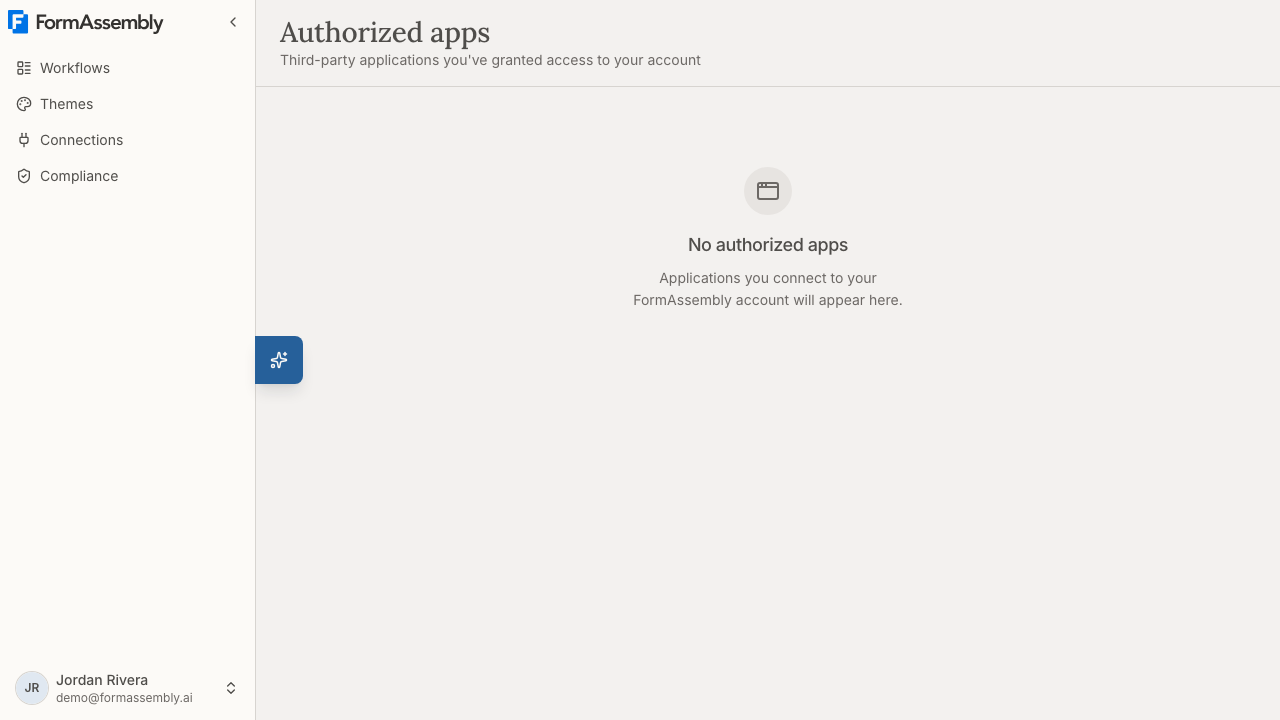
On the Authorized apps page, each connected assistant shows:
- The app's name.
- When you authorized it.
- The permissions you granted, listed as short permission codes (such as
workflows:read) rather than the wording used on the consent screen. An assistant you connected before mid-October 2026 may show no permissions at all until you connect it again. - A button to revoke access.
Revoking an assistant's access
Revoking an assistant immediately and fully cuts off its access to your FormAssembly account. The assistant can no longer read or change anything on your behalf. FormAssembly asks you to confirm before completing the revocation. To reconnect the assistant after revoking, you go through the full connect-and-consent flow again.
Tips & Troubleshooting
- You only need one URL. The FormAssembly MCP endpoint URL (
https://app.formassembly.ai/mcp) is the only thing you need to provide when setting up the connection. Do not look for additional URLs, API keys, or secrets. - Any MCP-compatible assistant works, as long as it connects from its own app or server. FormAssembly is not limited to a specific AI assistant. AI assistants that support MCP, such as Claude, ChatGPT, or Cursor, can all connect using the same endpoint URL. An MCP client running inside a web page in your browser cannot connect.
- Your password stays with FormAssembly. When connecting, you always sign in on FormAssembly's own sign-in page. The AI assistant never receives or stores your FormAssembly password.
- Permissions are decided by the assistant, and approved as a set. The consent screen lists the permissions the assistant asked for, and you can only allow all of them or deny the request. If you connect the same assistant again (for example, after revoking), you see the same consent screen again.
- Revoke access if something seems wrong. If you no longer use an assistant or want to cut off its access, visit the Authorized apps page at
/settings/authorized-appsand revoke it. The disconnection takes effect immediately. - Assistant setup screens vary. Each AI assistant has its own interface for adding MCP servers. If you cannot find where to add the FormAssembly endpoint, check your assistant's own documentation for instructions on connecting MCP servers or integrations.
- If an assistant stops working, reconnect it. Access that you revoked, or that has expired, no longer works. The assistant should prompt you to sign in to FormAssembly again; if it does not, remove the FormAssembly connection in your assistant and add the endpoint URL again.
- If the assistant says a form is "ready" but it looks empty, wait a moment. FormAssembly is still building the form in the background. Reload the preview link after a minute or two.
- If the assistant times out while changing a workflow, check FormAssembly before retrying. Modifying an existing workflow can take one to three minutes, and some assistants give up on a long-running request before it finishes. Open the workflow in FormAssembly to see whether the change was saved to the draft, and only ask again if it was not.
- If you want publishing to stay in your hands, choose the assistant accordingly. You cannot approve an assistant's other permissions while declining Publish your workflows or take them offline. Either use an assistant that does not ask for that permission, or deny the request and publish in FormAssembly yourself.
- Be careful when asking an assistant to change a workflow's custom URL. The change applies immediately, even to a published workflow, and the old address stops working with no redirect.
Was this article helpful?