---
title: "Collecting Responses"
description: "How to publish workflows, share form links, test submissions, embed forms, and review collected data."
slug: "collecting-responses"
audience: "all"
generated_at: "2026-10-16T18:02:10.462Z"
screenshots:
- "/docs/screenshots/collecting-responses/builder.png"
---
Once your workflow is published, respondents can open your form at its public link and submit responses. This article explains how to test, publish, schedule, and share your FormAssembly workflow, what your respondents will see when they fill out a form, and how to embed a form on your own website.
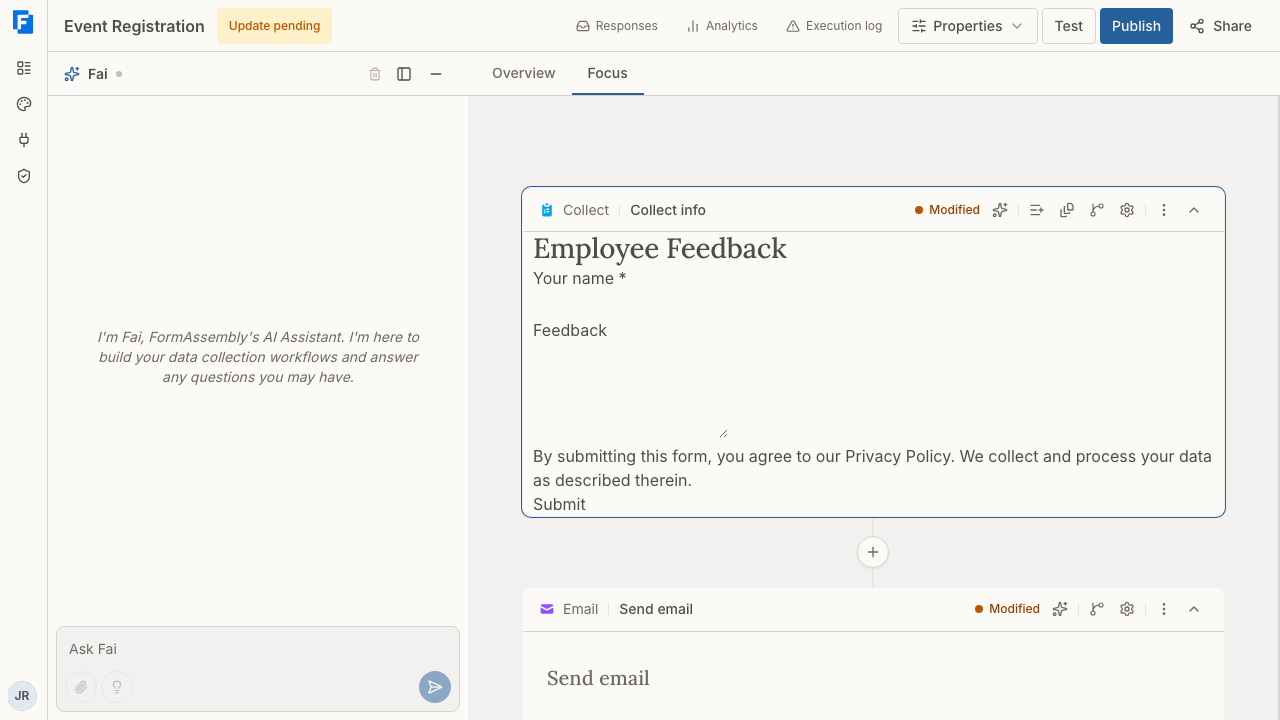
## Testing your workflow before publishing
Before sharing a workflow with real respondents, you can run through it yourself to make sure everything works as expected.
1. Open your workflow in the builder.
2. Click **Test** in the top navigation.
3. A new browser tab opens, showing your form as a respondent would see it — with one addition: a yellow **test mode banner** at the top of the page.
4. Fill out the form and submit it to walk through every step of the workflow.
FormAssembly runs the same validation checks when you click **Test** as when you publish. If your workflow has incomplete or misconfigured steps — for example, an email step with an invalid recipient address, or a connector step that hasn't been set up — a banner appears in the builder, usually titled **Can't test yet** (other titles include "This workflow isn't valid yet"), listing the problem step by step. The banner sometimes offers an **Ask Fai for help** button, which hands the issue over to Fai, the AI assistant built into the FormAssembly builder. The test does not open until all issues are resolved, and fixing one set of problems can reveal more.
The workflow's owner and any admin of the account can start a test run — the same people who can edit and publish it. A member who is neither the owner nor an account admin cannot test the workflow. A collaborator the workflow has been shared with can open it at their access level, but still cannot test it unless they are the owner or an account admin. Test emails always go to the person running the test, so an admin testing a teammate's workflow receives the test mail themselves. Ownership can be transferred: the owner or an account admin clicks **Properties**, chooses **Collaboration**, and uses **Change owner**.
### What happens during a test run
- **You see what respondents see, with a few deliberate differences.** The form, validation, and all workflow steps run as they would for a real respondent, except for the points below.
- **Email notifications are sent to you.** Any email step in your workflow sends the message to your own account email address (not the address configured in the step), and BCC recipients are not sent. The subject line is prefixed with **[TEST]**, and the email body includes a note showing who the message would normally be sent to. Invitation and resume emails also come to you.
- **Connected systems receive real data.** If your workflow sends data to an external system (for example, Salesforce or Google Sheets), test submissions create real records in that system. The test mode banner warns you about this. If a step has a test (sandbox) connection configured, that step runs against the sandbox environment instead, so records are created only there. A connector step that has only a sandbox connection can still be tested.
- **The availability window is ignored.** A test run opens the form even outside the scheduled window, and the banner tells you whether the window is currently open.
- **Test runs are recorded as real workflow runs.** Test submissions are stored alongside live ones but are marked as test runs so you can tell them apart. Test runs are not counted toward your usage or your analytics. You can start up to 40 test sessions per hour, counted per person across all of your workflows.
Clicking **Test** saves any pending edits first, then runs the latest draft — or the published version if there is no draft. A test that is already open keeps the version it started with; click **Test** again to pick up later edits.
> **Note:** The test link is private to you and must be opened within one hour. It cannot be shared with other people. Once the test is open, the run continues. If you open the link while signed out, you are sent to sign in first.
### Filling a test form automatically with Fill Test Data
The test mode banner includes a **Fill Test Data** button that populates the form with valid sample data in one click, so you can walk a workflow end to end without typing every field by hand.
Click **Fill Test Data** and FormAssembly answers the form the way a respondent would: one visible field at a time, in order, moving between pages using the form's own navigation buttons. Because each value is entered as a real interaction, conditions, calculations, and dependent lists all behave exactly as they do for a respondent.
Fill Test Data fills only the current step's form, and it never submits the form for you. If your workflow has more than one form step, click **Fill Test Data** again on each one. If a page cannot be completed — for example, it contains a field Fill Test Data cannot fill — it stops on that page.
What gets filled:
- Email fields are filled with your own account email address, so email steps in the workflow remain testable.
- Free-text fields are filled with lorem ipsum, so test data is easy to recognize wherever it lands — including in records created in your connected systems.
- Numbers, dates, times, and formatted fields (phone, URL, postal code, and similar) receive values that satisfy the field's own validation rules. A time field with a minimum or maximum may still need adjusting by hand.
- Choice fields receive their first option, or as many first options as the field's minimum number of selections requires. Ratings receive the middle of the scale, and ranked choices receive every option in the order listed.
- A dynamic lookup field is answered by choosing a real row from its connected dataset, which also populates any fields that the lookup maps its columns to. If the lookup returns no rows or times out, the lookup field and the fields it would have filled are left empty.
- Each repeatable section gets one additional entry, so the section ends up filled twice, within any repeat limit you have set.
What is left empty:
- Fields hidden by a condition, and pages a condition skips, are never reached.
- Read-only fields, including calculated fields, are skipped because a respondent cannot type into them.
- Fields that already have a value — a default value or a value prefilled from a link — are left as they are, so your test scenario is not overwritten.
- File uploads and fields with a custom validation pattern cannot be generated automatically.
**Fill Test Data does not produce a report of what it filled.** If a required field is left empty, the form's normal validation flags it when you submit, and you can answer it yourself.
Fill Test Data is hidden when the workflow's intake agent is running in conversation mode, because there is no visible form for it to fill.
## Publishing your workflow
Publishing makes your workflow available to respondents at its public URL.
1. Open your workflow in the builder.
2. Click **Publish** in the top navigation.
Once published, the workflow is live and respondents can submit responses. If you make changes after publishing, those changes remain in draft until you publish again — your live respondents continue to see the previously published version.
E-signature is available on the plans that include it, and a workflow with a sign step publishes and tests normally on those plans. On a plan without e-signature, the sign step is locked: choosing **E-Signature** in the Add step menu in Focus view opens the upgrade prompt, and so does clicking **Publish** or **Test** on a workflow that already contains a sign step. Document generation steps do not block publishing — but a document generation step with no template uploaded does, so finish setting the step up with Fai before you publish.
If your workflow is unpublished or archived, visitors to the URL see the message "This form is currently unavailable."
### When Publish doesn't put the form live
If your account requires compliance review, clicking **Publish** submits the workflow for review instead of publishing it immediately. The **Publish** button is disabled and **Submitted for review** appears beside it. The workflow goes live once a reviewer approves it. See also: Compliance & Policies.
If your account is at its workflow limit, you cannot publish a workflow that is not already live until you archive another workflow or upgrade your plan. Republishing a workflow that is already live still works.
### Why Publish or Share is greyed out
- **Publish** is disabled when there are no unpublished changes, while a publish is in progress, and while a publish is waiting for compliance review.
- **Share** is disabled until the workflow has been published, and when the workflow is archived.
### Republishing and responses already in progress
Each response stays on the version of the workflow it started with, including responses that were saved and later resumed. Republishing never changes the form under a respondent who is partway through.
### Taking a form offline
There is no Unpublish button in the builder. To take a published form offline, archive the workflow from the row menu in the workflows list, or ask Fai to unpublish it. Both are abrupt: they cut off respondents who are partway through, and saved resume links stop working — even though the archive dialog mentions only that new submissions stop. If you simply want to stop accepting new responses, set a **Closes** date instead.
## Scheduling when the form accepts responses
You can schedule when your FormAssembly form accepts responses, so it opens and closes on its own rather than needing you to publish or archive it at the right moment.
1. Click **Properties** in the builder's top navigation.
2. Choose **Availability** to open the **Workflow Availability** panel.
3. Set an **Opens** date and time, a **Closes** date and time, or both.
4. Optionally enter an **Unavailable Message** that respondents see outside the window.
Times are shown in the workflow's timezone, or in your own timezone if the workflow has none; there is no timezone picker in the panel. Outside the window, respondents see "Workflow is not yet available" or "Workflow is no longer available", or your custom message if you have set one. A respondent who is already partway through is never cut off. Test runs ignore the availability window, and an embedded form does not currently enforce it.
## Requiring sign-in
By default, anyone with the link can open and submit your form without an account. To require respondents to identify themselves, click **Properties**, choose **Access**, then **Authentication**, and set **Requires sign-in** to one of the identity providers an admin has added in Settings, rather than "No sign-in required". See also: Single Sign-On, which covers adding providers.
## Sharing your workflow
After a publish that goes live, the share popup opens on its own. Once the workflow is published you can reopen it at any time with **Share**.
- Click **Share** in the top navigation to open the sharing options. Below desktop widths, the **Share** button shows only its icon.
- The public link is under **Live URL**. Copy it with the copy icon beside it, or use the open-in-new-tab icon next to it to view the live form.
- The embed code is under **Embed on your website**. Copy it with **Copy** (see [Embedding a form on your website](#embedding-a-form-on-your-website) below).
The public link follows the pattern:
```
https://app.formassembly.ai/wf/your-account/your-workflow
```
The workflow part of the URL is set when the workflow is created and does not change if you rename the workflow. You can change it deliberately: click **Properties**, choose **Access**, and edit the **URL ending** under **Custom URL**. The change takes effect immediately and the old URL stops working, so links you have already shared, embed snippets on other sites, and resume or invitation links already emailed all break. On a live workflow, FormAssembly asks you to confirm before saving the change.
Unless you have set an availability window or required sign-in, anyone with the link can open the form and submit a response without an account.
## What respondents experience
When a respondent opens your form, they see a clean, accessible page with your form fields and any instructions you've added. Here's what to expect at each stage.
### Filling out the form
- **Field types** — Respondents may see text fields, dropdowns, checkboxes, radio buttons, file uploads, and more, depending on how you've built your form.
- **Required fields** — Fields you've marked as required must be completed before the form can be submitted.
- **Conditional fields** — Fields with visibility conditions appear or disappear as soon as the answer they depend on changes. For a text field, that is when the respondent leaves the field rather than as they type.
- **Repeatable sections** — If your form includes repeatable sections, respondents can add or remove entries up to any limit you set. The first entry cannot be removed.
- **Prefilled values** — If a field has a prefilled value, FormAssembly fills it in before the page reaches the respondent, so the value is already present when the form first appears.
- **File uploads** — Respondents can upload files up to 50 MB each, or a lower limit set on the field. The upload control always shows the size limit, and shows the allowed file types only when the field restricts them.
### Choosing a language
A FormAssembly workflow can offer more than one language. When a workflow carries translations, each response runs in a single language: the form starts in the language that best matches the respondent's browser, and a language switcher on the form lets the respondent change it. See also: Form Design, which covers the workflow's default language and how translations are added.
### Multi-page forms
If your form has multiple pages, respondents navigate between them using **Previous** and **Next** buttons. Page titles are shown by default (**Show page titles**). You can also turn on **Show page numbers**, **Show navigation tabs** and **Show progress bar**, which are off by default. Navigation tabs let respondents jump between pages without the page being validated on the way.
The Next and Previous labels can be changed per page only by asking Fai — there is no builder control for them.
### Validation
Validation runs as the respondent fills the form and again when they move on. Each field other than radio buttons and checkboxes is checked when the respondent leaves it, and every field on the page is checked when they click **Next** or **Submit**:
- Required fields that are left blank are flagged.
- Format checks run on fields like email addresses, dates, and numbers.
- Length and range limits are enforced where configured.
Validation errors appear directly below the relevant field with a clear description of the problem. When **Next** or **Submit** finds an error, focus moves to the first field with an error so the respondent can correct it immediately. When the server rejects a submission on a multi-page form, the form reopens on the first page that contains an error rather than on page one.
If a respondent has already uploaded a file and the form is re-displayed after a validation error, the uploaded file is kept — the respondent does not have to upload it again.
FormAssembly re-checks every submission on the server, including which fields were genuinely visible to the respondent, so validation rules cannot be bypassed in the browser.
### Review before submit
If you turn on **Review Before Submit** in the **Properties** panel for a Collect step, the button on the last page reads **Review**, and respondents see a summary of their answers before the form is submitted. The summary page offers **Back** and the final submit button, giving respondents a chance to go back and correct anything. Other options in the same panel — **Show form title**, **Submit button label**, and **Default label position** — also change what respondents see on the form.
### Saving and resuming a form
Turn on save and resume with the **Allow save & resume** switch in the Collect step's **Step settings**, under the **Submission** group. Turning it on asks "What happens after a respondent saves?" so you can pick the step a save leads to — usually an email step that sends the respondent their resume link. Save and resume is offered only when the workflow has somewhere for a save to go; if no save route is configured, no save control appears.
With save and resume on, respondents see a **Save and finish later** control in the form's action bar on every page (shortened to **Save** on narrow screens), so someone partway through a long form can stop and come back later.
When a respondent clicks **Save and finish later**:
1. A dialog opens explaining that a link will be emailed, and shows the address the link will be sent to. The address is prefilled when FormAssembly already knows it, and may be editable.
2. If the workflow does not already know the respondent's address — for example, the respondent is still on page one and has not reached the email field — the respondent enters an address in the dialog.
3. Clicking **Save and email my link** saves the answers entered so far. **Cancel**, Escape, or clicking outside the dialog returns to the form unchanged.
**The resume link is sent only if the email step on the save route includes its own resume link in its message.** Add the `{{ step_N._resumeUrl }}` reference to that email step's message, using that step's own ID in place of `step_N`. Without it, the answers are saved but the respondent receives no way back in.
Saving does not require the form to be complete — required fields and minimum lengths are not enforced — but anything the respondent has already entered must still be valid, such as a correctly formatted email address. When a respondent returns on a resume link, the address in the save dialog is usually shown read-only.
**Resume links stay valid for a year** and can be reused until the response is finished. Saving again replaces the earlier link, so the link in an older email stops working.
### How long a respondent has to submit
A respondent has four hours from the moment the form loads to submit it, and all of that form's pages count toward the time. After four hours, submitting or saving shows "This form session has expired. Please refresh the page." and unsaved answers are lost — the respondent needs to reopen the original link and start again. For long forms, turn on save and resume, and tell respondents to save within the four hours.
### Completing the workflow
While a submission is sending, the submit button reads "Please wait..." in the workflow's language, so respondents know not to click again.
If FormAssembly cannot accept a submission, the form stays on the page with every typed answer kept, a banner at the top explains why, and **Submit** works again. The three messages are "This form is still being processed. Please try again in a moment.", "Too many submissions. Please try again later." and "Your submission could not be sent. Check your connection and try again."
After the last form is submitted, any email and connector steps run. The respondent may briefly see "Your submission is being processed. This page will refresh automatically." before your confirmation message appears or the redirect you configured takes them away. Steps that need someone else, such as approvals, wait for that person before the workflow continues.
### What a signer sees
If your workflow includes an e-signature (sign) step, the person assigned to sign opens a signing page on FormAssembly's hosted page, where the generated document appears in a document viewer. Only that signer's own fields are active, so one signer can never fill in another's.
- A bar at the bottom of the page steps through the signer's fields in order, with **Previous field** and **Next field**. Once the current field is done, the main button reads **Continue**. A signature or set of initials can be drawn, typed, or uploaded. The date field is filled in with today's date.
- A bar at the top shows progress (for example, "2 of 4 fields done"), a **Download** control for the copy on screen, and **Decline to sign**. When every field is complete, the progress bar reads "All fields done". On a narrow screen these move into an **Options** menu.
- When every field is done, the consent checkbox ("I agree to sign this document electronically.") and **Sign** appear in the bottom bar. Signing requires the checkbox.
- Declining asks for confirmation and takes an optional reason of up to 500 characters.
- If the sign step is the workflow's last step, the signer sees a confirmation that the signature or the decline was recorded.
Signing works only on the FormAssembly-hosted page. An embedded form shows the sign step with the message "This document can't be signed inside this page." and still lets the signer decline; without JavaScript, a signer can decline but not sign. Sign steps are set up by Fai — ask Fai to add a signing step, and Fai builds it from a document generation template tagged for each signer. Several signers are several assignments, one after another or in parallel.
### Accessibility
Forms are designed to support WCAG 2.2 AA:
- All fields have associated labels.
- Error messages are linked to their fields for screen readers.
- Full keyboard navigation is supported.
- Moving between pages within a form moves focus to the start of the new page, so screen readers announce new content.
- The content area announces changes politely for assistive technologies that do not follow focus.
For full details, see the accessibility report at [/legal/accessibility](/legal/accessibility).
### "Powered by FormAssembly" badge
Forms on the Collect plan show a "Powered by FormAssembly" badge. Upgrading to the Automate plan or the Enterprise plan removes it. No theme or setting hides the badge on the Collect plan.
## Embedding a form on your website
You can embed your published workflow directly into any web page so respondents can fill out the form on your site.
### Adding the embed code
1. Click **Share** in the builder's top navigation and find **Embed on your website**.
2. Click **Copy** and paste the snippet into the HTML of your web page where you want the form to appear.
The embed snippet looks like this:
```html
```
- **`data-workflow`** — Identifies which published workflow to load. It holds the account and workflow slugs exactly as they appear in the live URL, not the display names. This is filled in automatically when you copy the snippet.
- **`data-container`** — The `id` of the HTML element where the form will appear. If you leave this out, the script creates a container automatically.
An embedded workflow must start with a form (Collect) step.
### How the embedded form works
- The form renders directly inside your page. Multiple pages, validation, file uploads, save and resume, and provider sign-in all work in the embed.
- Not available on an embedded form: the intake agent and URL prefill parameters.
- Some steps leave your site. A Redirect ending navigates the respondent's whole browser window to that URL; provider sign-in navigates to the identity provider and returns to your page; payment or external checkout steps finish on the FormAssembly-hosted page. Links sent by email, such as resume links and invitations, always open the hosted page.
- Signing is not available in the embed. An embedded form shows a sign step and lets the signer decline, but the document can only be signed on the FormAssembly-hosted page.
- If your workflow requires sign-in, only provider sign-in works in the embed. An email-restricted workflow shows a message asking the respondent to follow the link sent to them.
- Form styles are scoped to the form, so most of your site's CSS won't affect the form's appearance.
- The form's logo header is hidden in embedded forms by default. Turn on the theme's **Show logo in embedded forms** setting to show it.
- An embedded form does not currently enforce the availability window.
**Use absolute URLs on pages that embed a form.** The embed script adds a `` element to your page's `` pointing at FormAssembly, which changes how your page's own relative links, images and scripts resolve. Write your page's own links and asset paths as full absolute URLs.
You can embed multiple workflows on the same page. Each workflow's snippet has a fixed container id, so to show the same workflow twice on one page, give each copy a different `data-container` id (and a matching container element).
## Where response data goes
FormAssembly stores submitted responses in the platform as each workflow run progresses. This stored data powers features like multi-step resume, run history, and audit reconstruction. In addition to storing responses, FormAssembly delivers data to the destinations you've configured in your workflow, such as an email notification or a connected external system like Salesforce or Google Sheets.
Storage and delivery are complementary — your response data is kept in FormAssembly **and** sent to the systems you've connected.
Uploaded files are stored too: a respondent's upload goes into FormAssembly's own secure file storage, linked to the response, and can be downloaded from the response. If the workflow also sends the file to a connected storage service such as Google Drive, it is delivered there as well. Uploaded files are removed when their response is deleted.
To review stored responses, click **Responses** in the builder's top navigation; the Responses view covers responses active in the last 90 days. Click **Analytics** to see submission trends for the same workflow. See also: Viewing Responses, which covers browsing submissions, filtering out test runs, and checking delivery results.
## Tips & troubleshooting
- **Form shows an "unavailable" message.** A fresh visit to an archived or unpublished workflow shows "This form is currently unavailable.", and so does an invalid or expired prefilled link, or an inactive account. Make sure your workflow is published. If you have set an availability window, respondents see its own messages instead — "Workflow is not yet available", "Workflow is no longer available", or your custom **Unavailable Message**.
- **Links stopped working after you changed the URL ending.** Changing the slug under **Properties** → **Access** → **Custom URL** breaks the old URL immediately, with no redirect. Re-share the new **Live URL** and update any embed snippets on your site.
- **Error banner appears when clicking Test.** FormAssembly validates your workflow before starting a test run, using the same checks as publishing. Review the listed problems, fix them, and click **Test** again. Fixing one set of problems can reveal more. Blocked attempts don't count toward your hourly limit.
- **Test button doesn't work for a teammate.** A member who is neither the workflow's owner nor an admin of the account cannot start a test run. Ask the owner or an account admin to run the test, or transfer ownership with **Change owner** under **Properties** → **Collaboration**.
- **Test opened an older version of your workflow.** Clicking **Test** saves pending edits first, so a fresh click always runs your latest draft. A test tab that is already open keeps the version it started with; click **Test** again for a new one.
- **Test emails aren't arriving.** Test mode sends all emails to the account email address of the person running the test, and BCC recipients are not sent. Check your spam or junk folder, and look for the **[TEST]** prefix in the subject line.
- **Fill Test Data left some fields empty.** File uploads, fields with a custom validation pattern, read-only or calculated fields, fields that already had a value, and dynamic lookups that returned no rows are skipped by design. Fill those fields yourself before submitting.
- **Fill Test Data only filled one form.** It fills the current step's form and never submits. Click it again on each form step.
- **Test data appeared in my connected system.** This is expected. Test mode runs real integrations so you can verify the full workflow. You may need to manually delete test records from your external system, or configure a test (sandbox) connection on the step.
- **Test link stopped working.** The test link must be opened within one hour. Click **Test** again to generate a fresh link.
- **Publish or Test opens an upgrade prompt.** Your plan does not include e-signature and the workflow contains a sign step. Upgrade to a plan that includes e-signature, or ask Fai to remove the signing step.
- **A signer can't sign in an embedded form.** Signing works only on the FormAssembly-hosted page. Send the signer the hosted link; from the embed they can only decline.
- **Respondents don't see a save button.** Save and resume appears only when **Allow save & resume** is on and the Collect step routes a save somewhere. Turn on the switch and pick the step the save leads to.
- **Respondents saved but never got a link.** The email step on the save route must include its own resume link placeholder in its message. Add it and publish again.
- **Respondent saw "This form session has expired."** The four-hour form session ran out. Ask the respondent to reopen the original link, and consider turning on save and resume for long forms.
- **A respondent's submission was refused with a banner.** Their answers are kept on the page and **Submit** works again, so ask them to try once more; "Too many submissions. Please try again later." clears after a short wait.
- **Embedded form shows "This form is currently unavailable."** Check that the workflow is published, that the slugs in `data-workflow` match the live URL, and that the workflow starts with a Collect step.
- **Nothing appears where the embed should be.** Check that the script tag and its `data-workflow` value are intact, and that your site's Content Security Policy allows FormAssembly. If `data-container` names an id that does not exist on the page, the form appears immediately after the script tag.
- **Your own page's links or images broke after embedding.** The embed script adds a `` element to your page. Change your page's own links and asset paths to absolute URLs.
- **Respondent sees validation errors they don't understand.** Review your form's required fields and validation rules. Use clear, specific error messages to guide respondents.